Generative AI
With generative AI you fill selections with new content, extend images beyond their edges, create images from text or colorize old photos. For this, Chromatelier uses OpenAI's image models with your own API key. An image only leaves your computer when you explicitly start one of these features.
Overview
The generative features don't run on your computer but at OpenAI. Chromatelier sends the relevant part of the image, the mask and your description (the prompt) to the image model and fits the result into your image. For this you need:
- an OpenAI account with an API key,
- an internet connection.
Chromatelier also handles many tasks without the cloud – for example removing backgrounds, removing wires and people, or replacing the sky. These features are described in the chapter AI on Your Computer.
| Feature | Where | What it does |
|---|---|---|
| Generative Fill | Edit › Generative AI | fills a selection with what you describe |
| Generative Remove | Edit › Generative AI | removes what is selected and continues the background |
| Generative Expand | Edit › Generative AI | enlarges the canvas and paints the new border |
| Generate Image | Edit › Generative AI | creates an image from text |
| Generate Background | Edit › Generative AI | keeps the subject and replaces the background |
| Harmonize | Edit › Generative AI | matches the light, color and shadows of a layer to the image below it |
| Generative Upscale | Edit › Generative AI | redraws the image at a higher resolution |
| Generate Similar | Edit › Generative AI | creates variations of the active layer |
| Generative Workspace | Window | a separate window for creating images, with a gallery |
| Smart Portrait, Makeup Transfer, Style Transfer, Colorize, Landscape Mixer | Filter › Neural Filters… | cloud filters for portraits, styles and color |
| Match Font | Type › Match Font… | recognizes the font of a text in the image |
Your own API key
You enter the key under (⌘ K) in the Generative AI section. That's also where you set the model and quality.
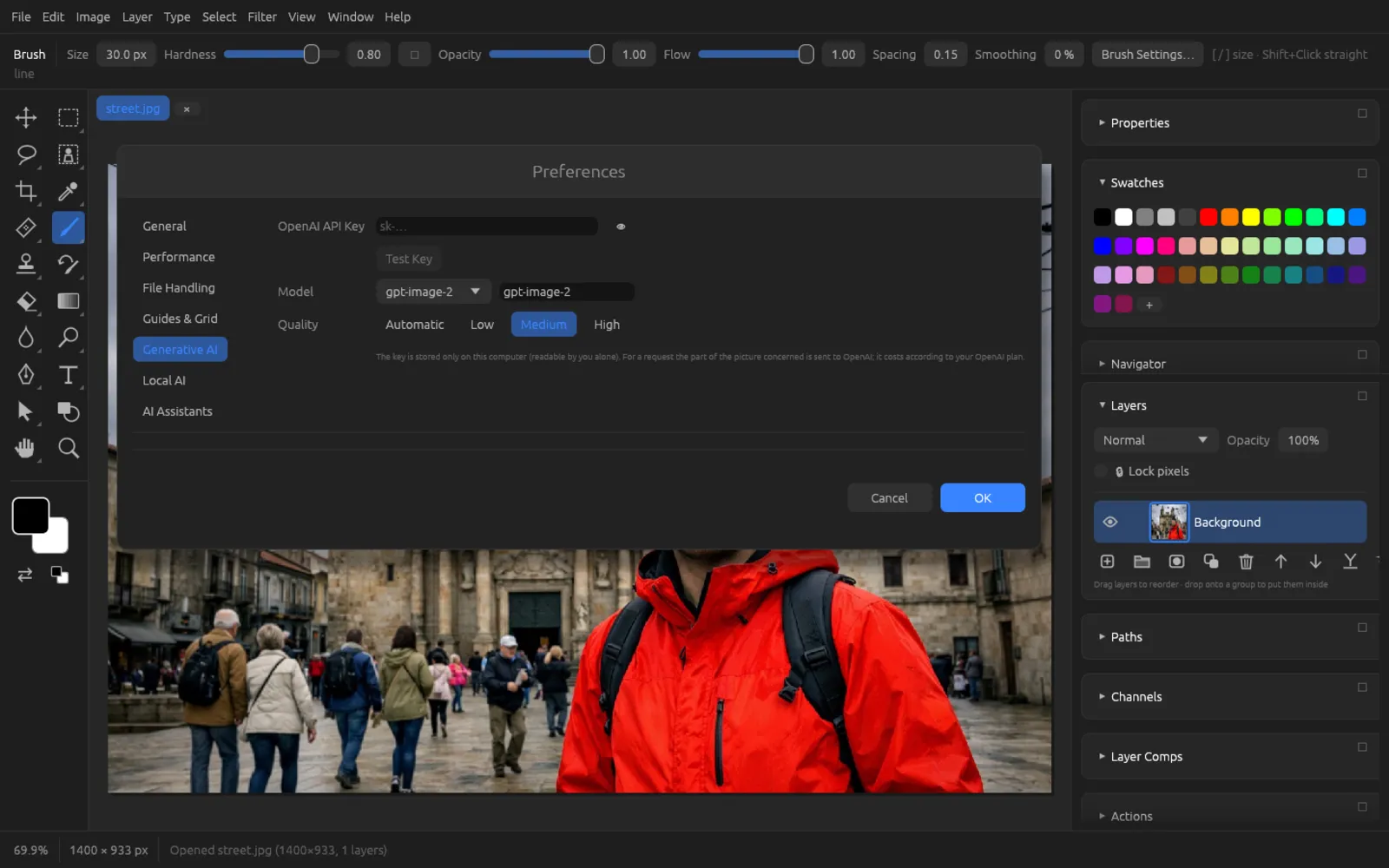
| Field | Meaning |
|---|---|
| OpenAI API Key | Your key (starts with sk-). It is shown hidden; you reveal it with the eye icon. If a key is stored, a shortened version is shown below it (“Stored: …”). |
| Test Key | Asks OpenAI whether the key is valid. If it is, “Key works: … image models” appears; otherwise OpenAI's error message. |
| Model | The image model. You can choose gpt-image-2 (default), gpt-image-1.5, gpt-image-1, gpt-image-1-mini and chatgpt-image-latest; after a successful test, also other image models of your account. You can also type a model name into the field next to it. |
| Quality | Automatic, Low, Medium (default) or High. Higher quality takes longer and costs more. |
Enter your key
- In your browser, sign in to the OpenAI platform and create a new API key there. Copy it.
- In Chromatelier, open and click Generative AI on the left.
- Paste the key into the OpenAI API Key field.
- Click Test Key. After a short while, “Key works” appears in green.
- If you like, choose the Model and Quality. To start with, gpt-image-2 and “Medium” are a good fit.
- Click OK. Only now is the key saved.
Costs and privacy
- Costs: OpenAI bills every request to your account, according to your plan there. Chromatelier itself charges nothing. More variations per request and higher quality cost more.
- Where it's stored: the key is kept only on your computer, in a separate file that only your user account can read – apart from the other settings. If no key is stored, Chromatelier uses the environment variable
OPENAI_API_KEY, if present. If you clear the field and click OK, the stored key is removed. - What is sent: only when you start a generative feature – with Generate, with OK in a cloud filter or with “Match Font…” – is the relevant part of the image sent to OpenAI along with your description. Opening, editing and saving never send anything.
Without a key
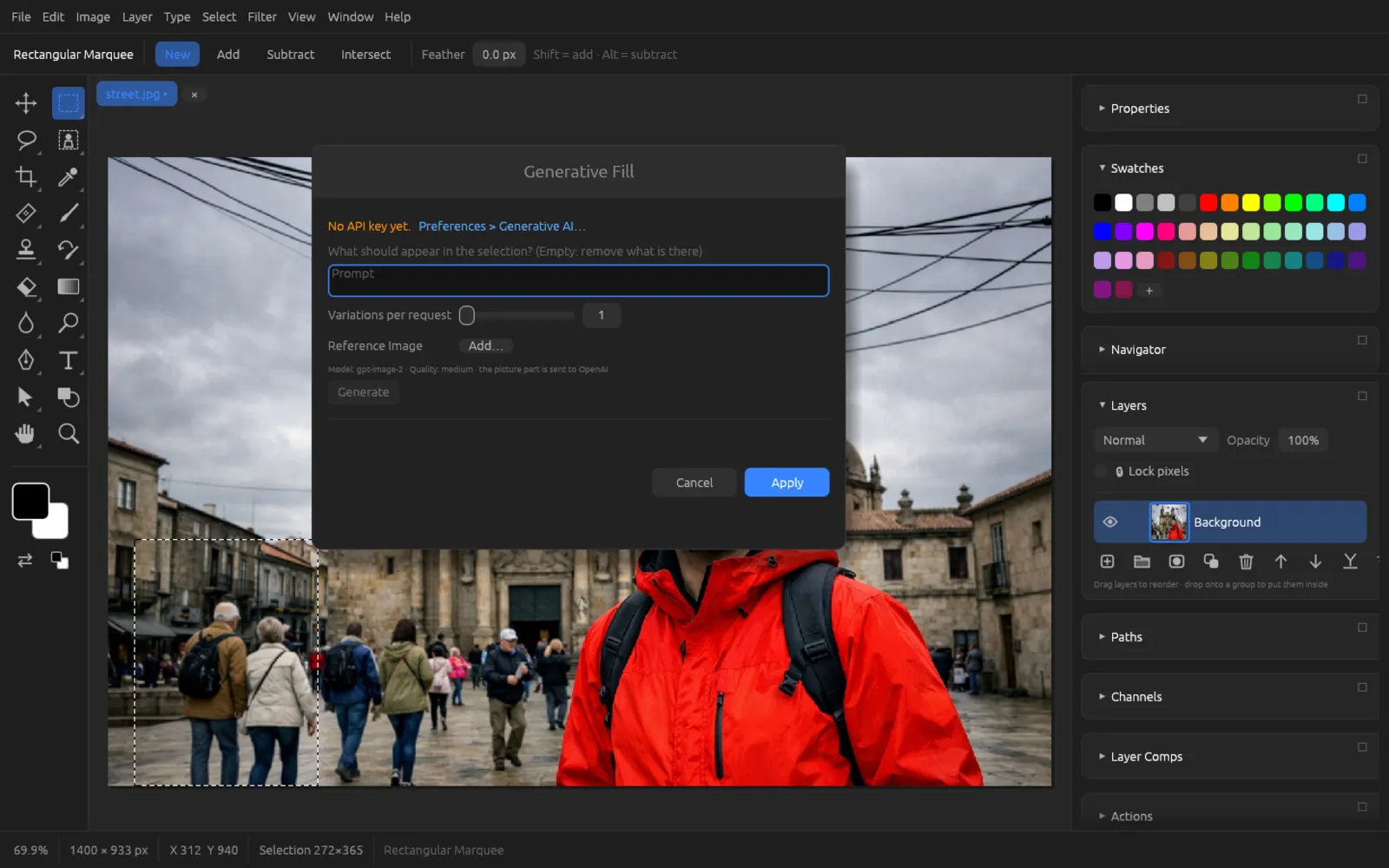
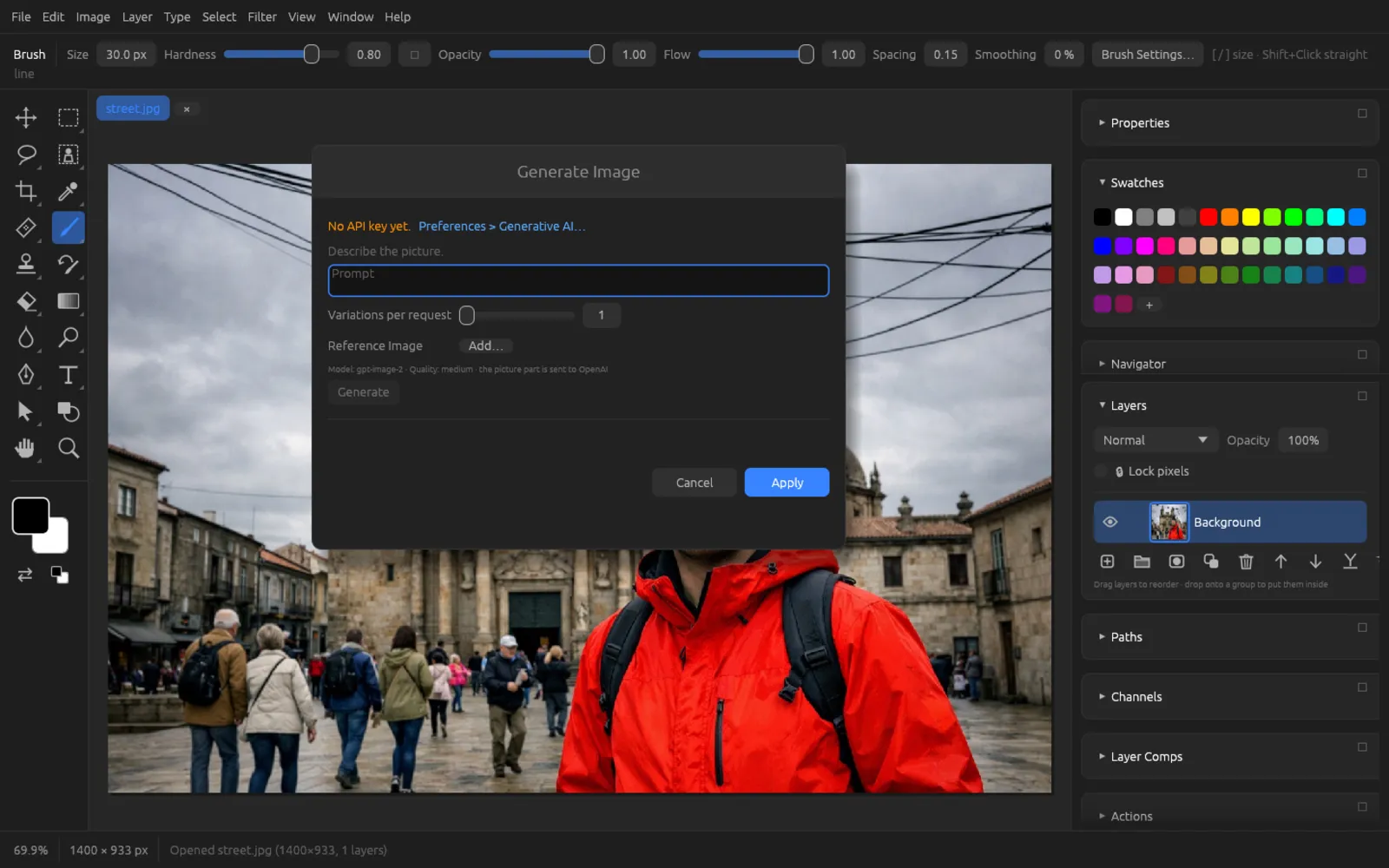
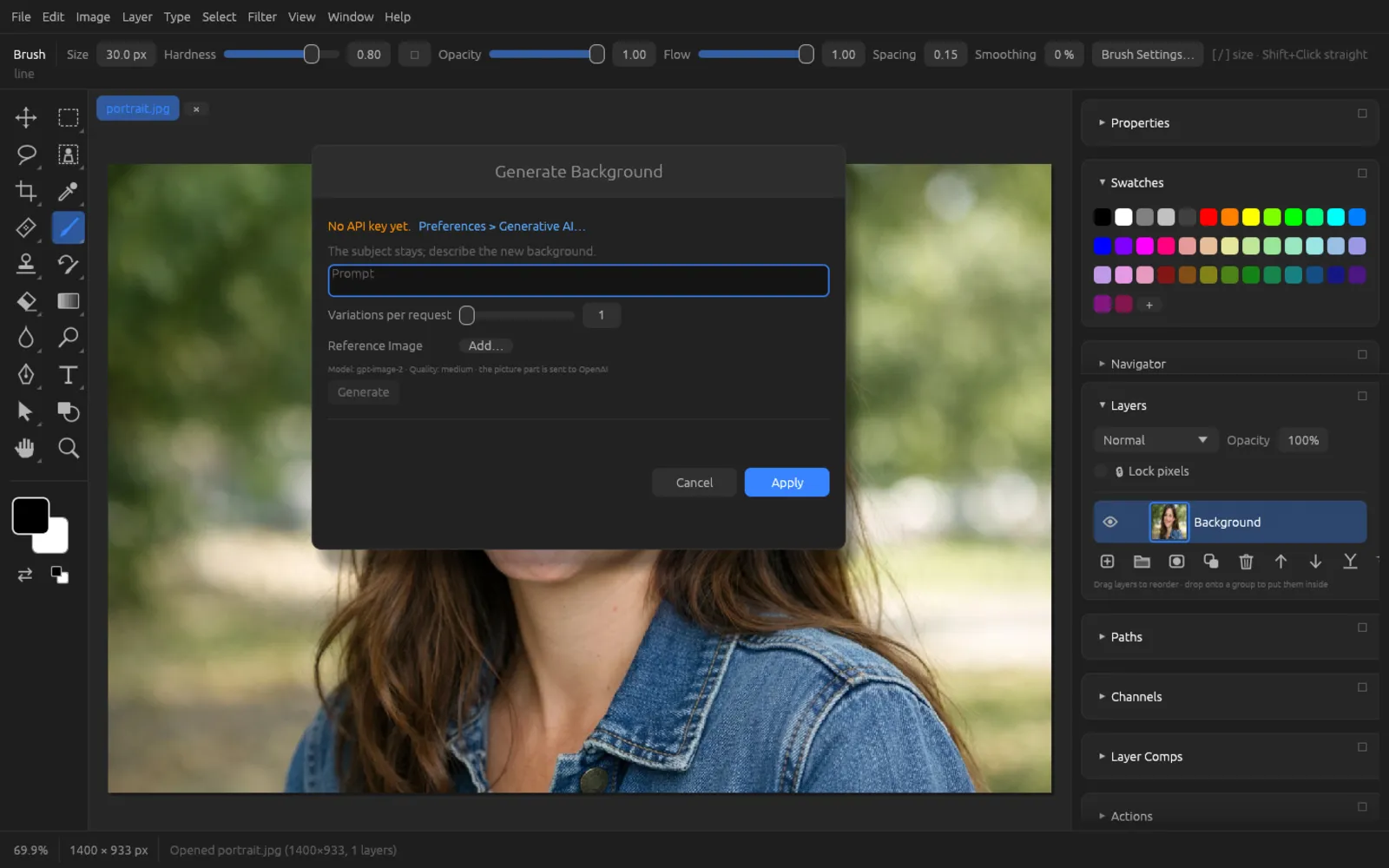
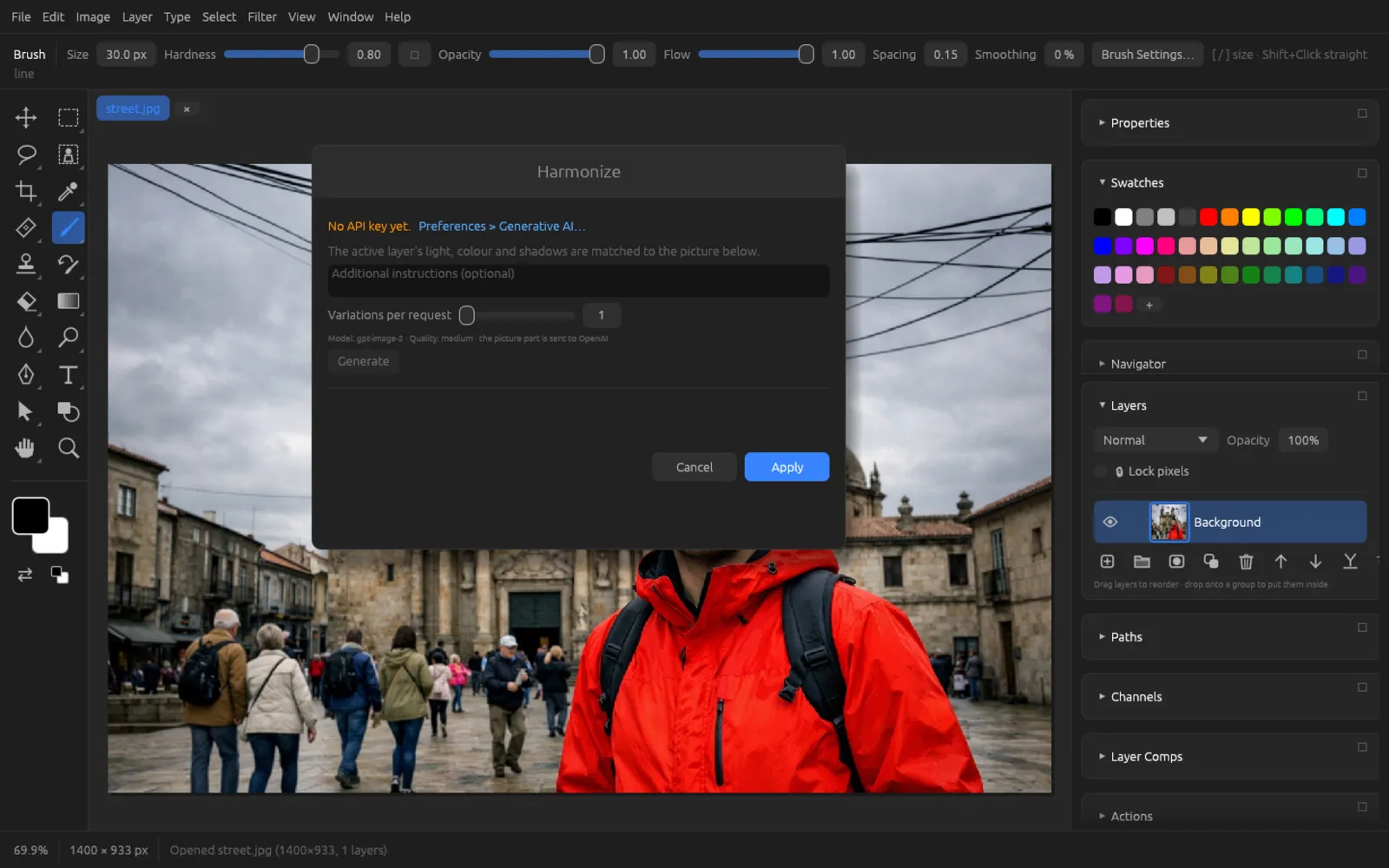
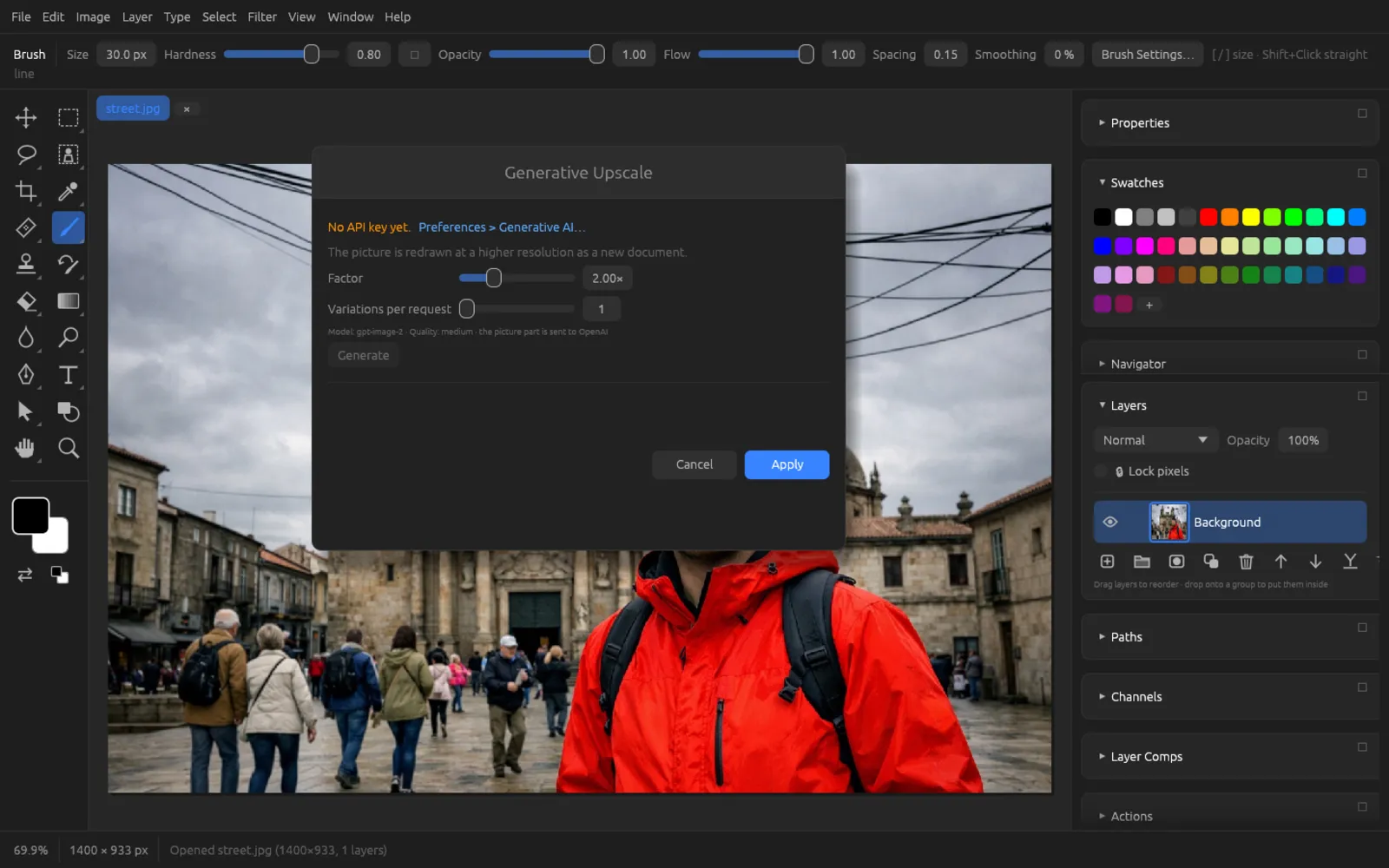
If you haven't entered a key yet, you can still open the dialogs. At the top, “No API key yet.” then appears in orange with the link Preferences > Generative AI…, which takes you directly to the right section. The Generate button is grayed out. The screenshots in this chapter show this state.
How the dialogs work
All commands under open a dialog that follows the same pattern:
- At the top there is a short note on what the feature does, and below it the text field for the prompt or for Additional instructions (optional).
- With Variations per request (1–4) you set how many results one request returns.
- Generate sends the request; a seconds counter runs next to it (“Generating…”). Afterwards the button is called Generate More – each further request adds new variations.
- The results appear as thumbnails under Variations. Click the one you want.
- Apply applies the selected variation.
The footer of the dialog names the model and quality and reminds you that the image detail is sent to OpenAI.
The result as a new layer
Chromatelier doesn't send the whole image, but the area around the change. The result comes in as a new layer above your image, with a layer mask that limits it to the changed area. Your original stays unchanged underneath. Because the models always redraw the area completely, Chromatelier aligns the result to the original pixel by pixel before inserting it and matches the tones. That way the transitions fit.
With Generative Fill, the new layer is named after your prompt (shortened to 40 characters); otherwise it is named after the feature. You can mask it, change its opacity or hide it like any other layer (see Layers).
Reference images
With Generative Fill, Generate Image and Generate Background, you can add up to three images (PNG, JPEG, WebP) under Reference Image with Add…. They show the model how something should look – for example a particular product, a pattern or a style. Clicking the name with ✕ removes a reference image again.
Tips for good prompts
- Describe what should be visible, not what you want to do: “a red bicycle against the house wall” instead of “add a bicycle”.
- Mention material, light and mood when it matters: “wooden bench, evening sun from the left”.
- Keep it short. Chromatelier adds the rest itself – matching the perspective, light and style of the photo.
- Create several variations and choose the best. With Generate More you get new suggestions without losing the previous ones.
- Select generously. With Generative Fill, the selection should include the object's shadows and edges.
The features in the Edit menu
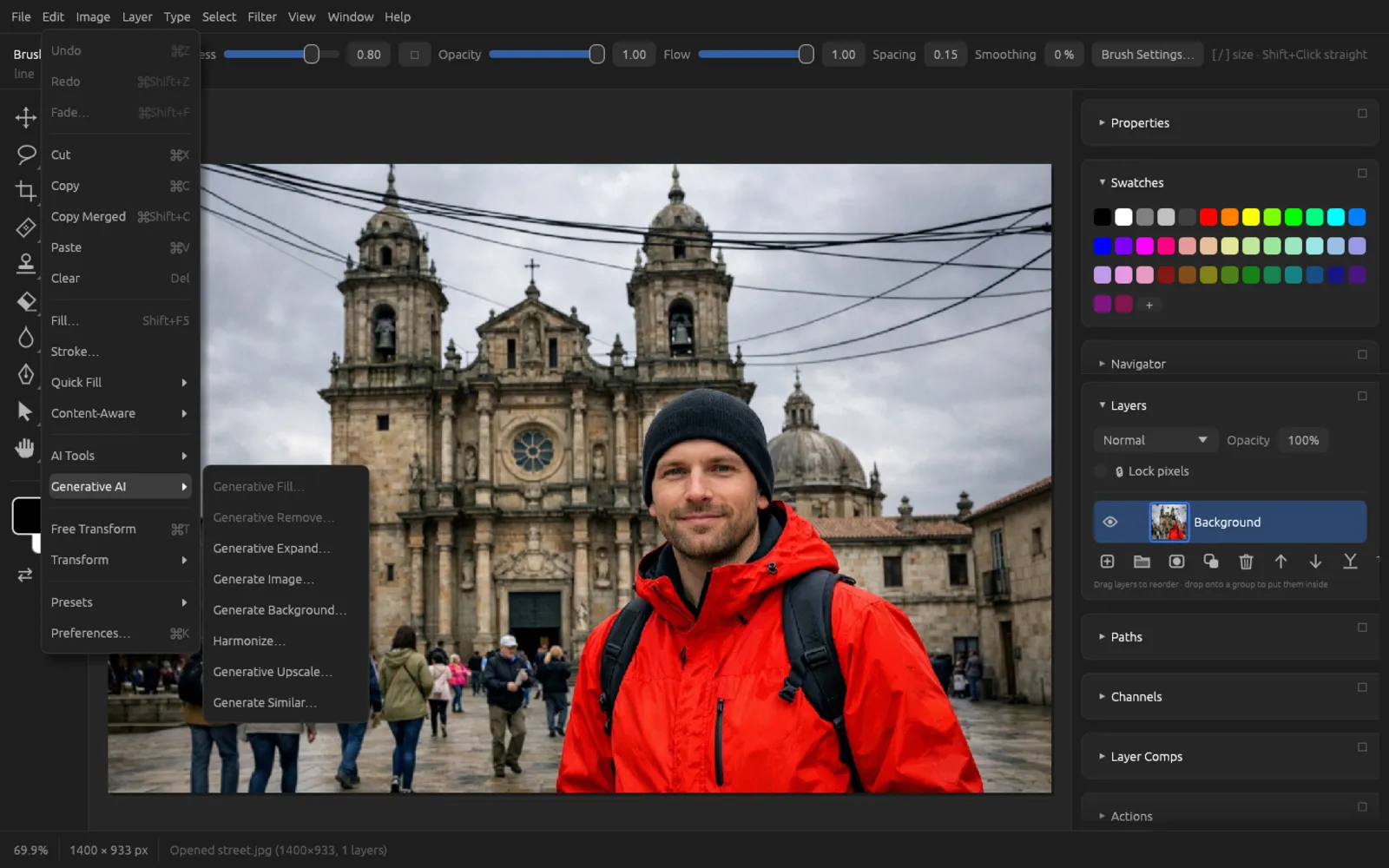
The generative features work with RGB and grayscale documents. For other modes, convert the image first under .
Generative Fill
Select an area and describe what should appear there. If you leave the text field empty, the feature removes the contents of the selection. After applying, the selection is removed.
It's quicker via the Contextual Task Bar: when a selection is active, an input field “Generative Fill…” with the Generate button appears below it. The text you enter goes straight into the dialog.
Replace an object with Generative Fill
- With the Lasso or the Rectangular Marquee, select the object you want to replace. Include a bit of margin and the shadow.
- Choose .
- Describe the new content, for example “a wooden barrel with flowers”. If you want several suggestions to choose from, set Variations per request to 2 or 3.
- Click Generate and wait a few seconds until the thumbnails appear.
- Click the best variation. If you don't like any of them, click Generate More or change the prompt first.
- Click Apply. The Layers panel now has a new layer with a mask above the original.
- If an edge looks wrong, paint in the layer mask with a soft black brush.
Generative Remove
Like Generative Fill without a prompt: what is selected disappears and the background is continued. There is no text field. For simple cases, the local Remove Selected (AI) is often enough – it costs nothing and works offline.
Generative Expand
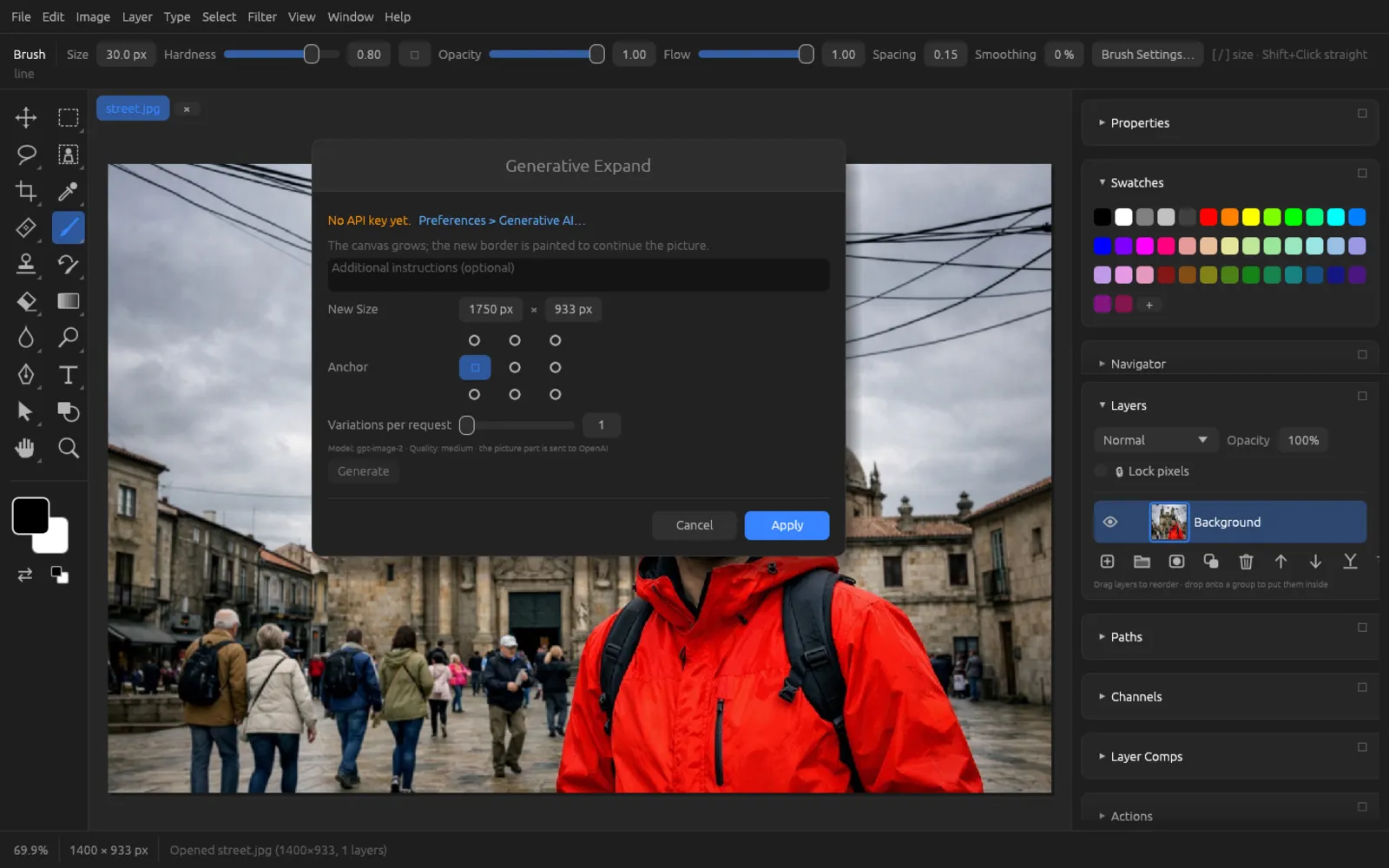
Generative Expand enlarges the canvas and paints the new border so that the scene continues naturally. In the dialog you set the width and height in pixels under New Size (preset: a quarter wider) and use the Anchor (nine points) to choose where the original image stays. In the text field you can optionally write what should be visible in the new area. When you apply, the canvas is enlarged and the result is inserted as a masked layer.
Expand an image
- Open the photo and choose .
- Under New Size, enter the width and height you want – for example more width for a landscape format.
- In the Anchor, click the point where the original should stay. The middle point distributes the new border evenly on all sides.
- If you like, write an instruction, for example “more sky and old town houses”.
- Click Generate, choose a variation and click Apply.
- The canvas is now larger; the new “Generative Expand” layer sits above the original.
Generate Image
Describe an image, and the model creates it. If a document is open, the result comes in as a new layer the size of the canvas. With no document open, you choose an aspect ratio under Size (1:1, 3:2, 2:3, 16:9), and the image opens as a new document. Even without a selection, the Contextual Task Bar offers “Generate Image”.
Generate Background
The subject stays, the background is new. Chromatelier recognizes the subject itself, sends the whole image with a mask for the background and asks the model to choose light, perspective and colors that match the subject, with natural contact shadows. A prompt is required here. If no subject stands out, the dialog reports “No subject stands out”.
Harmonize
If you have placed an object into a photo as a separate layer, Harmonize matches its light direction, color, contrast, sharpness and grain to the surroundings and adds shadows and reflections. To do this, select the object's layer; it must be a pixel layer above an image. The area around the object is sent along so that there is room for shadows. Additional instructions are optional.
A local, free alternative without new shadows is the Neural Filter Harmonization.
Generative Upscale
Generative Upscale redraws the whole image at a higher resolution and adds fine details. With the Factor slider (1.25× to 4×) you set the enlargement. The result opens as a new document with “upscaled” added to its name. The feature requires a model from the gpt-image-2 family and delivers at most 3840 × 2160 pixels; if the image is already that large, the dialog tells you that it can't be enlarged any further.
For an enlargement that stays true to the original without invented content, use the local Super Resolution. It works offline and costs nothing.
Generate Similar
Creates variations of the active layer: the same subject, the same style and composition, different details – like another shot of the same scene. If the layer is a cut-out object, the result keeps its outline. Optionally, you add instructions, for example “in blue”.
Generative Workspace
opens a separate window in which you create images from text without changing your document. All the images you create collect in a gallery and are kept even after a restart.
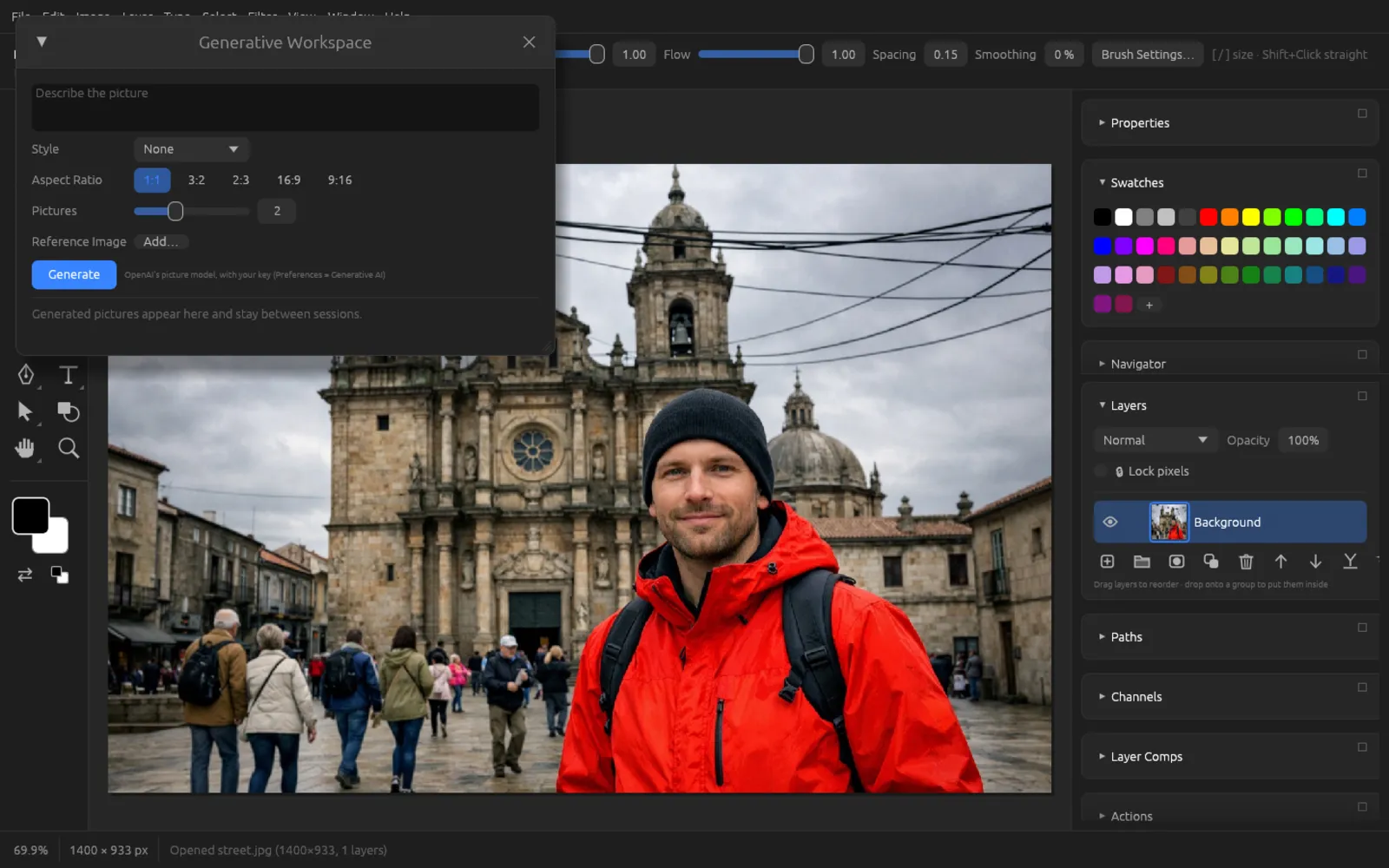
| Setting | Meaning |
|---|---|
| Text field | description of the image |
| Style | None, Photo, Illustration, 3D Render, Watercolor, Line Art, Cinematic, Neon – adds a matching style description to the prompt |
| Aspect Ratio | 1:1, 3:2, 2:3, 16:9, 9:16 |
| Pictures | 1–4 images per request |
| Reference Image | images the model takes as a guide (Add…) |
Below each image in the gallery there are five small buttons (a tooltip shows their names):
- Open as Document – the image becomes a new document.
- Place as Layer – the image goes into the current document as a layer.
- Generate Similar – new variations of this image.
- Use the Prompt – the prompt of this image goes into the text field.
- Delete – removes the image from the gallery.
Cloud filters in Neural Filters
Under , five filters are marked with a cloud icon. They send the image to OpenAI's image model and use the key, model and quality from the preferences. Without a key, Chromatelier reports “No API key: enter one in Preferences > Generative AI” after OK. As with the local filters, you choose the Output at the bottom: New Layer or Current Layer. The local Neural Filters are described in the chapter AI on Your Computer.
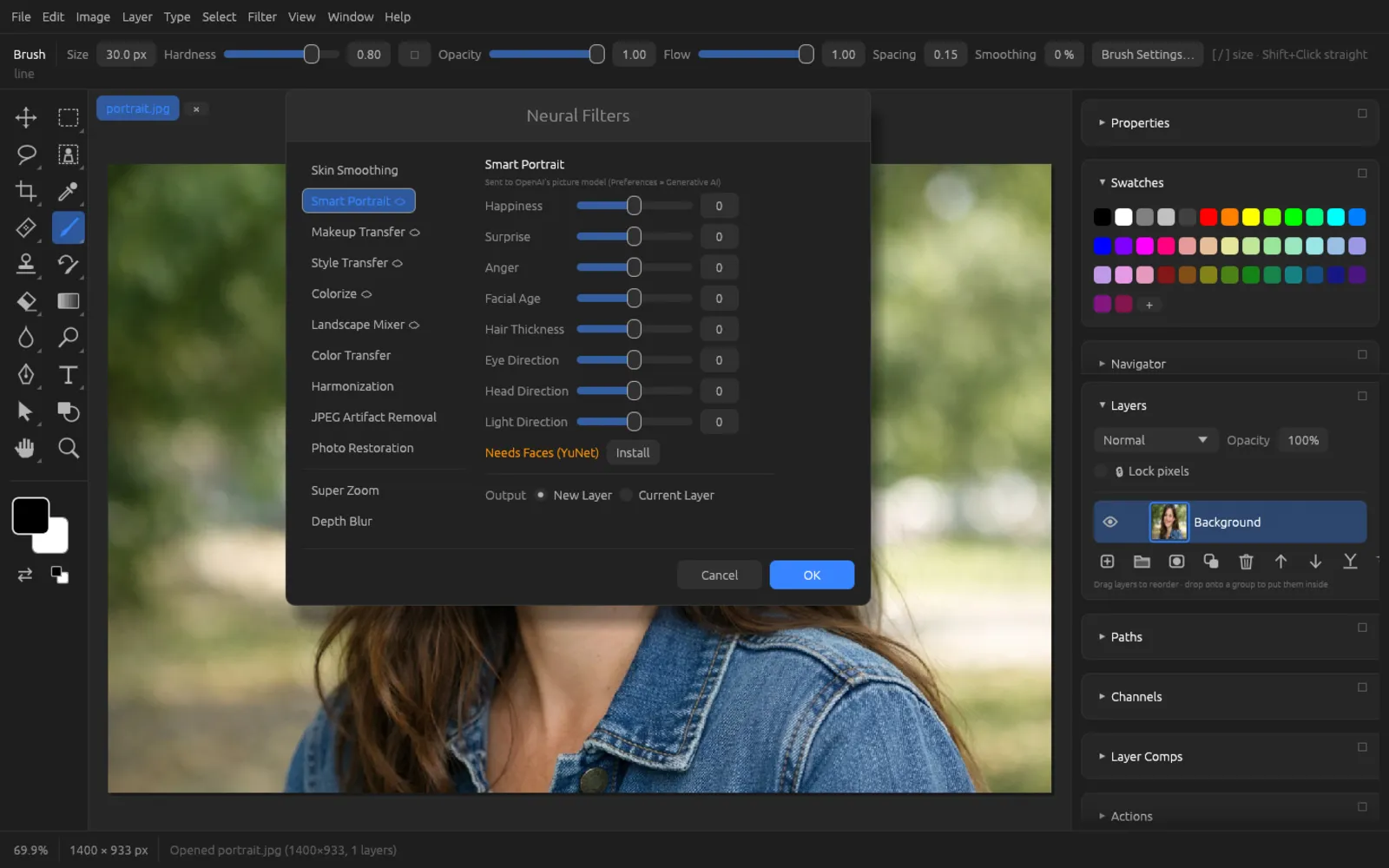
Smart Portrait
Changes a person's expression and features with eight sliders from −50 to 50: Happiness, Surprise, Anger, Facial Age, Hair Thickness, Eye Direction, Head Direction and Light Direction. Chromatelier uses the local face model to find the largest face and sends only the area around it. Identity, clothing and background are meant to stay the same. At least one slider must be different from 0.

Makeup Transfer
Transfers the makeup from a reference image – eyeshadow, eyeliner, lashes, brows, blush, lip color – to the face in your photo. Under Reference, load an image with the makeup you want using Load…. Only the face area is changed; for this, the filter needs the local face model.
Style Transfer
Repaints the image in an artistic style. Under Style there are seven built-in styles: Watercolor, Oil Painting, Post-Impressionist, Woodblock Print, Pencil Sketch, Comic and Pop Art. Alternatively, you load an image under Reference whose style should be adopted. Style Strength (0–100) blends the result with the original; Preserve Color keeps the colors of your photo.


Colorize
Colors black-and-white photos naturally and believably. Chromatelier takes only the color from the result and applies it to the brightness values of your original – so details and sharpness are kept exactly. Saturation (0–200, default 100) controls the color intensity. In the Colors field you can state what you'd like, for example “a red car, blue sky”.
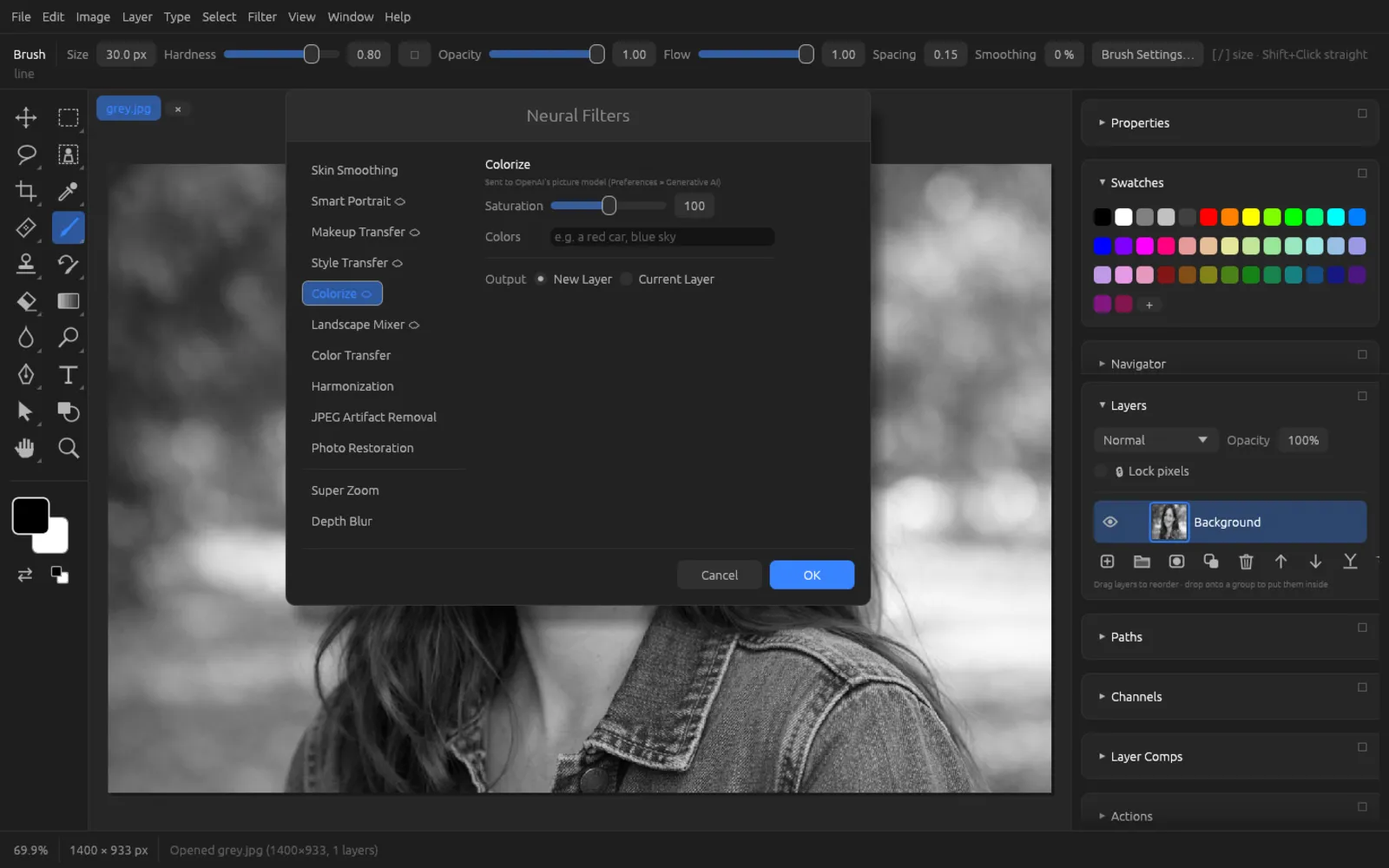
Colorize a black-and-white photo
- Open the black-and-white photo. If it is a grayscale document, first convert it to RGB Color with so that the new colors are kept.
- Choose and click Colorize on the left.
- Under Colors, enter what you know, for example “blue denim jacket, brown hair”. The field can also stay empty.
- Leave Output at New Layer and click OK. The progress is shown at the bottom of the window.
- The colorized image sits as a “Colorize” layer above the original. If the colors are too strong for you, lower the layer's opacity or repeat the filter with a lower Saturation.

Before 
After: colorized.
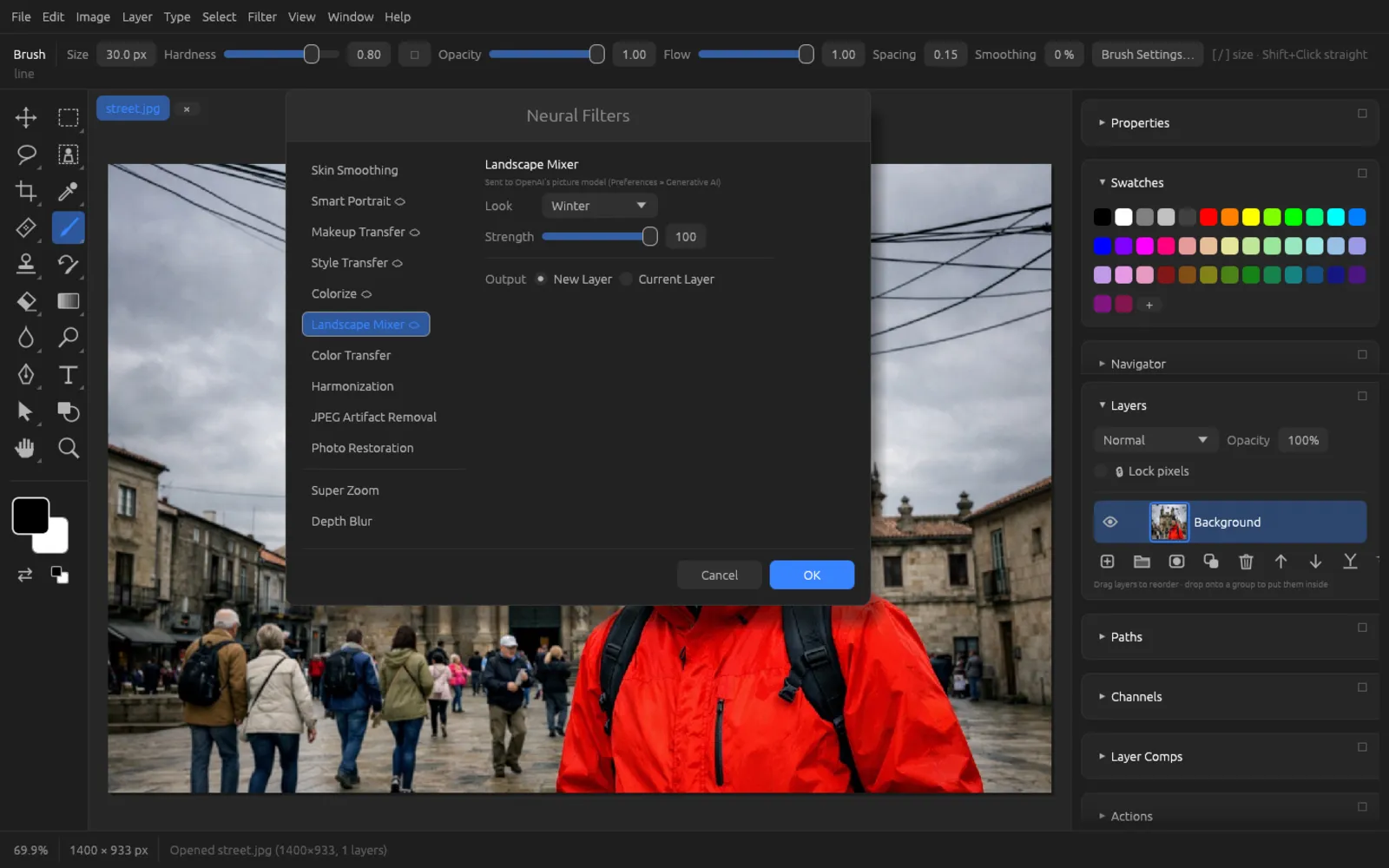
Landscape Mixer
Transforms landscape and city photos into a different season, different weather or a different time of day. The composition, terrain and buildings stay; light, weather and vegetation change. Under Look you choose Spring, Summer, Autumn, Winter, Sunset, Night, Fog or Storm; Strength (0–100) blends the result with the original.

Match Font
finds out which font a text in the image is set in. To use it, draw a tight frame around the text with the Rectangular Marquee (at least 8 × 8 pixels) and choose the command. Chromatelier immediately shows the cropped area to an OpenAI vision model and compares the answer with the fonts on your computer.
- Under Recognised there are up to five likely fonts. Installed ones appear as buttons, the others with “(not installed)” added.
- If none of them is installed, the dialog offers fonts of the same kind under Similar fonts on this computer.
- Clicking a font sets it for the Type tool – and for the active type layer, if one is selected.
More on type and fonts in the chapter Type, Shapes & Paths.
Content Credentials
Chromatelier records every use of generative AI in the document: which feature with which model (for example “Generative Fill (OpenAI)”) and whether an image was generated entirely or only partly changed. If you export the image with Content Credentials turned on, this provenance is written into the file with a signature. That way others can see that AI was involved. How to turn this on and check it is described in the chapter Saving, Export & Printing.
Common messages
| Message | Cause and solution |
|---|---|
| No API key yet. | Enter a key (see Enter your key). |
| Make a selection first: it marks what is generated | Generative Fill and Generative Remove need a selection. |
| Generative AI works on RGB and Grayscale documents (Image > Mode) | Convert CMYK, Lab or other documents first. |
| Make the canvas larger than it is | With Generative Expand, the new size must be larger than the image. |
| Harmonize works on a pixel layer placed over a picture | Select the layer of the inserted object, not the background layer. |
| Generate a result first | You clicked Apply before a variation was there. |
| Error message from OpenAI (red in the dialog) | For example an invalid key, an empty balance or a rejected prompt. Check your OpenAI account and test the key with Test Key. |