Color, RAW and HDR
This chapter explains how Chromatelier handles color: color modes and bit depth, ICC profiles and soft proofing for print, calculations with channels, measuring in the image – and how you develop RAW photos, merge exposure brackets into HDR and build panoramas.
Color modes
The color mode determines which channels an image is made of. New documents and most opened photos are in RGB Color mode. You change the mode under . The current mode is checked in the menu and also appears in the document's title bar (for example “RGB/8”).
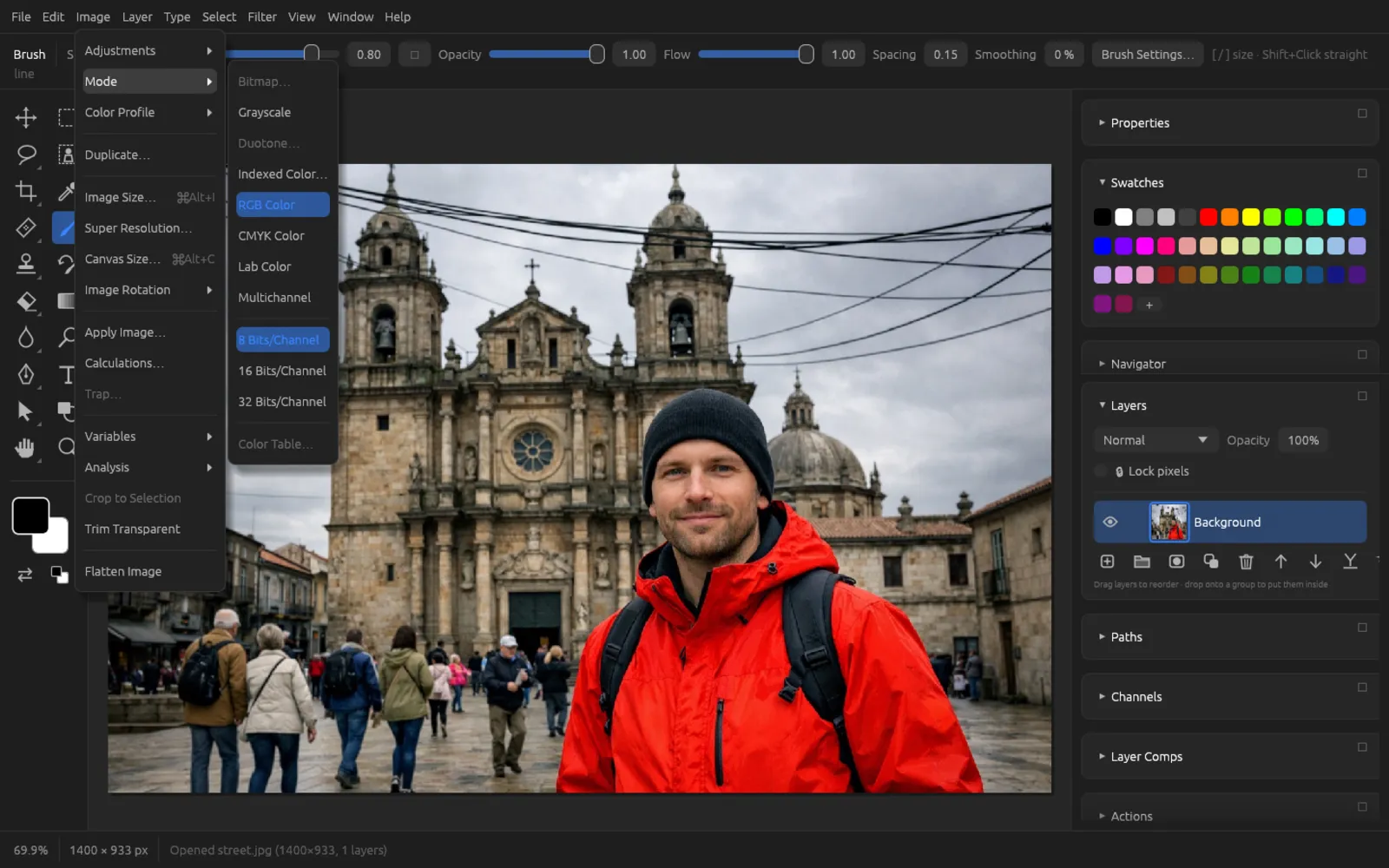
| Mode | Channels | Used for |
|---|---|---|
| Bitmap… | 1 (black and white only) | Line art, halftone screens for print. Only available from Grayscale. |
| Grayscale | 1 (Gray) | Black-and-white images. |
| Duotone… | 1 gray + 1–4 inks | Toned black-and-white images with spot colors. Only available from Grayscale. |
| Indexed Color… | at most 256 colors | GIF-style images, pixel art, small files. |
| RGB Color | Red, Green, Blue | The working mode for photos and screens. |
| CMYK Color | Cyan, Magenta, Yellow, Black | Prepress. |
| Lab Color | Lightness, a, b | Editing lightness and color separately. |
| Multichannel | one channel per ink | Special prepress cases. |
What happens when you convert
- Grayscale can be made from RGB, Indexed Color, Duotone or Bitmap. The color is lost.
- CMYK Color separates the colors through a CMYK profile: the system's generic CMYK profile if there is one, otherwise a built-in color separation. The document gets this profile. Other modes go through RGB on the way.
- Lab Color is calculated from RGB (other modes go through RGB).
- Multichannel flattens the image to one layer. RGB becomes the channels Cyan, Magenta and Yellow, CMYK becomes its four inks, Grayscale a black channel, and Duotone its inks.
- Indexed Color also flattens to one layer and to 8 bits.
Bitmap, Indexed Color and Multichannel only have one layer. Commands such as “New Layer”, adjustment layers, layer styles or transforming are locked there; in Bitmap and Indexed Color the filters are locked as well. The status bar then reports “Not available in … mode: convert to RGB Color first”.
Bitmap
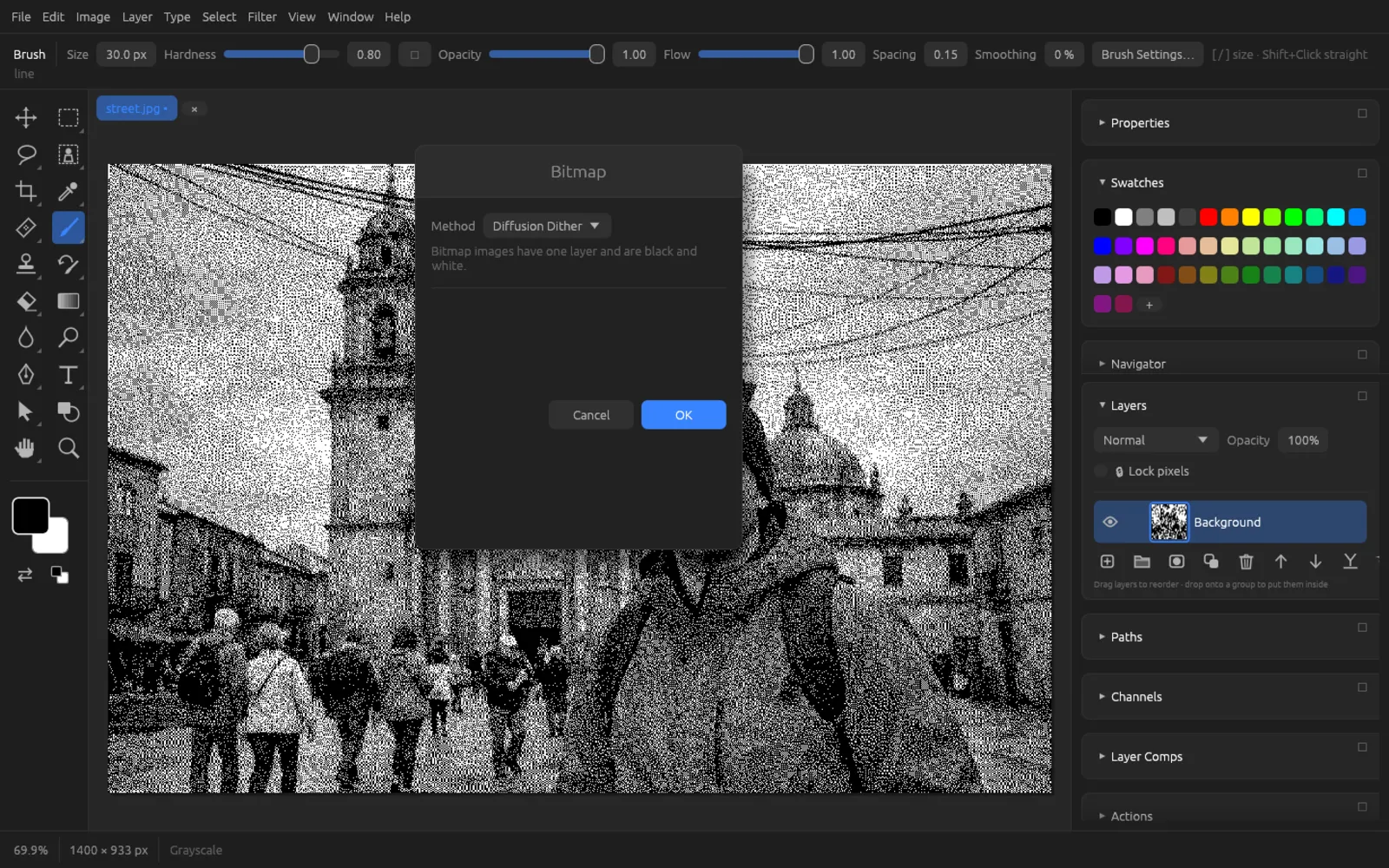
First convert the image with , then choose . Under Method you can pick one of four methods; the preview in the document shows the result right away:
- 50% Threshold – everything lighter than middle gray turns white, the rest black.
- Pattern Dither – a regular dot pattern.
- Diffusion Dither – finely scattered dots (the default).
- Halftone Screen – round halftone dots as in newspaper printing, with Cell size (2–200 px) and Angle.
Duotone
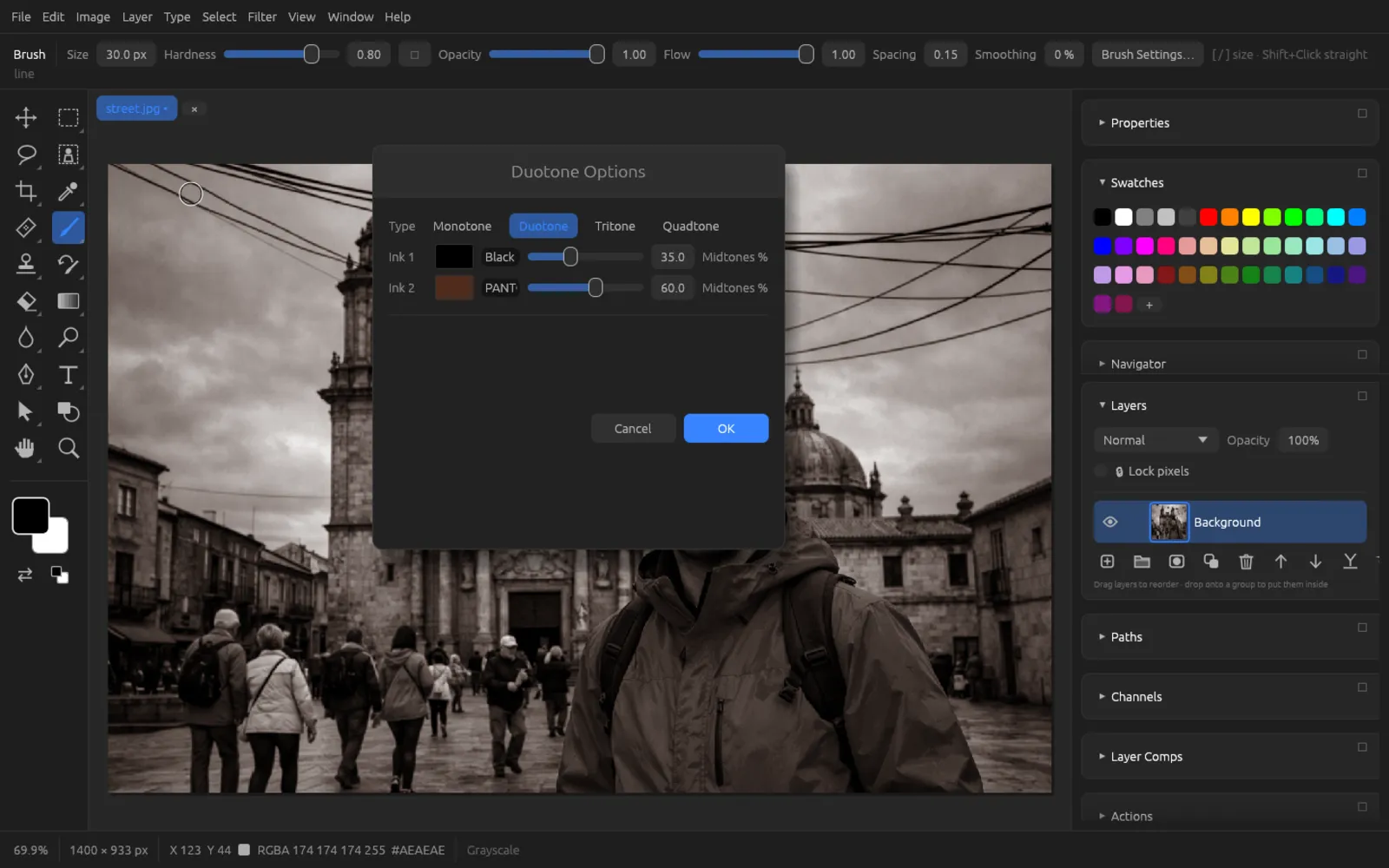
A duotone image is a grayscale image that is printed with one to four inks. After converting to Grayscale, choose . In the Duotone Options dialog you set:
- Type: Monotone, Duotone, Tritone or Quadtone – that is, one to four inks.
- For each Ink: the color (click the color swatch), its name, and with Midtones % how much of this ink the midtones get.
To change the inks later, simply choose again.
Indexed Color and the color table
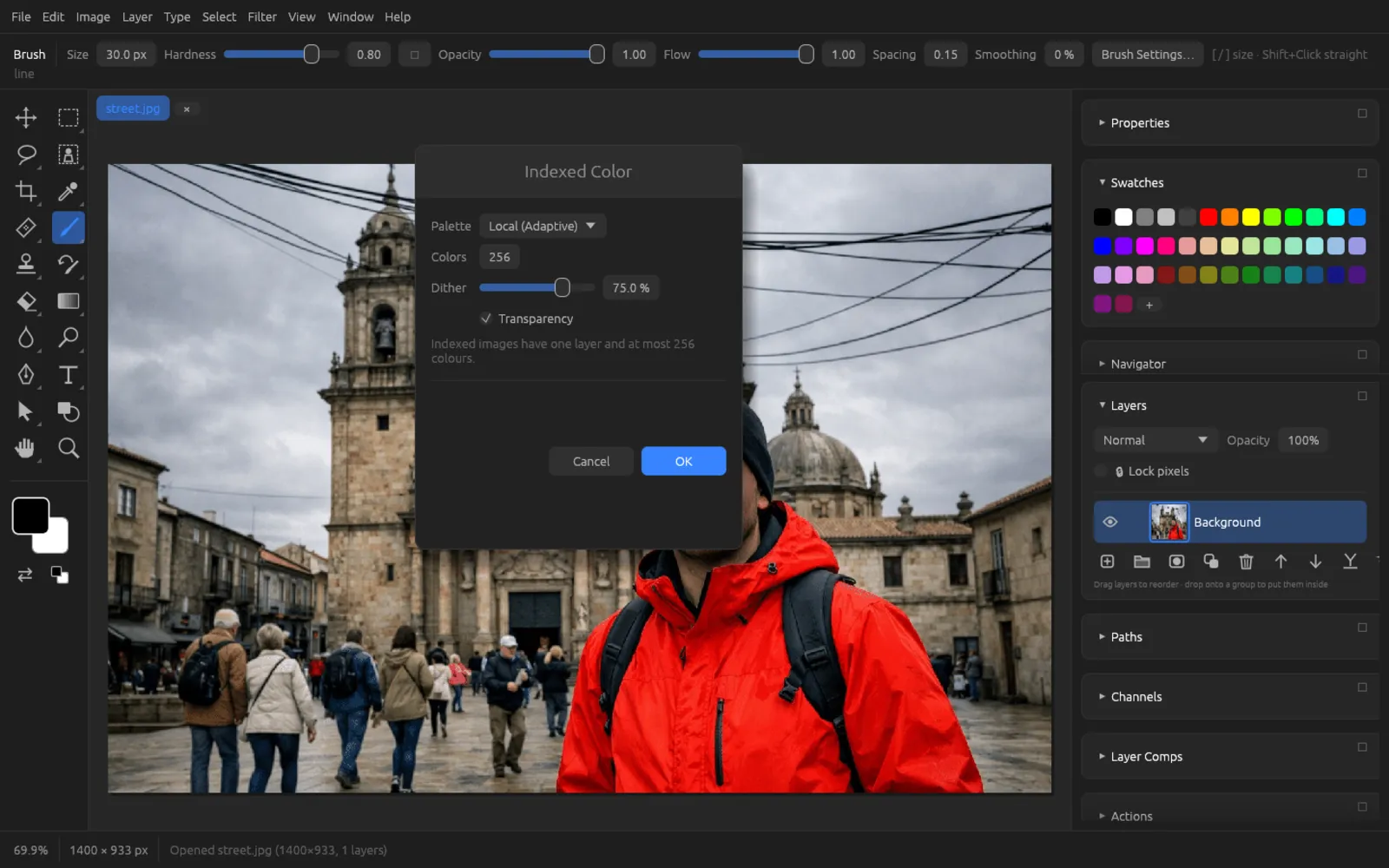
reduces the image to a palette of at most 256 colors:
| Option | Meaning |
|---|---|
| Palette | Exact (the image's own colors, if there are at most 256), Local (Adaptive) (calculated from the image's colors), Web (a 6×6×6 cube), Uniform (even steps per channel), Grayscale, Black & White. |
| Colors | Number of colors, 2–256 (where the palette allows it). |
| Dither | How strongly in-between tones are imitated with scattered dots (0% = hard transitions). |
| Transparency | Transparent pixels stay transparent. |
In an indexed image, shows all the colors of the palette as a grid. Click a cell and change the color with the color swatch next to it – all pixels that use this entry change along with it.
Bit depth: 8, 16 and 32 bits
The bit depth determines how fine the brightness steps per channel are. You set it in the lower part of :
- 8 Bits/Channel – 256 steps per channel. Enough for finished images, the web and most kinds of output.
- 16 Bits/Channel – 65,536 steps. Recommended for strong corrections so that no banding appears in gradients. RAW photos always open in 16 bits.
- 32 Bits/Channel – floating-point values for HDR images: light brighter than white is preserved.
Working in 32 bits
When you convert to 32 bits, the pixels are converted to linear light. A document with adjustment layers, layer styles, fill layers or a mode other than RGB is flattened to one layer in the process, because these exist only in 8 and 16 bits. Layers, painting tools and filters also work in 32 bits.
- The status bar shows the Exposure (−10 to +10) and Gamma (0.2–3) sliders. They change only the display, not the image.
- works directly on the floating-point values in 32 bits, with Exposure, Offset and Gamma Correction.
- Color modes, color profiles, adjustment layers, layer styles and Quick Mask mode are not available in 32 bits.
- To go back to 16 or 8 bits, use or : this opens the HDR Toning dialog (see HDR Toning).
Color management with ICC profiles
An ICC profile describes which real colors the numbers in the image stand for. Chromatelier reads the profile when opening a file, converts for the display and writes the profile back when saving and exporting. An image without a profile is treated as sRGB (“sRGB (untagged)”).
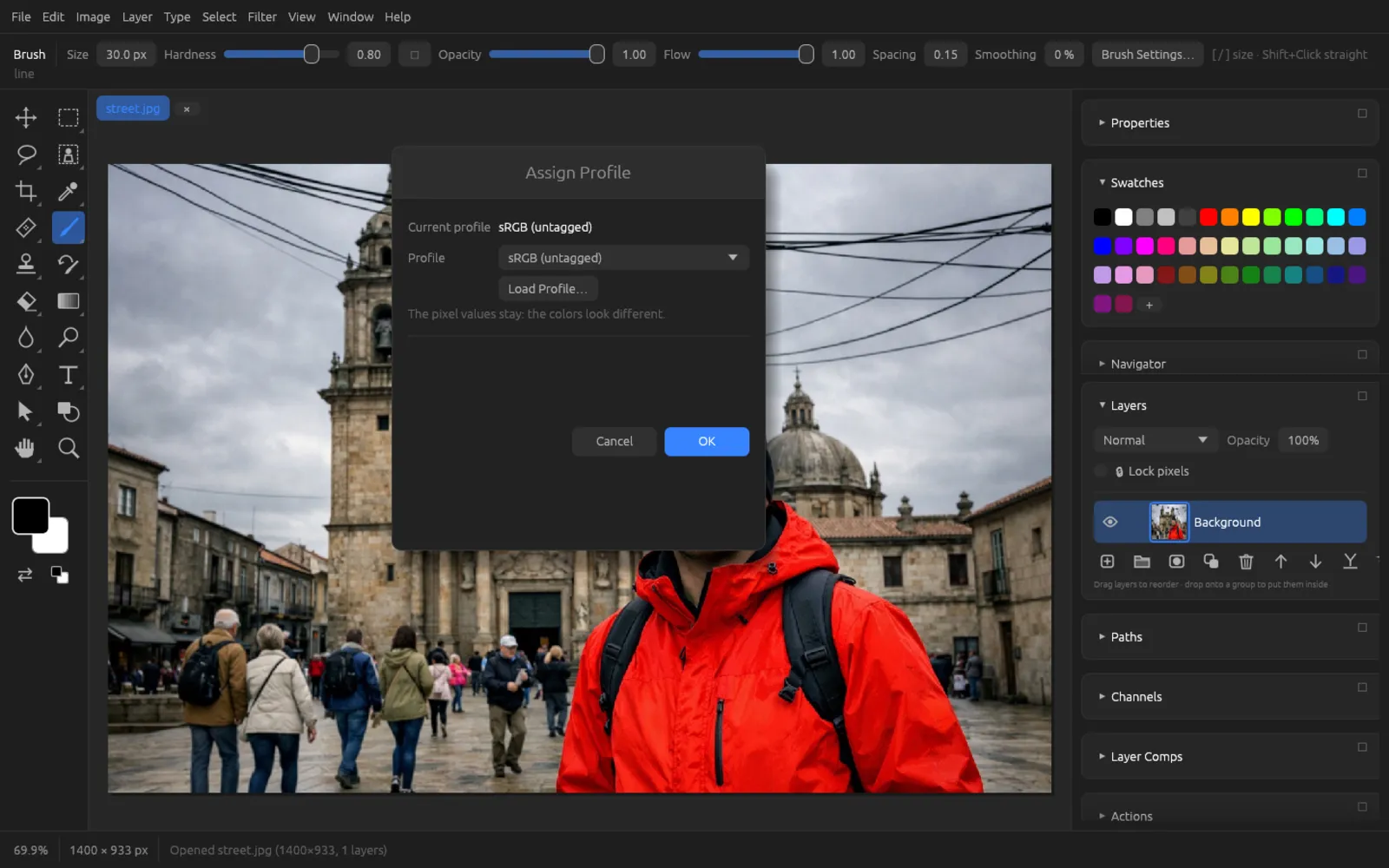
Assign Profile
changes only how the pixels are interpreted: the pixel values stay the same, but the colors look different afterwards. You need this when an image arrives without a profile or with the wrong one.
- Current profile shows the document's profile.
- Under Profile you choose a built-in RGB profile – sRGB IEC61966-2.1, Display P3, ProPhoto RGB, Rec. ITU-R BT.2020 and another common working space – or Don't Color Manage This Document.
- Load Profile… reads your own
.iccor.icmfile.
Convert to Profile
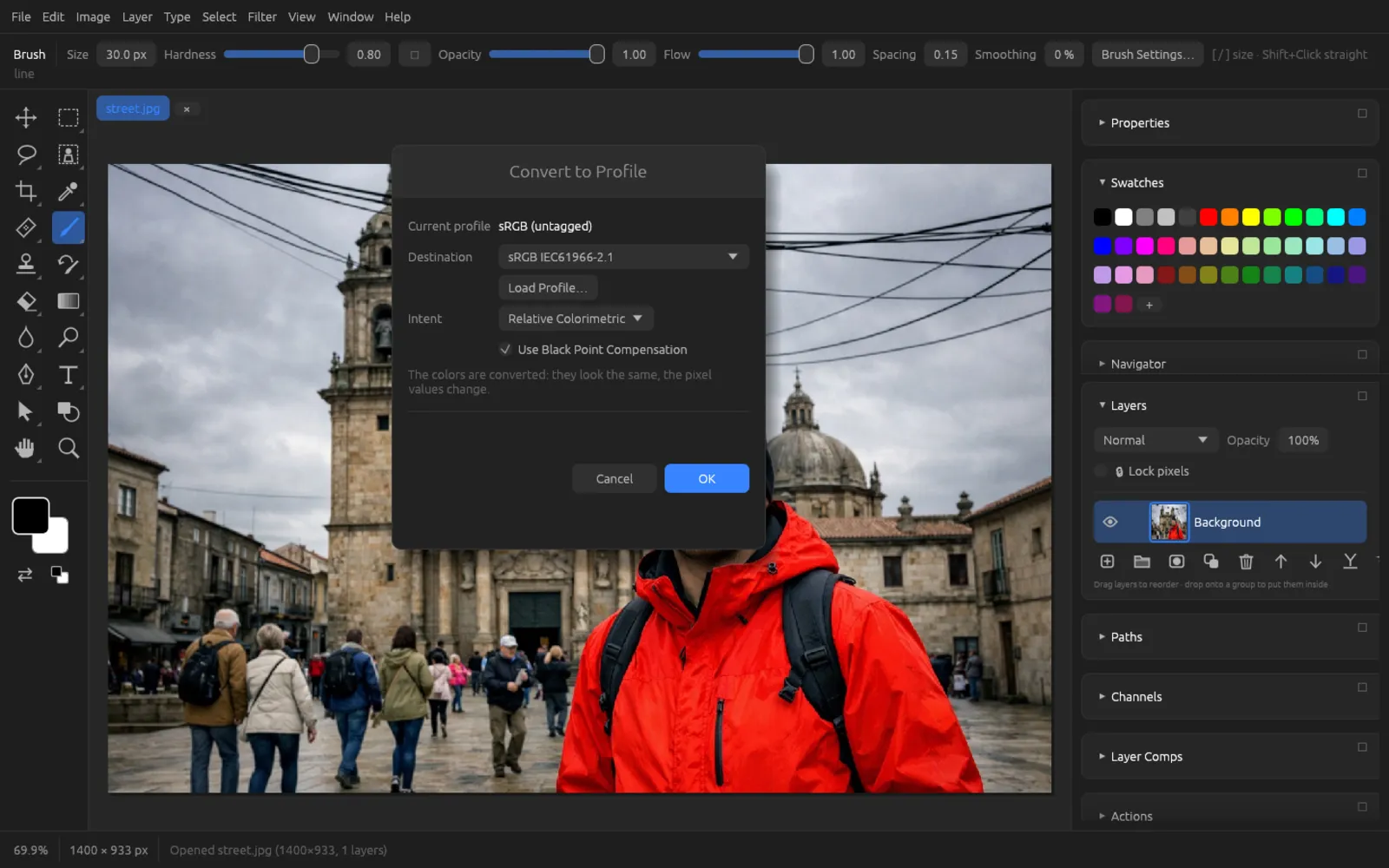
converts the colors into another profile: they look the same, but the pixel values change. This is how you bring a photo from a large color space to sRGB for the web, for example.
| Field | Meaning |
|---|---|
| Destination | The profile to convert into (built in, or loaded with Load Profile…). |
| Intent | The rendering intent: Perceptual (compresses the whole gamut, good for photos with very saturated colors), Relative Colorimetric (the default: colors inside the destination gamut stay exact, the others are pushed to its edge), Saturation (for graphics), Absolute Colorimetric (the paper white is simulated as well). |
| Use Black Point Compensation | Adjusts the black point so that dark details don't fill in. |
You can record both commands in actions – profile included. That way you can convert a whole folder to sRGB with batch processing.
Use Monitor Profile
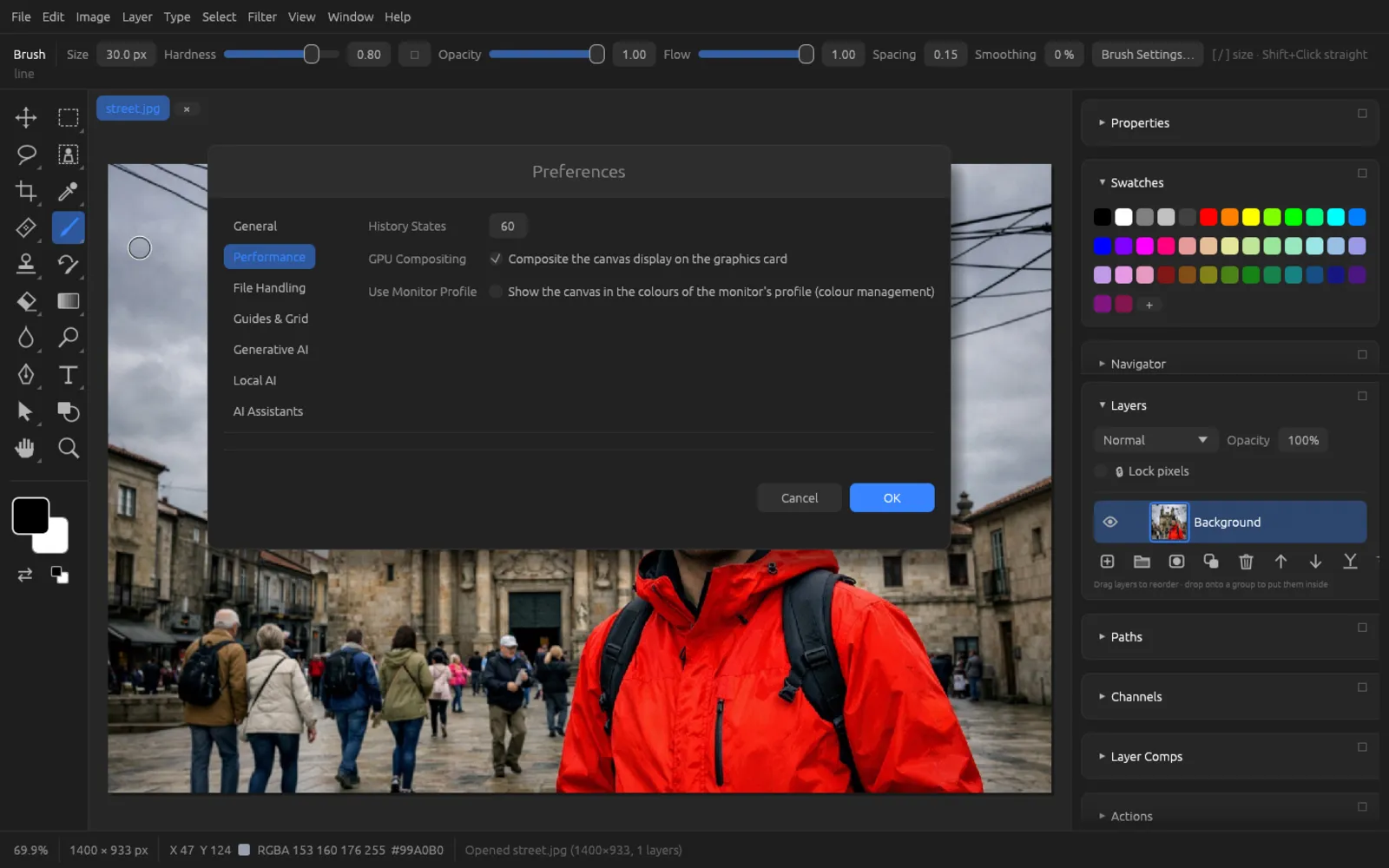
To make the colors on screen accurate, Chromatelier can use your monitor's profile. Open (⌘ K), choose Performance on the left and turn on Use Monitor Profile. The canvas is then shown in the colors of the monitor profile set in the operating system.
Soft proofing: Proof Colors and Gamut Warning
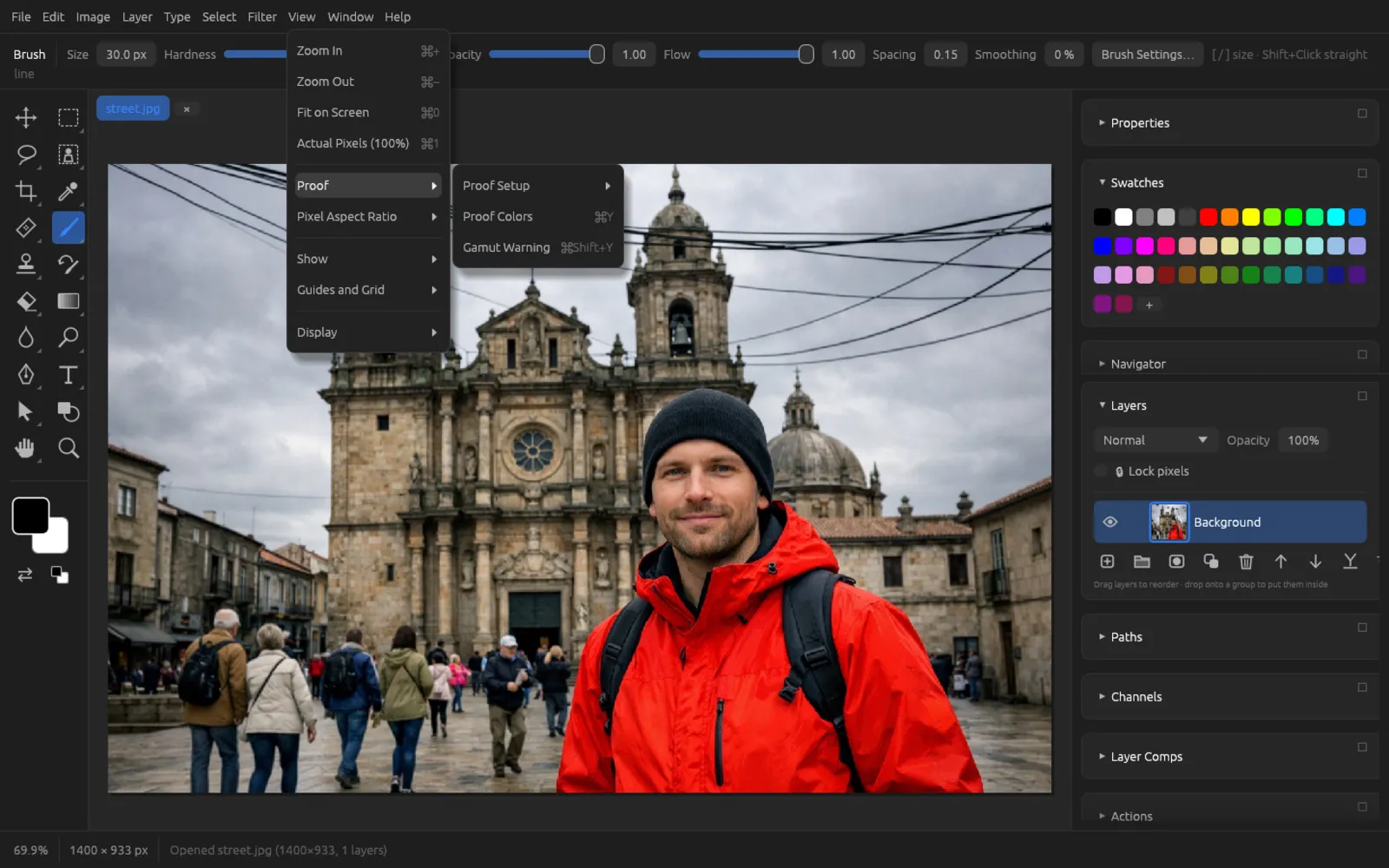
With soft proofing you can see on screen how an RGB image will look in print. The commands are under :
| Command | Shortcut | Effect |
|---|---|---|
| Proof Setup › Working CMYK | Simulates the CMYK profile that new CMYK documents get as well (the default). | |
| Proof Setup › Custom… | Chooses the device to simulate and the options (see below). | |
| Proof Colors | ⌘ Y | Shows the image the way the simulated device reproduces it. |
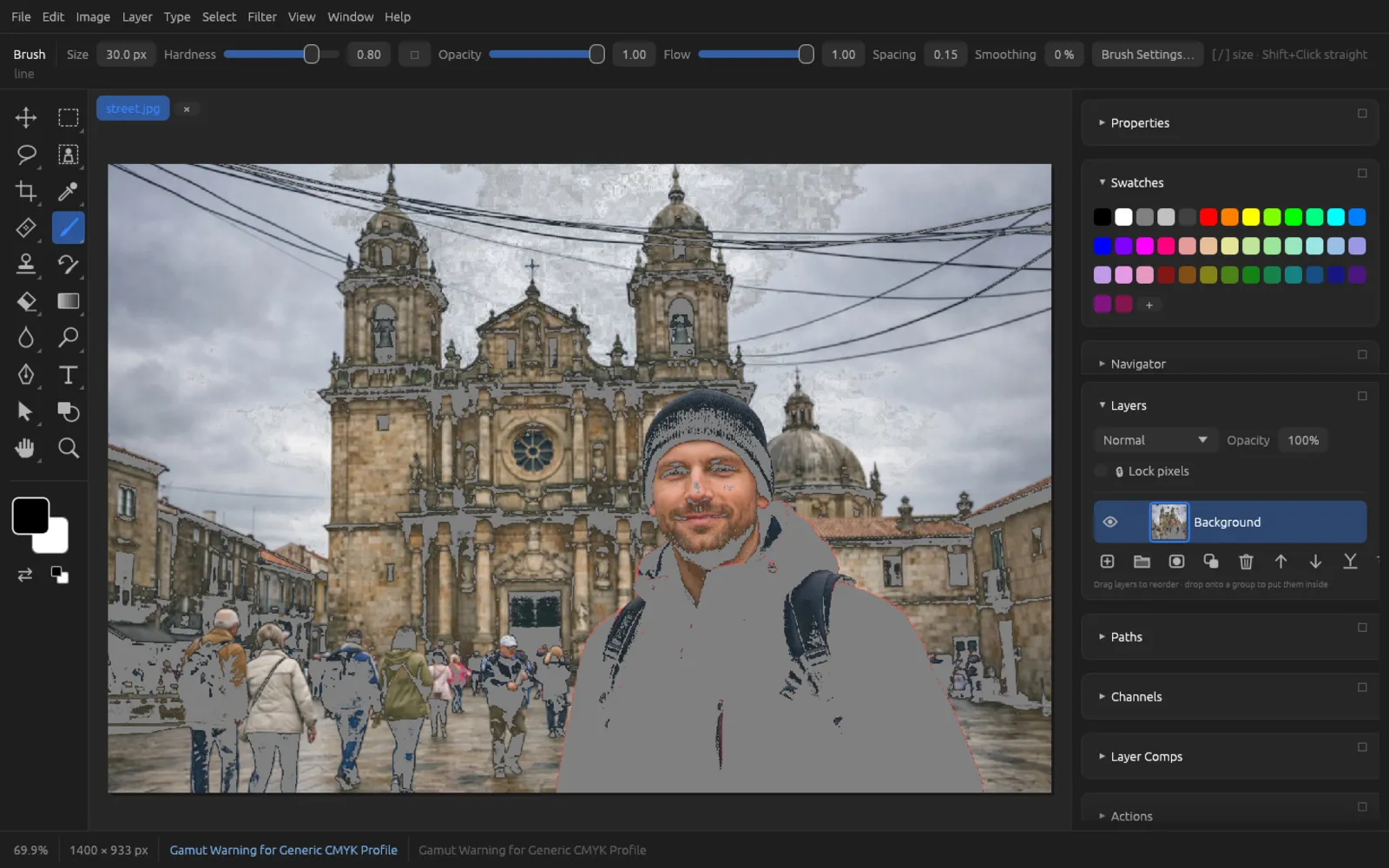
| Gamut Warning | ⌘ ⇧ Y | Colors gray all colors that the device can't print. |
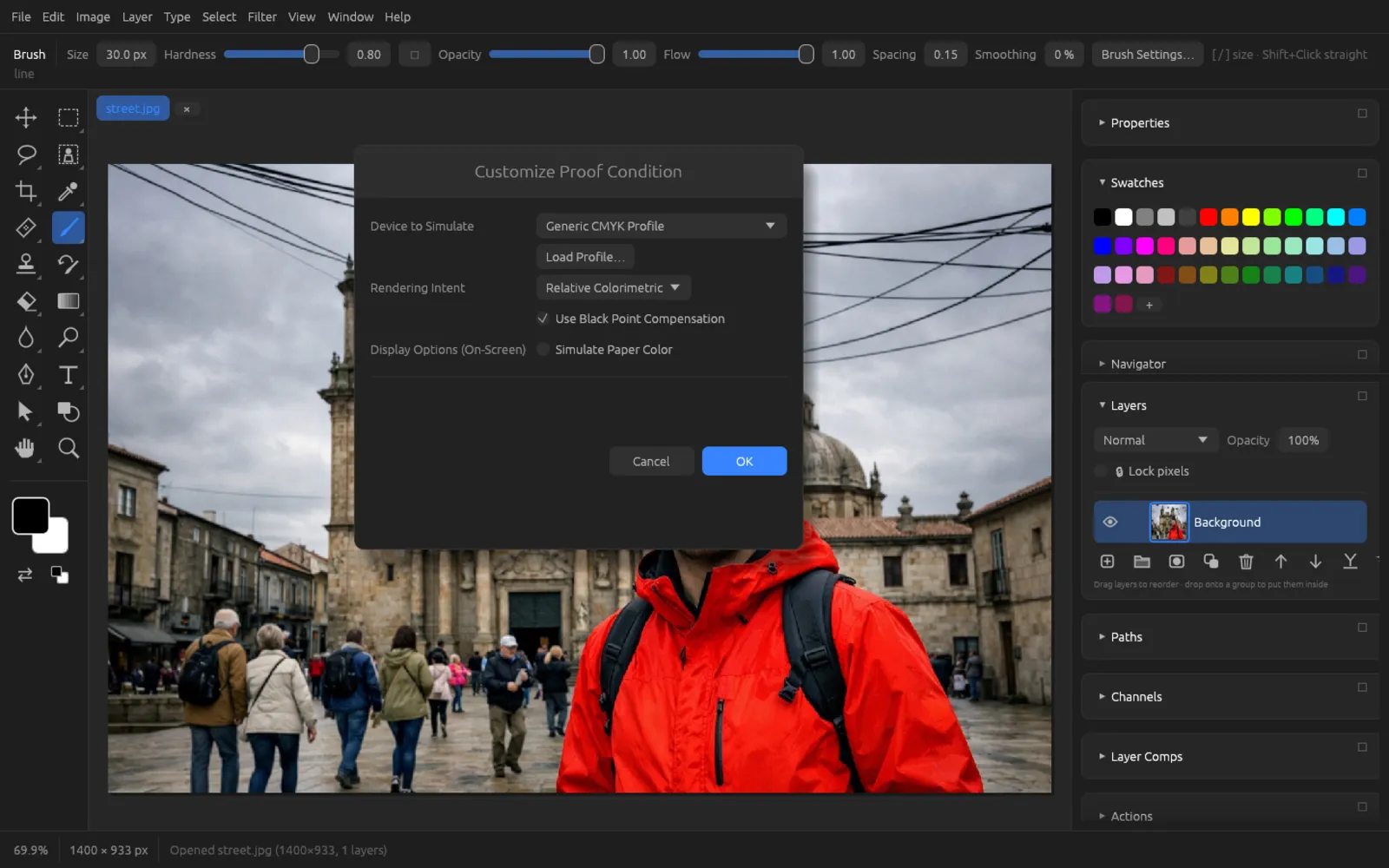
In the Customize Proof Condition dialog you set:
- Device to Simulate – the system's generic CMYK profile, the Built-in CMYK, the built-in RGB profiles, or an RGB or CMYK profile from your print shop that you read with Load Profile….
- Rendering Intent and Use Black Point Compensation – as for converting.
- Simulate Paper Color – shows white and black the way the paper reproduces them (often a little grayer and duller).
Clicking OK turns Proof Colors on right away. The status bar shows which proof is active. The image itself doesn't change. In CMYK and Multichannel documents the proof commands aren't needed and are therefore turned off.
Converting to CMYK for print and checking the proof
- Finish editing your photo in RGB, ideally in 16 bits. Save an RGB version as a backup.
- Choose . Use Load Profile… to load your print shop's CMYK profile, or leave the system profile selected. Set the Rendering Intent to Relative Colorimetric or Perceptual and turn on Use Black Point Compensation. Click OK.
- Press ⌘ ⇧ Y to turn on the Gamut Warning. Gray areas show colors that the print can't reach.
Areas marked in gray lie outside the print gamut. - If needed, reduce the saturation of these areas, for example with a Hue/Saturation adjustment layer and a mask (see Adjustments), until the warning almost disappears. Then turn it off again.
- Press ⌘ Y (Proof Colors) to check the overall impression. Turn on Simulate Paper Color in the proof dialog if you print on uncoated paper.
- Convert the image: either with (with the default profile) or with and the print shop's profile as Destination.
- Save the result as TIFF or PSD (see Saving, export and printing).
Apply Image and Calculations
With these two commands you combine channels or whole images with each other – for example to build a precise mask from channels. They work with RGB and Grayscale documents in 8 or 16 bits. The sources must be exactly as large as the image; they can also be other open documents.
Apply Image
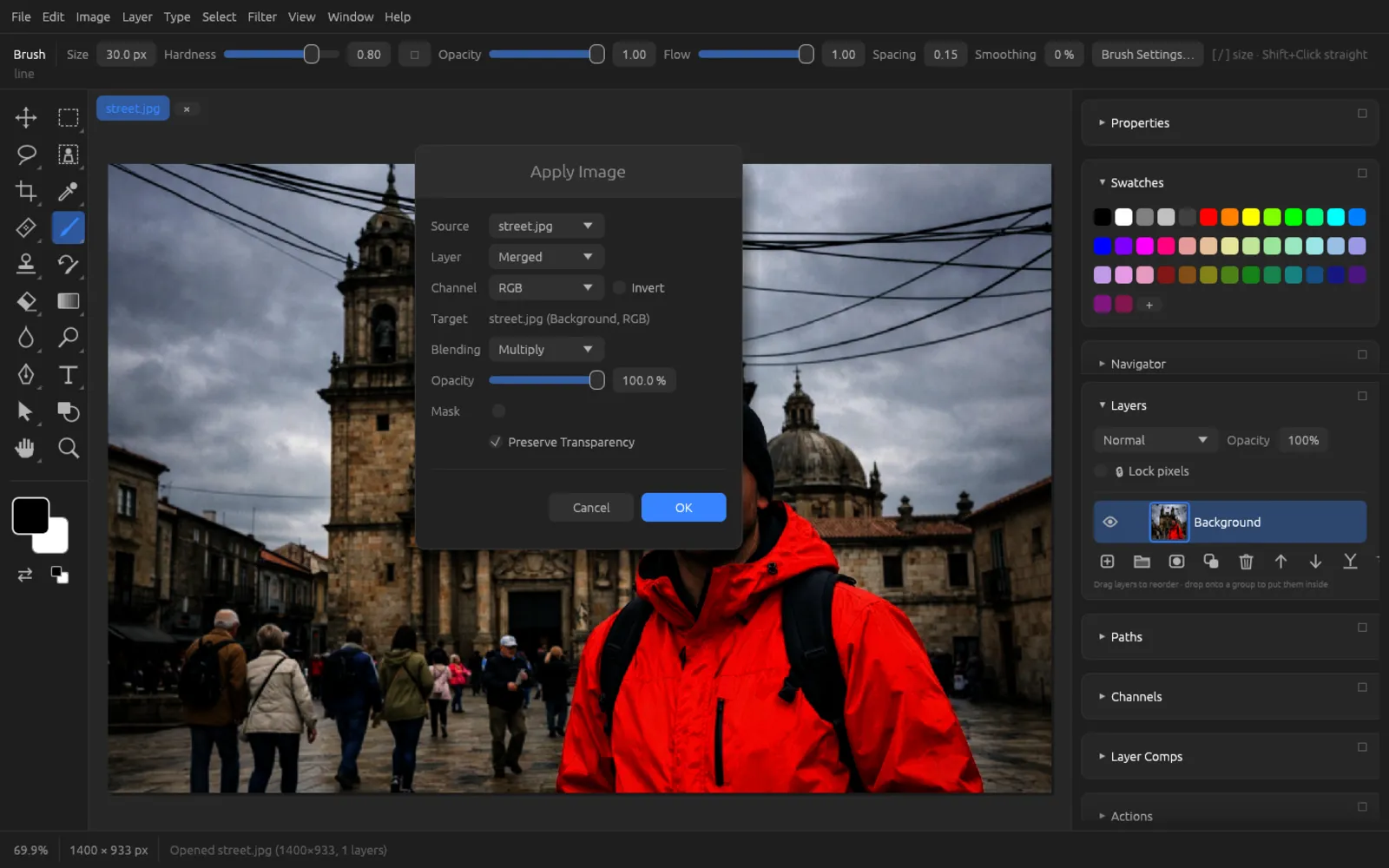
combines a source with the current target – the active pixel layer, its mask or a selected channel. The dialog shows the target under Target.
| Field | Meaning |
|---|---|
| Source | The document to read from. |
| Layer | A specific layer or Merged (all visible layers). |
| Channel | RGB, a single color channel, Gray or a saved channel; Invert inverts it. |
| Blending | How the two are combined: all the layer blend modes plus Add and Subtract; for these two there are also Scale (1–2) and Offset (−255 to 255). |
| Opacity | Strength of the effect (0–100%). |
| Mask | Limits the effect to another channel (with its own source, layer and channel). |
| Preserve Transparency | Transparent areas of the target layer stay untouched. |
Calculations
combines two single channels (Source 1 and Source 2, each with document, layer, channel and Invert). Source 1 is blended onto Source 2 with the chosen Blending. Under Result you decide where the result goes: New Channel, New Document or Selection.
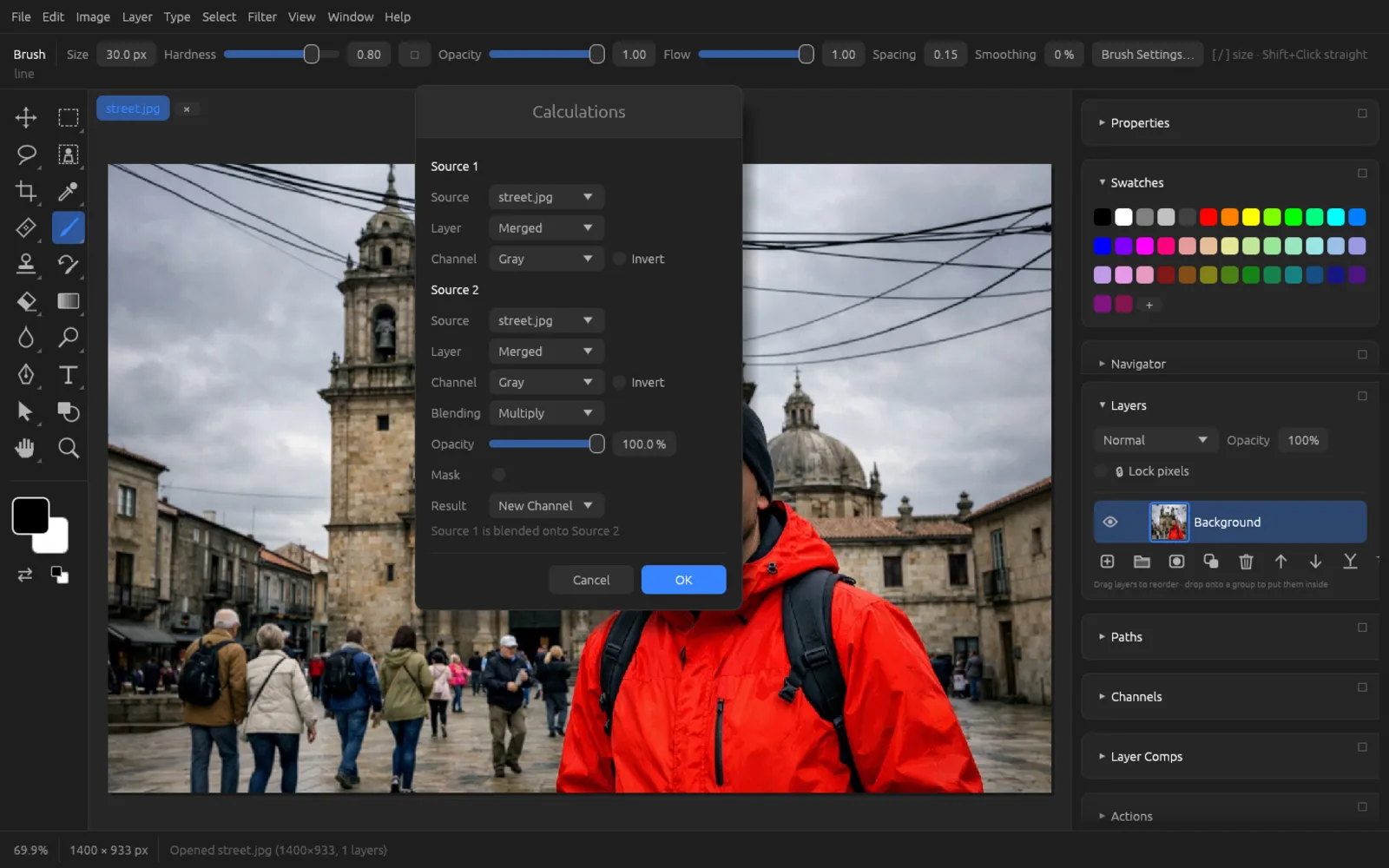
A proven method for hair against a bright sky: combine the channel with the most contrast (often blue) with itself in Multiply and output the result as a Selection. You'll find more selection tools in the Selections chapter.
Trap
is only available in CMYK documents. In printing, the color plates never line up perfectly; at edges between two colors a thin white gap can then appear. Trapping spreads lighter colors by the set Width (1–10 px) under the darker neighboring colors. What counts as “darker” follows from the density of the inks: black is the darkest, yellow the lightest. The command works on the active pixel layer and is one history step.
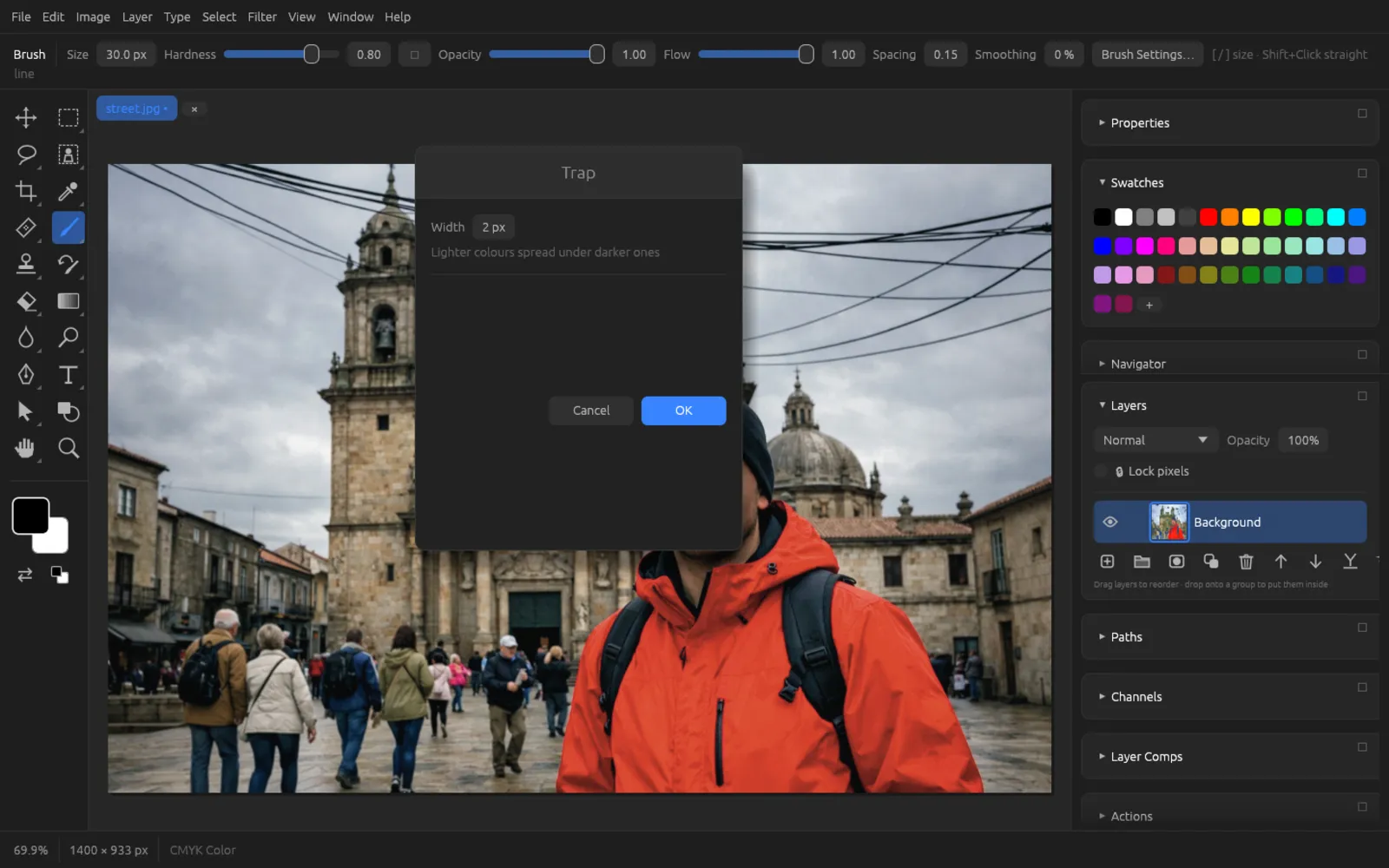
Ask your print shop whether they do the trapping themselves. Many print shops take care of it when making the plates.
Analysis and measuring
Chromatelier can measure distances, angles, areas and counts and give them in a real unit of measurement.
Ruler tool and Count tool
The Ruler tool sits in the Eyedropper's tool group (I; ⇧ I switches within the group). Drag a line across the image; ⇧ snaps to 45° steps. The options bar shows the starting point (X, Y), width (W), height (H), angle (A) and length (L). Straighten Layer rotates the layer so that the line becomes horizontal – ideal for tilted horizons. Clear removes the line.
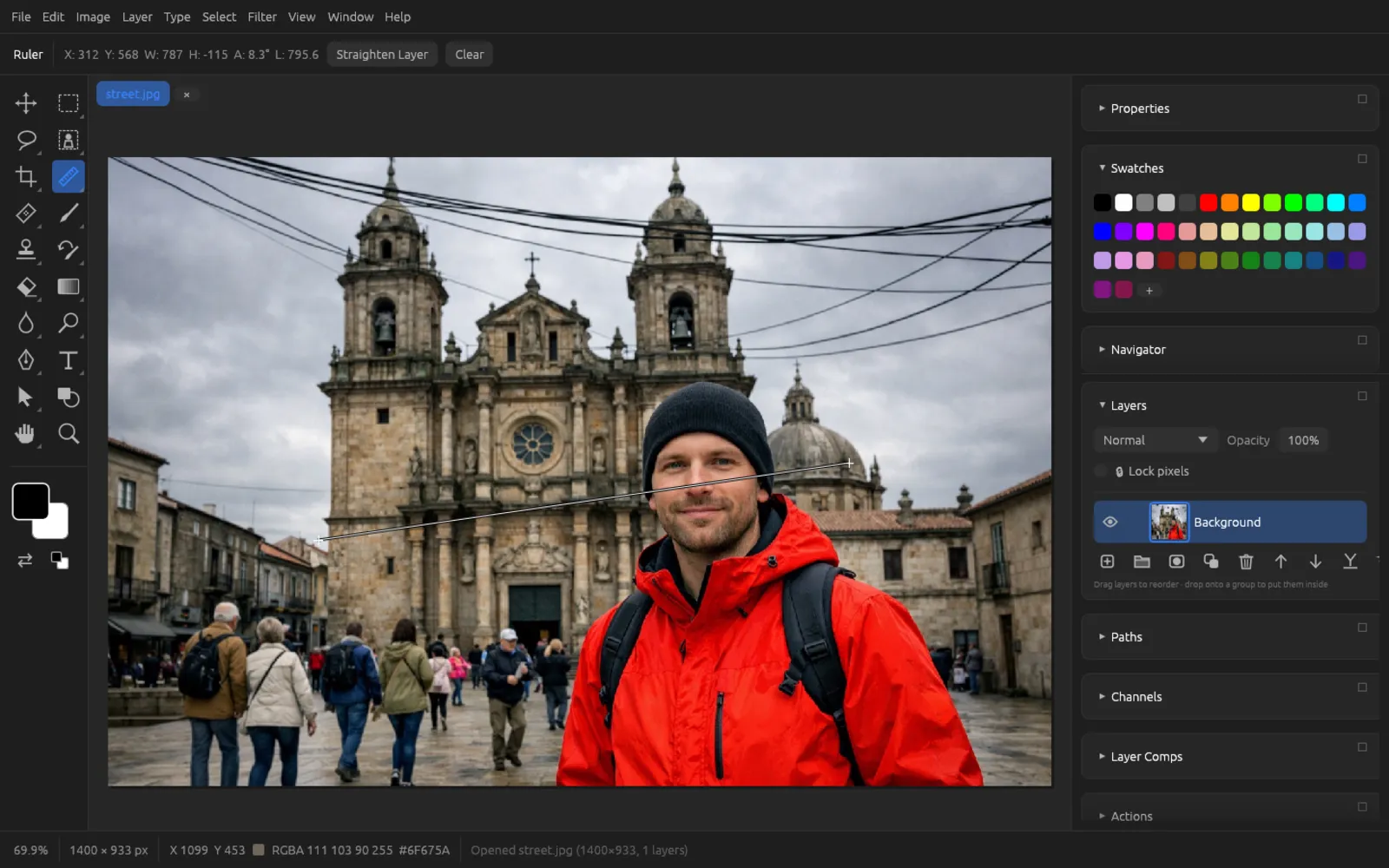
With the Count tool (same group, called “Count” in the toolbar) you click to place numbered markers, for example to count objects. ⌥-click removes a marker; the options bar shows the count and offers Clear. The Tools chapter describes more tools.
Measurement scale
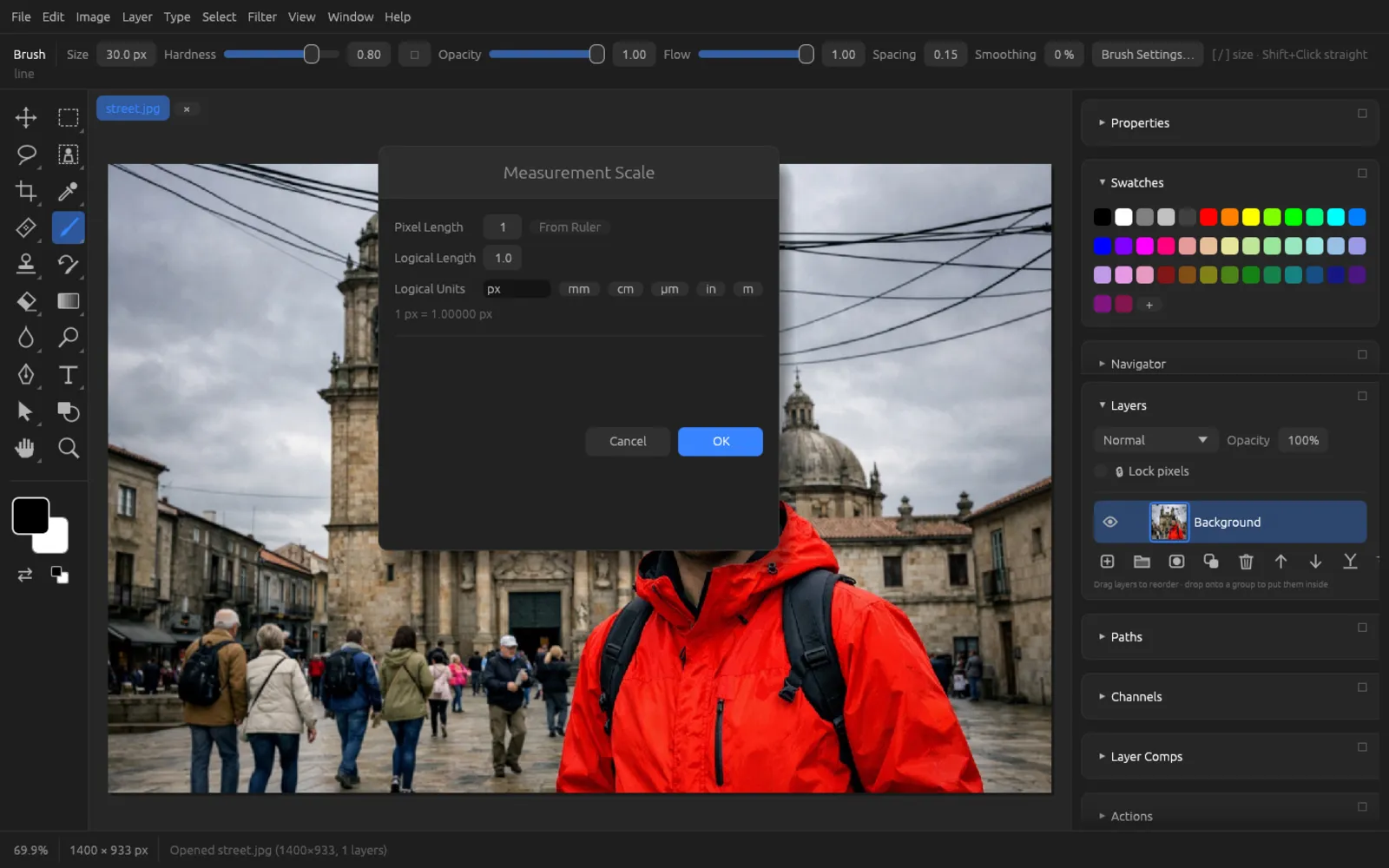
Without a measurement scale, Chromatelier measures in pixels. With you define how many pixels correspond to a real length:
- Pixel Length – the length in pixels. From Ruler takes the length of the Ruler tool's current line.
- Logical Length and Logical Units – the real length and its unit (type it freely or use the buttons mm, cm, µm, in, m).
The bottom of the dialog shows how much one pixel is. switches back to pixels.
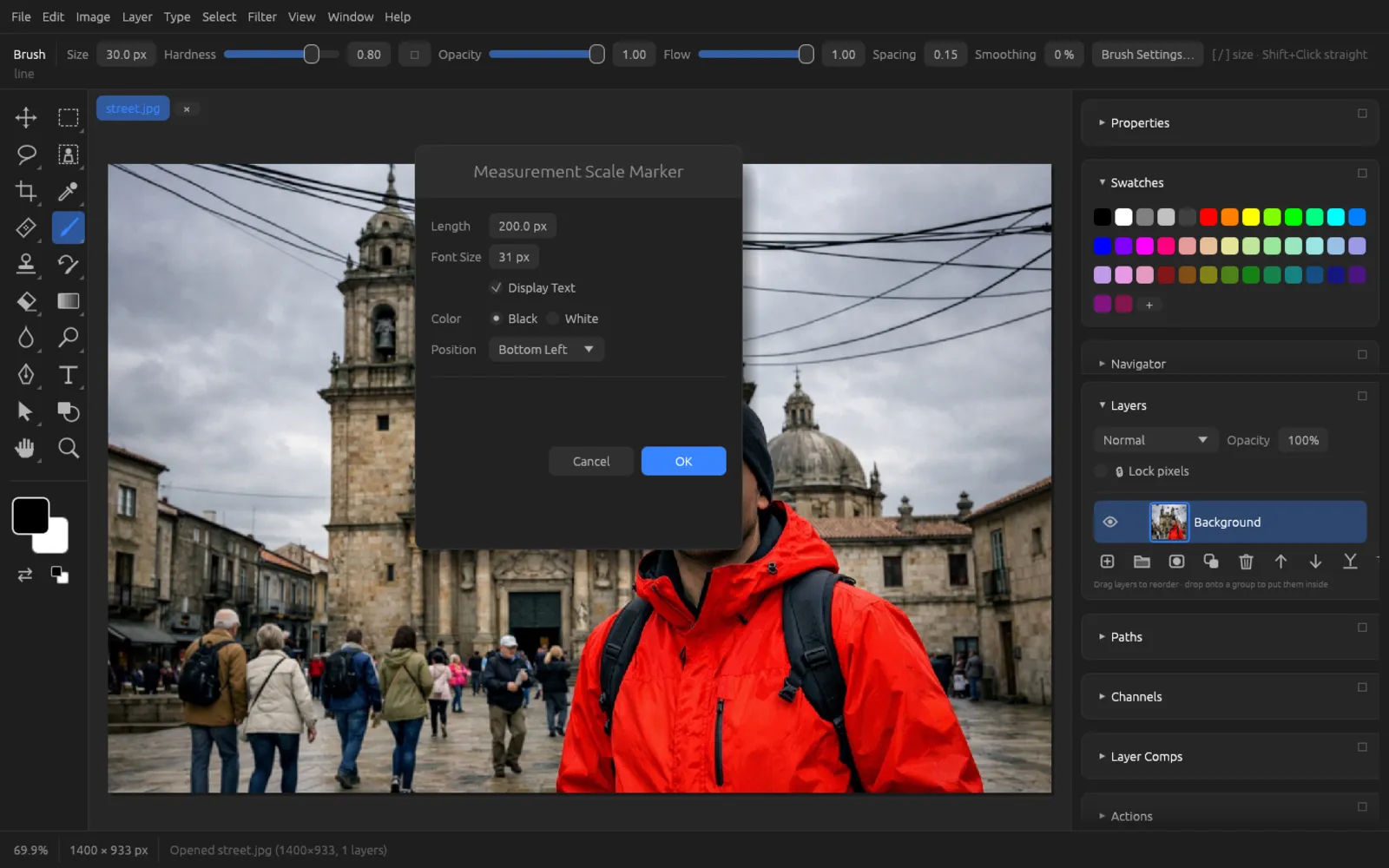
adds a scale bar to the image – as a group with its own layer. You choose the Length, the Font Size, whether the label appears (Display Text), the Color (black or white) and the Position in one of the four corners.
Record Measurements and the Measurement Log
(⌘ ⇧ M) writes the current measurements to the Measurement Log – one row each for:
- the Ruler: length, angle, width, height,
- the Count: number of markers,
- the Selection: area, perimeter, width and height.
The panel lists all rows in the unit of the measurement scale. You can record there too, save everything as a CSV file with Export… and empty it with Clear.
Variables and data sets
fills text layers, visibility and images from a CSV table – for example for name badges or product cards. This is described in the Automation and extensions chapter.
Camera Raw: developing RAW photos
RAW files contain the camera's unprocessed sensor data. Chromatelier opens the formats of the common manufacturers, including DNG, CR2, CR3, NEF, ARW, RAF, ORF, RW2, PEF and SRW. Decoding is done by the bundled program chromatelier-raw, which is installed next to the app and called by it in the background. If it is missing, Chromatelier reports that the RAW decoder is missing.
The Camera Raw dialog when opening
When you open a RAW file with (or by dragging it onto the window), the Camera Raw — file name dialog appears. On the left you see a preview, on the right the sliders. Development works on the linear sensor data: highlights that would already be white in a JPEG can still be recovered here.
| Section | Sliders | Range |
|---|---|---|
| White Balance | Temperature, Tint | −100 to +100 |
| Tone | Exposure | −5 to +5 stops |
| Contrast, Highlights, Shadows, Whites, Blacks | −100 to +100 | |
| Presence | Vibrance, Saturation | −100 to +100 |
- Presets: In the Preset field you'll find Auto (calculates suitable values for the image), the built-in presets Vivid, Soft, High Contrast, Muted, Warm and Cool, and your own presets. Default resets everything. To save your own values, type a Preset name and click Save Preset.
- AI masks: Under Masks you add a local mask with + Subject, + Sky or + Background. While a mask is selected, all sliders act only on it; Whole Picture takes you back to the global values, and ✕ removes a mask. The masks use the local AI models; if a model is missing, it is downloaded first (see AI on your computer).
- Lens profile: If Chromatelier finds a profile for the camera and lens from the EXIF data, Lens Profile Correction: lens name appears – when turned on, it corrects distortion, color fringes and vignetting. The profiles come from the free lens database Lensfun; if they aren't installed yet, Download Lens Profiles downloads them once.
The full size of the image is shown at the bottom. Open Image develops the photo at full resolution and opens it as a new 16-bit document. The RAW file itself is never overwritten; the document doesn't have a save location yet.
Developing a RAW photo
- Choose and the RAW file. The Camera Raw dialog opens.
- Under Preset, first choose Auto as a starting point.
- Correct the White Balance: Temperature to the left for cooler, to the right for warmer; Tint against a green or magenta cast.
- Use Exposure to set the overall brightness. Bring detail back into the sky with Highlights (to the left) and brighten dark areas with Shadows (to the right). Whites and Blacks set the end points.
- Add color gently with Vibrance – it is kinder to skin tones than Saturation.
- If only the sky should get darker, click + Sky. As soon as the mask appears, lower Exposure or Highlights; the sliders now act only on the sky. Then click Whole Picture.
- Turn on the Lens Profile Correction if it is offered.
- If you like the settings for more photos, save them as a preset.
- Click Open Image. Keep editing the 16-bit document and save it (see Saving, export and printing).
Camera Raw Filter
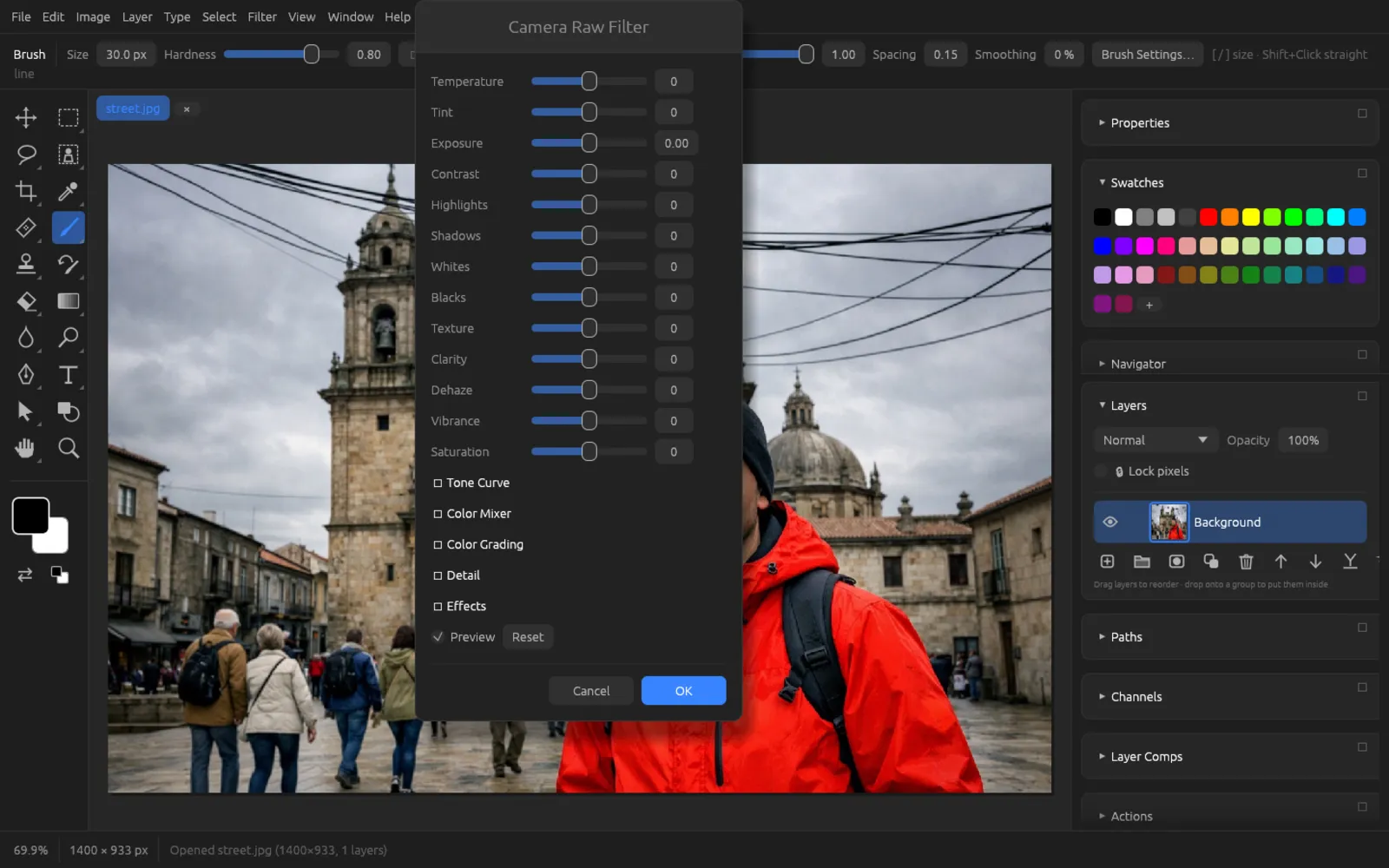
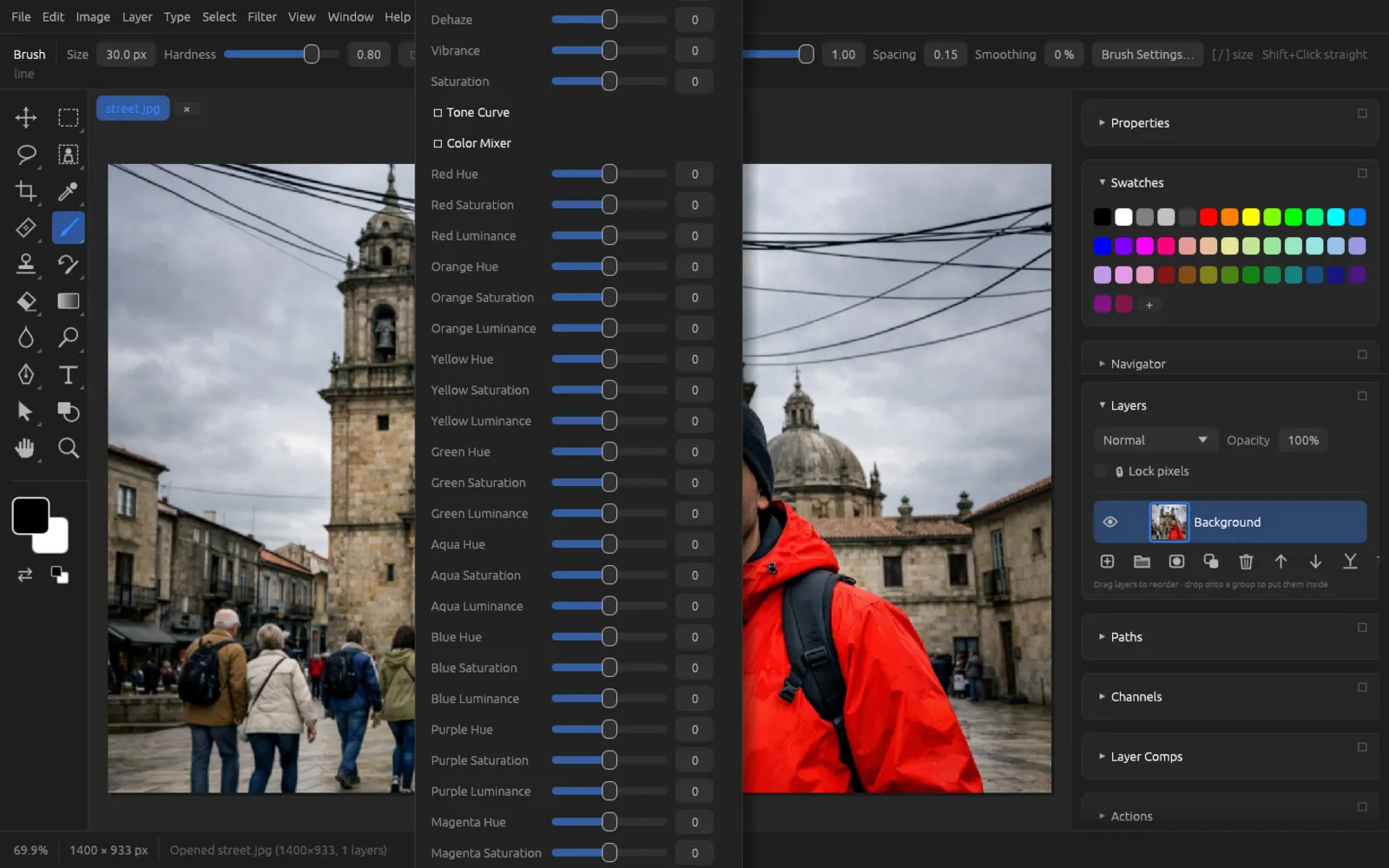
brings the development sliders to any pixel layer, including JPEGs. It offers more sliders than the opening dialog; the preview in the document follows every change (Preview), and Reset sets everything to zero.
| Section | Sliders |
|---|---|
| Basic sliders | Temperature, Tint, Exposure (−5 to +5), Contrast, Highlights, Shadows, Whites, Blacks, Texture, Clarity, Dehaze, Vibrance, Saturation (otherwise −100 to +100) |
| Tone Curve | Highlights, Lights, Darks, Shadows – a parametric curve |
| Color Mixer | Hue, Saturation and Luminance separately for Red, Orange, Yellow, Green, Aqua, Blue, Purple and Magenta |
| Color Grading | Hue (0–360°) and amount for shadows, midtones and highlights, plus Balance |
| Detail | Sharpening (0–150), Sharpening Radius (0.5–3), Noise Reduction, Color Noise Reduction |
| Effects | Grain Amount and Grain Size, Vignetting (−100 to +100), Vignette Midpoint |
Applied to a smart object, the filter stays editable as a smart filter (see Layers). You'll find more filters in the Filters chapter.
Merge to HDR Pro
combines an exposure bracket – the same scene, shot at different brightness levels – into one image with a high dynamic range.
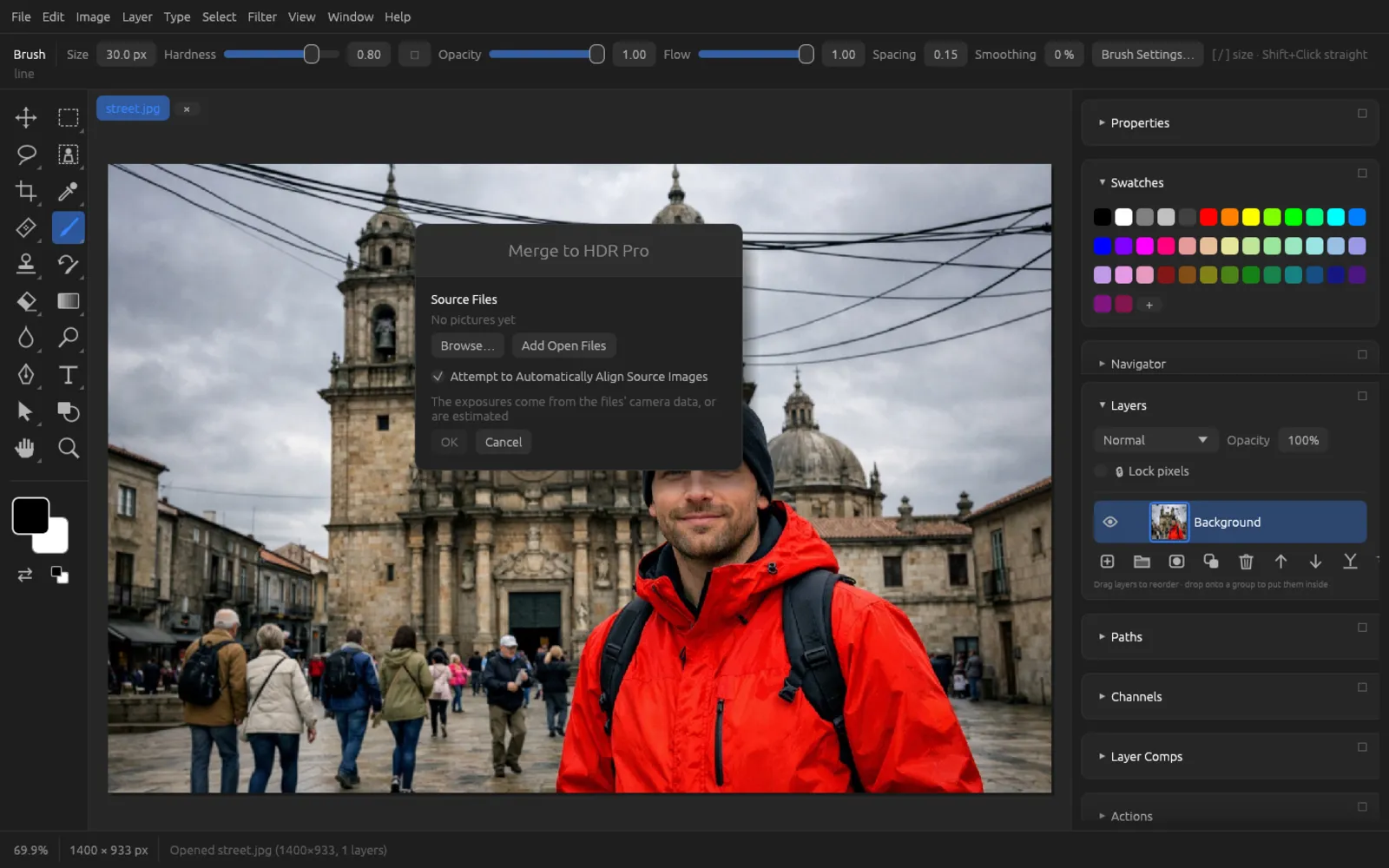
- Browse… chooses files, Add Open Files takes the open documents. ✕ removes an image again. You need at least two images of the same size; RAW files are developed with the default values.
- Attempt to Automatically Align Source Images evens out small shifts from a handheld shot.
- The exposures are taken from the files' camera data or estimated.
In the second step you choose the Mode:
- 32 Bit – the merged light is kept in a 32-bit document. HDR toning follows later when you convert to 16 or 8 bits.
- 16 Bit (tone mapped) – the image is brought to a normal tonal range right away.
HDR Toning
Toning brings the huge brightness range into a range that can be displayed. The preview shows every change:
| Slider | Range | Effect |
|---|---|---|
| Exposure | −5 to +5 | Overall brightness |
| Gamma | 0.3–3 | Brightness of the midtones |
| Range (stops) | 2–12 | How much dynamic range is compressed |
| Detail % | −100 to 300 | Emphasizes local detail |
| Saturation | −100 to +100 | Color intensity |
You'll find the same toning for normal images under (see Adjustments).
Merging an exposure bracket into HDR
- Take three to five photos with different exposures, ideally from a tripod, one to two stops apart.
- Choose .
- Click Browse… and choose all images of the bracket. Leave Attempt to Automatically Align Source Images turned on if you shot handheld. Click OK.
The source files of the exposure bracket. - Choose 16 Bit (tone mapped) for an image that is finished right away – or 32 Bit if you want to keep editing the HDR image first.
- Set the toning sliders: first Range (stops) and Exposure, then Gamma. Detail % gives you more texture – don't overdo it, or halos will appear.
- Click OK. The result opens as a new document named “HDR”.
- For 32 bits: check the image with the exposure slider in the status bar and then convert it with – the HDR Toning dialog appears.
Photomerge: panoramas
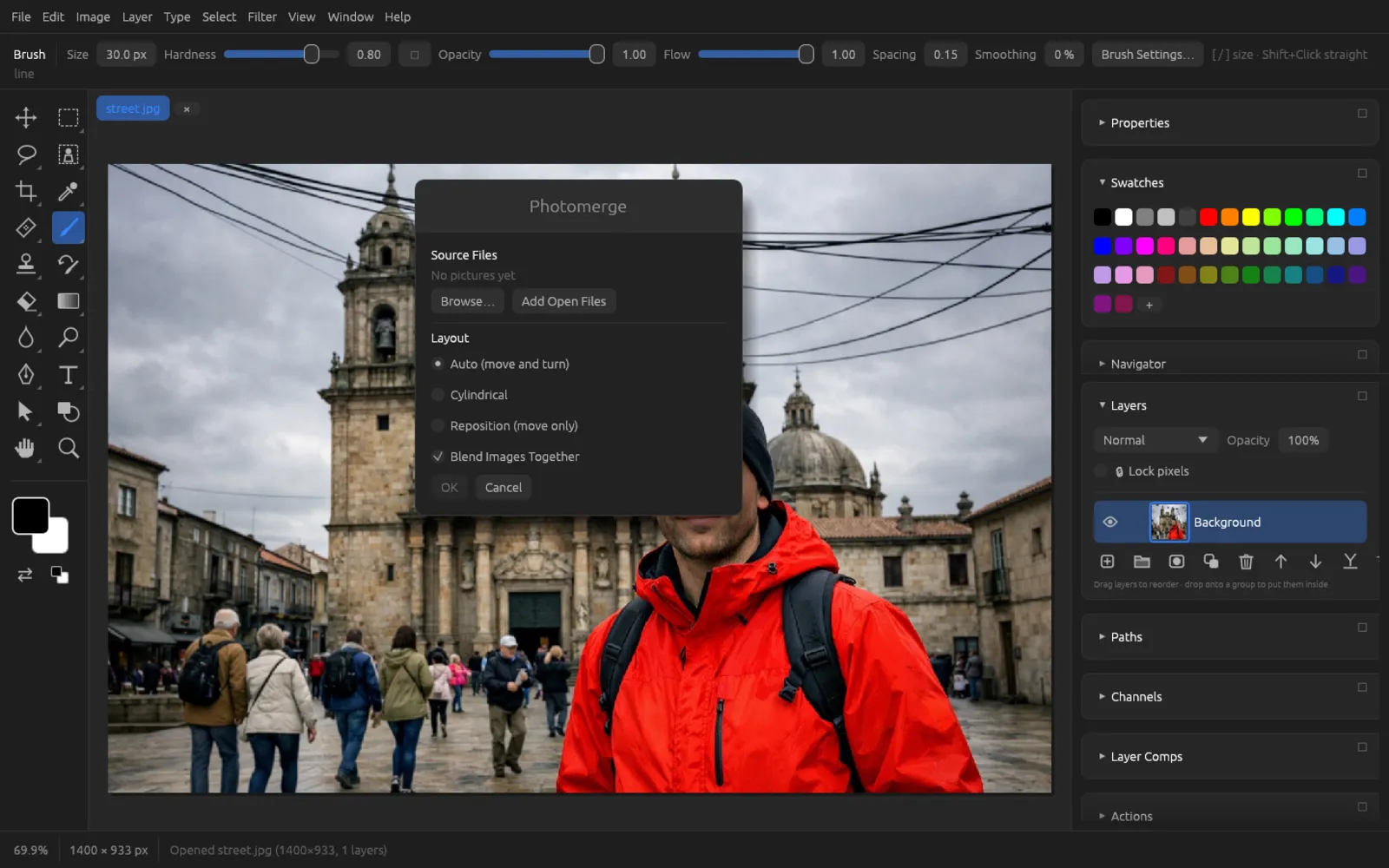
combines overlapping photos into a panorama. Each photo ends up on its own layer in the new document “Panorama”.
| Option | Meaning |
|---|---|
| Auto (move and turn) | The images are moved and rotated until they fit. |
| Cylindrical | For wide panoramas: the images are first projected onto a cylinder (focal length from the camera data). |
| Reposition (move only) | Only moving, no rotation – for example for scans made in parts. |
| Blend Images Together | Creates layer masks and matches the tones so that the transitions become invisible. |
| Lens Profile Correction (RAW files) | Corrects RAW files with their lens profile before combining them. Appears as soon as the lens profiles are installed (also in HDR Pro). |
Creating a panorama
- Photograph the scene in parts that each overlap by about a third. Exposure and focal length should stay the same.
- Choose .
- Add the images with Browse… or Add Open Files.
- Choose the Layout: Auto for most cases, Cylindrical for very wide views.
- Leave Blend Images Together turned on and click OK. If Chromatelier reports that two images don't overlap, a part of the scene is missing between them.
- The panorama has irregular edges. Crop it with the Crop tool, or select the empty edges and fill them with (see Retouching and transforming).
- If needed, flatten the layers with and save the image.
DICOM: medical images
Chromatelier opens DICOM files (.dcm, .dicom, .dic or files with a DICOM signature) via . Uncompressed data and the usual compressions (Deflate, RLE, JPEG, lossless JPEG, JPEG-LS and JPEG 2000) are supported.
- Grayscale images are shown with the file's windowing (window), otherwise with their value range. More than 8 bits become a 16-bit document.
- RGB and YBR color images are opened as color images.
- Multiple frames become layers; the first one is visible.
- The file's pixel spacing becomes the measurement scale – so you measure in millimeters right away. Non-square pixels set the pixel aspect ratio.
Chromatelier is not software for medical diagnosis. Use the DICOM support for viewing, measuring and preparing images, for example for presentations.