Video and animation
Chromatelier edits short videos and creates animations. In the timeline you arrange video clips, animate layers with keyframes, add sound underneath and render the result as MP4, MOV, PNG sequence or animated GIF. For simple animations there is also frame animation.
Two kinds of timeline
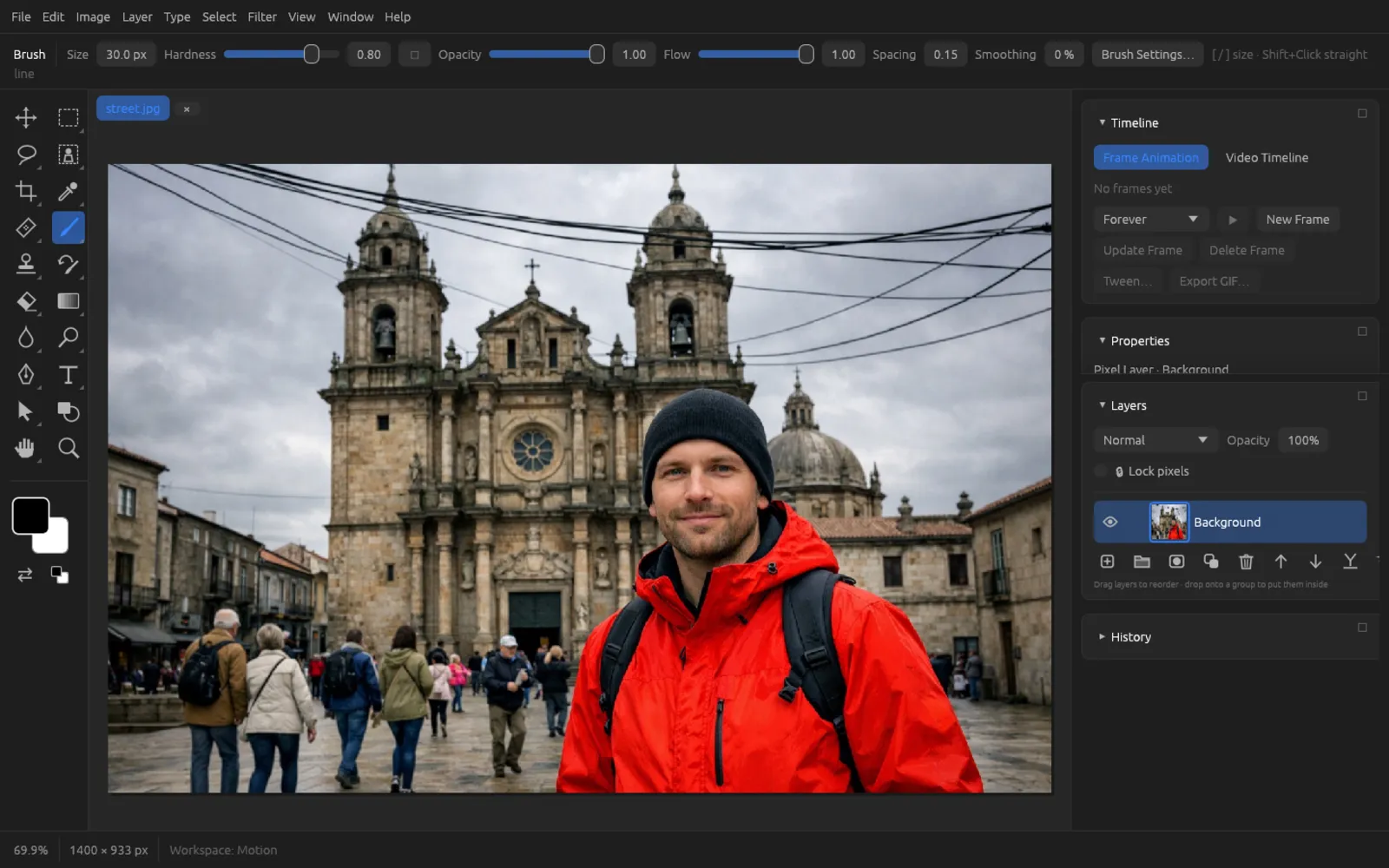
You open the Timeline panel with . The most comfortable way to work is the workspace: it shows the timeline at the top right, with Layers and History below it. At the top of the panel you switch between two modes:
| Mode | Used for | Result |
|---|---|---|
| Frame Animation | Single frames made from layer states, each with its own display time – for example for animated banners or flip books | animated GIF |
| Video Timeline | Video clips, keyframe animation, sound – on a time axis in seconds and frames | MP4, MOV, PNG sequence or GIF |
If a document contains video layers or keyframes and no frames yet, the panel automatically shows the video timeline.
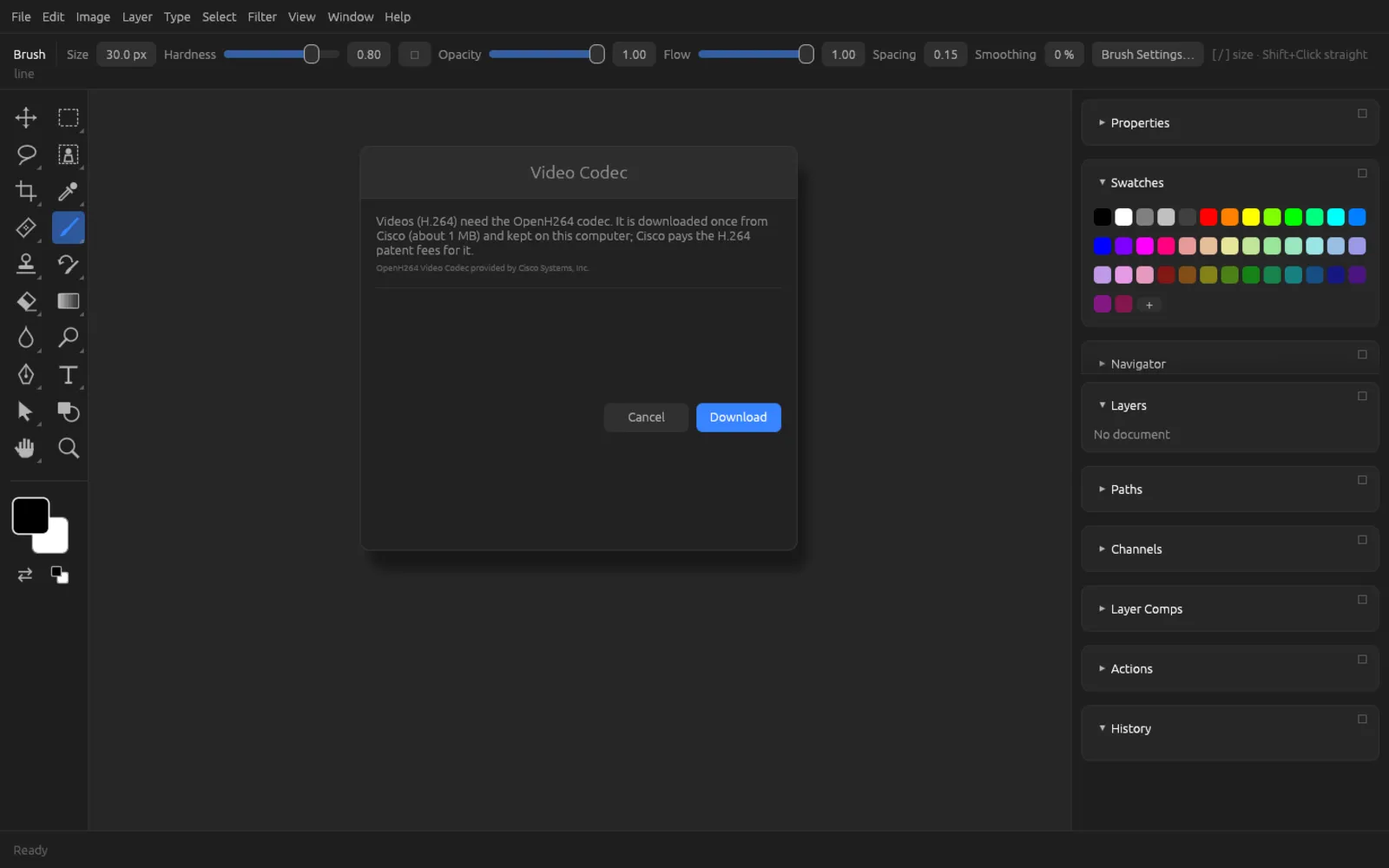
The video codec (H.264)
Chromatelier reads and writes videos in the widespread H.264 format in MP4 and MOV files. For this it uses the OpenH264 codec from Cisco. For licensing reasons it isn't included in the program package: Cisco covers the H.264 patent fees only if the codec is downloaded directly from Cisco to your computer.
The first time you open a video, add a video layer or render an MP4, the Video Codec dialog asks whether it may download the codec (about 1 MB). With Download, Chromatelier fetches it once from Cisco, stores it on your computer and then continues the action you started.
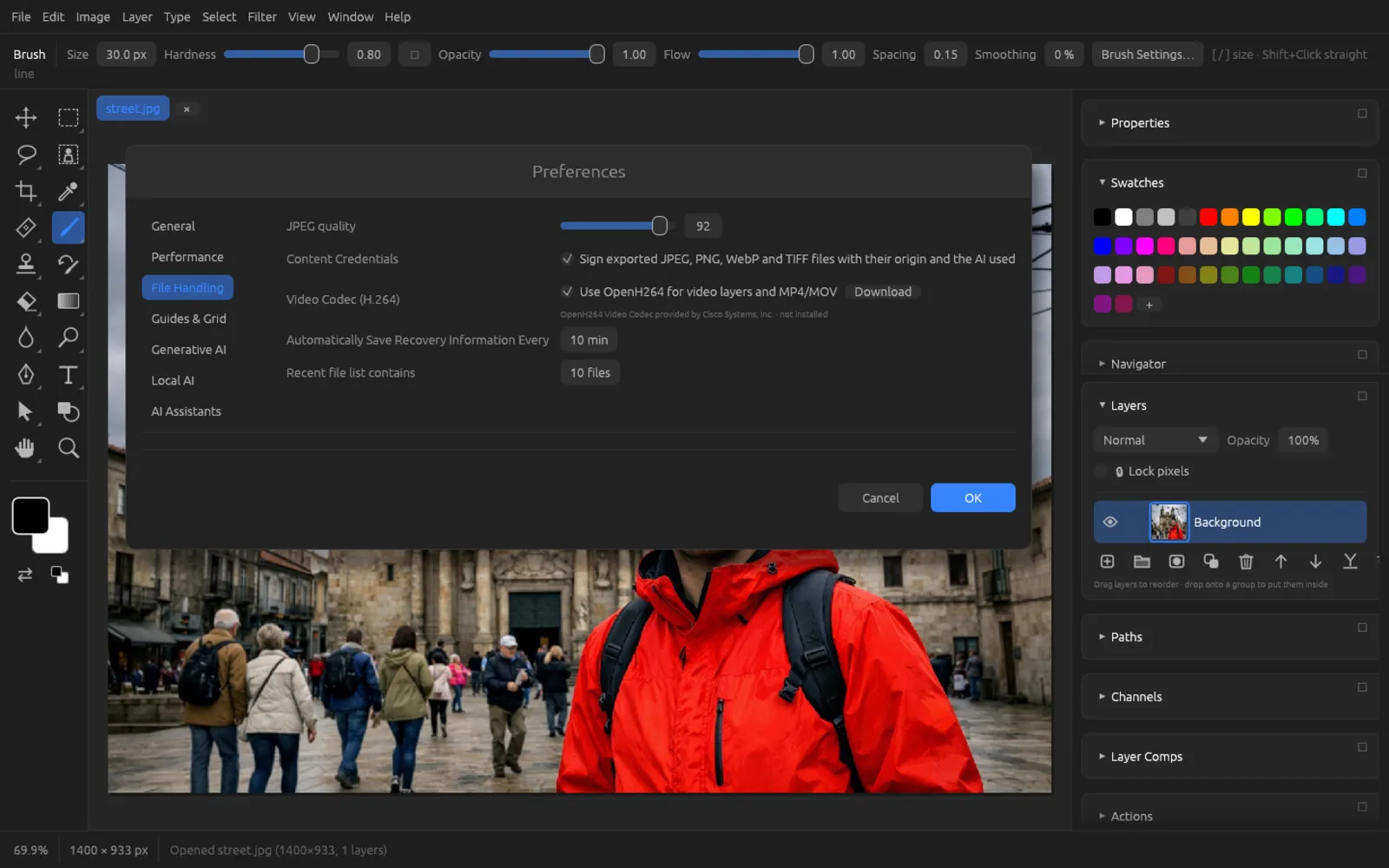
In , in the File Handling section, you'll find the Video Codec (H.264) row. There you turn the codec off or on with Use OpenH264 for video layers and MP4/MOV, download it with Download or delete it with Remove. Below that you see the notice “OpenH264 Video Codec provided by Cisco Systems, Inc.” and the status (installed or not). If the codec is turned off, the Video Codec dialog offers to turn it back on.
Without the codec you can still output frame animations as GIF and timelines as PNG sequence or GIF – these don't need H.264.
Video layers
A video layer shows a video from a file (MP4, M4V or MOV with H.264 video). It behaves like a pixel layer: you can move it, mask it, mix it with blend modes and opacity, put adjustment layers above it and place text or graphics over it. It always shows the frame at the timeline's current time.
The video file isn't copied into the document but linked. So don't move or delete it while you are working on the document.
Opening a video or adding it as a layer
- with a video file creates a new document the size of the video, with the video as a layer.
- adds a video as a new layer to the current document. The Add Video Layer… button at the bottom of the video timeline does the same. The clip starts at the current time position.
If the video has a sound track, Chromatelier automatically creates it as a sound clip that is firmly tied to the video clip.
The video timeline
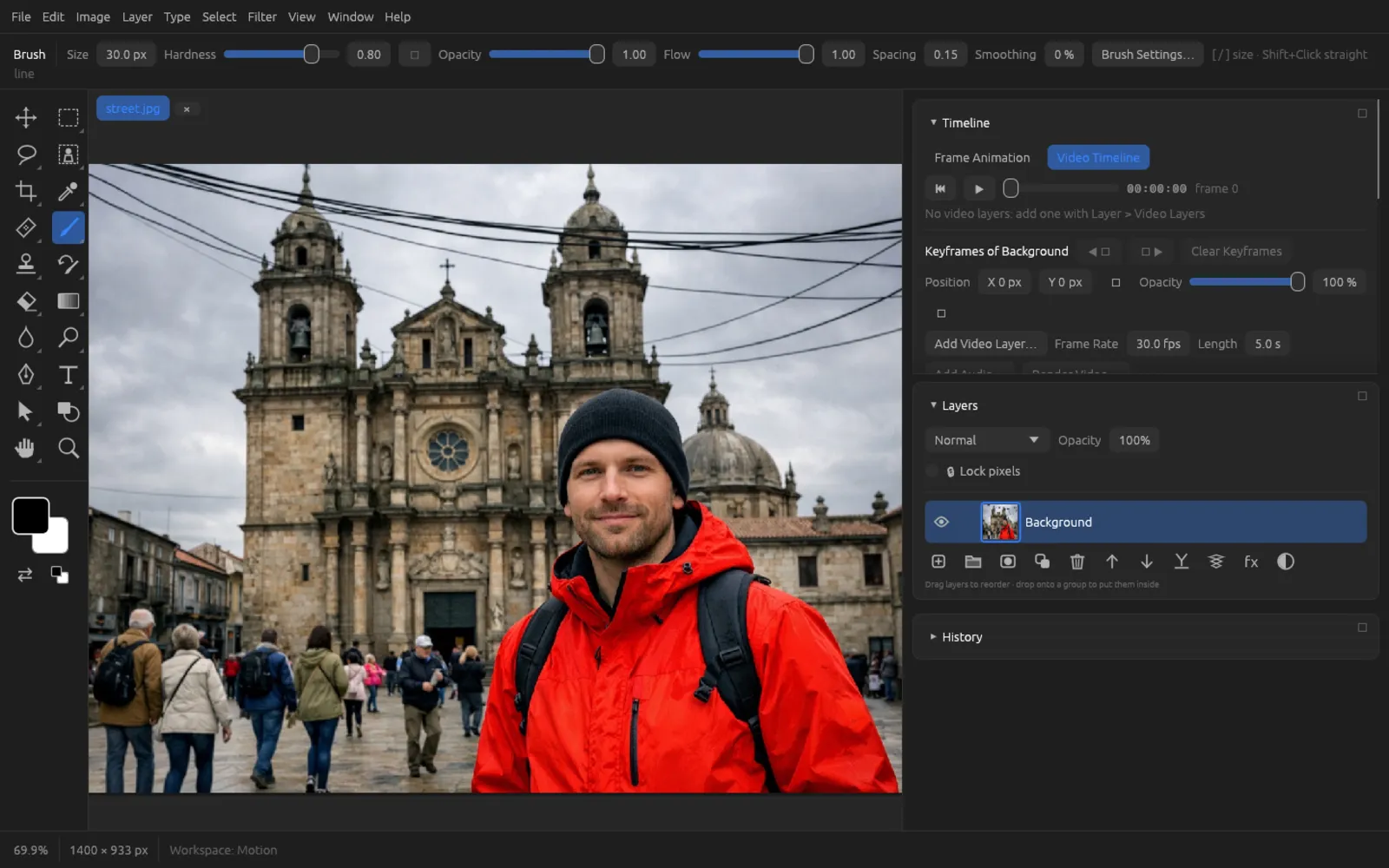
From top to bottom, the panel is laid out like this:
- Playback bar: ⏮ jumps to the start, ▶ / ⏸ plays or pauses (at the end it starts over). Use the slider to jump to a time. On the right are the time code (minutes:seconds:frames) and the frame number.
- Tracks: Each video layer and each animated layer gets a row with its name. Video clips appear as purple bars, keyframes as yellow diamonds, the current time as a red line. Drag a video clip horizontally to move its start time. A tooltip gives its length and start.
- Sound clips: one row per sound clip (see Sound).
- Keyframes of the active layer: position and opacity at the current time (see Keyframes).
- Settings: Add Video Layer…, Frame Rate (1–120 fps, default 30), Length in seconds, Add Audio… and Render Video….
Without a fixed length, the timeline is as long as its clips. With the Length field you set your own duration – for example for an animation without any video clip.
Keyframes
With keyframes you animate any layer – including type, shape and pixel layers – over time. Chromatelier knows two properties:
| Property | Control | Effect |
|---|---|---|
| Position | X and Y in pixels, diamond ◆ | Offset of the layer from its resting position |
| Opacity | Slider 0–100%, diamond ◆ | Opacity of the layer |
Between two keyframes, Chromatelier calculates the values evenly (linearly). This is how you set keyframes:
- Change X, Y or the opacity at a point in time – a keyframe is created there automatically.
- Click the diamond ◆ next to the property to record the current value as a keyframe. Clicking a highlighted diamond again removes the keyframe at that point.
- With ◀◆ and ◆▶ you jump to the layer's previous or next keyframe.
- Clear Keyframes removes all position and opacity keyframes of the active layer.
Each change is a step in the history and can be undone with ⌘ Z.
Fading video clips in and out
If the active layer is a video layer, you also get Fade In and Fade Out (0–60 seconds each) as well as Fade To: Transparent (the clip becomes see-through; overlapping clips blend into each other), Black or White.
Letting a title float into the picture
- Open a video or a photo and choose . In the timeline, click Video Timeline.
- If you don't have a video, enter a duration under Length, for example 5 s.
- Create a type layer with the Type tool and leave it selected in the Layers panel.
- Drag the time slider all the way to the start. In the Position row, set Y to, for example, −200 px (the text then sits higher up) and the Opacity to 0%.
- Drag the time slider to 1 second. Set Y to 0 px and the opacity to 100%. New keyframes are created; you see the yellow diamonds in the type layer's track.
- Click ▶. The text floats into the picture from above and becomes visible as it does.
- Output the result with Render Video… (see below).
Sound
The video timeline mixes any number of sound clips. With Add Audio… you choose a file (MP3, WAV, M4A, AAC, FLAC, OGG, or the sound from MP4, MOV, M4V). The clip starts at the current time position. Each sound clip appears as its own row with a green bar (gray when it is muted); fade-ins and fade-outs show as slopes.
- You move free sound clips by dragging. A video layer's sound is tied to its clip and moves with it.
- When you click the name on the left or the bar of a sound clip, its settings appear: Mute, Volume (0–200%), Fade In, Fade Out and Remove.
When you play back in the timeline, you hear the sound on macOS and Windows. On Linux the timeline plays silently; when you render as MOV, however, the sound is included on all systems.
Render Video
(or Render Video… in the timeline) outputs the whole timeline as a file. Under Range the dialog shows the duration, number of frames and frame rate.
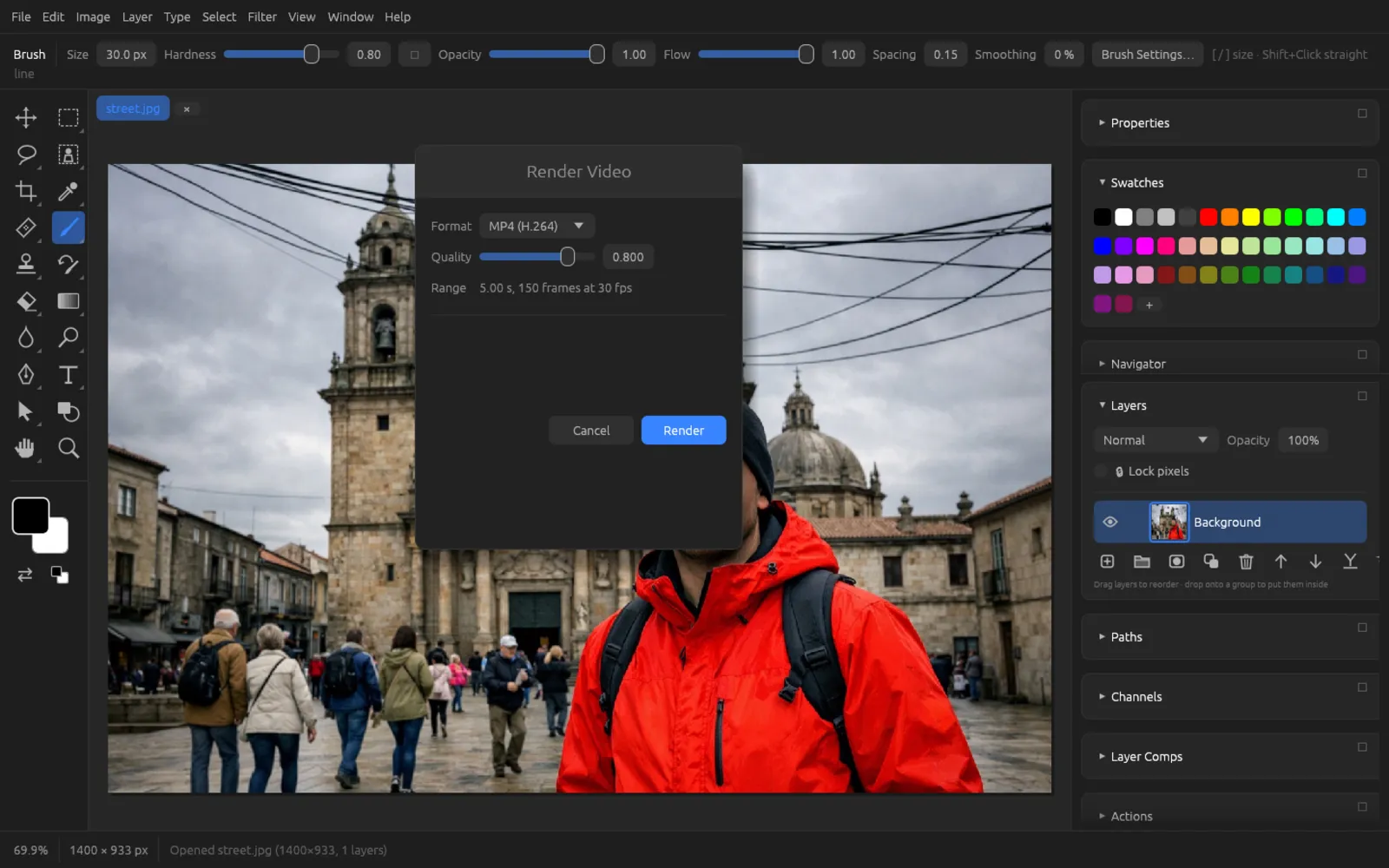
| Format | Result | Notes |
|---|---|---|
| MP4 (H.264) | an MP4 file | without sound; Quality slider 0–1; needs the codec |
| QuickTime MOV (H.264 + Sound) | a MOV file | with all sound clips (uncompressed, 16 bits); Quality slider; needs the codec |
| PNG Sequence | a folder with one PNG file per frame | lossless; you choose a folder; the sound is saved next to it |
| Animated GIF | a GIF file | without sound, for short loops on the web |
If you choose MP4 and the document has sound, the dialog points this out: “MP4 is written without the sound: choose MOV for it”.
Outputting a video with sound
- In the video timeline, press ▶ to check that everything is right, and set the Frame Rate and Length if needed.
- Choose .
- Set Format to QuickTime MOV (H.264 + Sound) and the Quality to, for example, 0.8.
- Confirm with the blue button at the bottom right and choose the location and name in the save dialog.
- If the codec is still missing, the Video Codec dialog appears. Download it with Download and then render again.
- After rendering, the status bar reports how many frames were written.
Frame Animation
In frame animation, the animation consists of individual frames. Each frame remembers which layers are visible, where they are and how they look (opacity, blend mode, layer style) – similar to a layer comp. In addition, each frame has its own display time.
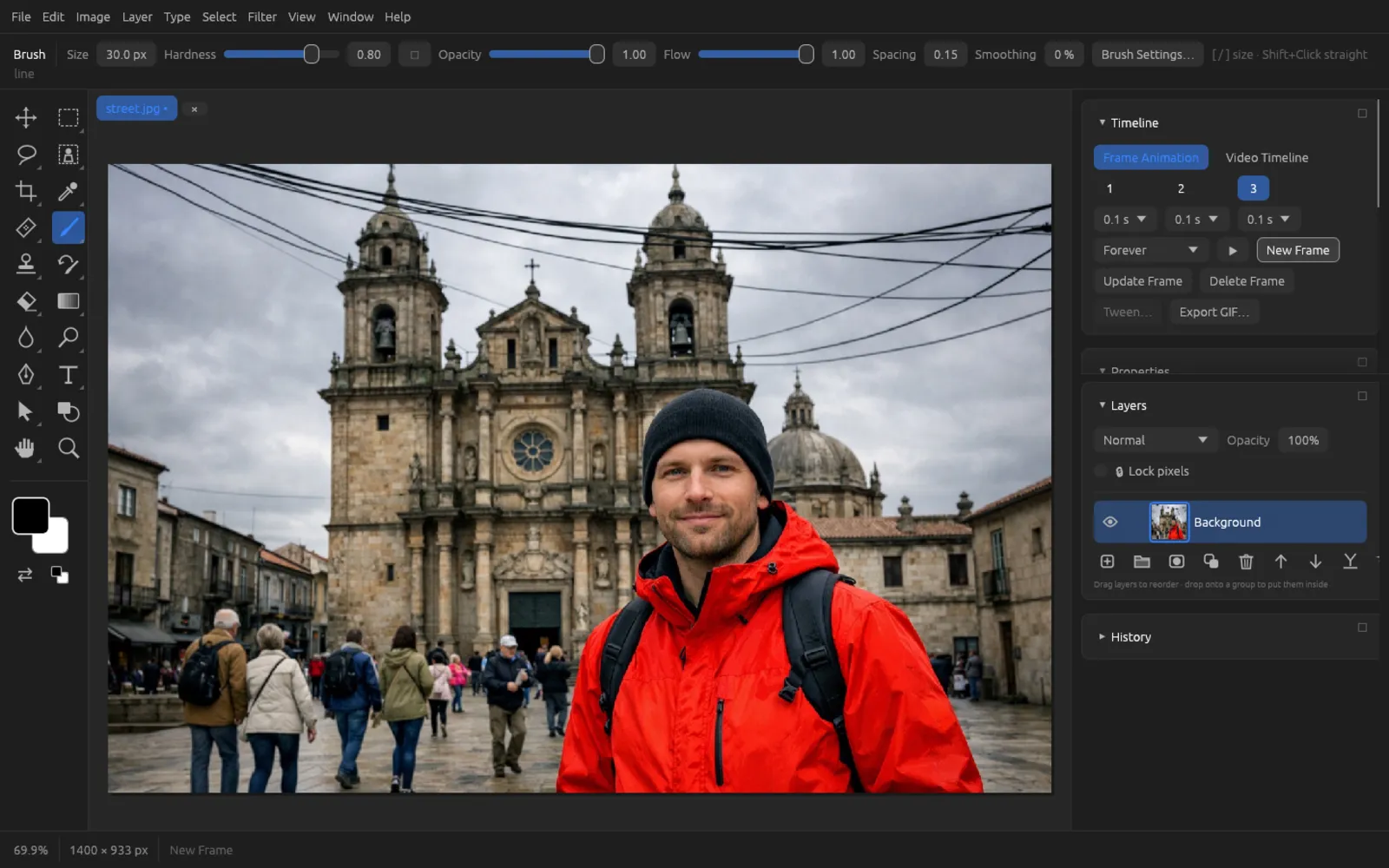
| Control | Effect |
|---|---|
| Frame number | A click selects the frame and shows its state in the document |
| Duration under the frame | 0 s, 0.05 s, 0.1 s (default), 0.2 s, 0.5 s, 1 s, 2 s, 5 s or 10 s |
| Looping | Once, 3 times or Forever |
| ▶ / ■ | plays or stops the animation (from two frames on); afterwards the document is back the way it was |
| New Frame | records the layers as they are now as a new frame after the selected one |
| Update Frame | stores the current state of the layers in the selected frame |
| Delete Frame | removes the selected frame |
| Tween… | inserts five in-between frames between the selected frame and the next one; position and opacity are blended step by step |
| Export GIF… | saves the animation as an animated GIF |
Creating an animated GIF
- Set up the motif with all the layers that should appear in the animation – for example a logo on its own layer.
- Open . The timeline is set to Frame Animation.
- Put the layers into their starting state, for example the logo on the left with 0% opacity, and click New Frame.
- Move the logo to the right with the Move tool, set the opacity to 100% and click New Frame again.
- Select the first frame and click Tween…. Chromatelier adds five in-between steps.
- Under the last frame, set a longer duration, for example 2 s, and choose Forever for looping.
- Check the animation with ▶ and stop it with ■.
- Click Export GIF… (or choose ) and save the file. The status bar reports the number of exported frames.
exports the frames of the frame animation. If the document has no frames yet, the status bar reports “No frames: make some in the Timeline first”. A video timeline, on the other hand, you output with Render Video… in the Animated GIF format.
Saving
Save video and animation projects in Chromatelier's own format (.fpd). It keeps video layers including their links, keyframes, sound clips, frames, frame rate and length. You'll find more about file formats in the Saving, export & printing chapter.