Adjustments
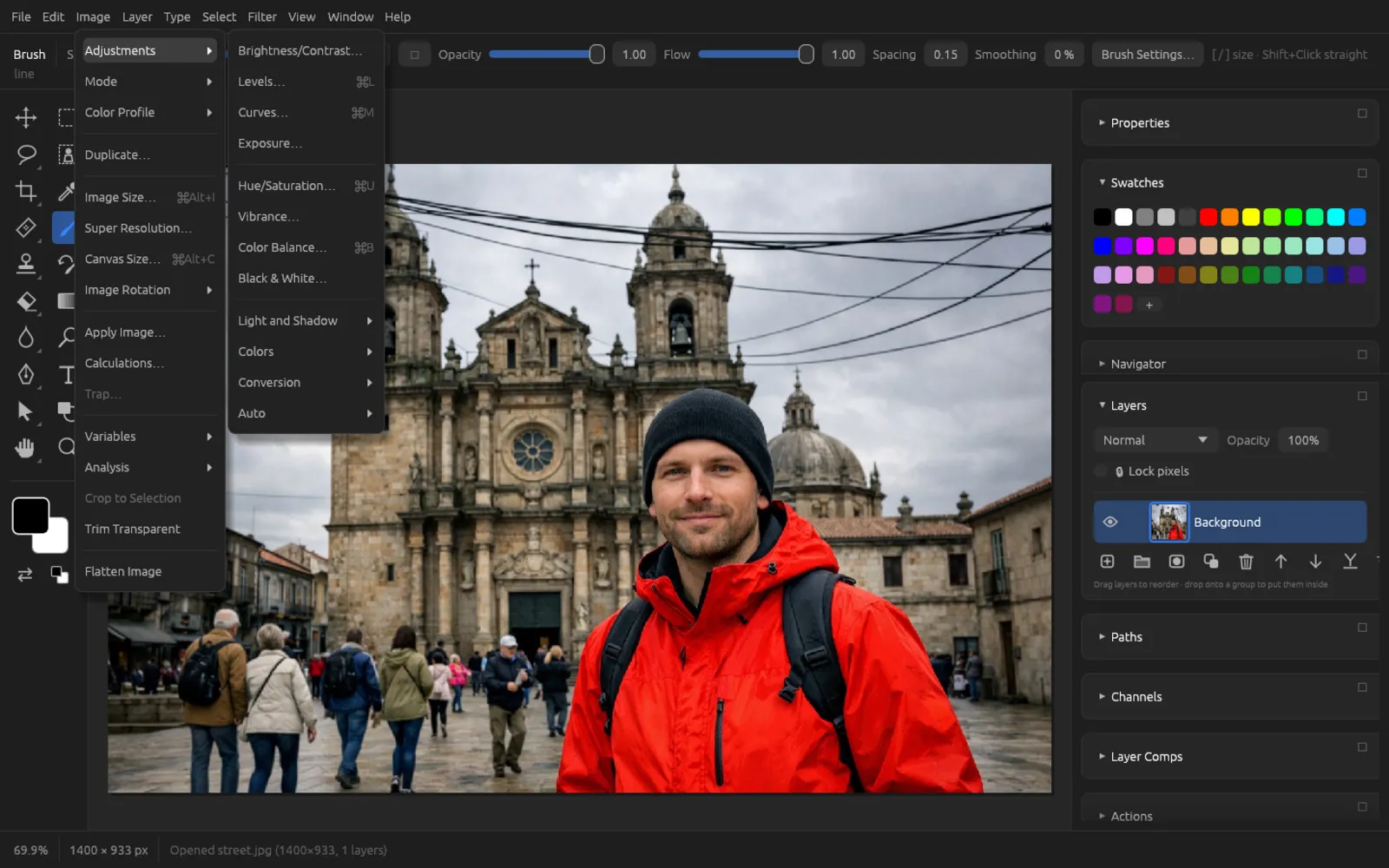
With the adjustments in the menu you set the brightness, contrast and colors of an image: from a quick Auto Contrast to a carefully shaped curve. This chapter explains each adjustment with its sliders and shows typical workflows in step-by-step guides.
Basics
Directly in the image or as an adjustment layer
There are two ways to apply an adjustment:
- Via : the adjustment changes the pixels of the active layer directly. This is quick, but later you can only take it back with or the history.
- As an adjustment layer via : the adjustment sits above the image as a layer of its own. The pixels below stay unchanged; you can reopen the values at any time, lower the opacity, paint a mask or hide the layer. More about this in the chapter Layers.
16 adjustments are available as adjustment layers: Brightness/Contrast, Levels, Curves, Exposure, Vibrance, Hue/Saturation, Color Balance, Black & White, Photo Filter, Invert, Posterize, Threshold, Gradient Map, Channel Mixer, Selective Color and Color Lookup. All other adjustments are available only in the menu.
Work with adjustment layers whenever you can. That way you can still fine-tune an adjustment days later without losing quality.
What an adjustment affects
- An adjustment from the menu affects the active pixel layer. If a layer mask is selected for editing, it affects the mask.
- If there is a selection, only the selected area changes; a feathered selection edge blends softly.
- On a smart object, the adjustment becomes a smart filter and stays editable (see Filters).
- Text layers, shape layers and locked layers cannot be adjusted directly. The status bar then tells you why – rasterize the layer first or use an adjustment layer.
Using the adjustment dialogs
Almost all adjustments open a dialog with sliders. You see the effect in the image immediately.
- Preview switches the live preview off and on again – handy for a before/after comparison.
- Reset sets all sliders back to their initial values.
- OK applies the adjustment, Cancel discards it.
- Next to each slider is a number field. You can drag in it, or double-click it and type a value.
- Some sliders with only two states (e.g. Colorize (0/1)) are switched with 0 = off and 1 = on.
Adjustments without settings (Invert, Desaturate, Sepia, Equalize, Gradient Map and the three auto adjustments) are applied immediately, without a dialog.
Right after an adjustment you can weaken it with (⇧ ⌘ F) or combine it with a blend mode. More about this in the chapter Retouching and Transforming.
Keyboard shortcuts
| Adjustment | Shortcut |
|---|---|
| Levels… | ⌘ L |
| Curves… | ⌘ M |
| Hue/Saturation… | ⌘ U |
| Color Balance… | ⌘ B |
| Invert | ⌘ I |
| Desaturate | ⇧ ⌘ U |
| Auto Contrast | ⇧ ⌘ L |
You can assign further shortcuts yourself under (see Interface).
Brightness and contrast
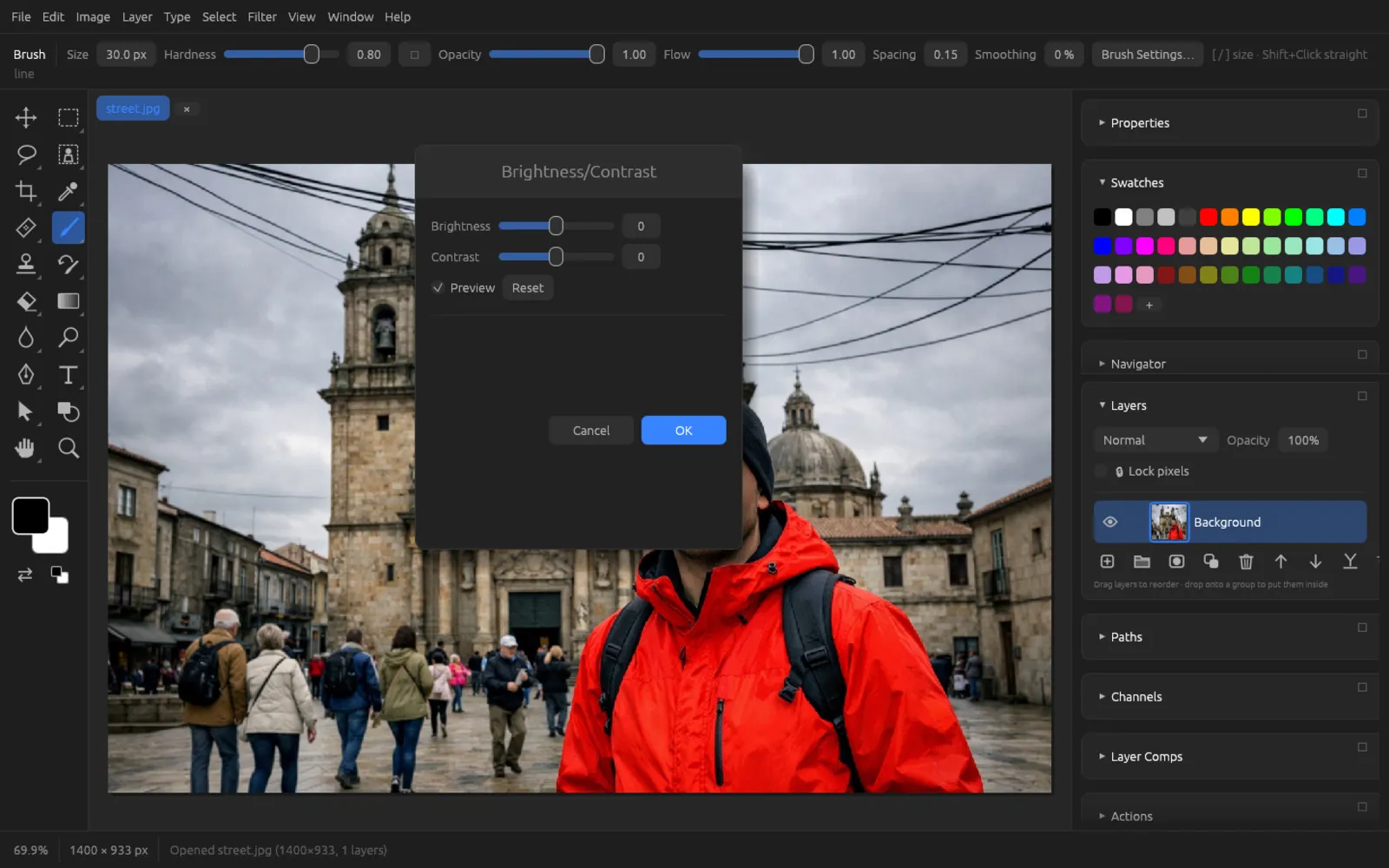
Brightness/Contrast
is the simplest tonal adjustment.
| Slider | Range | Effect |
|---|---|---|
| Brightness | −150 … 150 | Raises or lowers all tones evenly. |
| Contrast | −100 … 100 | Spreads the tones out from the middle (more contrast) or pulls them together (less contrast). |
Levels
(⌘ L) shows the image’s histogram at the top: the distribution of tones from black (left) to white (right). A black and a white line in the histogram mark the current black and white points.
| Slider | Range | Effect |
|---|---|---|
| Input black | 0 … 253 | All tones up to this value become black. Higher values make the shadows richer. |
| Input white | 2 … 255 | All tones from this value up become white. Lower values brighten the highlights. |
| Gamma | 0.1 … 9.99 | Shifts the midtones: above 1 is lighter, below 1 darker. Black and white stay as they are. |
| Output black | 0 … 255 | The darkest value of the output. Higher values turn black into gray (a “matte” look). |
| Output white | 0 … 255 | The lightest value of the output. Lower values tone down the highlights. |
Fixing a flat photo with Levels
You can recognize a flat photo in the histogram by the fact that the tones don’t reach the edges: there is a gap on the left and on the right.
- Open the photo and select the image layer in the Layers panel. For an editable adjustment, use instead.
- Choose or press ⌘ L. Look at the histogram: where does the “mountain” begin on the left, and where does it end on the right?
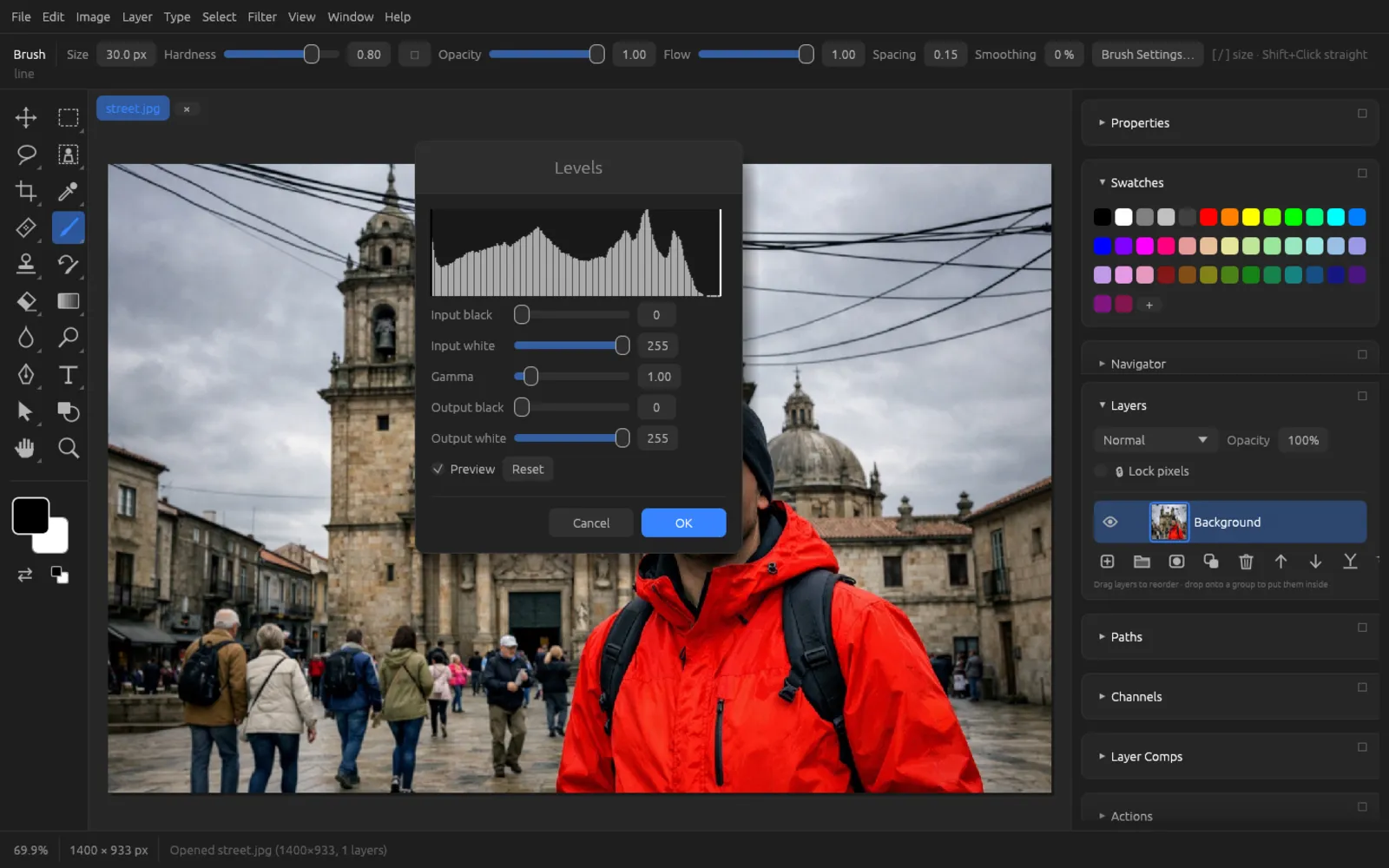
Levels with the histogram. Here the tones on the right don’t quite reach white. - Drag Input black to the right until the black line sits at the start of the histogram mountain.
- Drag Input white to the left until the white line sits at the end of the mountain. The image immediately gains contrast and brilliance.
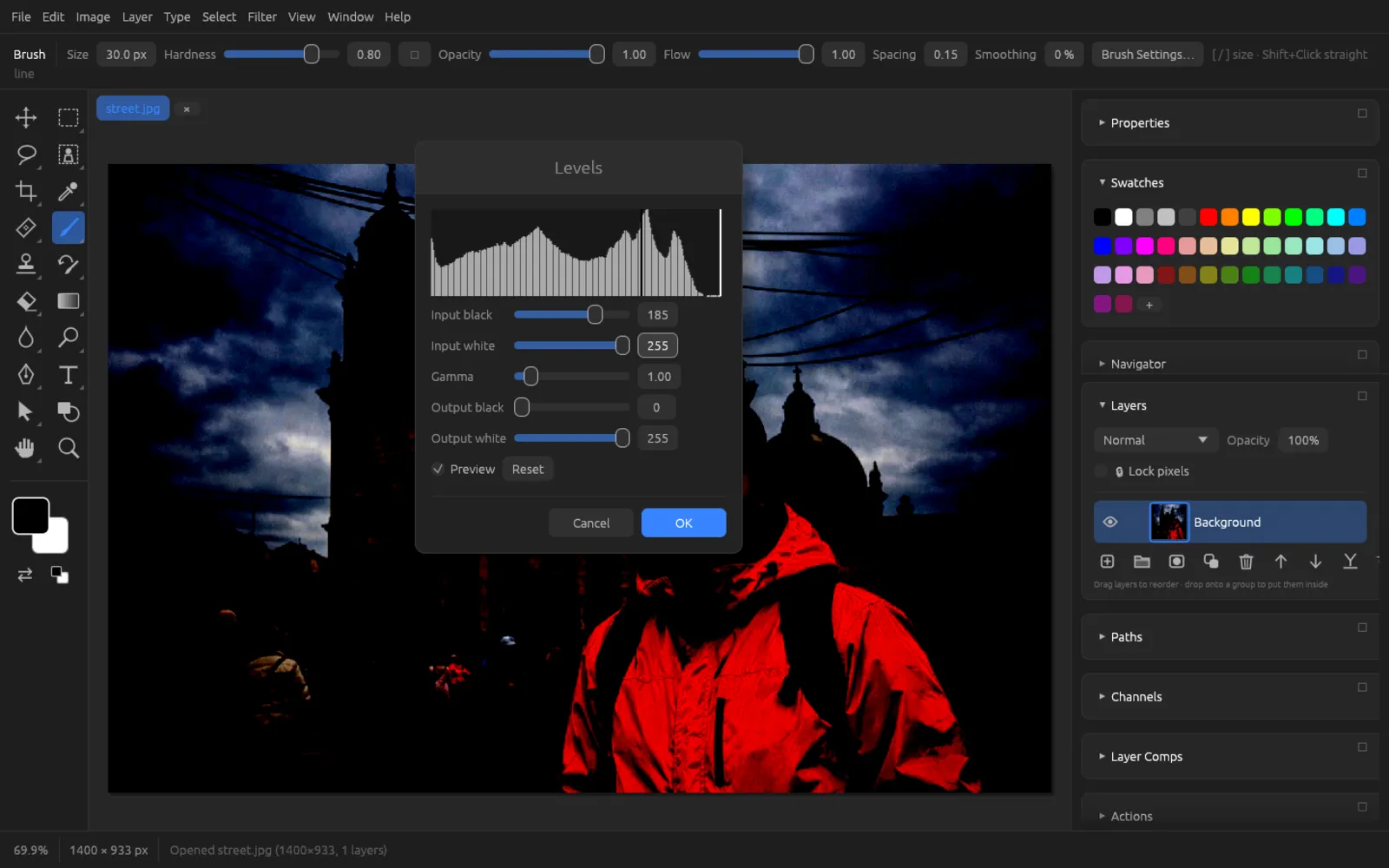
Black point at 32, white point at 218: the tones now use the full range. - If the image now looks too dark or too light, correct the midtones with Gamma.
- Compare with Preview and click OK.
Don’t drag the sliders too far into the mountain. Otherwise shadows or highlights get “clipped” and lose detail.
Curves
(⌘ M) is the most flexible tool for tones and colors. The curve maps each input value (horizontal) to an output value (vertical). As long as it is a diagonal, nothing changes. Behind the curve lies the histogram of the selected channel.
- With the buttons RGB, Red, Green and Blue you choose which curve to edit. The RGB curve affects all channels; the color curves shift the color balance.
- Clicking on the curve adds a point, dragging moves it.
- Right-clicking a point deletes it; at least two points always remain. The two end points can only be moved vertically.
- Dragging a point up lightens that tonal range, dragging it down darkens it. A steeper curve means more contrast.
Contrast with Curves (S-curve)
- Choose or create an adjustment layer with .
- Make sure RGB is selected.
- Click on the diagonal in the lower quarter (the shadows) and drag the new point down a little.
- Click on the diagonal in the upper quarter (the highlights) and drag the point up a little. The curve now has a gentle S shape: shadows get darker, highlights lighter, and the middle stays put.
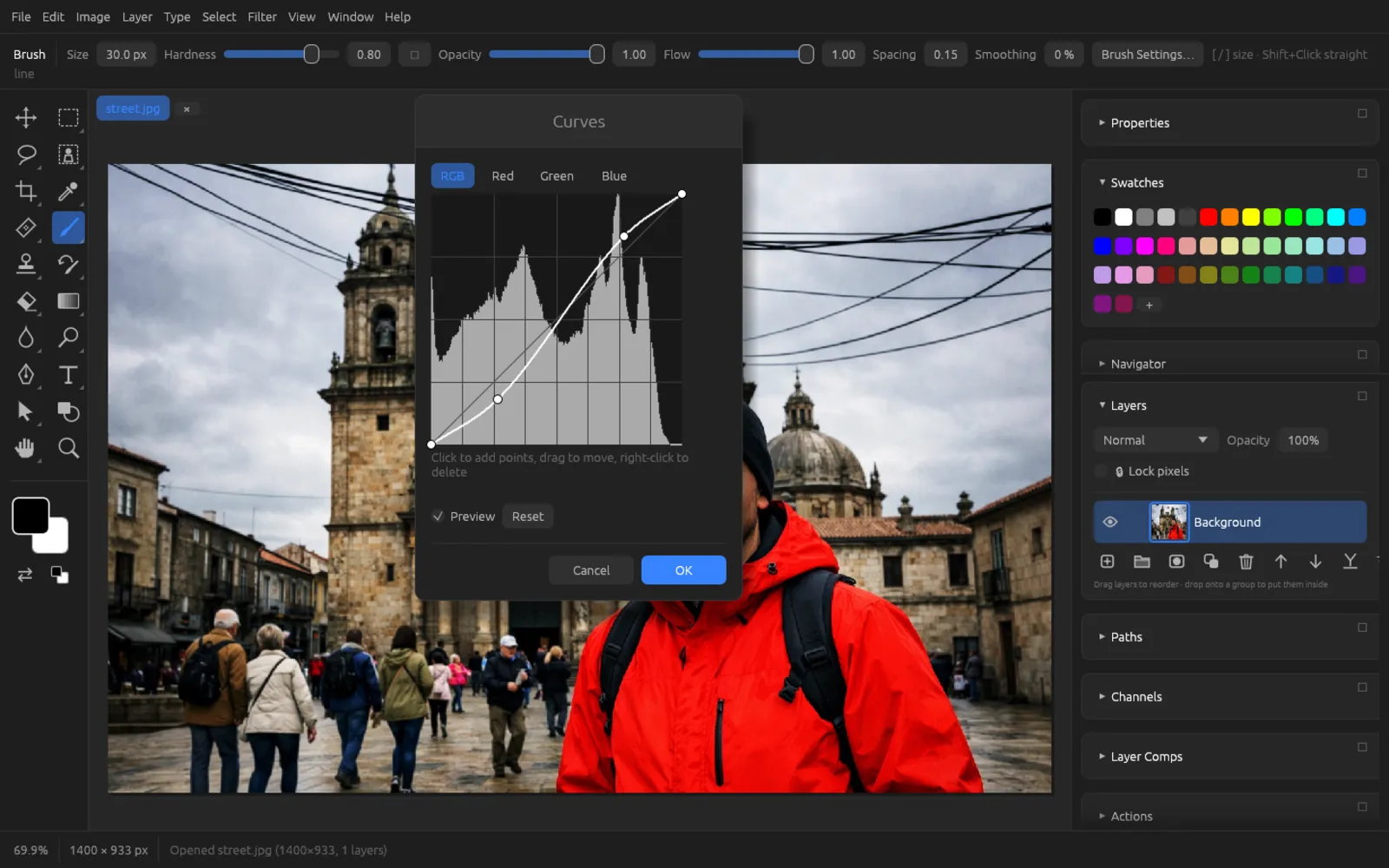
An S-curve: two points are enough for more contrast. - If the effect is too strong, drag the points back closer to the diagonal. You remove a point you don’t need with a right-click.
- Click OK.
An inverted S-curve (shadows up, highlights down) lowers the contrast. If you raise only the left end point, black turns into dark gray – a popular matte film look.
Exposure
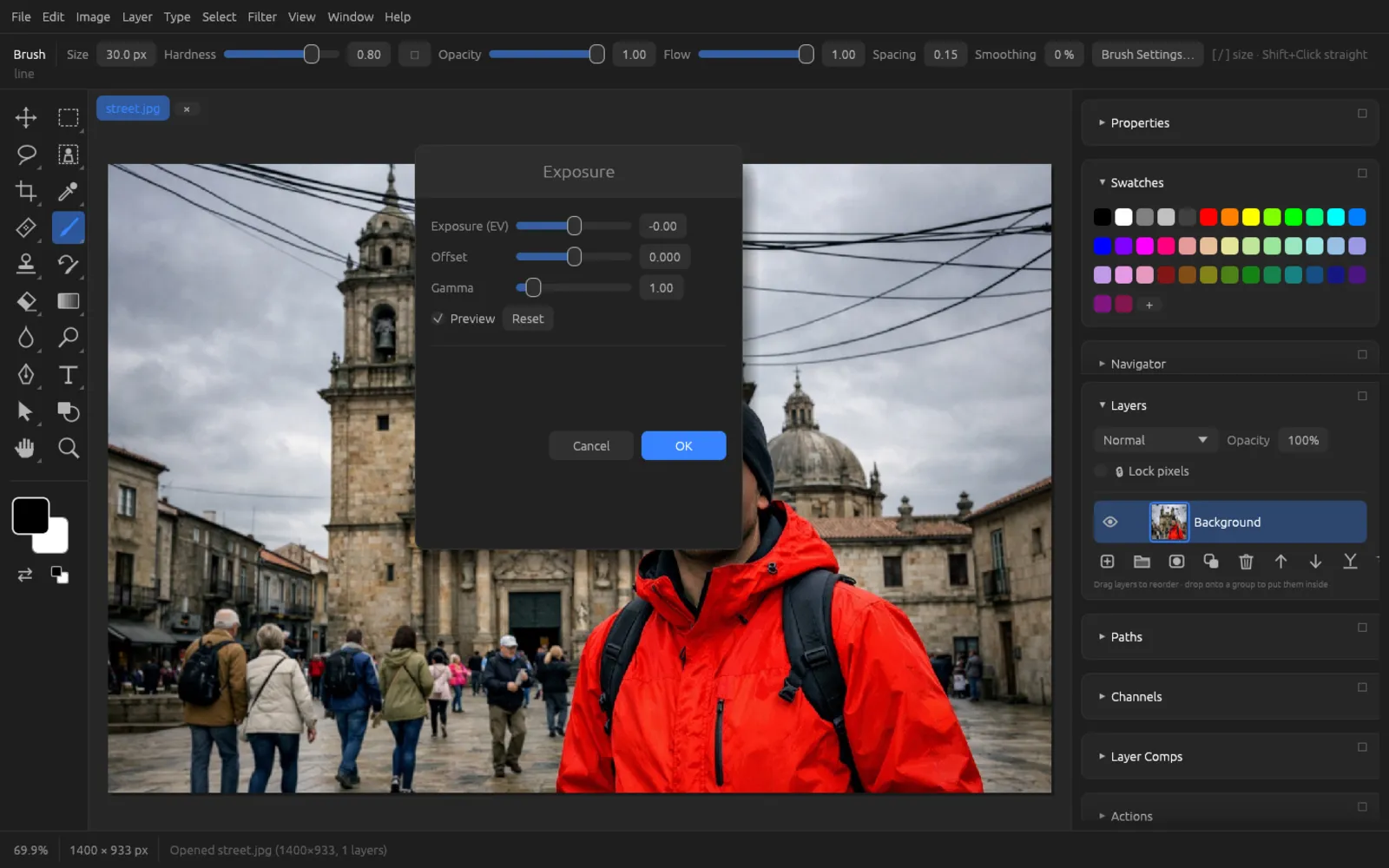
calculates in linear light, like a camera. This makes it well suited for balancing an underexposed or overexposed photo.
| Slider | Range | Effect |
|---|---|---|
| Exposure (EV) | −5 … 5 | Exposure in exposure values (f-stops). +1 doubles the light, −1 halves it. |
| Offset | −0.5 … 0.5 | Raises or lowers mainly the shadows; the highlights hardly change. |
| Gamma | 0.1 … 9.99 | Gamma correction for the midtones. |
Correcting color
Hue/Saturation
(⌘ U) rotates the colors, makes them stronger or paler and changes the lightness.
| Slider | Range | Effect |
|---|---|---|
| Hue | −180 … 180 | Rotates all colors around the color wheel (in degrees). At 180, red turns cyan. |
| Saturation | −100 … 100 | −100 gives grayscale; positive values intensify the colors. |
| Lightness | −100 … 100 | Mixes in black (negative) or white (positive). |
| Colorize (0/1) | 0 / 1 | At 1, the whole image gets one hue: the Hue slider then picks the color and Saturation its strength. Ideal for single-color toning. |
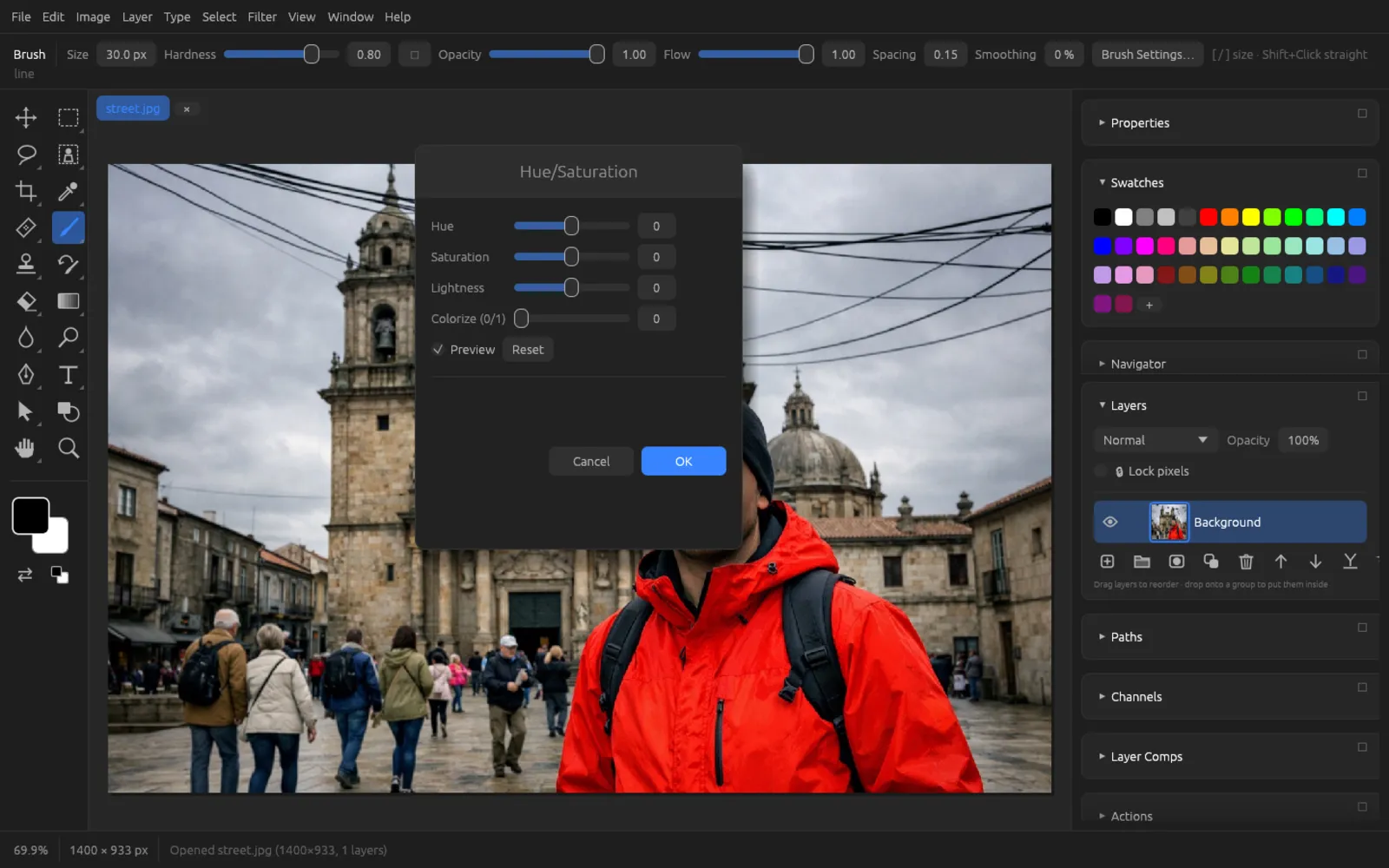
Hue/Saturation affects all colors at once. To change only one color, use Replace Color or Selective Color, or limit the adjustment with a selection (e.g. , see Selections).
Vibrance
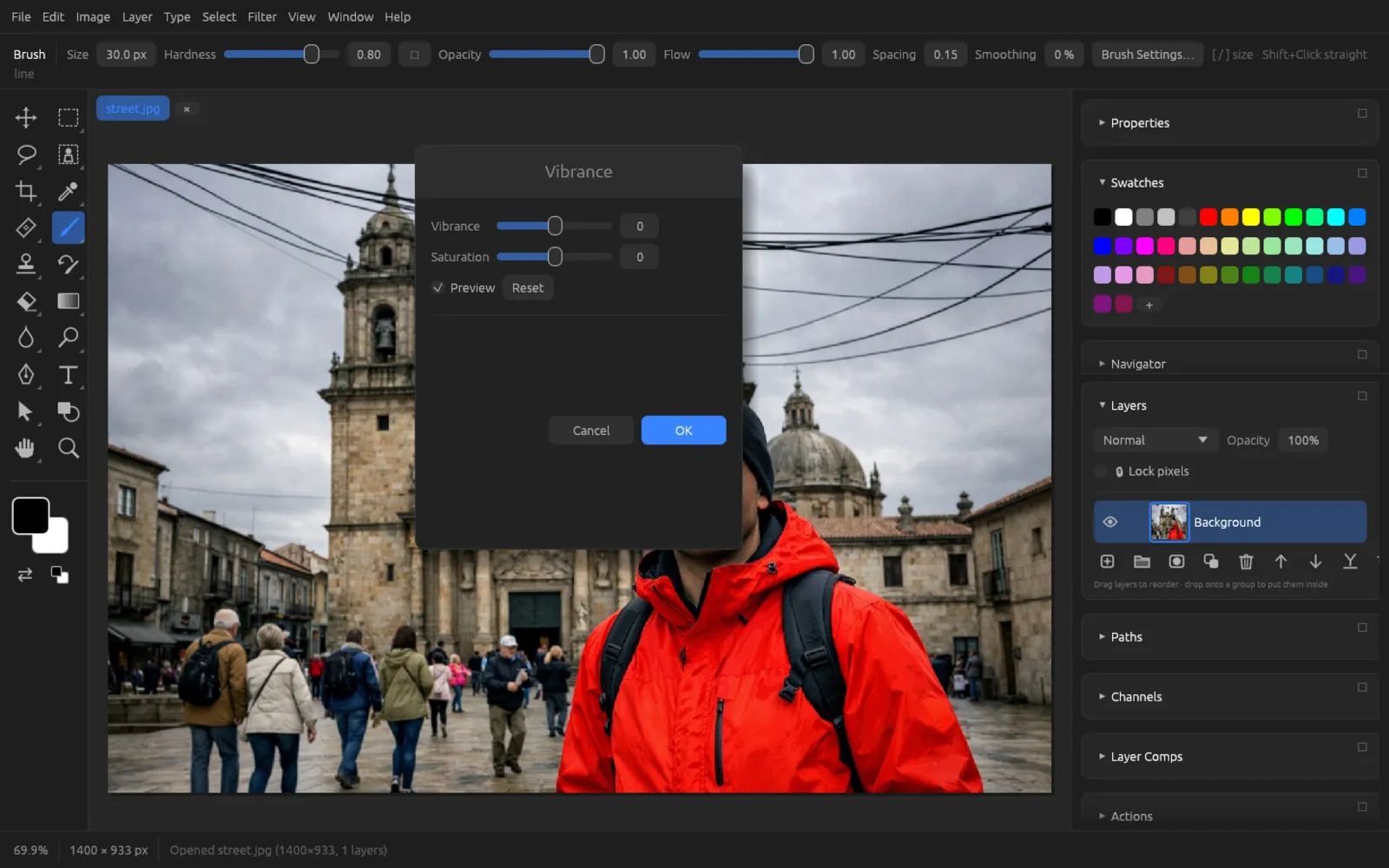
intensifies colors gently.
- Vibrance (−100 … 100) mainly affects weakly saturated colors and spares colors that are already strong – so skin tones don’t quickly look overdone.
- Saturation (−100 … 100) intensifies or reduces all colors equally.
Color Balance
(⌘ B) shifts the colors of a tonal range between opposite colors. The brightness of the pixels is preserved.
| Slider | Effect |
|---|---|
| Cyan ↔ Red | −100 = more cyan, +100 = more red. |
| Magenta ↔ Green | −100 = more magenta, +100 = more green. |
| Yellow ↔ Blue | −100 = more yellow, +100 = more blue. |
| Tone | 0 = shadows, 1 = midtones, 2 = highlights. The three color sliders act on this range. |
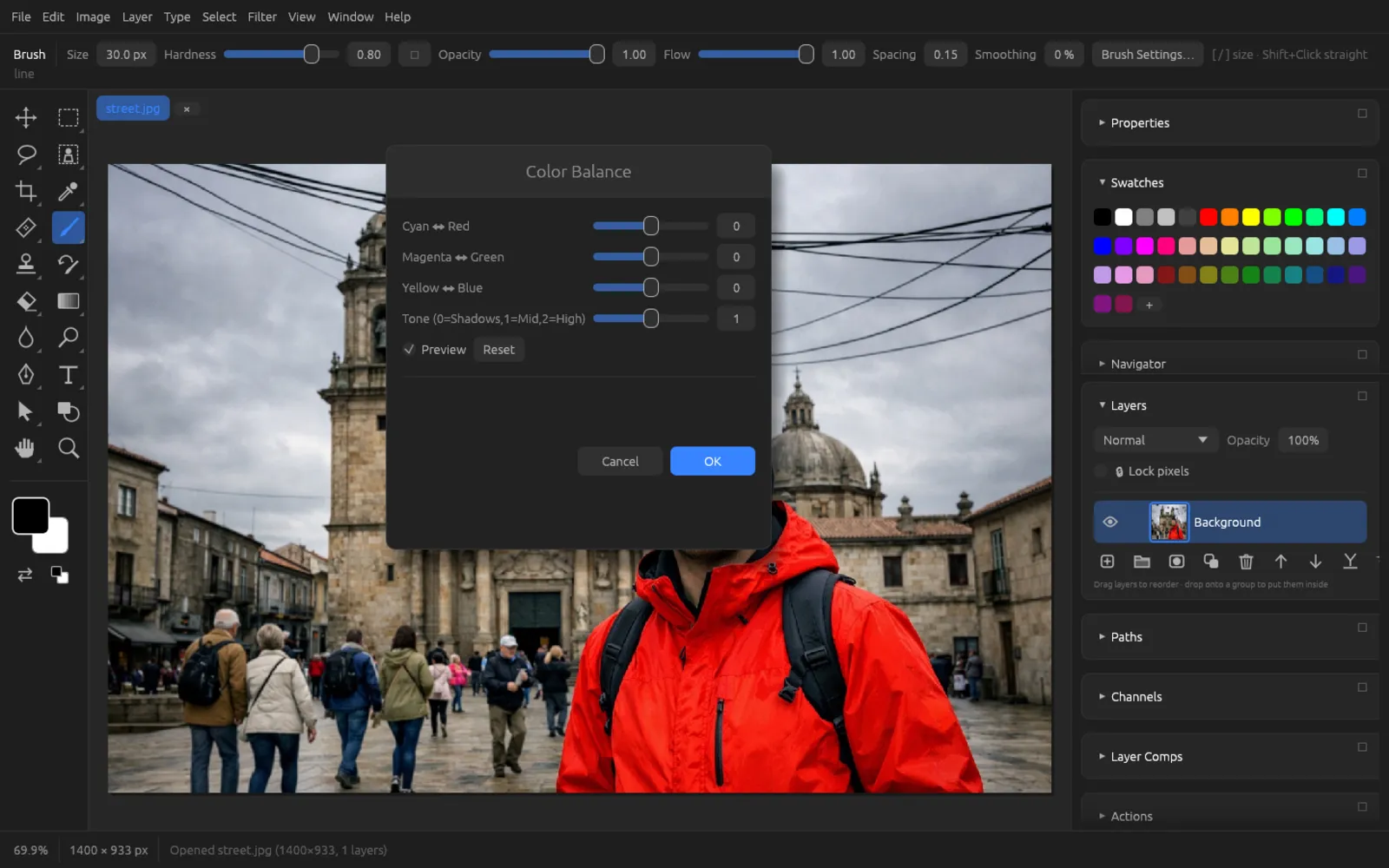
Photo Filter
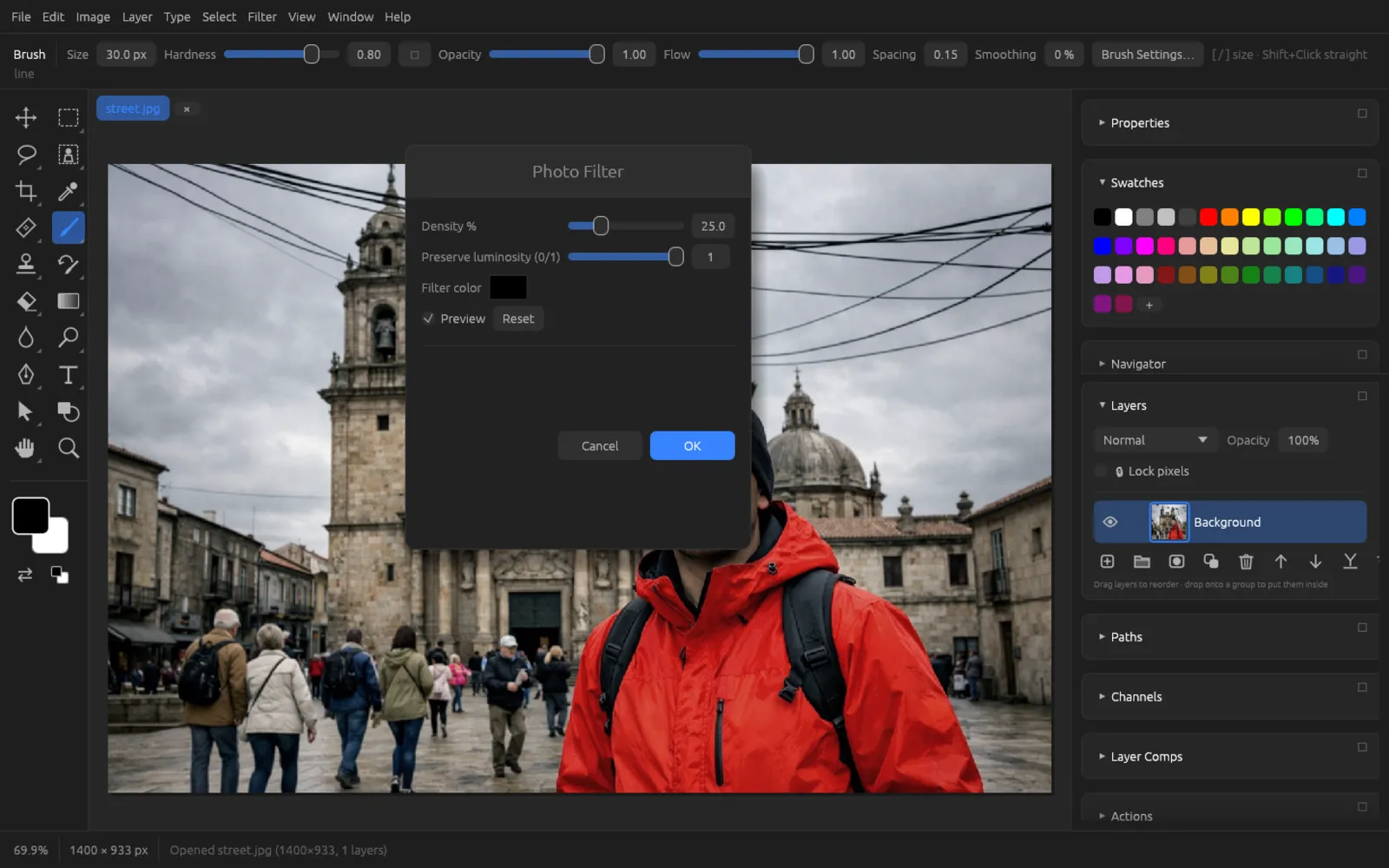
works like a colored filter glass in front of the lens.
- Density % (0 … 100) determines how strongly the filter color acts.
- Preserve luminosity (0/1): at 1, the brightness of the image stays the same and only the color changes.
- Filter color: click the color swatch to choose the color. At the start it is the foreground color. Warm orange tones warm up the image, blue tones cool it down.
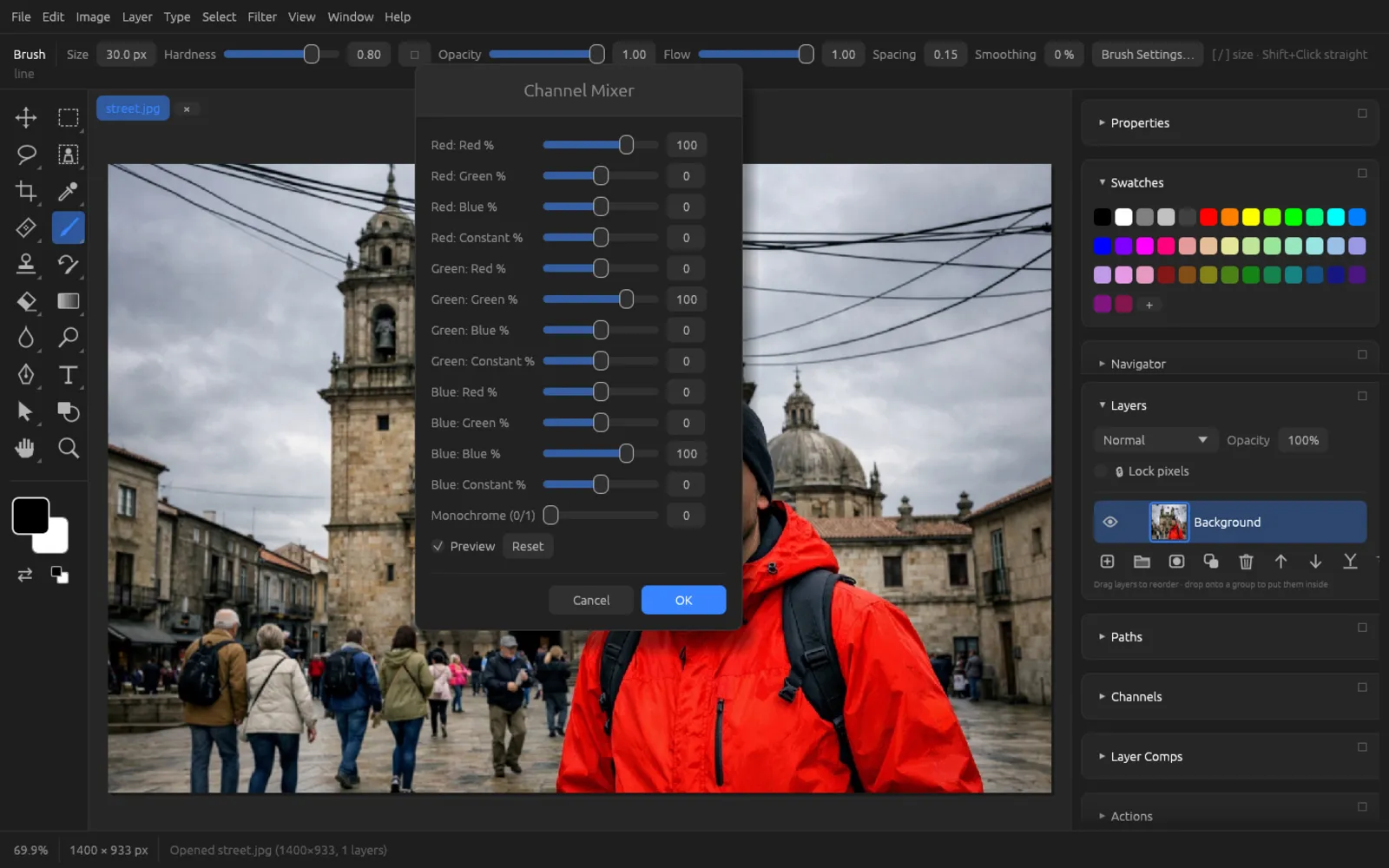
Channel Mixer
rebuilds each output channel from the three input channels. For each output channel (red, green, blue) there are four sliders: the share of red, green and blue (each −200 … 200 %) and a Constant that makes the channel lighter or darker overall. At the start, each channel is set to 100 % of itself.
With Monochrome (0/1) = 1 you get a grayscale image from the mix of the red output channel. This lets you control a black-and-white conversion the way color filters did in film photography. To keep the brightness the same, the three shares should add up to about 100 %.
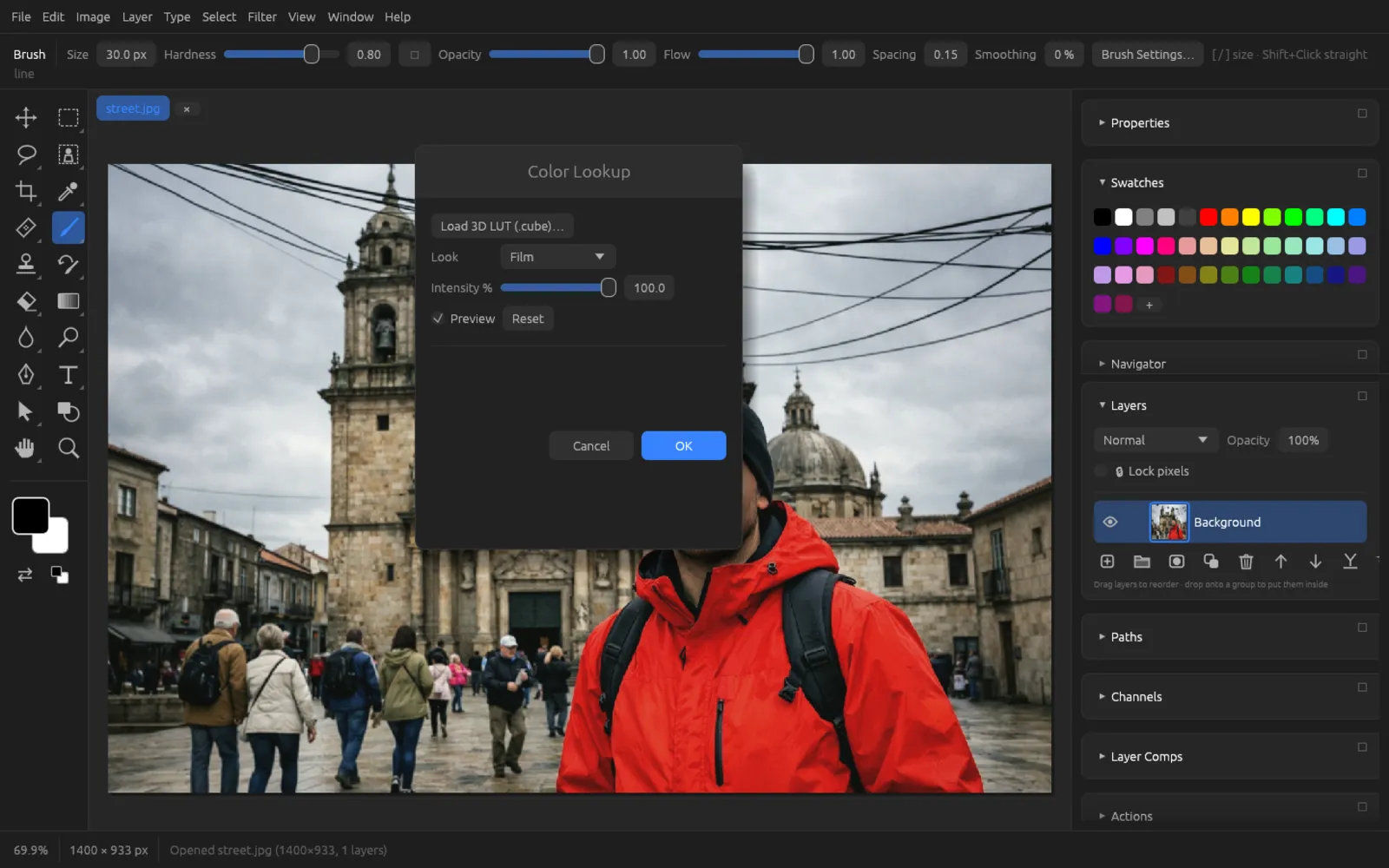
Color Lookup
lays a ready-made color look over the image.
- Look: Warm, Cool, Teal & Orange, Film, Bleach Bypass, Vintage, Cross Process, Noir or Custom (.cube).
- Intensity %: mixes the look with the original. 100 % is the full look.
- Load 3D LUT (.cube)… opens a color table of your own in the widely used
.cubeformat, for example from a video editing or color grading program. It then appears as the look Custom (.cube).
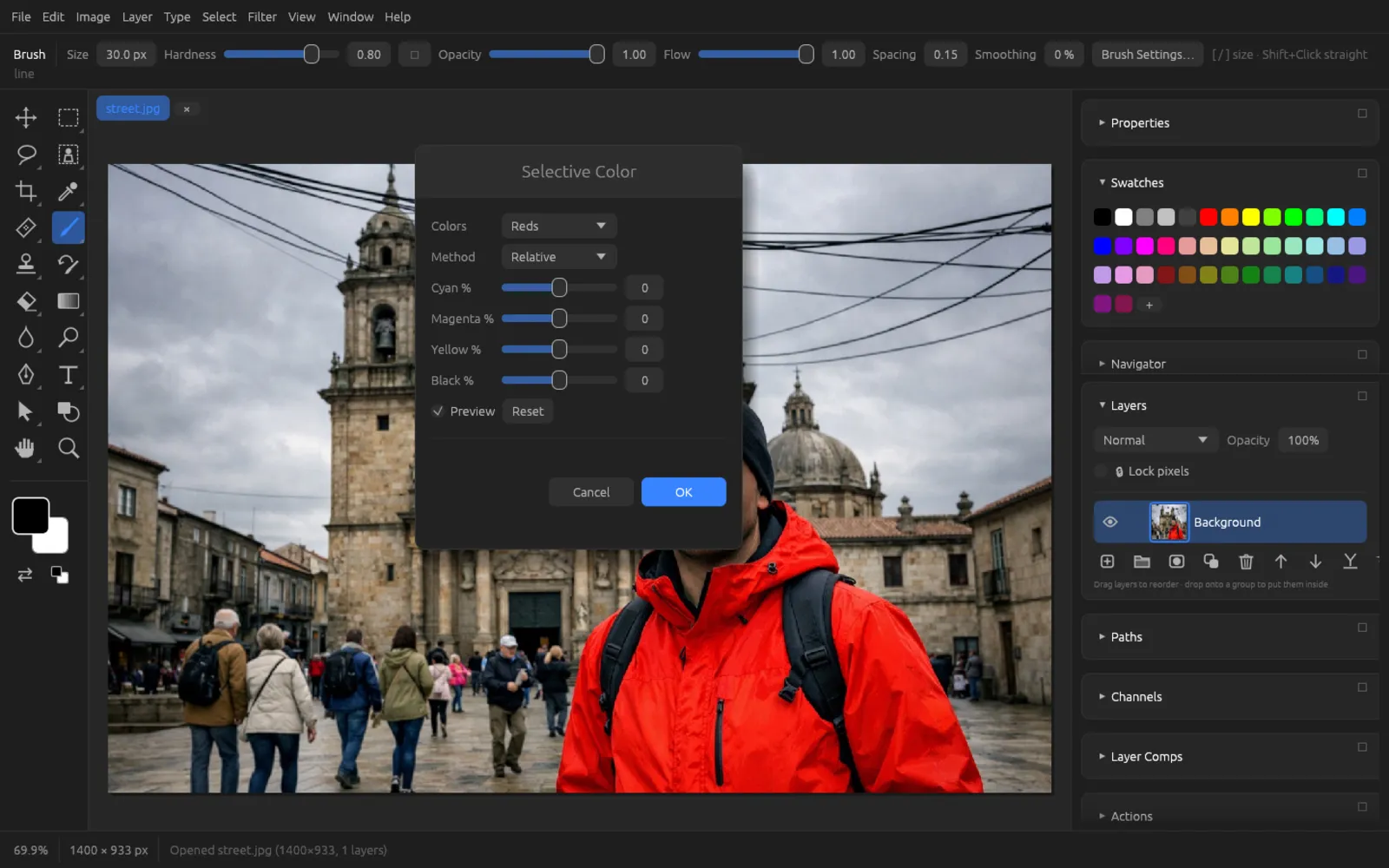
Selective Color
changes one group of colors specifically, the way printers adjust the inks that make up a color.
- Under Colors, choose the group: Reds, Yellows, Greens, Cyans, Blues, Magentas, Whites, Neutrals or Blacks.
- Use Cyan %, Magenta %, Yellow % and Black % (each −100 … 100) to change the ink shares of this group. More cyan takes out red, more yellow takes out blue, and so on.
- Switch to the next group – each group remembers its own values.
Method sets how strongly the change acts: Relative changes in proportion to the amount already there (gentle), Absolute adds the value regardless (stronger).
Replace Color
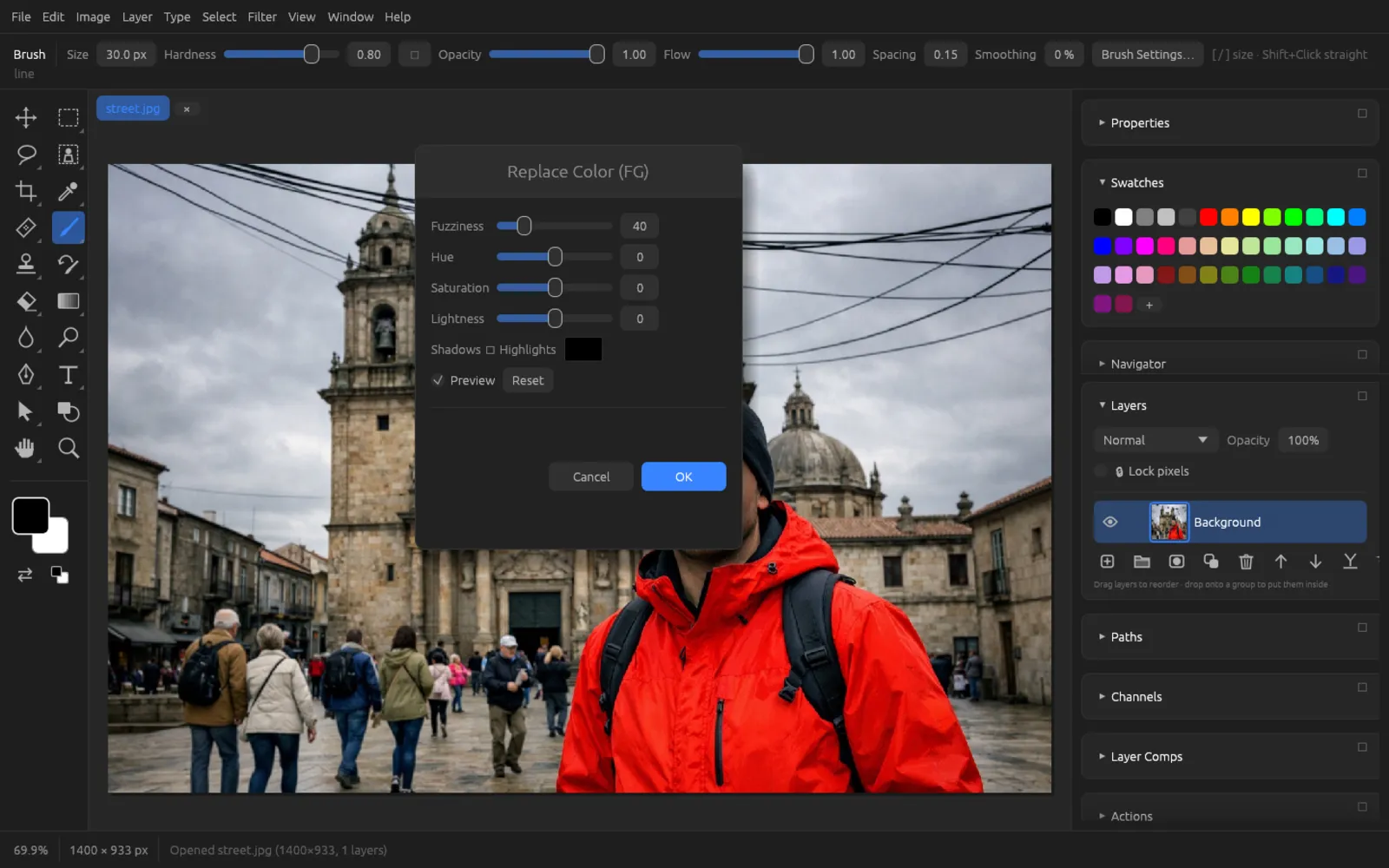
changes only the pixels whose color is similar to the foreground color – hence the “(FG)” in the name.
| Slider | Range | Effect |
|---|---|---|
| Fuzziness | 1 … 200 | How similar a color has to be to the target color. Higher values take in more hues; the transition is soft. |
| Hue | −180 … 180 | Rotates the hue of the affected pixels. |
| Saturation | −100 … 100 | Makes the affected colors stronger or paler. |
| Lightness | −100 … 100 | Lightens or darkens the affected colors. |
Below the sliders, a color swatch shows the target color. A click on it opens the color picker in case you want to adjust the color.
Changing one specific color
In this example the red jacket turns blue without changing the other colors.
- Choose the Eyedropper (I) and click the color you want to change – here the red jacket. It becomes the foreground color.
- Choose . The color swatch in the dialog now shows the red of the jacket.
- Drag Hue until the color is right. For blue it is about −120 to −140.
- Raise Fuzziness until the shadowed and lit parts of the jacket are included too. If other parts of the image get colored as well, lower the value again.
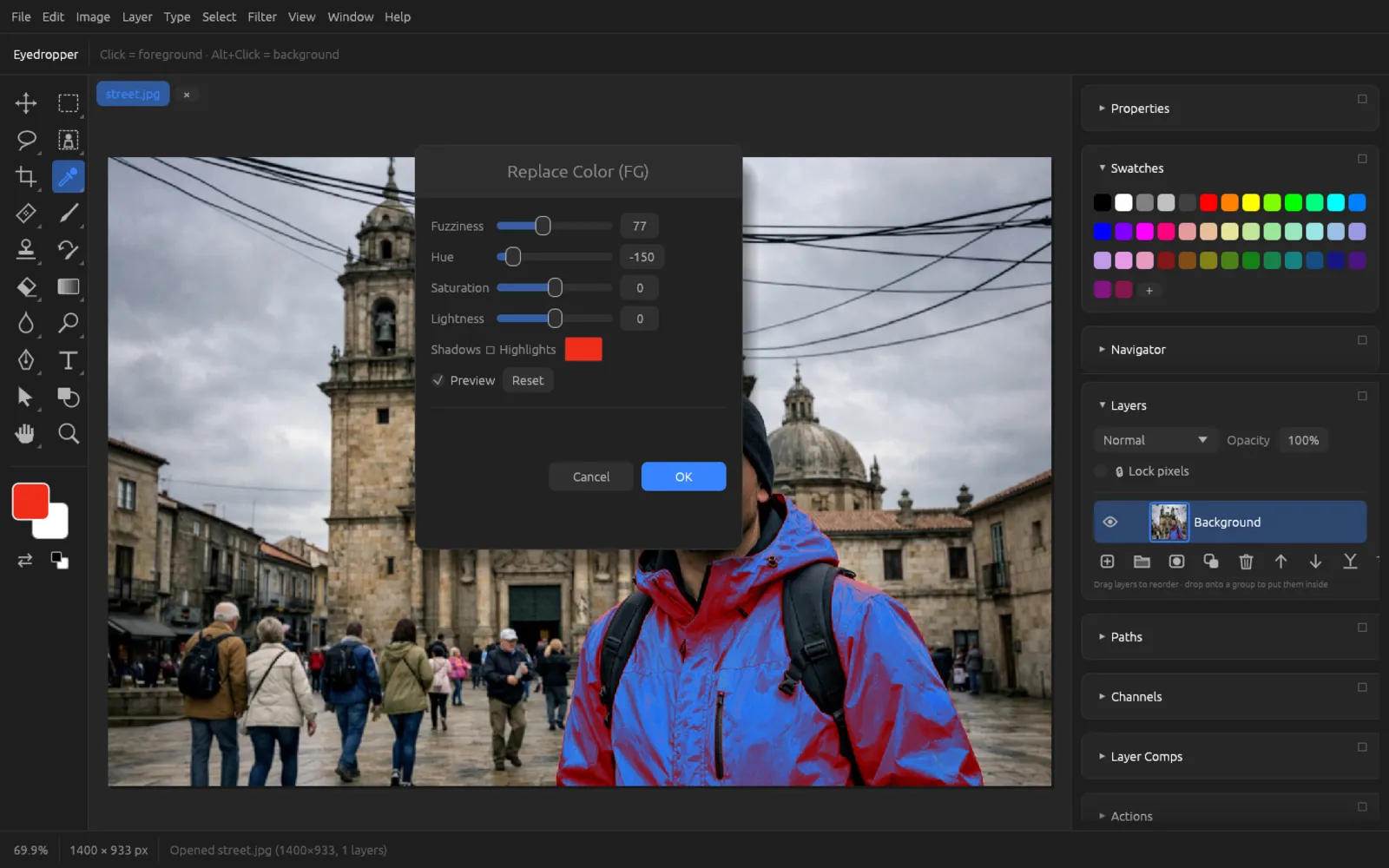
Fuzziness 85, Hue −140: the red jacket becomes a blue one. - Adjust Saturation and Lightness if needed and click OK.
Similar colors elsewhere in the image are changed as well. In that case, first make a rough selection of the area with the Lasso – then the adjustment only acts there. Alternatives are plus Hue/Saturation, or the Color Replacement tool (see Tools).
Match Color
transfers the color mood of another open image to the current one – useful for making the photos of a series fit together.
- Source: choose one of the other open images. If no other image is open, the dialog tells you so.
- Luminance (1 … 200) and Color Intensity (1 … 200) raise or lower the brightness and color strength of the result; 100 is neutral.
- Fade (0 … 100) mixes the result with the original.
- Neutralize (0/1) removes a color cast.
Light and Shadow
Shadows/Highlights
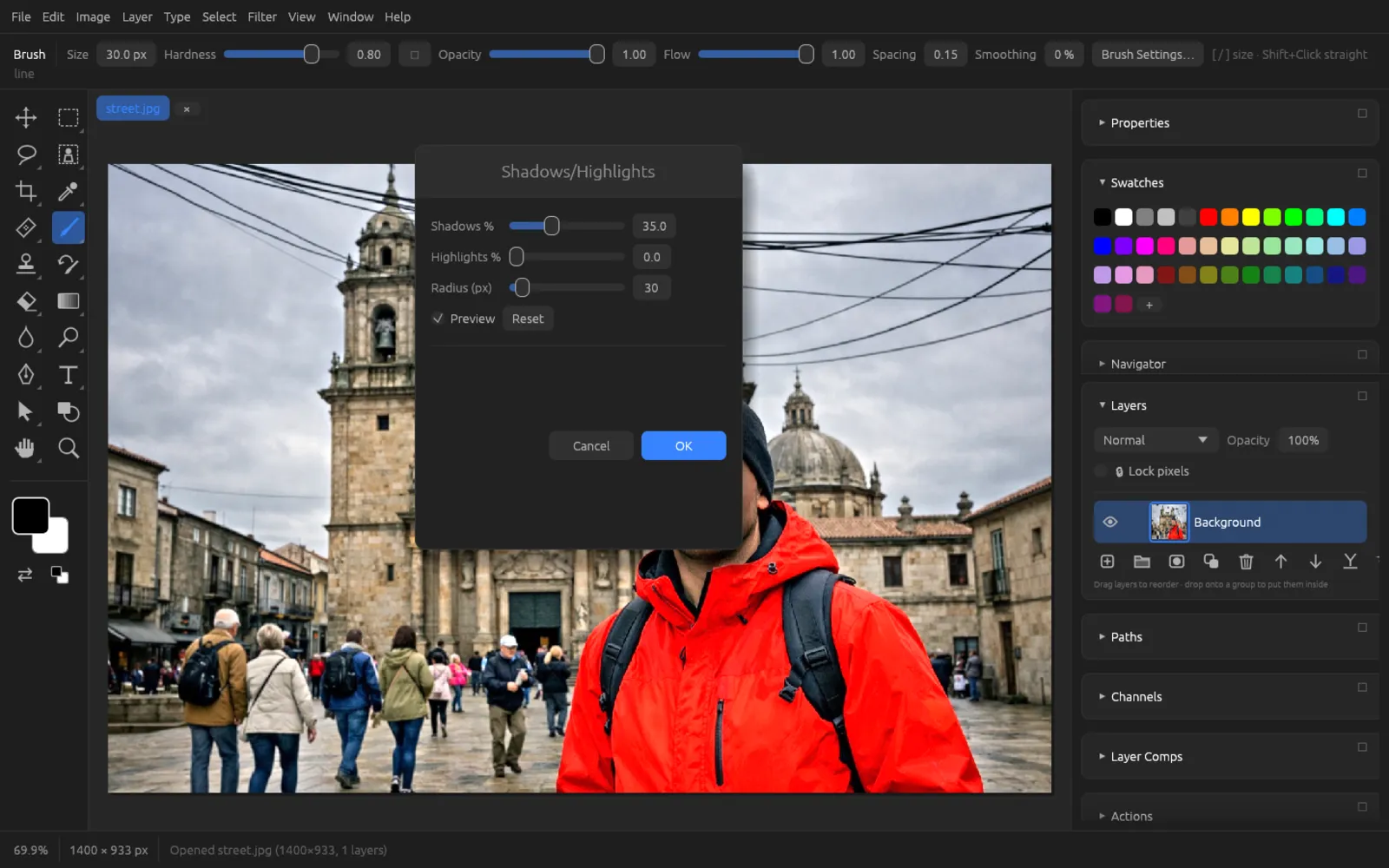
brightens dark areas and brings back detail in light areas without changing the rest of the image. Ideal for backlit shots.
| Slider | Range | Effect |
|---|---|---|
| Shadows % | 0 … 100 | Brightens the dark areas of the image (initial value 35). |
| Highlights % | 0 … 100 | Darkens the light areas of the image. |
| Radius (px) | 1 … 500 | Size of the neighborhood used to decide whether an area is dark or light. Small values look detailed, large values look smoother and more natural. |
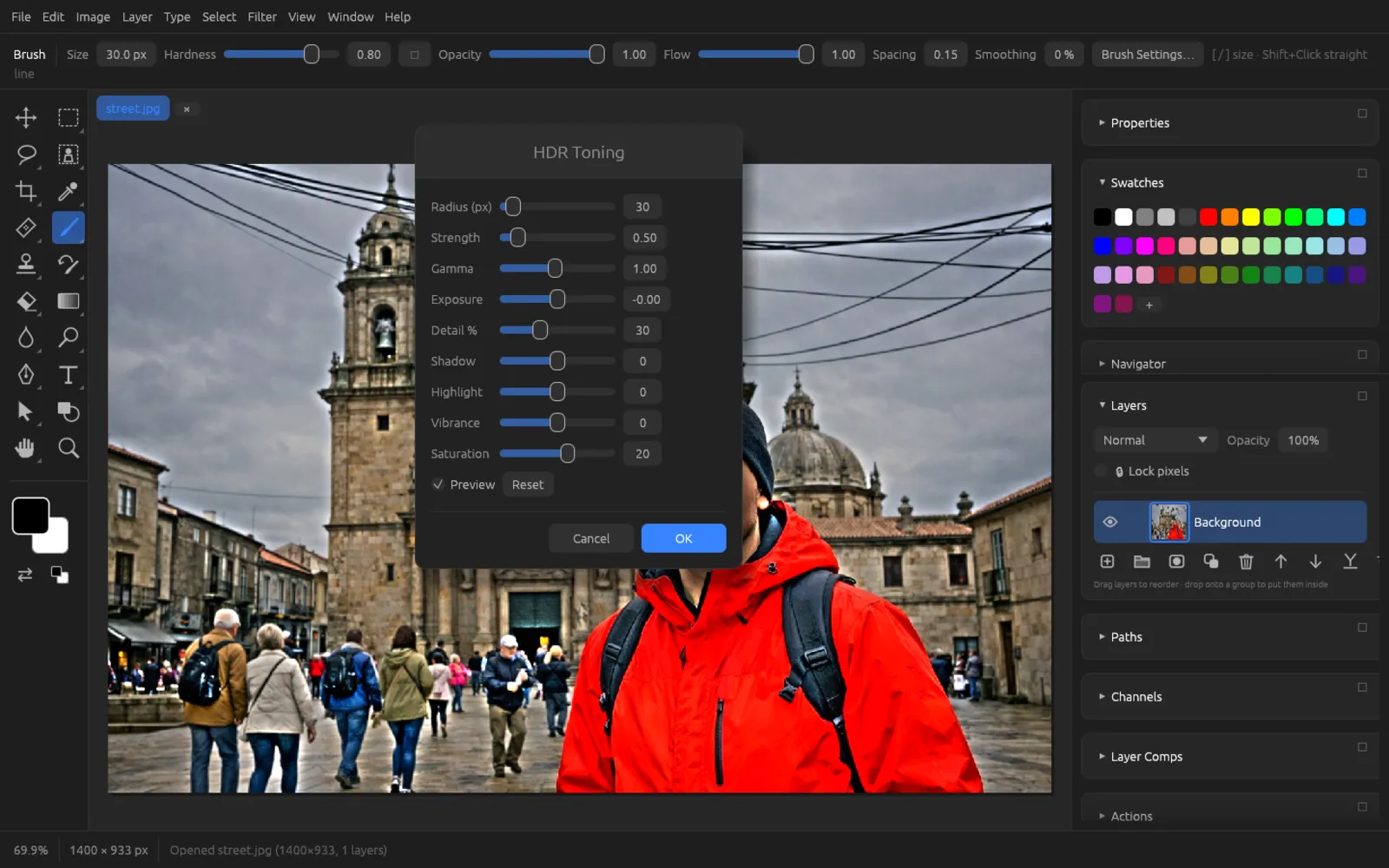
HDR Toning
compresses the tonal range and emphasizes local detail – for the typical HDR look, even from a single photo.
| Slider | Effect |
|---|---|
| Radius (px), Strength | Size and strength of the local contrast adjustment (edge smoothing). |
| Gamma, Exposure | Overall brightness and midtones. |
| Detail % | Enhances fine structures (−100 … 300). |
| Shadow, Highlight | Brighten the shadows and darken the highlights, respectively. |
| Vibrance, Saturation | Color strength of the result. |
Equalize
redistributes the brightness values so that all tonal levels occur about equally often. This brings out detail in very flat images, but often looks harsh. The command has no dialog.
Black & white and conversions
Black & White
converts the image to grayscale. You decide how light each color becomes in gray.
| Slider | Range | Effect |
|---|---|---|
| Reds | −200 … 300 | Higher values make red parts of the image (skin, bricks, lips) lighter. |
| Greens | −200 … 300 | Controls the brightness of foliage and meadows. |
| Blues | −200 … 300 | Low values make a blue sky dark and dramatic. |
The three values are weighted together, so the overall brightness stays about the same. The initial values 40/40/20 give a balanced conversion.
Converting a photo to black and white
- For an editable conversion, create – or apply directly to the image layer.
- The image appears in grayscale right away.
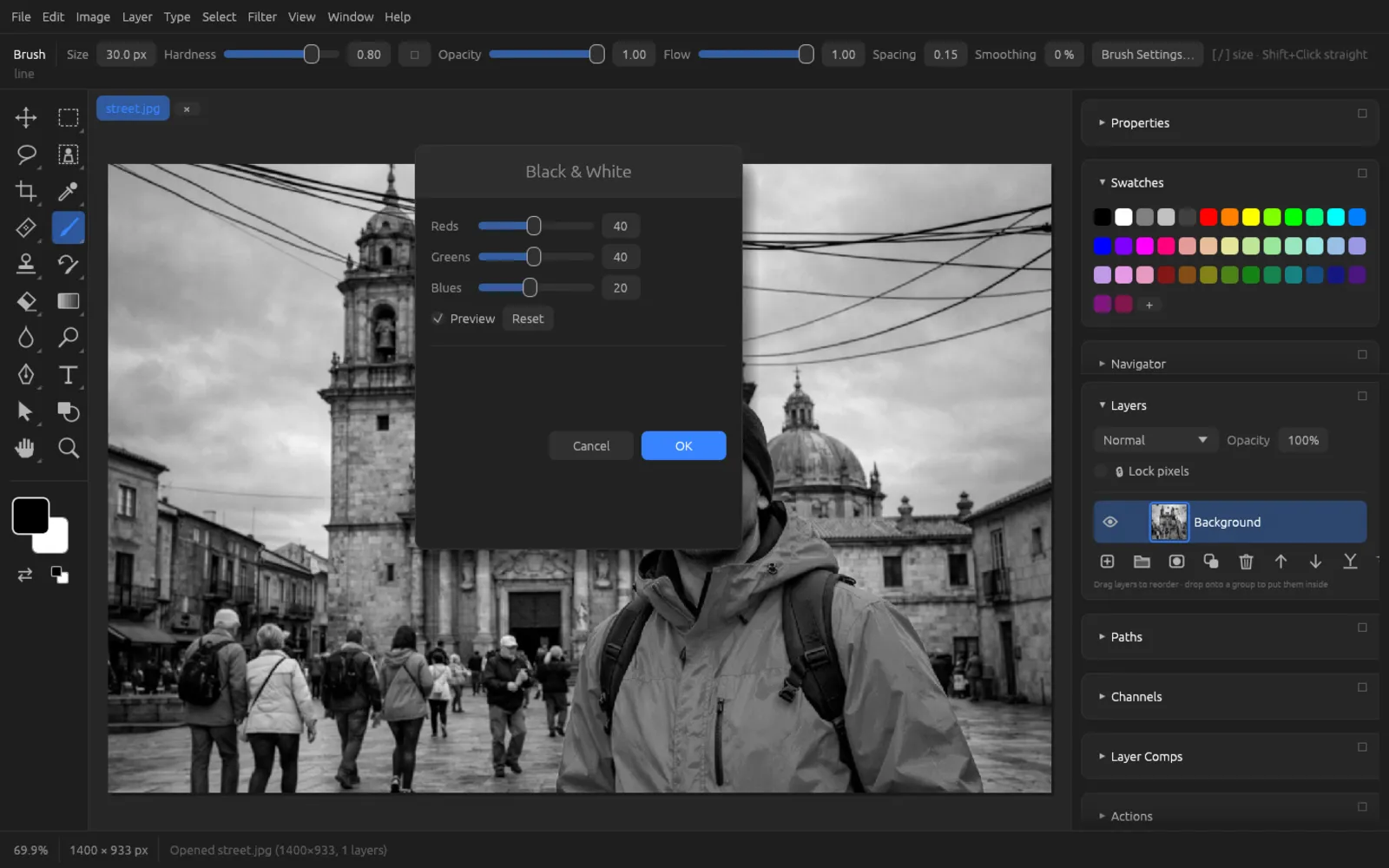
Black & White with its initial values. - Think about which parts of the image should look light and which dark. Here the red jacket should stand out from the gray sky: raise Reds to make the jacket lighter.
- Lower Blues to darken the sky, and adjust Greens for plants.
- Click OK. For more contrast, put an S-curve on top afterwards.
For a toned black-and-white picture, add a Photo Filter or Hue/Saturation with Colorize = 1 on top. The command gives you a classic brown tone with one click.
The conversions at a glance
| Command | Dialog | Effect |
|---|---|---|
| no | Inverts all colors like a negative (⌘ I). | |
| no | Removes the color; each pixel gets its brightness as a gray value (⇧ ⌘ U). | |
| no | The classic brown toning of old photos. | |
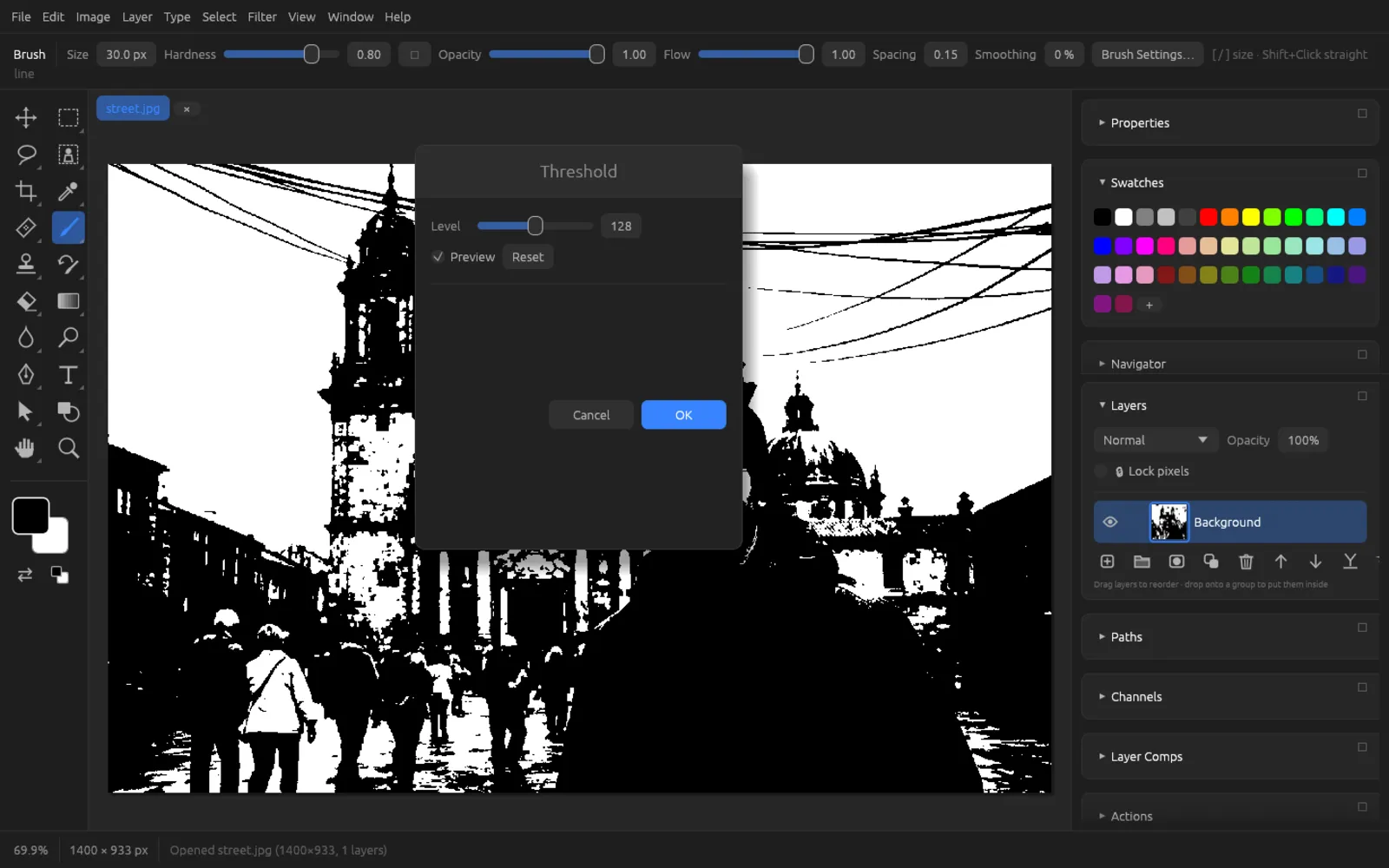
| yes | Pure black and white: pixels lighter than the Level (1 … 255, initial value 128) become white, all others black. | |
| yes | Reduces each color channel to a few levels (Number of levels, 2 … 64) – a poster effect. | |
| no | Replaces the brightness with a gradient from the foreground color (shadows) to the background color (highlights). |
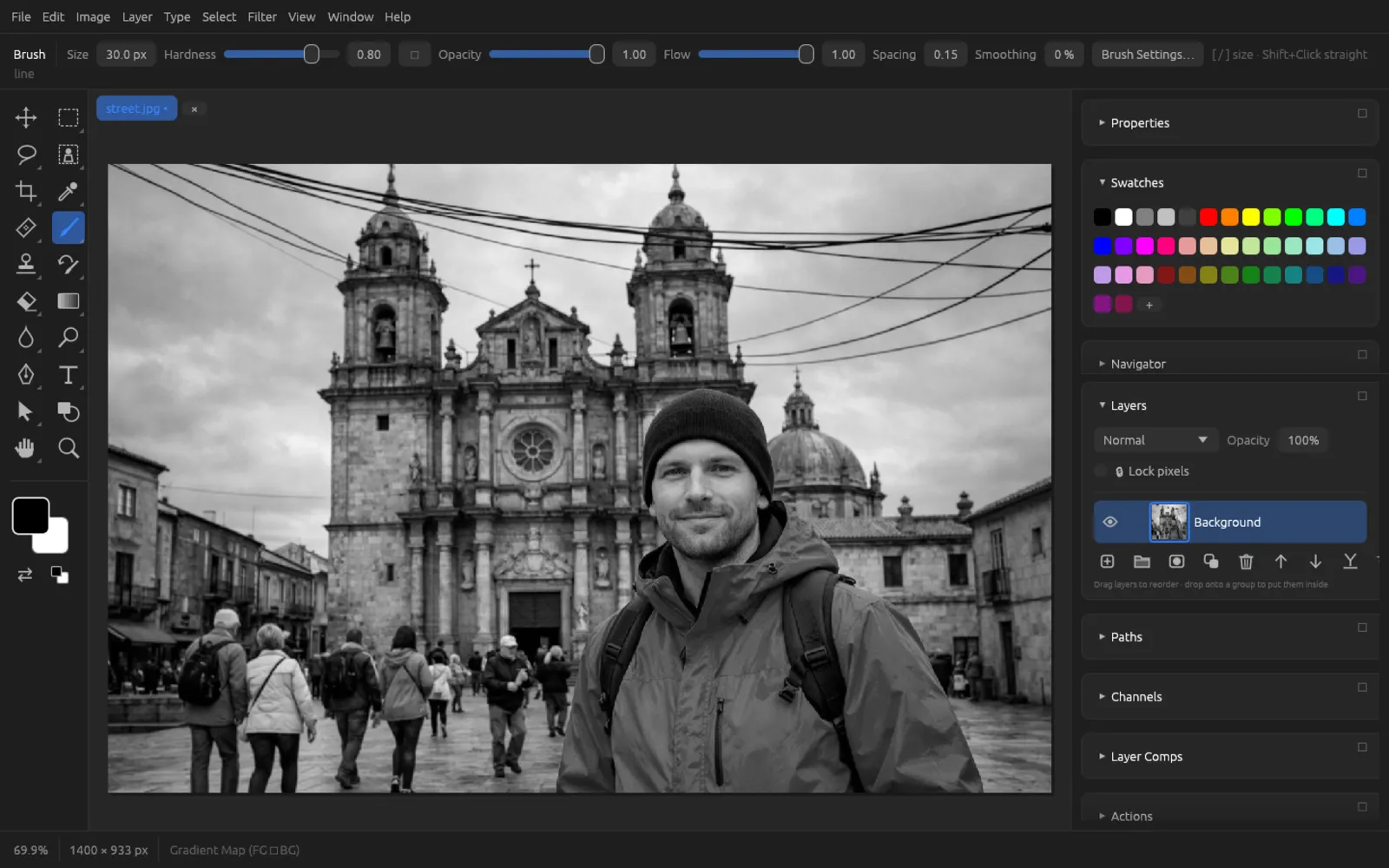
For the Gradient Map, you choose the two colors beforehand in the toolbar. If you create it as an adjustment layer, you can change the colors later in the dialog with two color swatches – dark blue and orange for a duotone effect, for example.
Auto adjustments
The three commands under work without a dialog and analyze the image themselves. If you don’t like the result, take it back with ⌘ Z or weaken it with .
| Command | Effect |
|---|---|
| Auto Tone | Stretches each color channel separately so that it runs from black to white (the outermost 0.1 % are clipped). Improves the contrast and often removes a color cast as well. |
| Auto Contrast | Works like Auto Tone, but clips 0.5 % of the pixels at each end. This gives a little more contrast (⇧ ⌘ L). |
| Auto Color | Like Auto Tone, and in addition neutralizes the midtones – good against color casts from artificial light. |
Where to go next
- Adjustment layers, masks and clipping masks: Layers
- Selecting areas for an adjustment: Selections
- Applying adjustments with a brush (Adjustment Brush, Dodge, Burn, Sponge): Tools
- Camera Raw Filter, color profiles, 16 and 32 bit: Color, RAW and HDR