Automation and extensions
You don't have to do repetitive work by hand: record steps as an action, apply them to whole folders, let scripts do the work or connect Chromatelier to an AI assistant. On top of that there are filter plug-ins, your own formula filters and the Preset Manager.
Overview
| Feature | Where | Used for |
|---|---|---|
| Actions | Recording and playing back steps | |
| Batch | Applying an action to all images in a folder | |
| Image Processor | Converting images to other formats and sizes | |
| Contact Sheet II | Overview pages with thumbnails | |
| PDF Presentation | Images as the pages of a PDF | |
| Data Sets | Filling templates from a CSV table | |
| Scripts | JavaScript (.jsx, .js) and Rhai (.rhai) | |
| Plug-ins | Filter plug-ins (.8bf) and Filter Factory | |
| Preset Manager | Managing brushes, gradients, styles, patterns | |
| MCP server | › AI Assistants | Control by AI assistants such as Claude Code |
Photomerge and “Merge to HDR Pro” are also under ; they are described in the Color, RAW and HDR chapter.
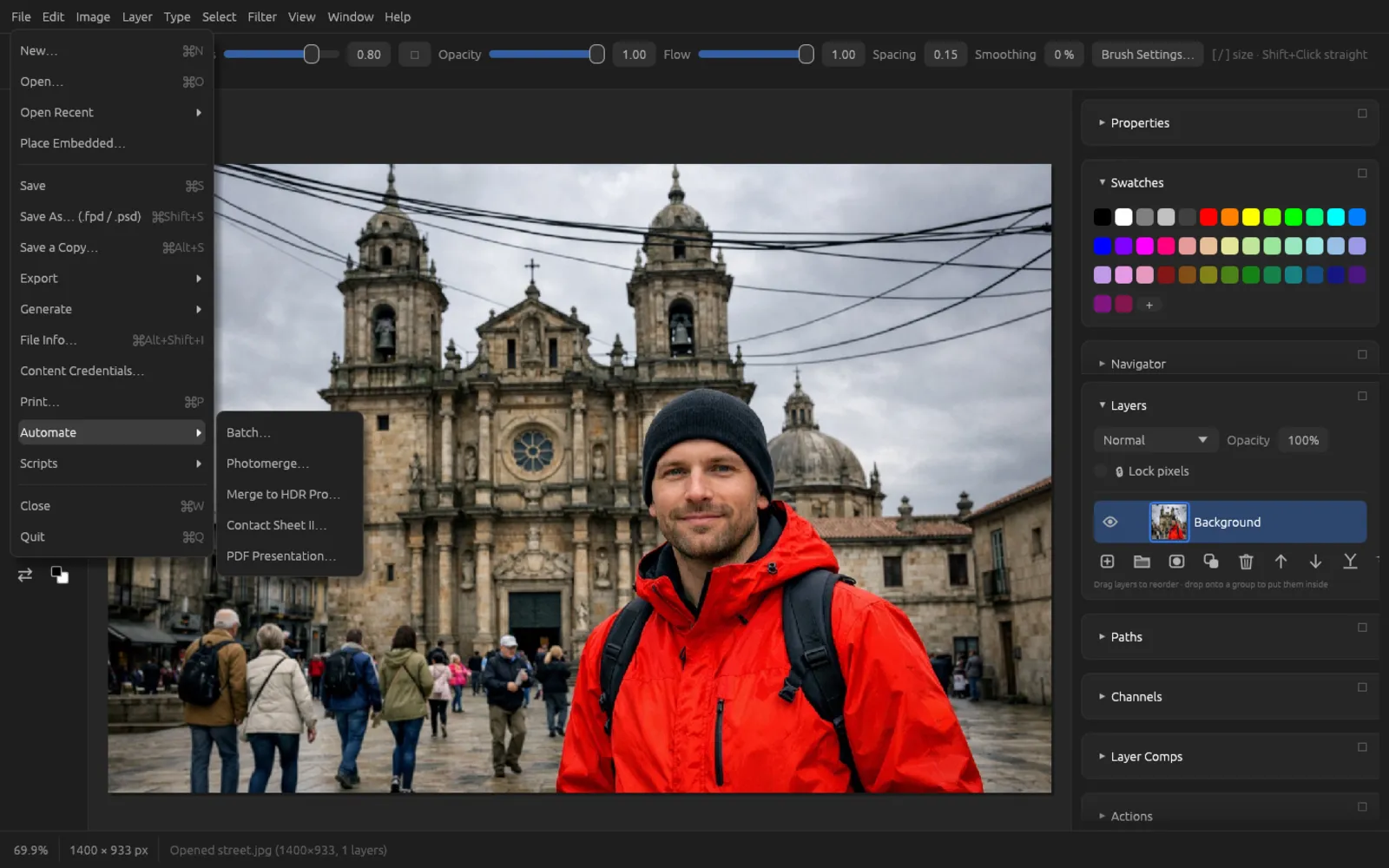
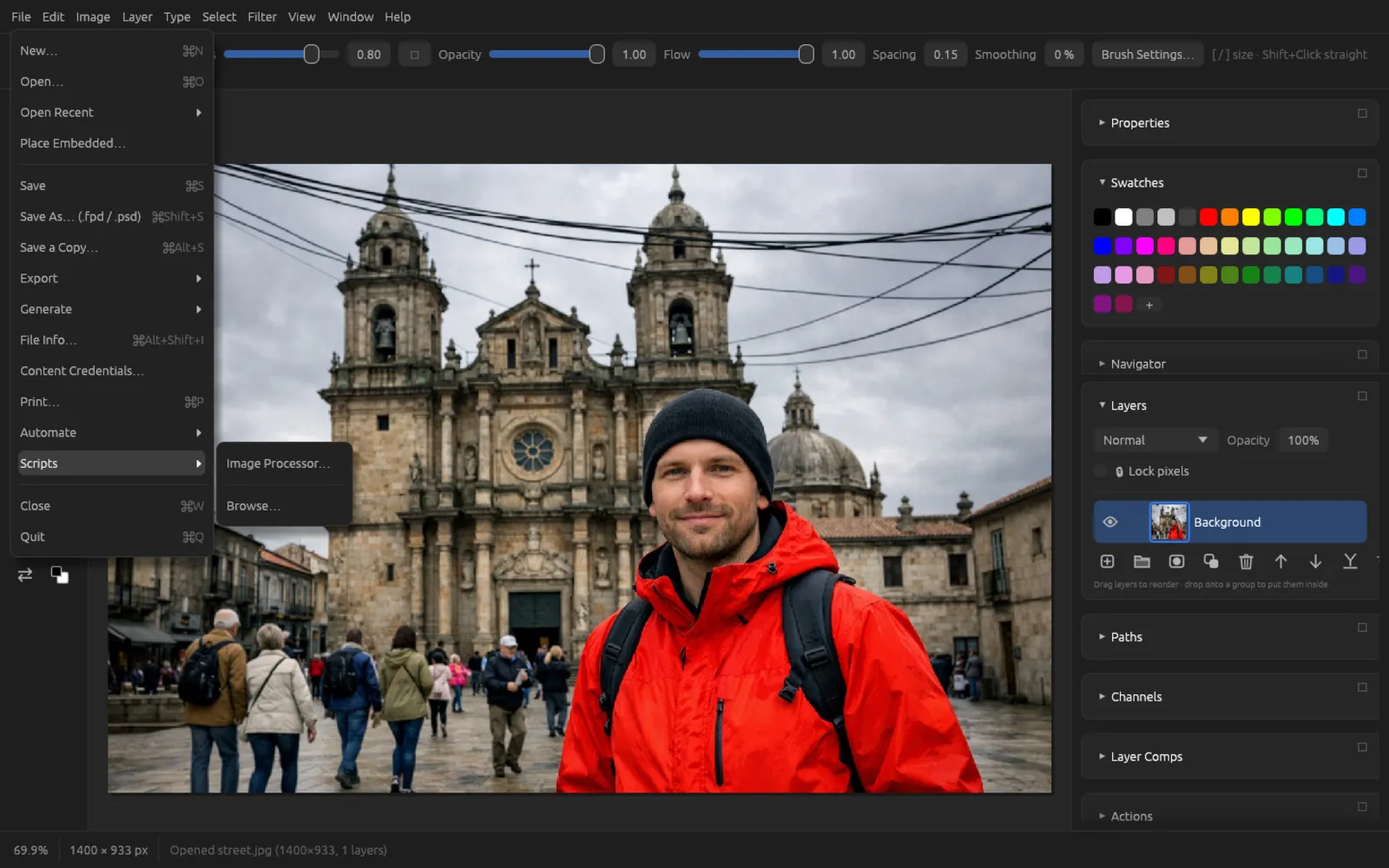
Actions
An action is a recorded sequence of commands. You record it once and then play it back on any image with one click. You open the panel with ; click its header to expand it.
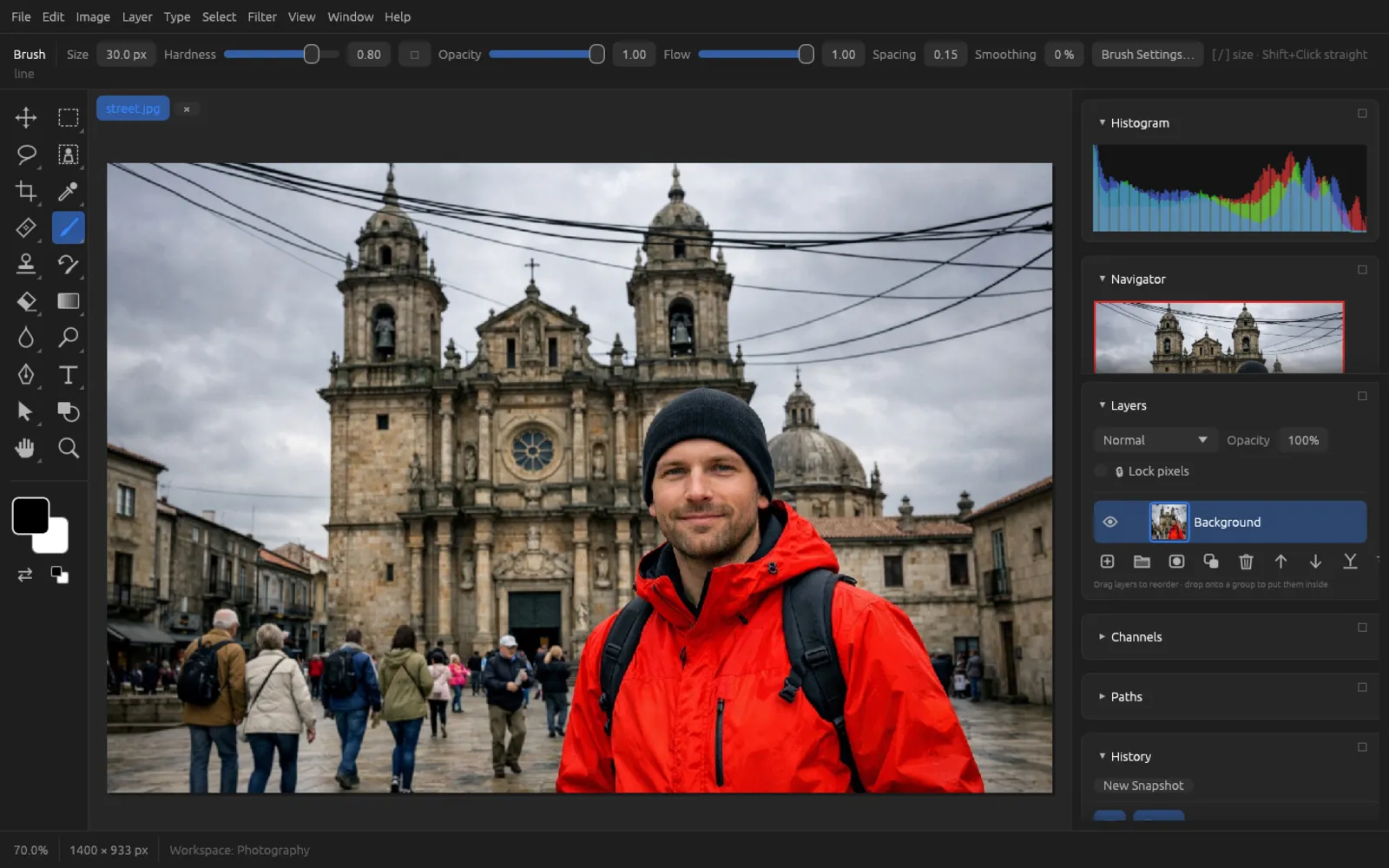
| Button | Effect |
|---|---|
| ● Record | Records more steps into the selected action. |
| ■ Stop | Ends the recording (appears while recording). |
| ▶ Play | Plays the selected action on the current document. |
| New Action | Creates an action and starts recording right away. |
| Delete | Removes the selected action. |
| Insert Conditional… | Inserts an “if … then … else …” step (see below). |
| Load Actions… | Reads action sets from .atn files. |
Expand an action with its triangle to see its steps. There you can rename the action (Name). Right-clicking a step offers Delete Step. Actions are saved automatically and are available again the next time you start the app.
What gets recorded
Recorded are menu commands, filters and adjustments with their settings, new adjustment and fill layers, layer styles, color mode and color profiles, image size and canvas, selections (selection tools, Color Range, Select and Mask, Feather, Load Selection), Fill and Stroke, guides, Liquify and Puppet Warp, as well as brush strokes and transformations. Transformations are stored relative to the transformed area so that they also fit images of a different size.
If a step can't be carried out during playback – for example because no pixel layer is active – the action keeps running, and the status bar names the problems.
Conditional steps
With Insert Conditional… an action branches: If Current document or layer meets a condition, the action under Then Play Action is played, otherwise the one under Else Play Action (or None). Possible conditions include, for example: document is landscape, portrait or square; document mode is RGB, CMYK or Grayscale; document is 16 bits; document has a selection; layer is a pixel, type or adjustment layer, is a smart object, has a mask or is visible.
This is how you bring portrait and landscape photos to the right size in one pass: create two actions “Landscape” and “Portrait”, each with an image size, and a third one that contains only the condition “document is landscape”.
Loading action sets (ATN)
Load Actions… reads action sets in the widespread .atn format. The commands Chromatelier can play back are taken over – filters and adjustments with their settings, rotating and flipping, selections, layer commands, cropping, flattening and more. Other commands are left out; the status bar names them so that you can check the result.
Batch
plays an action on every image in a folder. For this there must be at least one action – otherwise the status bar tells you to record one first.
| Field | Meaning |
|---|---|
| Action | The action to play. |
| Source | The folder with the images (Choose…); Include all subfolders takes subfolders along too. |
| Destination | The folder for the results. |
| Save as | Same as the source, PNG, JPEG, PSD or Chromatelier project. |
The originals stay unchanged; the results end up in the destination folder. If a file name already exists, Chromatelier adds a number. The status bar shows the progress.
Recording an action and applying it to a folder
- Open a typical image from the folder you want to process.
- Open and expand the panel.
- Click New Action. The new action appears with a dot ● in front of its name – recording is running.
- Carry out the steps you want, for example and .
- Click ■ Stop. Expand the action, check the steps and give it a meaningful name under Name.
The finished action with two steps. - Test it: open another image, select the action and click ▶ Play.
- Choose . Choose the Action, the source folder, an empty destination folder and the format under Save as.
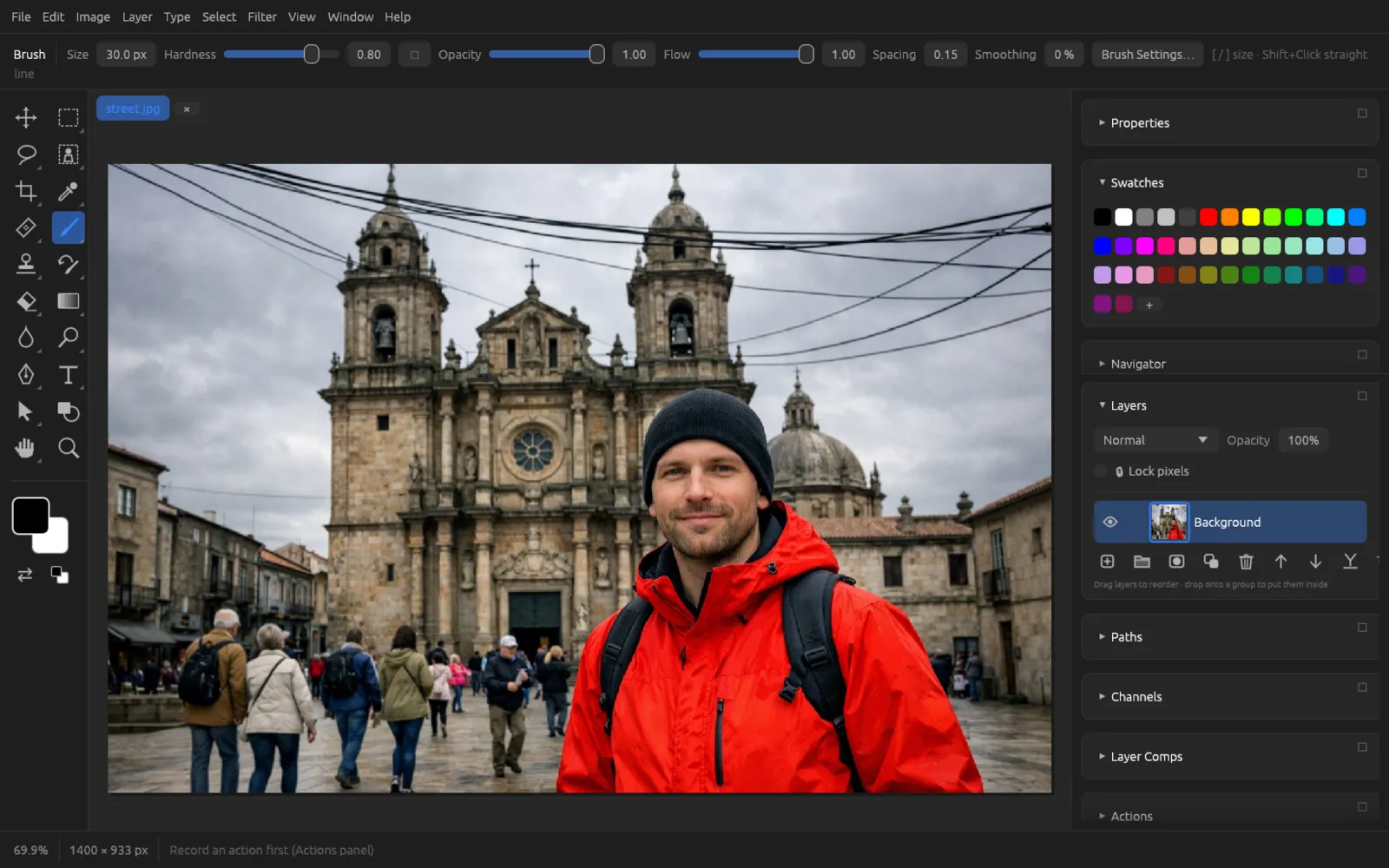
Batch processing. - Click Run. After the run, the status bar reports how many files were written – or what problems there were.
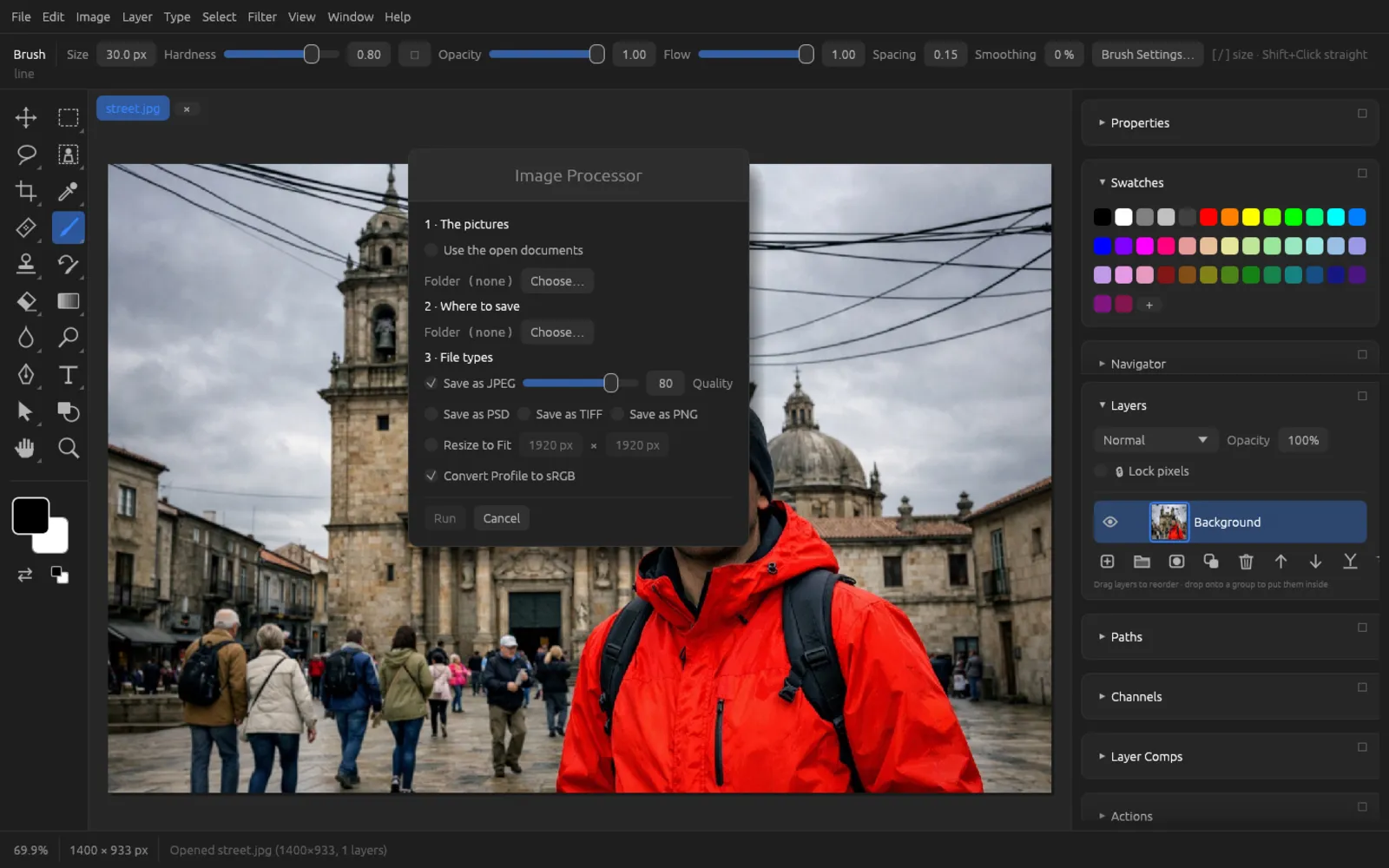
Image Processor
converts many images at once without you needing an action:
- The pictures: a folder (Choose…) or Use the open documents. RAW files are developed with the default values.
- Where to save: the destination folder. A subfolder is created in it for each format (
JPEG,PNG,TIFF,PSD). - File types: Save as JPEG with Quality (1–100), Save as PSD, Save as TIFF, Save as PNG – several at once, too. Resize to Fit shrinks to the given width × height (it never enlarges), and Convert Profile to sRGB converts the colors for the web.
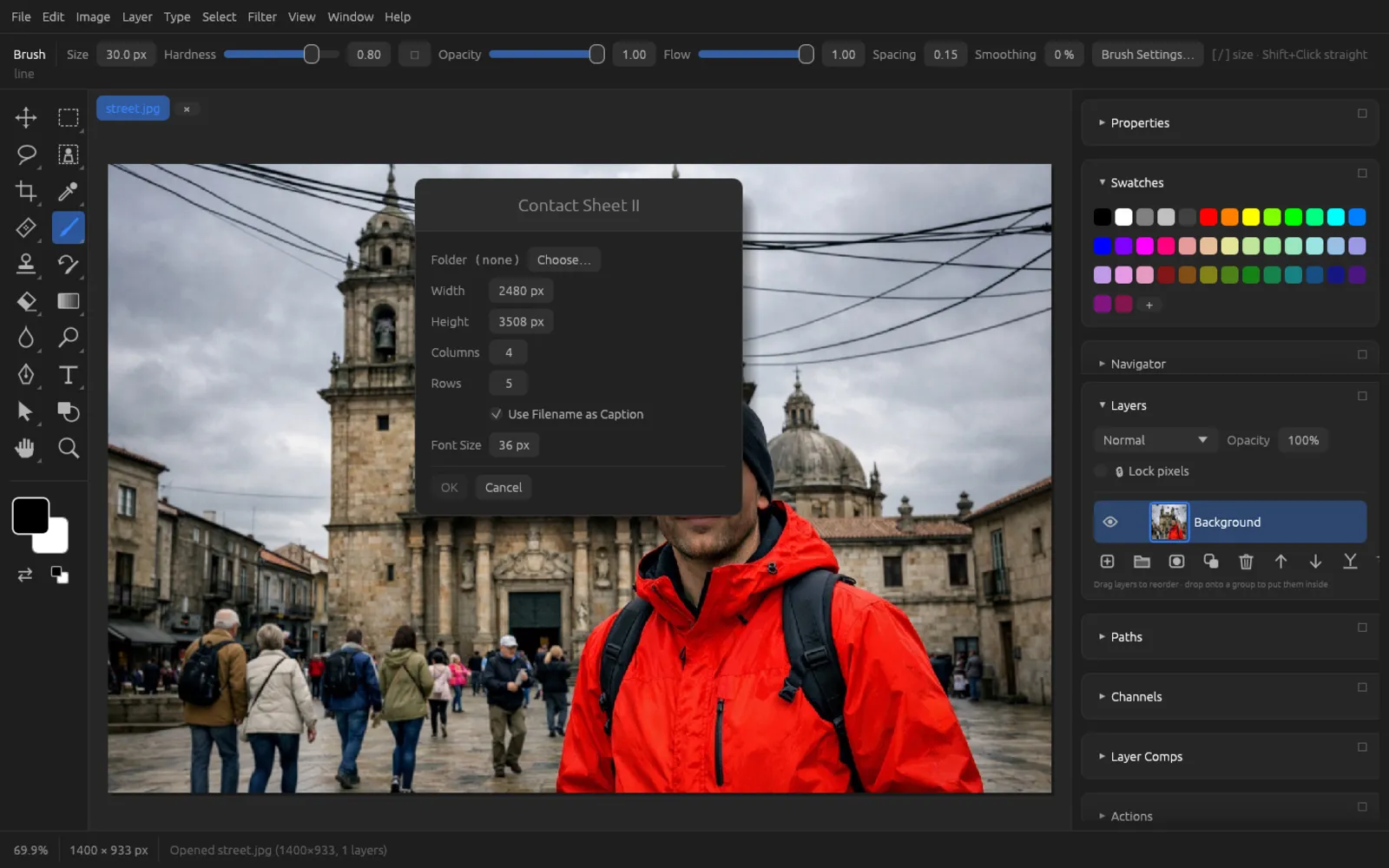
Contact Sheet II and PDF Presentation
creates overview pages with thumbnails from all images in a folder. You set the page's Width and Height (default 2480 × 3508 px, that is A4 at 300 ppi), the number of Columns and Rows, and whether the file name appears as a caption (Use Filename as Caption) and in which Font Size. If not all images fit on one page, several documents are created.
asks first for the images and then for where to save the PDF file. Each image becomes one page. The images are loaded one at a time, so even large numbers are no problem.
Variables and data sets
With data sets you fill a template automatically from a table – for example name badges, price tags or social media images. The link between table and template is the layer names: a column named like a layer sets
- for a type layer, its text,
- for other layers, the visibility, if the value is
trueorfalse(likewiseyes/no,1/0,visible/hidden,on/off), - for a pixel layer, its pixels, if the value names an image file (relative to the CSV file's folder). The image is fitted into the area of the previous pixels.
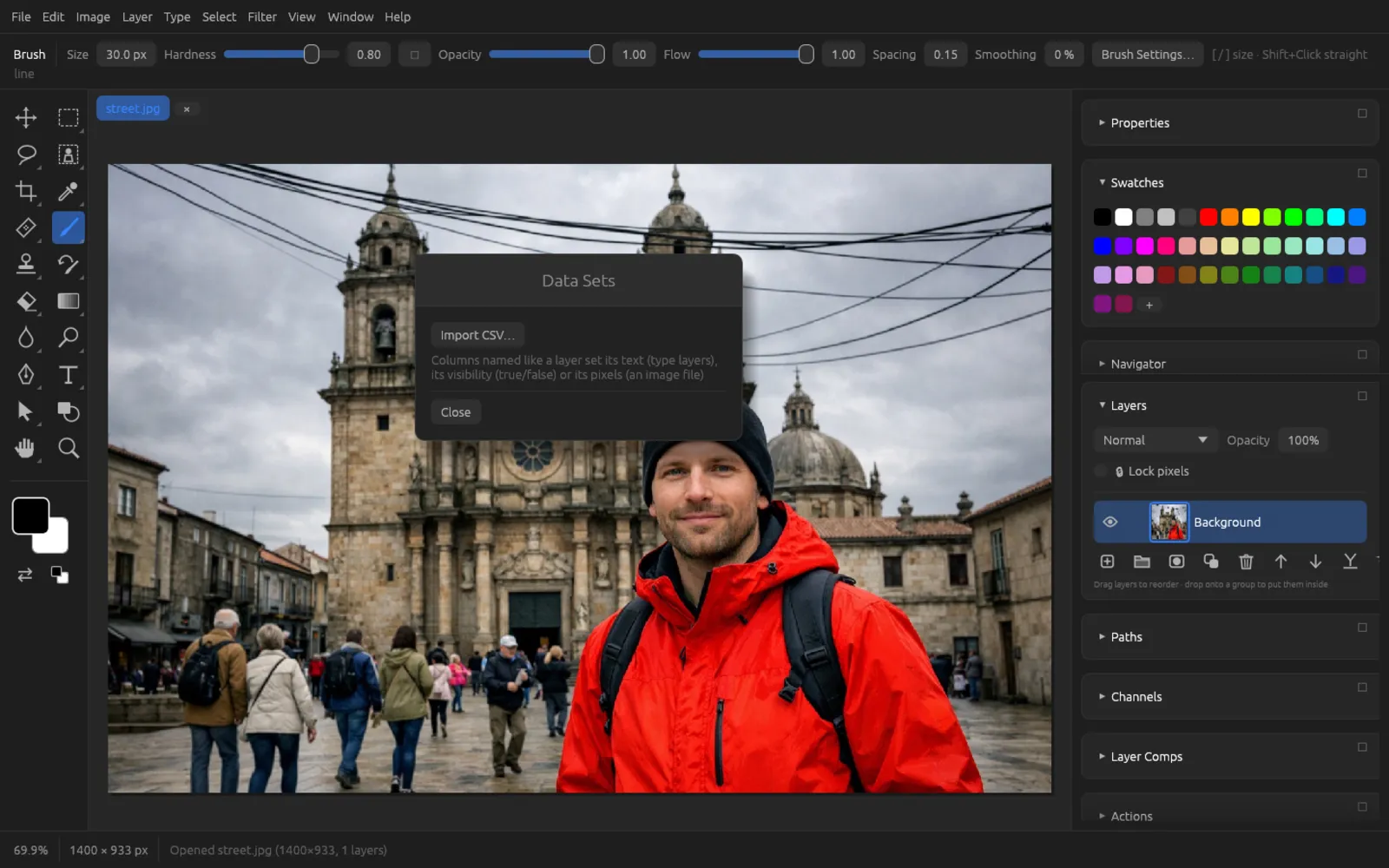
The first row of the CSV file holds the column names; Chromatelier recognizes a comma or semicolon as the separator. An example for a template with the layers Name (text), Role (text), Photo (pixels) and VIP (a graphic):
Name;Role;Photo;VIP
Anna Berger;Talk;photos/anna.jpg;true
Jonas Weiß;Guest;photos/jonas.jpg;false
After Import CSV…, the dialog shows which columns match layers (Variables). With ◀ and ▶ you page through the data sets and see each one right away in the document; Apply applies the current one again. Export Data Sets as Files… writes one file per row into a folder of your choice – as PNG or, with as PSD (else PNG), as PSD. The files are named after the value in the first column.
Scripts
Scripts control Chromatelier with program code. You can choose between two languages:
- JavaScript (
.jsx,.js) with the widespread scripting object model for image editing:app,app.activeDocument,documents,layersand so on. Many existing scripts run with it directly or after small adjustments. - Rhai (
.rhai), a small, JavaScript-like scripting language with simple functions such asopen,filterandsave.
You start a script with . Scripts you put in the scripts folder appear directly in the menu (up to 50). The scripts folder is the scripts subfolder in Chromatelier's settings folder:
| System | Scripts folder |
|---|---|
| macOS | ~/Library/Application Support/Chromatelier/scripts |
| Windows | %APPDATA%\Chromatelier\scripts |
| Linux | ~/.config/Chromatelier/scripts |
When the script has finished, the status bar shows its last output (for example from alert or print) or the message “Script … finished”. If there is an error, it names the cause.
JavaScript: the object model
| Object | Supported |
|---|---|
app | open(file), documents (with add(w, h, res, name, mode, fill) and getByName), activeDocument (read and set), foregroundColor, backgroundColor, runCommand(id), name, version |
| Document | name, width, height, mode, saved, layers, artLayers (with add()), activeLayer, selection, resizeImage, resizeCanvas, crop, rotateCanvas (multiples of 90°), flipCanvas, flatten, mergeVisibleLayers, trim, saveAs, exportDocument, close, undo |
| Layer | name, opacity, visible, blendMode, kind, isBackgroundLayer, textItem.contents (read), applyGaussianBlur, applyMotionBlur, applyUnSharpMask, applySharpen, applyMedianNoise, applyAddNoise, invert, desaturate, autoLevels, autoContrast, autoColor, duplicate, remove |
| Selection | selectAll, deselect, invert, select(points) (as a rectangle), fill(color), bounds |
| Files | File, Folder (with getFiles(mask), create), remove, exists |
| Other | alert, $.writeln, UnitValue, SolidColor/RGBColor (with hexValue), save options for JPEG, PNG, TIFF, BMP, GIF and PSD, constants such as SaveOptions, BlendMode, AnchorPosition, ResampleMethod |
Lines with #target or #include are skipped. Action descriptors (executeAction) and runMenuItem are not supported; for menu commands there is app.runCommand(id) instead, with the IDs that the MCP server and the Rhai function commands() list.
An example that shrinks all JPEGs in a folder to a width of 1600 px, sharpens them slightly and saves them as PNG in a subfolder:
// web.jsx
var src = new Folder("/Users/you/Pictures/Trip");
var out = new Folder(src.fsName + "/web");
out.create();
var files = src.getFiles("*.jpg");
for (var i = 0; i < files.length; i++) {
  var doc = app.open(files[i]);
  doc.resizeImage(UnitValue(1600, "px"));          // height proportional
  doc.activeLayer.applyUnSharpMask(80, 1, 0);     // amount %, radius, threshold
  doc.saveAs(new File(out.fsName + "/" + doc.name), new PNGSaveOptions());
  doc.close(SaveOptions.DONOTSAVECHANGES);
}
alert(files.length + " images processed");
Rhai: the functions
| Area | Functions |
|---|---|
| Documents | open(path), save(path) (format from the extension), close(), new_document(w, h), doc_count(), select_document(i), doc_name(), doc_width(), doc_height(), resize_image(w, h) |
| Commands | run(id) runs any menu command, commands() lists them all as “ID Menu › Item” |
| Filters | filter(name) or filter(name, [values]) on the active layer, for example "GaussianBlur", "UnsharpMask"; missing values stay at their defaults |
| Layers | layer_count(), active_layer(), select_layer(i or name), layer_name(i), set_layer_name(s), set_opacity(0..1), set_visible(bool), set_blend(name), new_layer(name) |
| Selection and color | select_rect(x0, y0, x1, y1), deselect(), set_foreground(r, g, b), set_background(r, g, b), fill(r, g, b) |
| Files | files(folder) – all images in a folder (including PSD, RAW and projects), sorted by name; print(text) for output |
// web.rhai – JPEGs at most 1600 px wide, slightly sharpened,
// saved next to the originals with "-web" in the name.
let n = 0;
for f in files("/Users/you/Pictures/Trip") {
    if !f.to_lower().ends_with(".jpg") { continue; }
    open(f);
    let w = doc_width();
    let h = doc_height();
    if w > 1600 {
        resize_image(1600, h * 1600 / w);
    }
    filter("UnsharpMask", [80, 1.0, 0]);
    save(f.sub_string(0, f.len() - 4) + "-web.jpg");
    close();
    n += 1;
}
print(`${n} images saved`);
Running a script
- Save one of the examples above in a text editor as
web.jsx(orweb.rhai) and adjust the folder path. - In Chromatelier, choose and the file. The script runs right away.
- Read the result in the status bar, for example “web.jsx: 12 images processed”. If there is an error, the cause appears there.
- If you want to use the script more often, put it in the scripts folder (see the table above). The next time you open the menu, it appears directly under .
Scripts can read, write and delete files. Only run scripts whose source you trust.
Filter plug-ins (.8bf)
Chromatelier can run filter plug-ins in the widespread .8bf format. Put them in the plug-ins folder – directly or in a subfolder. You open the folder with ; after adding new files, choose . The plug-ins then appear, sorted by their categories, in the menu.
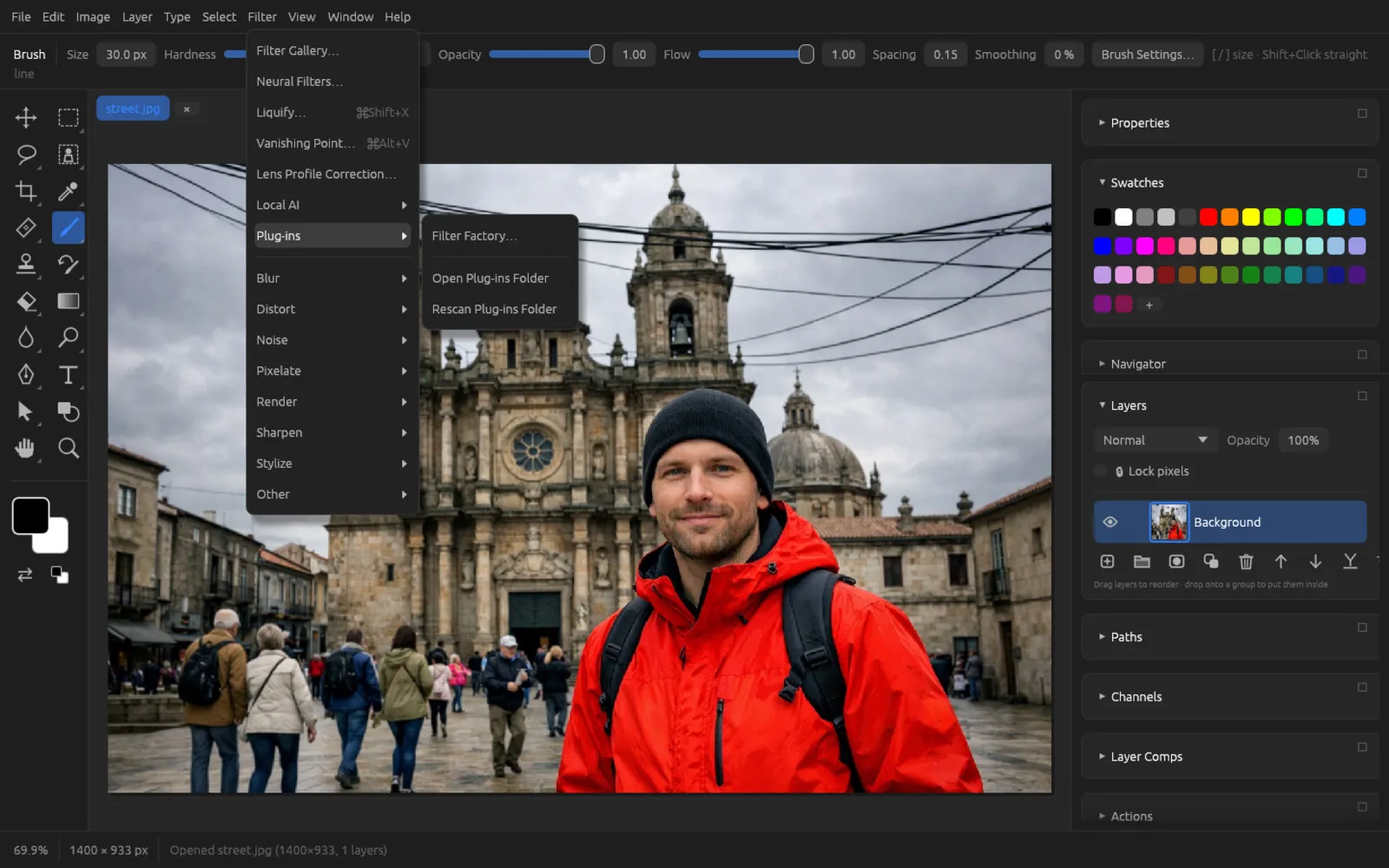
- A plug-in runs where it was built for: Windows plug-ins on Windows (x64 or ARM64), Mac plug-ins on macOS (Intel or Apple silicon). Plug-ins for another system appear grayed out; the tooltip gives the reason.
- Each plug-in runs in its own process. If it crashes, Chromatelier stays open. Its dialog appears in a separate window.
- Plug-ins work on the active pixel layer (within a selection) in RGB documents. The result is a single history step.
Filter Factory: formula filters
opens an editor for formula filters. For each channel – R, G, B and A (alpha) – you write a formula that calculates the new value for every pixel. The preview on the active layer follows every change. Eight sliders (0–255) supply values that you can use in the formulas.
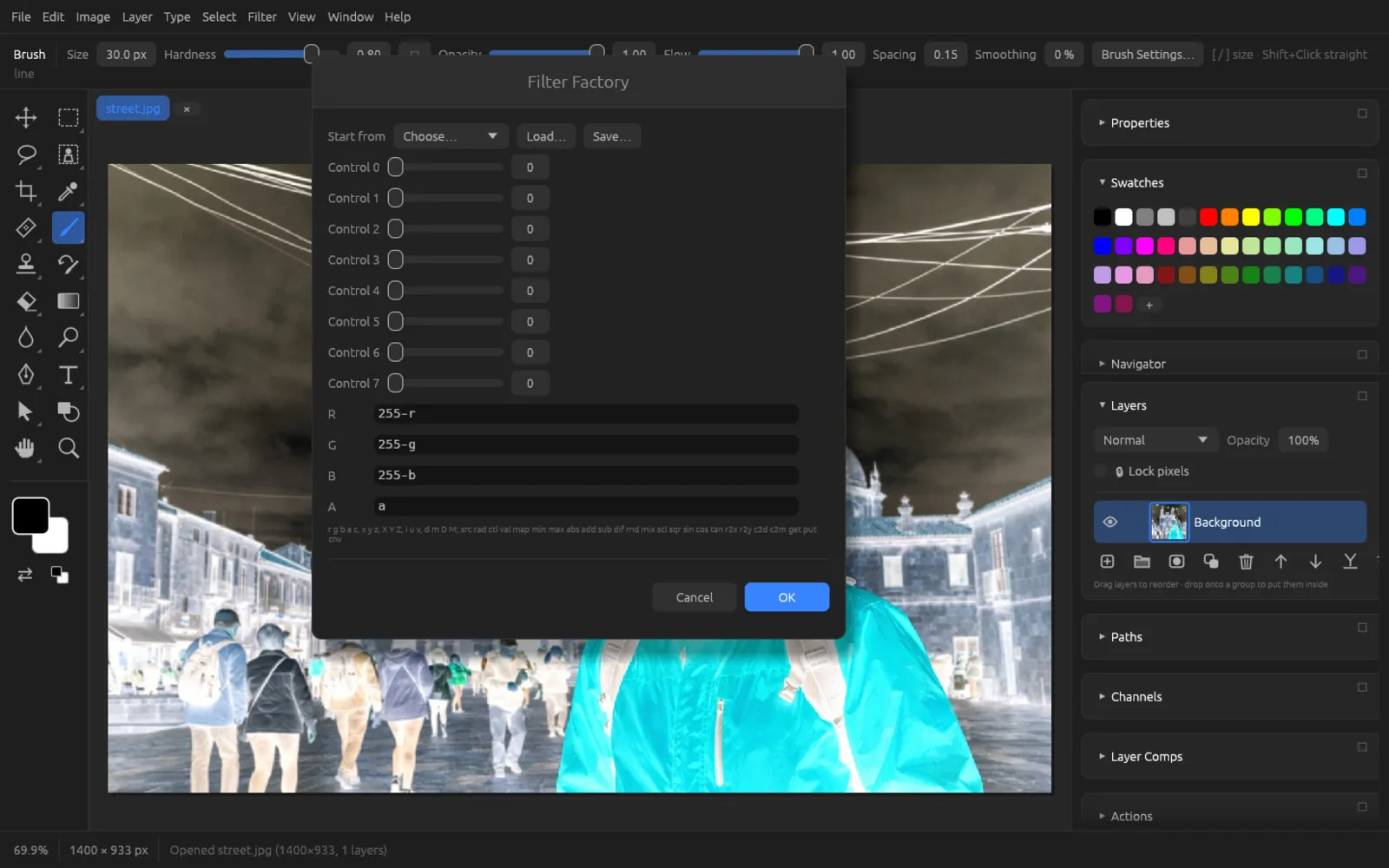
- Start from loads an example: Negative, Twirl, Mosaic, Waves or Channel Mixer.
- Load… opens Filter Factory filters as
.8bf,.afs,.pffor.txt; Save… saves your filter. - Filter Factory
.8bffiles in the plug-ins folder appear as menu items of their own. They contain only formulas, no machine code, and therefore run on any system.
Formula language
The formulas are integer expressions similar to C (with + - * / %, comparisons, ? : and parentheses). Results are clamped to 0–255.
| Name | Meaning |
|---|---|
r g b a | Red, green, blue, alpha of the current pixel (0–255) |
c | Value of the channel the formula is currently calculating |
x y, X Y | Position of the pixel, width and height of the image |
z, Z | Number of the current channel, number of channels |
i u v | Brightness and color components of the pixel |
d m, D M | Angle and distance from the image center, and their maximum values |
ctl(n) | Value of slider n (0–7) |
val(n, min, max) | Slider n converted to the range min…max |
src(x, y, z), rad(d, m, z) | Value of another pixel – by position, or by angle and distance |
min max abs add sub dif rnd mix scl sqr sin cos tan | Math functions |
get put cnv map and more | Temporary storage, convolution and lookup tables |
An example – a vignette whose strength is controlled by slider 0. Enter the same formula in R, G and B and leave A at a:
c * (M - m * ctl(0) / 255) / MWhen slider 0 is at 0, the image stays unchanged; at 255 it turns black toward the edge. The dialog shows errors in a formula in red.
Preset Manager
shows brushes, gradients, styles and patterns in one place, each on its own tab. Built-in presets are marked as “built in”; you can rename and delete your own presets.
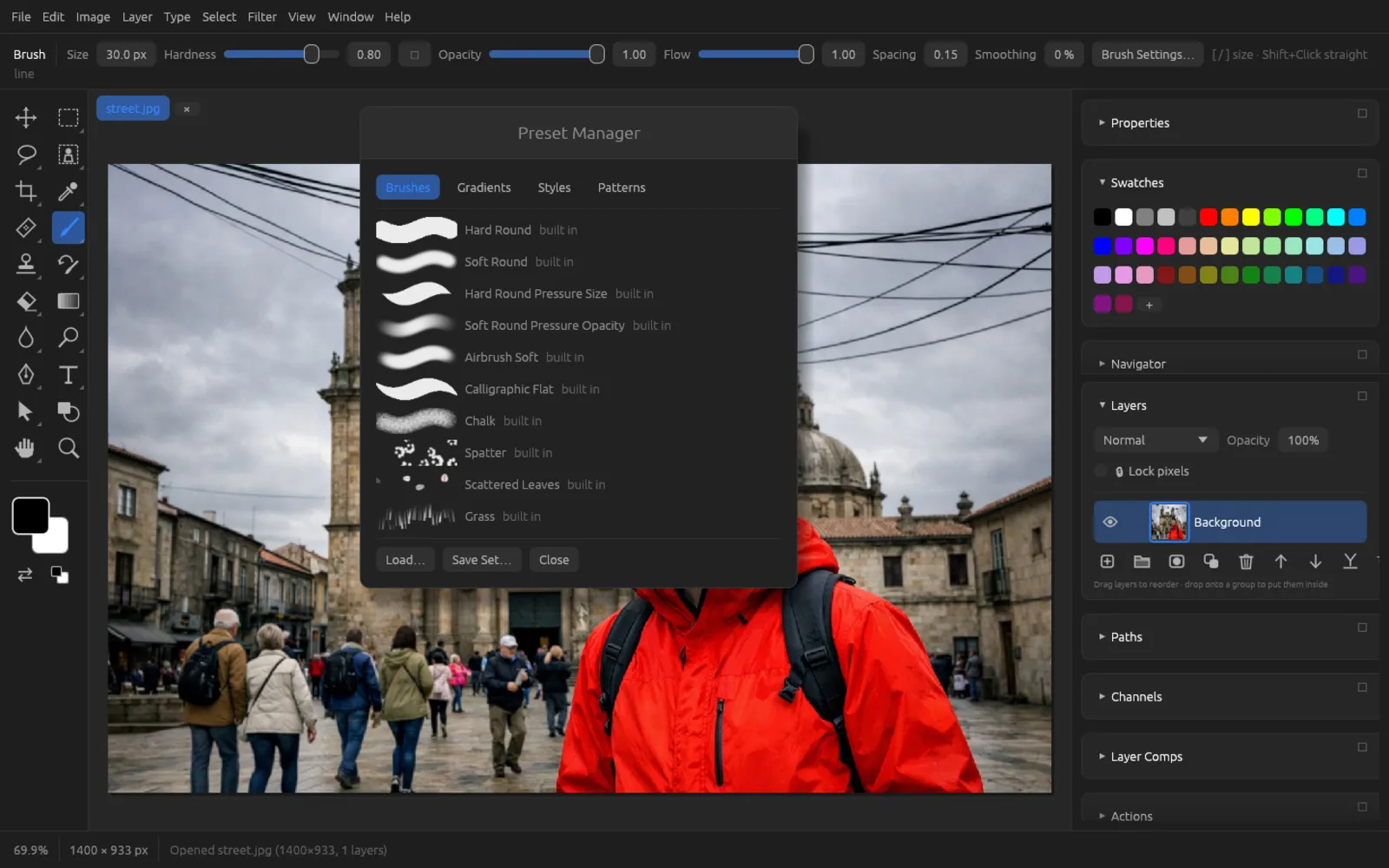
| Command | Effect |
|---|---|
| Load… / | Reads brushes (.abr), gradients (.grd), styles (.asl), patterns (.pat) or a Chromatelier preset set (.fpp). |
| Save Set… / | Saves all your own presets in an .fpp file – for moving them to another computer. |
| Turns the selection (or the image) into a pattern. | |
| Saves the current brush settings as a preset. |
How to use brushes, gradients and styles is explained in the Tools and Layers chapters.
MCP server for AI assistants
Chromatelier includes a server for the Model Context Protocol (MCP). With it, AI assistants such as Claude Code or Claude Desktop can open, view, edit and save images in Chromatelier – you describe in words what should happen. There are two ways:
- Without the app window: the assistant starts
chromatelier --mcpitself and talks to it over standard input and output. Chromatelier then works invisibly in the background. - In the open window: if the MCP server is turned on in the running app, the same command passes everything on to the app. You see live what the assistant is doing and can step in at any time. Alternatively, the assistant connects directly over HTTP at
http://127.0.0.1:47823/mcp.
Settings
Open (⌘ K) and choose AI Assistants:
- Without the app window shows the ready-made command for adding Chromatelier to Claude Code – with the path of your installation. Copy puts it on the clipboard.
- Let AI assistants control Chromatelier (MCP server on this computer) turns on the running app's server. Next to it you see the Port (default 47823) and whether the server is running.
- Access token – only programs that know this token get access. New Token creates a new one; afterwards you have to set up connected assistants again.
- Or connect over HTTP: shows the command for the direct HTTP connection including the token (hidden on screen, complete when copied).
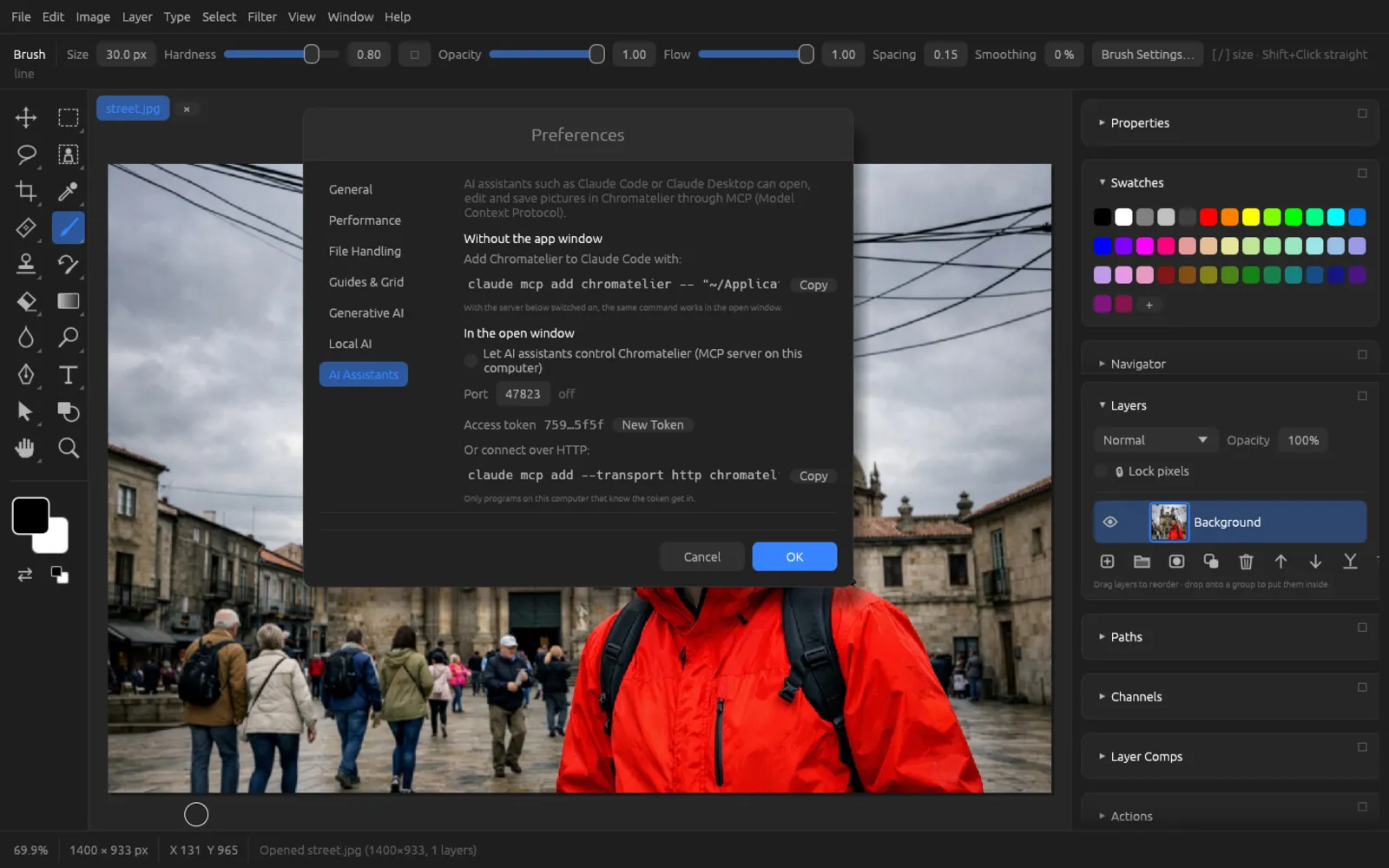
The server accepts connections only from this computer (127.0.0.1) and only with the correct token. Requests from other websites are rejected.
What the assistant can do
| Tool | Purpose |
|---|---|
get_state, get_image | Read documents, layers, selection, history; look at the image (or a layer) as a picture |
open_file, new_document, save_file, close_document, select_document | Open, create, save (format from the extension) and close files |
list_commands, run_command | List and run any menu command |
list_filters, apply_filter | List filters with their parameters and apply them |
select | Select all, none, inverse, a rectangle, an ellipse, the subject or the sky |
select_layer, set_layer, new_layer, add_text, fill, set_colors | Choose and change layers, set text, fill, set colors |
resize_image, undo, redo | Image size, undo and redo steps |
run_script | Run a Rhai or JavaScript script (see Scripts) |
wait, cancel_dialog | Wait for a running AI task; close an open dialog |
The server understands commands, filters, layers and blend modes in any language: run_command takes “Flatten Image” as well as “Auf Hintergrundebene reduzieren”, apply_filter “Gaussian Blur” as well as GaussianBlur, and “Background” finds a layer called “Hintergrund”. For an unknown name it suggests close ones. Its answers are always in English, whatever language Chromatelier is showing.
On top of that there are resources (the app's state, the command and filter lists, every document and every layer as PNG) and four ready-made workflows (prompts): Retouch a portrait, Prepare for the web, Remove distractions (people in the background, power lines) and Describe the document.
Connecting Chromatelier to Claude Code
- In Chromatelier, open and choose AI Assistants.
- Under Without the app window, click Copy. The command looks like this (the path depends on your installation):
claude mcp add chromatelier -- "/Applications/Chromatelier.app/Contents/MacOS/chromatelier" --mcp - Paste the command into a terminal and run it. Claude Code now knows Chromatelier as an MCP server.
- To have Claude work in the visible window, turn on Let AI assistants control Chromatelier (MCP server on this computer) and click OK. Next to the port it then says “running”.
The command to copy and the server switch. - Start Claude Code and ask it, for example: “Open ~/Pictures/street.jpg in Chromatelier, make the image a little warmer and save it as street-warm.jpg.” Claude calls the tools, looks at the result with
get_imageand reports what it did. - If Chromatelier isn't running at the moment or the server is off, the same command works without a window in the background – handy for batch work.
Instead of the command, you can also enter the server in a configuration file, for example in a project's .mcp.json file:
{
  "mcpServers": {
    "chromatelier": {
      "command": "/Applications/Chromatelier.app/Contents/MacOS/chromatelier",
      "args": ["--mcp"]
    }
  }
}
On Windows, the path to Chromatelier.exe goes there. For the direct HTTP connection, copy the command under Or connect over HTTP:; it contains the address and the token.
The server answers even while the window is minimized or hidden (since version 0.14.1). If Claude Code reports a timeout when connecting, check in Preferences that “running” appears next to the port, and restart Chromatelier if needed.
AI commands such as “Select Subject” run in the background. The assistant waits for them to finish with wait. If a local AI model is missing for this, it is downloaded first (see AI on your computer).