Saving, export and printing
You save your document with all its layers as a project or PSD; from it you create finished files for the web, clients and print. This chapter shows all file formats, the ways to export, metadata, provenance records and printing.
Save or export?
- Saving (, , ) keeps the document with layers, masks, text and everything else so that you can keep working on it later. The First steps chapter explains the commands and the difference between .fpd and .psd.
- Exporting () creates a flat file – a JPEG for the website, a PNG with transparency, a TIFF for the print shop. The document itself stays unchanged and keeps its name.
File formats at a glance
| Format | Read | Write | Notes |
|---|---|---|---|
| Chromatelier project (.fpd) | yes | Save | Keeps everything: layers of every kind, paths, channels, comps, guides, slices, color mode, profile, 8/16/32 bits, video and sound. |
| PSD | yes | Save | Layers, groups, masks, layer styles, text, smart objects, 8 and 16 bits. |
| PSB | yes | – | Large document format; to keep working, save as .fpd or .psd. |
| TIFF | yes | Save As (with layers), Export | A TIFF with layers opens again with all its layers. Flat with 8 or 16 bits; CMYK documents keep their inks. |
| yes | Save As (with layers), Print › Save PDF | Other PDFs are rasterized when opened (page and resolution can be chosen). A PDF saved with layers is shown as an image by any PDF program and opens in Chromatelier with all its layers. | |
| JPEG | yes | Export | No transparency; quality 1–100. |
| PNG | yes | Export | With transparency, 8 or 16 bits. |
| WebP | yes | Export | Written lossless, with transparency. |
| HEIC / HEIF | yes | – | Photos from many smartphones; profile and camera data are preserved. |
| GIF | yes | Export, Animated GIF | At most 256 colors. |
| BMP, TGA, QOI, ICO | yes | Quick Export | |
| Camera RAW (DNG, CR2, CR3, NEF, ARW, RAF, ORF, RW2 …) | yes | – | Opens in RAW development, see Color, RAW & HDR. |
| OpenEXR, Radiance HDR | yes | Save As (32-bit documents only) | Floating-point images with a high dynamic range. |
| DICOM (.dcm) | yes | – | Medical images; multiple images become layers, and the pixel spacing becomes the measurement scale. |
| SVG | yes (rasterized) | Export as SVG | On export, shape and type layers stay vectors. |
| .ai (paths) | – | Path export | Only the document's paths, see Paths in .ai format. |
| MP4, MOV, M4V | yes (as a video layer) | Render Video | See Video & animation. |
You load brushes (.abr), layer styles (.asl), gradients (.grd), patterns (.pat) and action sets (.atn) through the Preset Manager or the Actions panel – see Automation.
Export As
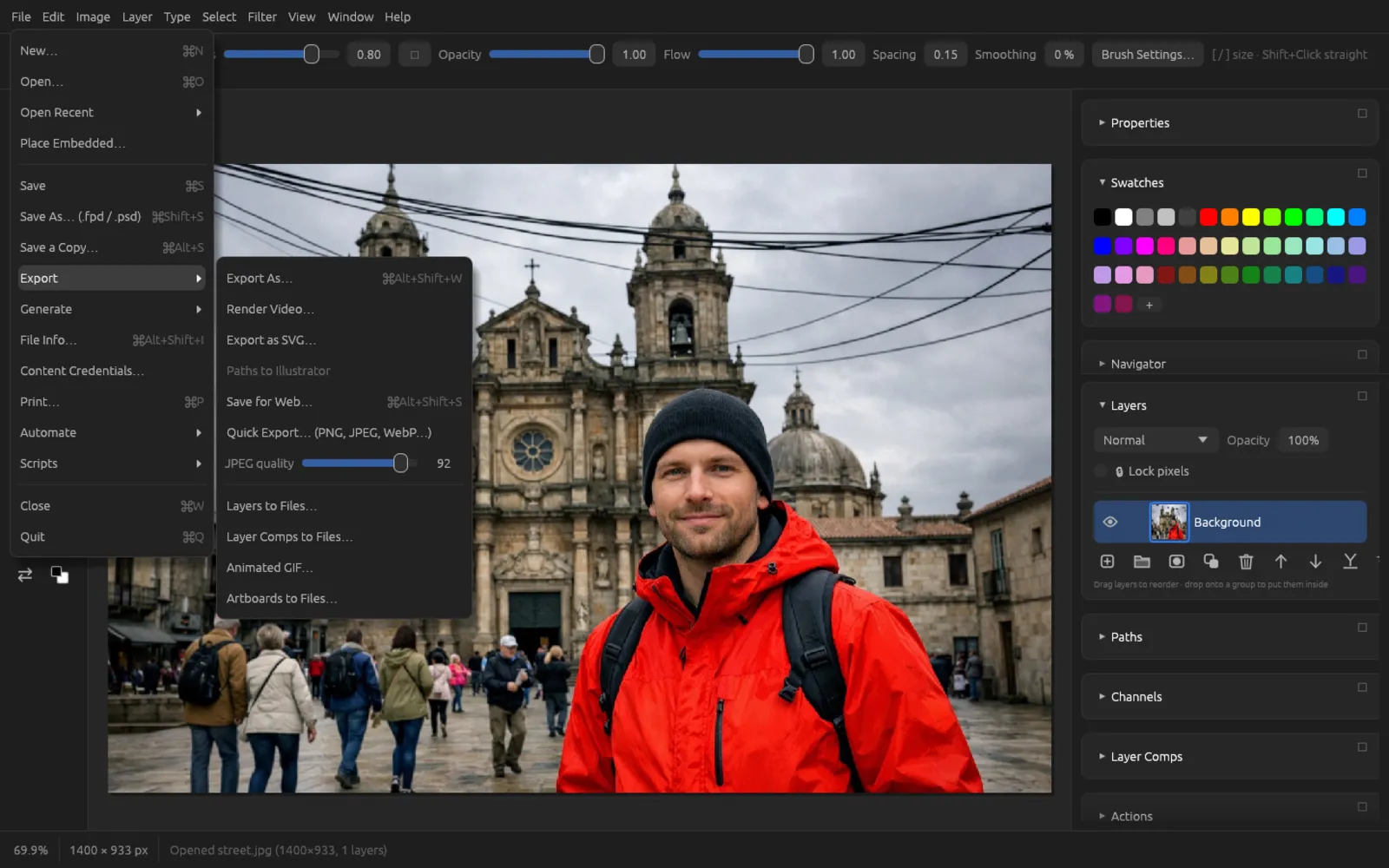
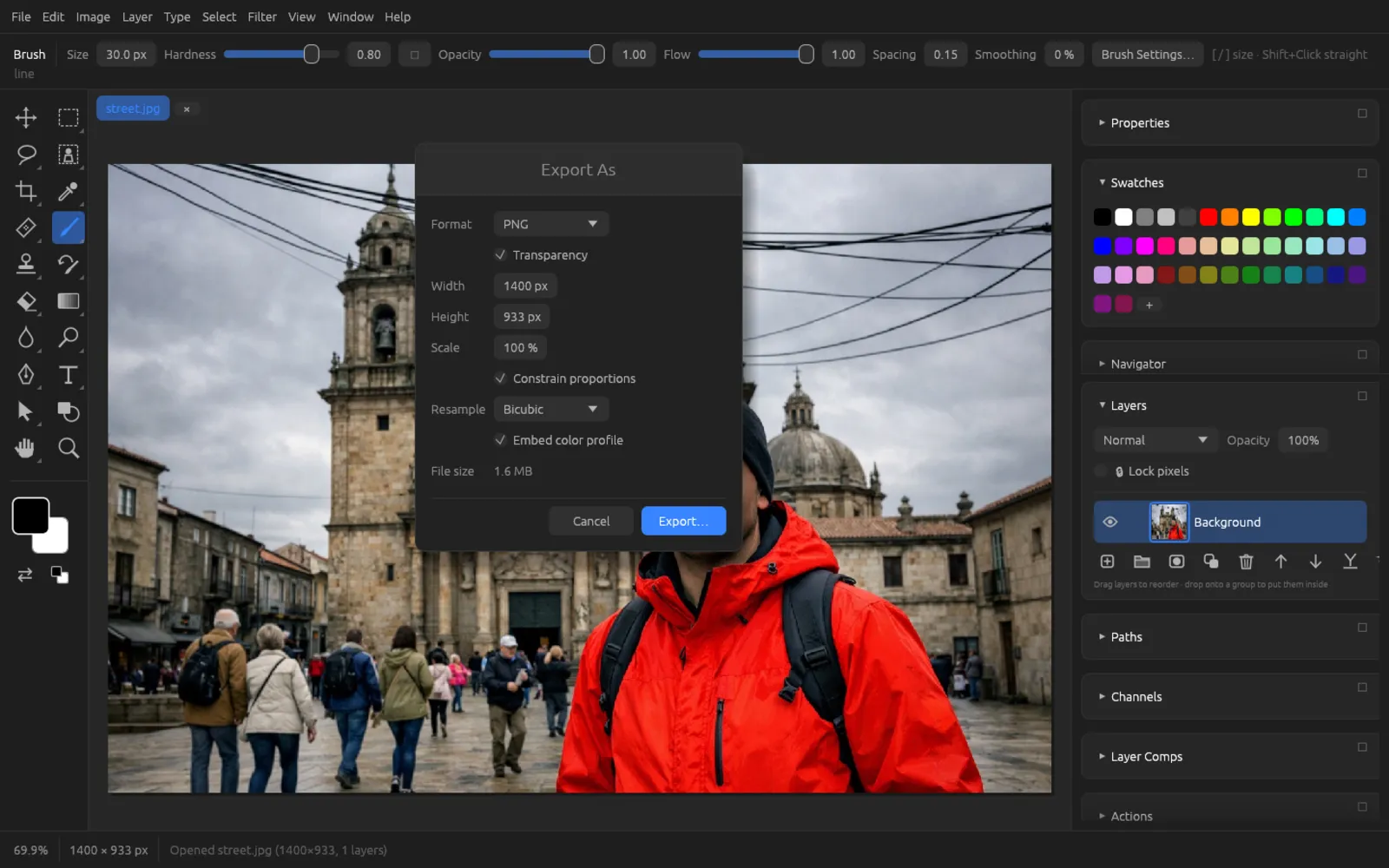
(⌘ ⌥ ⇧ W) is the most versatile way to export. It flattens the image to one layer, converts it if you want, and shows the expected file size before saving.
| Option | Meaning |
|---|---|
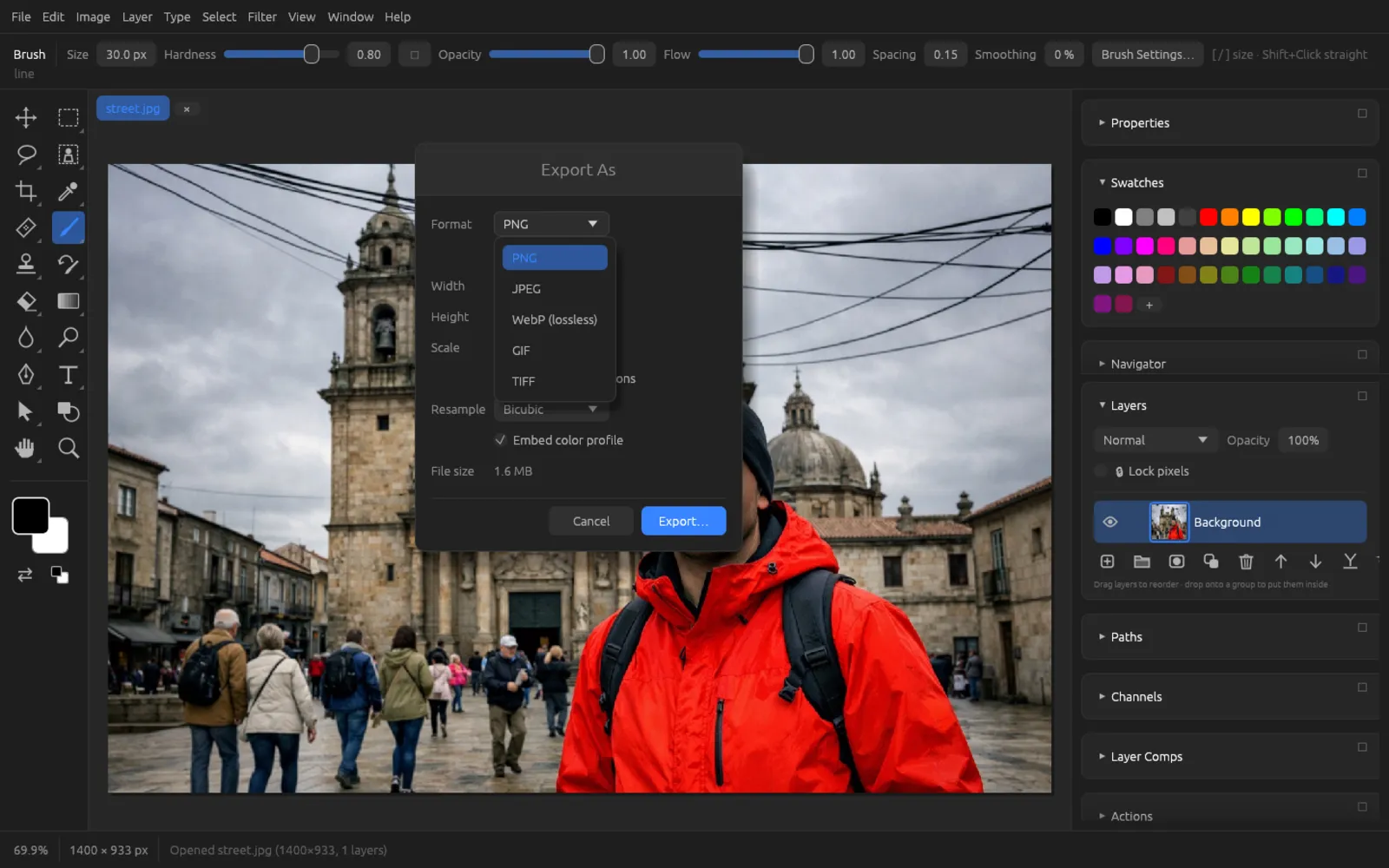
| Format | PNG, JPEG, WebP (lossless), GIF or TIFF. The default is PNG. |
| Quality | JPEG only: 1 to 100 (default 85). Higher = better quality, larger file. |
| Transparency | For all formats except JPEG: transparent areas stay transparent. |
| Matte | Appears when no transparency is written (always for JPEG): the color that transparent areas are placed on, white by default. |
| 16 bits per channel | Only for PNG and TIFF from a 16-bit document. |
| Width, Height, Scale | The size of the file in pixels or in percent (1 to 1000%). With Constrain proportions, the other side changes along with it. |
| Resample | The method used for scaling: Nearest Neighbor, Bilinear, Bicubic (the default) or Lanczos. |
| Convert to sRGB | Appears when the document has a profile other than sRGB (such as a larger working space). When turned on (the default), the colors are converted to sRGB for screens and the web. |
| Embed color profile | Writes the color profile into the file so that other programs display the colors correctly. |
| File size | Calculated in the background with the current settings (“calculating…”). |
Exporting a photo as a small JPEG for the web
- Open the image or project and choose .
- Set Format to JPEG. Quality and Matte appear.
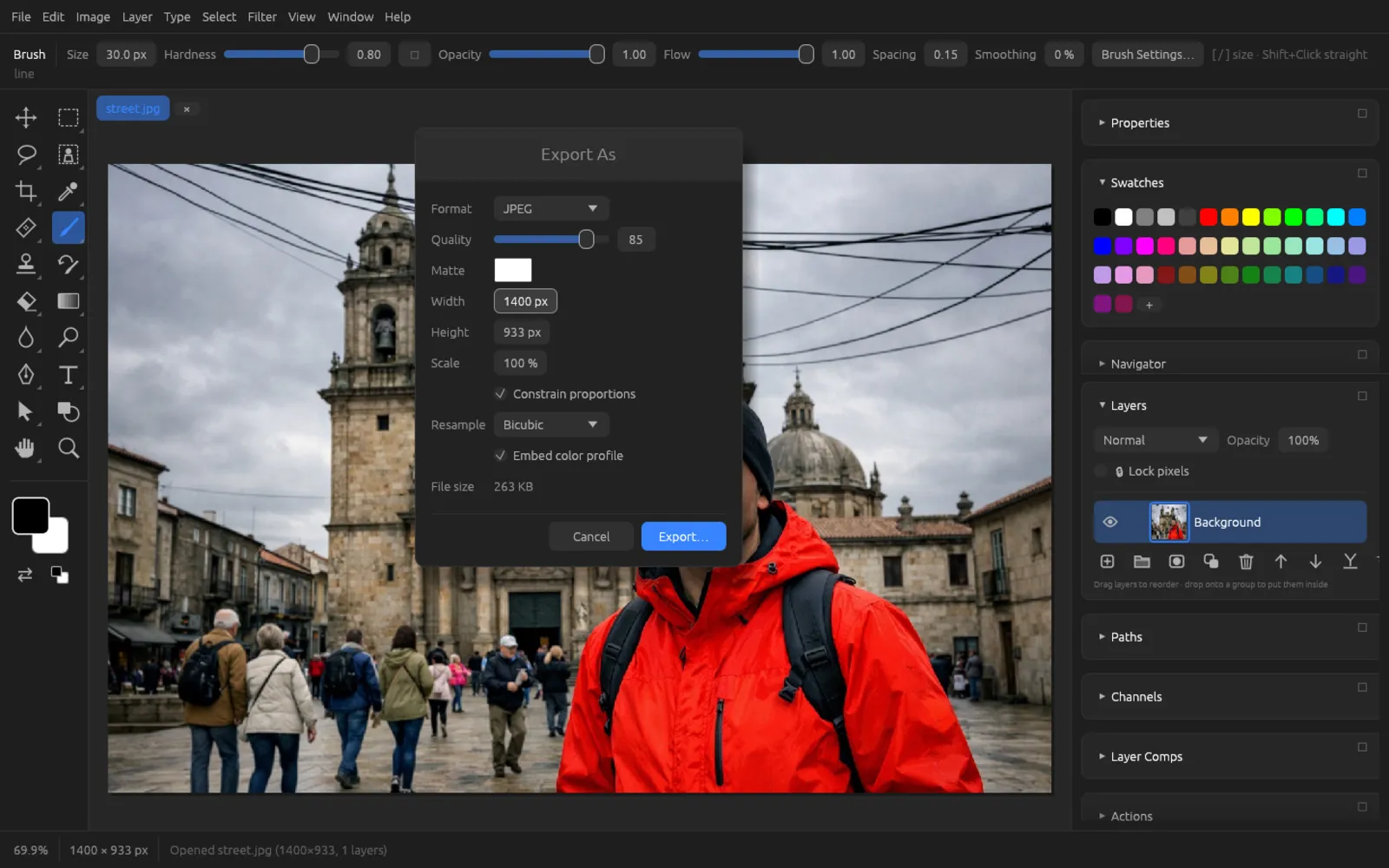
JPEG with quality 85; the estimated file size at the bottom. - Enter the size you want under Width, for example 1200 px. The height adjusts as long as Constrain proportions is turned on.
- Move the Quality slider until the File size is right. Values between 75 and 90 are a good compromise for photos.
- Leave Convert to sRGB and Embed color profile turned on so that the colors are right in every browser.
- Click Export…, choose the folder and file name, and confirm. The status bar reports “Exported …”.
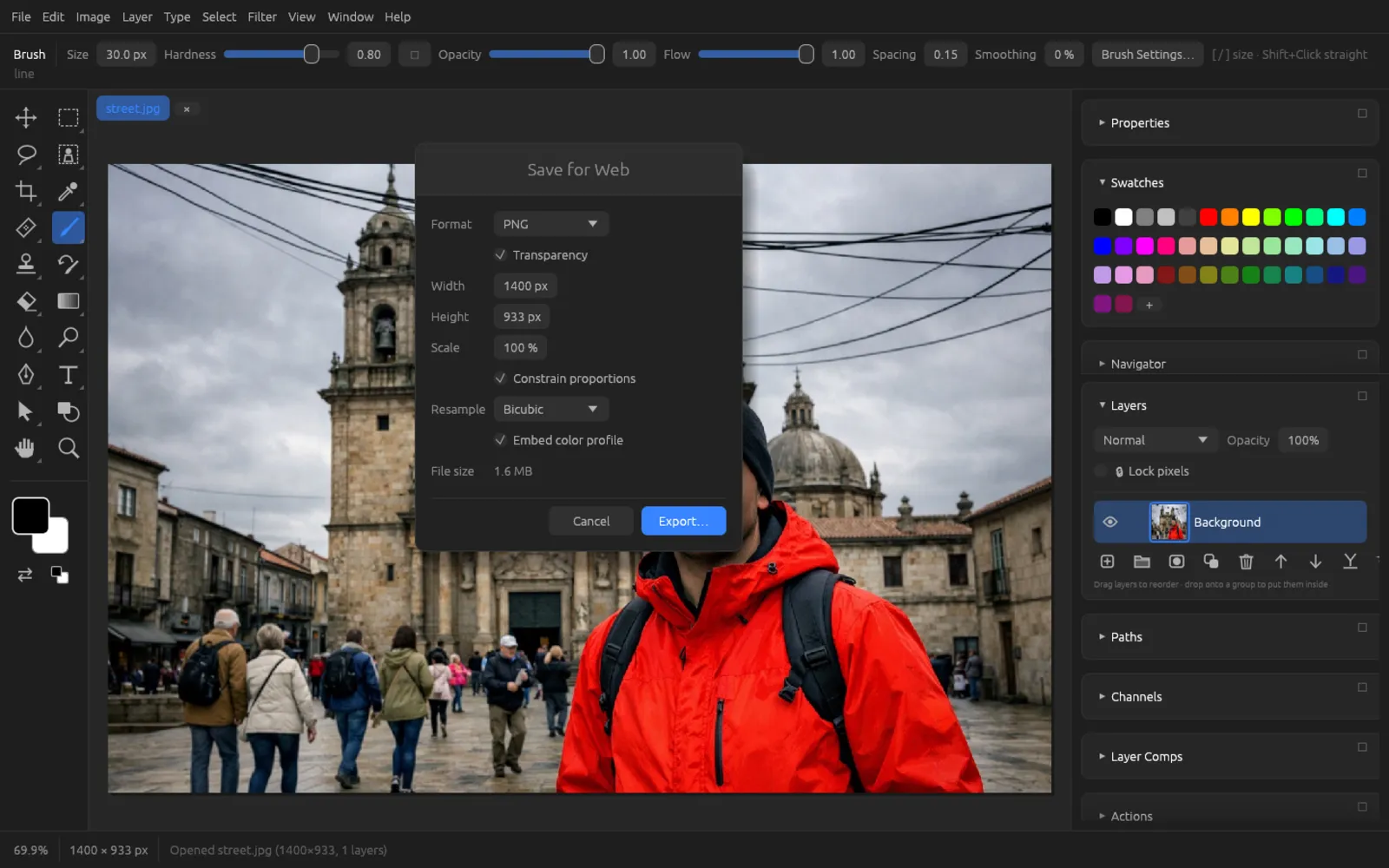
Save for Web
(⌘ ⌥ ⇧ S) opens the same dialog under the title Save for Web, with conversion to sRGB as the default. The difference shows in documents with slices (parts of the image that you created with the Slice tool, see Tools):
- Each of the … slices as a file writes each slice as its own file into a folder that you choose afterwards (file names “Name_01.png”, “Name_02.png” …).
- HTML page placing them also creates an HTML file that puts the slices back together into the whole image.
Size, format and quality apply to all slices; if you scale the image, the slices are scaled along with it.
Quick Export
asks only for the file name and format and writes the image at its original size – without any further dialog. You can choose PNG, JPEG, WebP, TIFF, BMP, GIF, TGA, QOI and ICO; without an extension, PNG is written. For JPEG the JPEG quality applies, which you set with the slider right in the submenu (10 to 100; the same value as in the preferences under File Handling). The document's color profile is embedded, 16-bit documents are written with 16 bits as PNG and TIFF, and documents in Grayscale, Indexed Color or CMYK keep their form where the format allows it.
Layers, comps and artboards as files
Three commands split a document into several PNG files. Each one first asks for a destination folder.
| Command | What you get |
|---|---|
| Each top-level layer on its own (a group as a whole with its contents), hidden ones too, at full document size. File names: “Document_0001_Layername.png”, “Document_0002_…” and so on. | |
| The image as each layer comp shows it: “Document_0001_Compname.png”. Without comps, the status bar reports “The document has no layer comps”. | |
| Each artboard on its own, cropped to its area and named after the artboard. You create artboards with (see Layers). |
Generating image assets automatically
With , Chromatelier continuously writes individual layers as files – ideal for web and app graphics that are still changing. The idea: you name a layer or group like a file, and Chromatelier keeps that file up to date.
- The command is a toggle (with a check mark when it is on) and applies per document; the setting is saved with the document.
- The files end up in the folder
Documentname-assetsnext to the saved file. A document that has never been saved writes them as soon as you save it. - After every change, the assets are rewritten in the background (at most once per second).
- Each layer is rendered on its own and cropped to its visible pixels.
| Layer name | Result |
|---|---|
logo.png | logo.png at its original size |
hero.jpg80% or hero.jpg8 | JPEG with 80% quality |
200% hero.jpg | twice the size |
64x64 icon.png, 120x? bild.png | fixed size; ? calculates that side from the aspect ratio |
icon.png, 200% icon@2x.png | several files from one layer (separated by a comma or +) |
icon.png8 | PNG with at most 256 colors (also png24, png32) |
bilder/teaser.webp | into a subfolder; .gif is possible too |
If Chromatelier doesn't find a suitably named layer, the status bar reports “No layer is named like a file (for example "logo.png")”.
Continuously outputting a logo as PNG in two sizes
- Save the document, for example as
website.fpd. - In the Layers panel, double-click the name of the logo layer (or of the group containing the logo) and name it
logo.png, 200% logo@2x.png. - Turn on . The status bar reports how many assets were generated and where.
- The
website-assetsfolder next to the document now containslogo.pngandlogo@2x.png. When you change the logo, both files are updated automatically.
Export as SVG
writes the document as an SVG file. Shape layers and text become vector paths with fill, stroke, opacity and blend mode; groups stay groups; all other visible layers are embedded as PNG images. Adjustment layers and layer styles have no SVG equivalent and are missing from the file.
Paths in .ai format
In the submenu, directly below Export as SVG…, you'll find the entry for exporting paths in .ai format (a PostScript-based vector format, version 3). It is only active when the document has paths (“The document has no paths”), and it opens a submenu: All Paths… writes all paths into one file, and below it you can choose each path individually. The file contains only the paths – without fill and stroke – plus crop marks at the corners of the canvas, so that they line up exactly with the image in a vector program. You create paths with the Pen tools, see Text, shapes & paths.
Animated GIF and video
writes a frame animation as a GIF, and writes the video timeline as MP4 or MOV. Both are described in the Video & animation chapter.
File Info
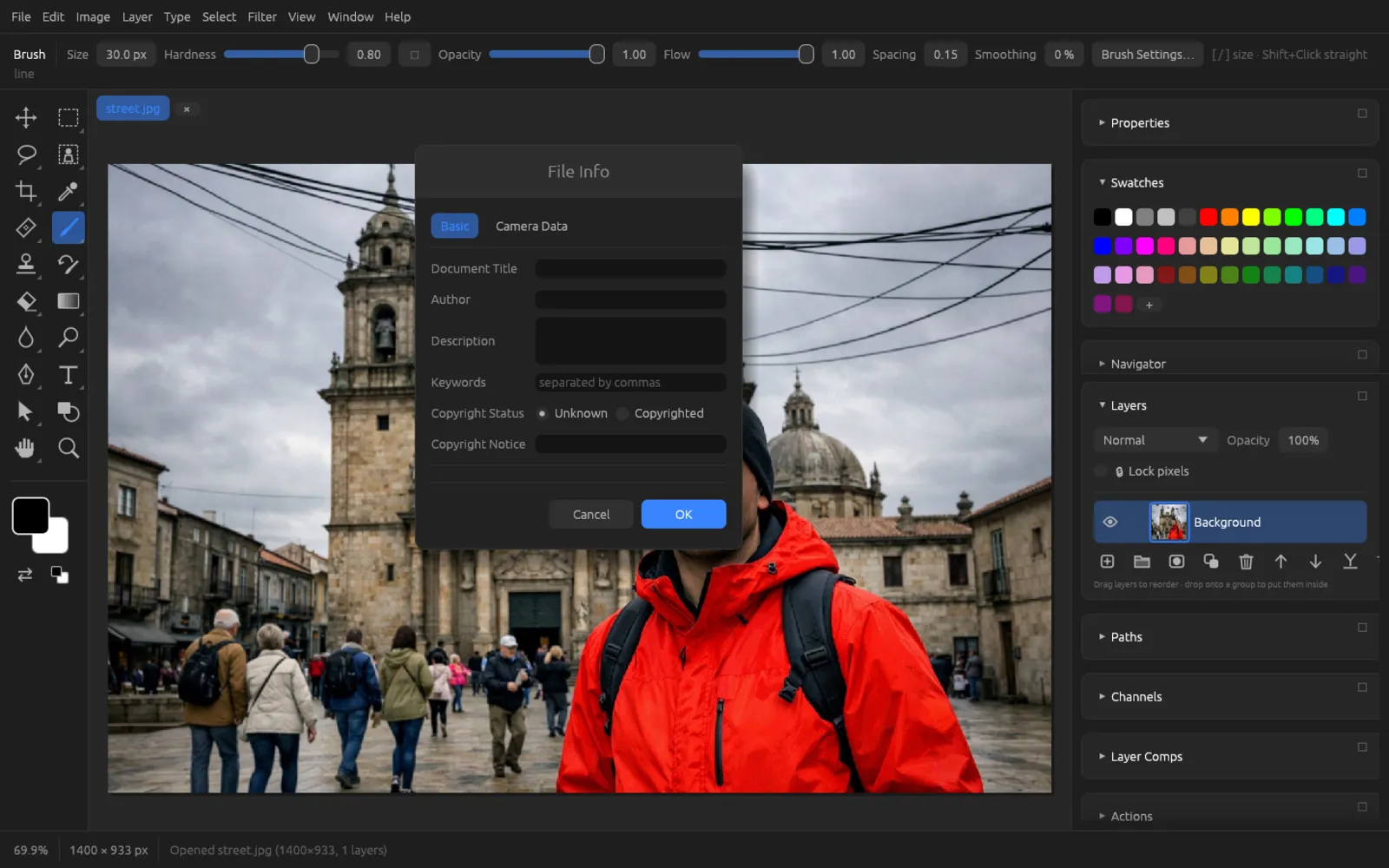
(⌘ ⌥ ⇧ I) edits the document's descriptive information. The Basic tab contains:
- Document Title, Author, Description
- Keywords, separated by commas
- Copyright Status (Unknown or Copyrighted) and Copyright Notice
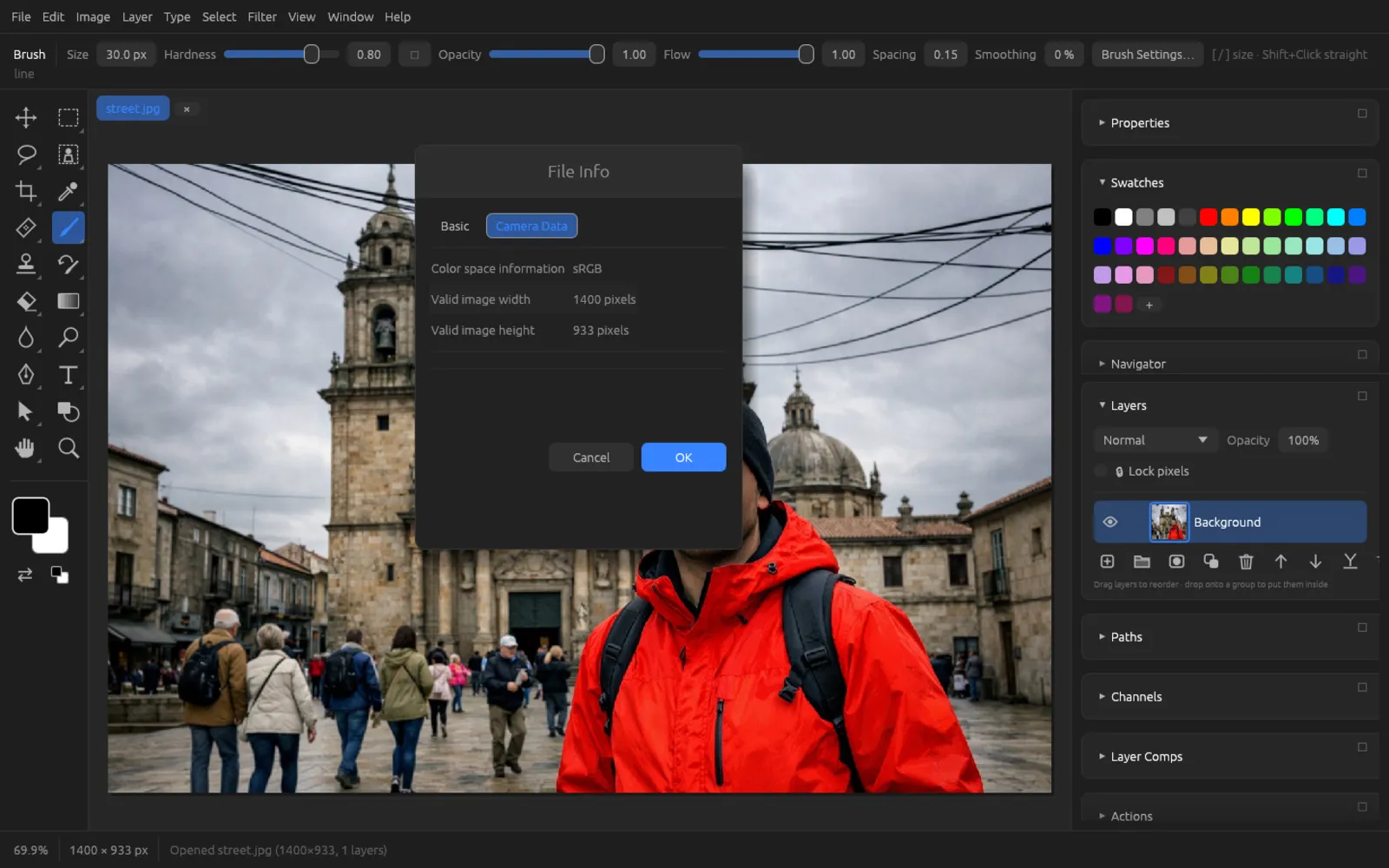
The Camera Data tab shows the EXIF information of the file the document came from – camera, lens, exposure and so on; the labels appear there exactly as they are stored in the file. If the file has none, a note says so.
The information is saved in projects and PSD files and written along with the camera data when you export JPEG, PNG and WebP.
Content Credentials
Content Credentials (following the open C2PA standard) are a signed provenance record embedded in the image file. It records which program the image was edited with, which steps took place, which file it was made from – including that file's own record – and whether and how AI was involved. If the file is changed afterwards, checking tools detect this from the invalid signature.
Signing on export
When the option is turned on (the default), all exported JPEG, PNG, WebP and TIFF files carry such a record – whether you use Export As, Save for Web or Quick Export. The AI share is classified according to the features used:
| Label | Meaning |
|---|---|
| No AI | No AI feature was used. |
| Enhanced with AI | A model improved the image, for example by denoising, upscaling or restoring. |
| Parts made with AI | A model painted parts of the image, for example with generative fill, removing or colorizing. |
| Made with AI | The whole image comes from a model. |
Signing uses a certificate that Chromatelier creates on your computer. Checking tools therefore show the signature as valid but the signer as unknown. You can turn signing off in the dialog below or in the preferences under File Handling › Content Credentials.
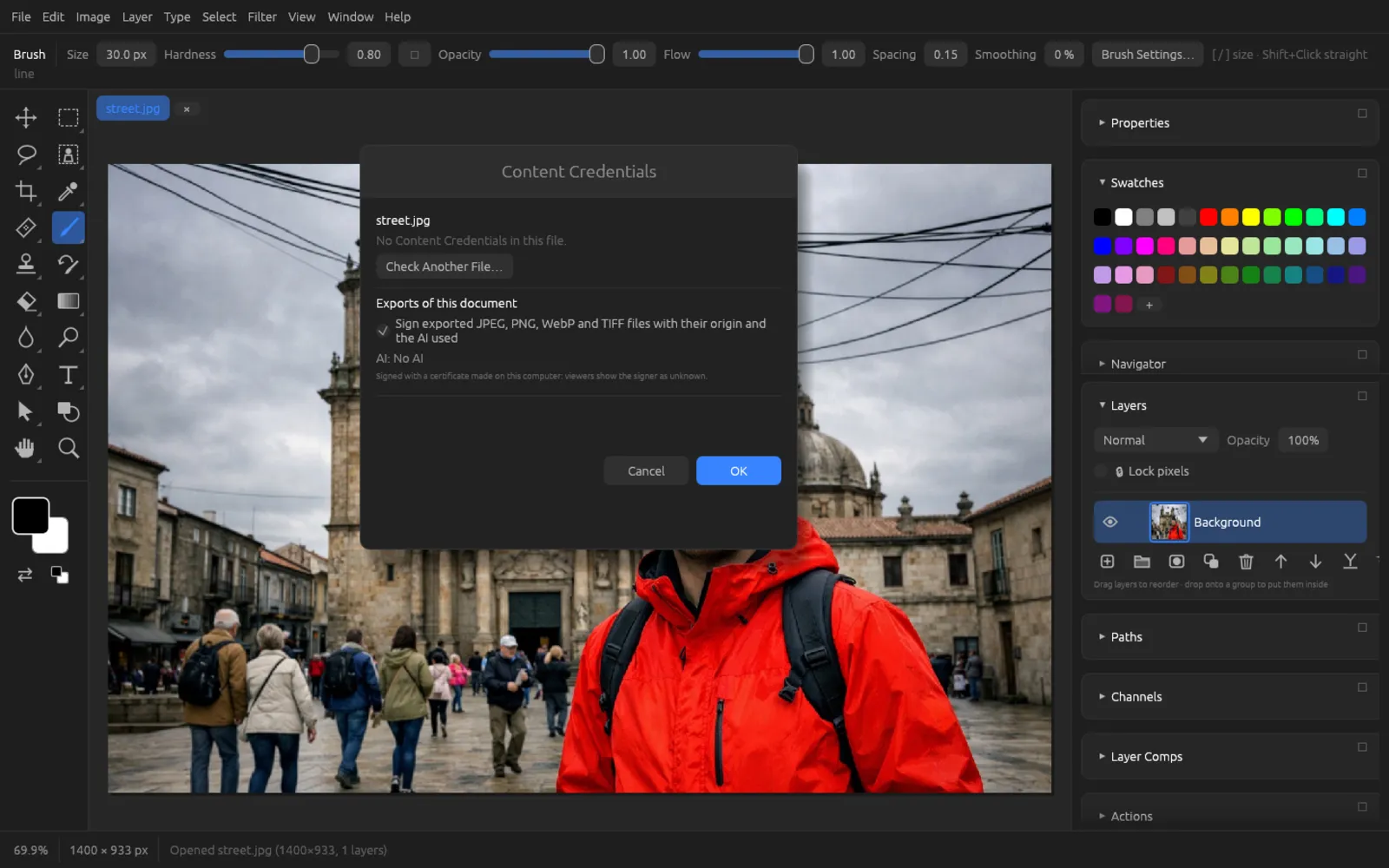
Viewing records
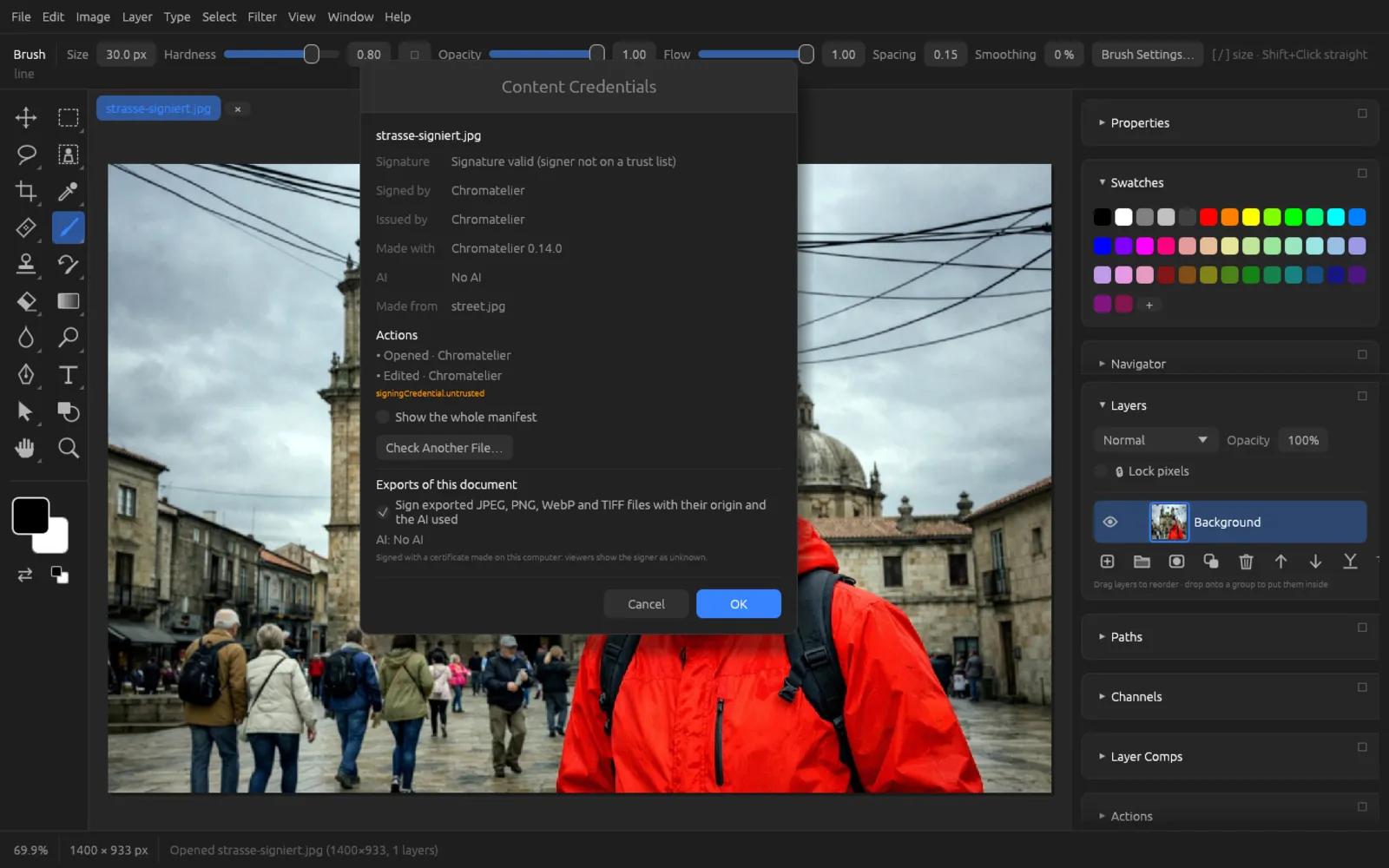
At the top, shows the record of the file the current document was opened from: Signature (valid, trusted, invalid or not checked), Signed by, Issued by, Signed on, Made with, Author, AI, Made from and the list of Actions. Show the whole manifest shows the complete raw data. With Check Another File… you read the record of any image file (JPEG, PNG, WebP, TIFF, HEIC, AVIF, GIF) without opening it.
At the bottom, under Exports of this document, you turn signing on or off and see which AI label and which AI tools this document's exports will carry.
Printing
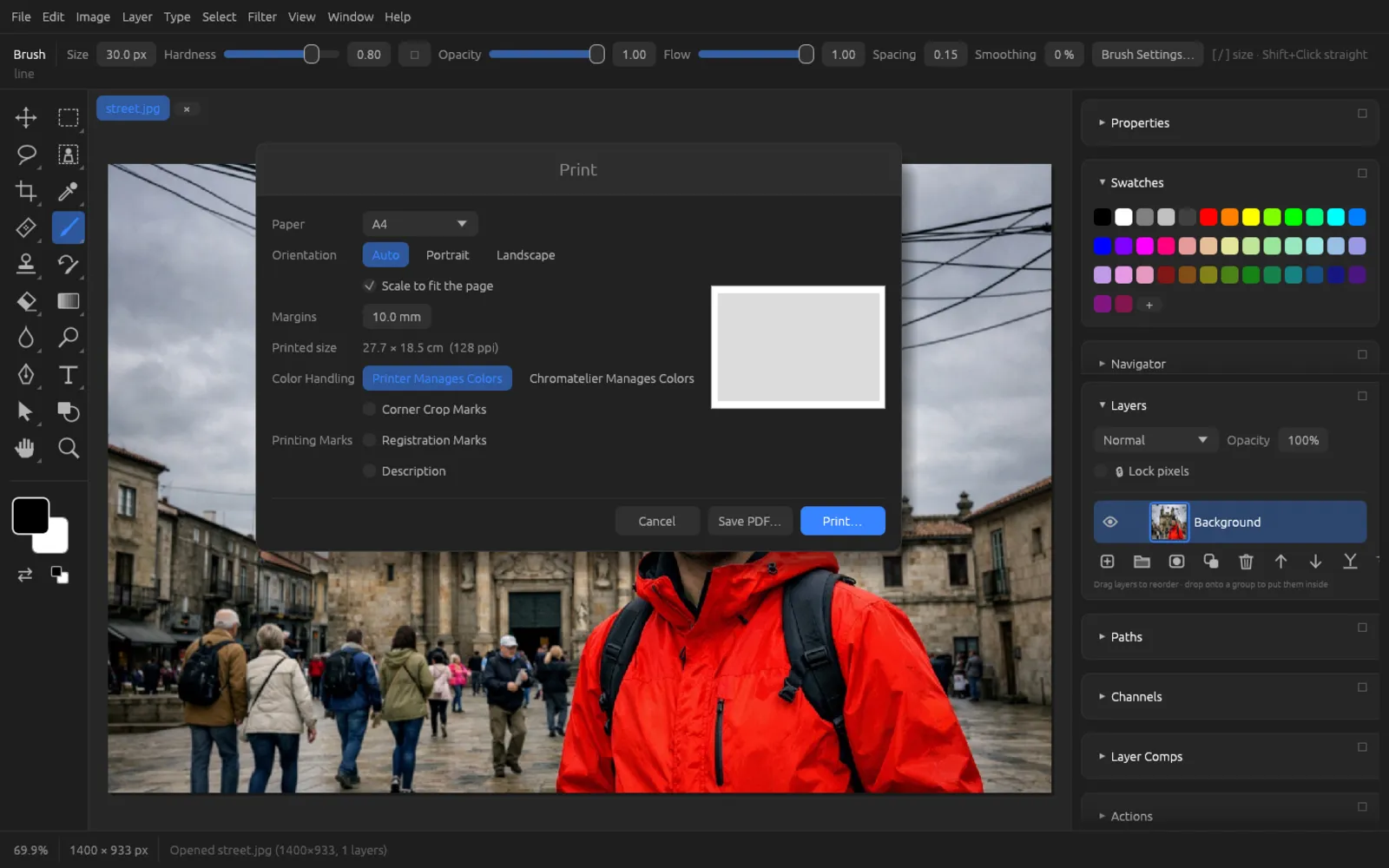
(⌘ P) sets up the page and creates a PDF from it. On the right, a small page preview shows where the image sits on the paper.
| Setting | Meaning |
|---|---|
| Paper | A4, A3, A5, US Letter, US Legal or Tabloid. |
| Orientation | Auto (based on the image), Portrait or Landscape. |
| Scale to fit the page | Scales the image to the printable area (the default). When turned off, the Print resolution (10 to 2400 ppi, default 300) determines the size. |
| Margins | 0 to 100 mm, default 10 mm. |
| Printed size | The printed size in cm and the resulting resolution in ppi. |
| Color Handling | Printer Manages Colors or Chromatelier Manages Colors (see below). |
| Printing Marks | Corner Crop Marks at the corners of the image, Registration Marks at its sides and a Description below the image (document name, color profile and, if applicable, rendering intent). |
Color management when printing
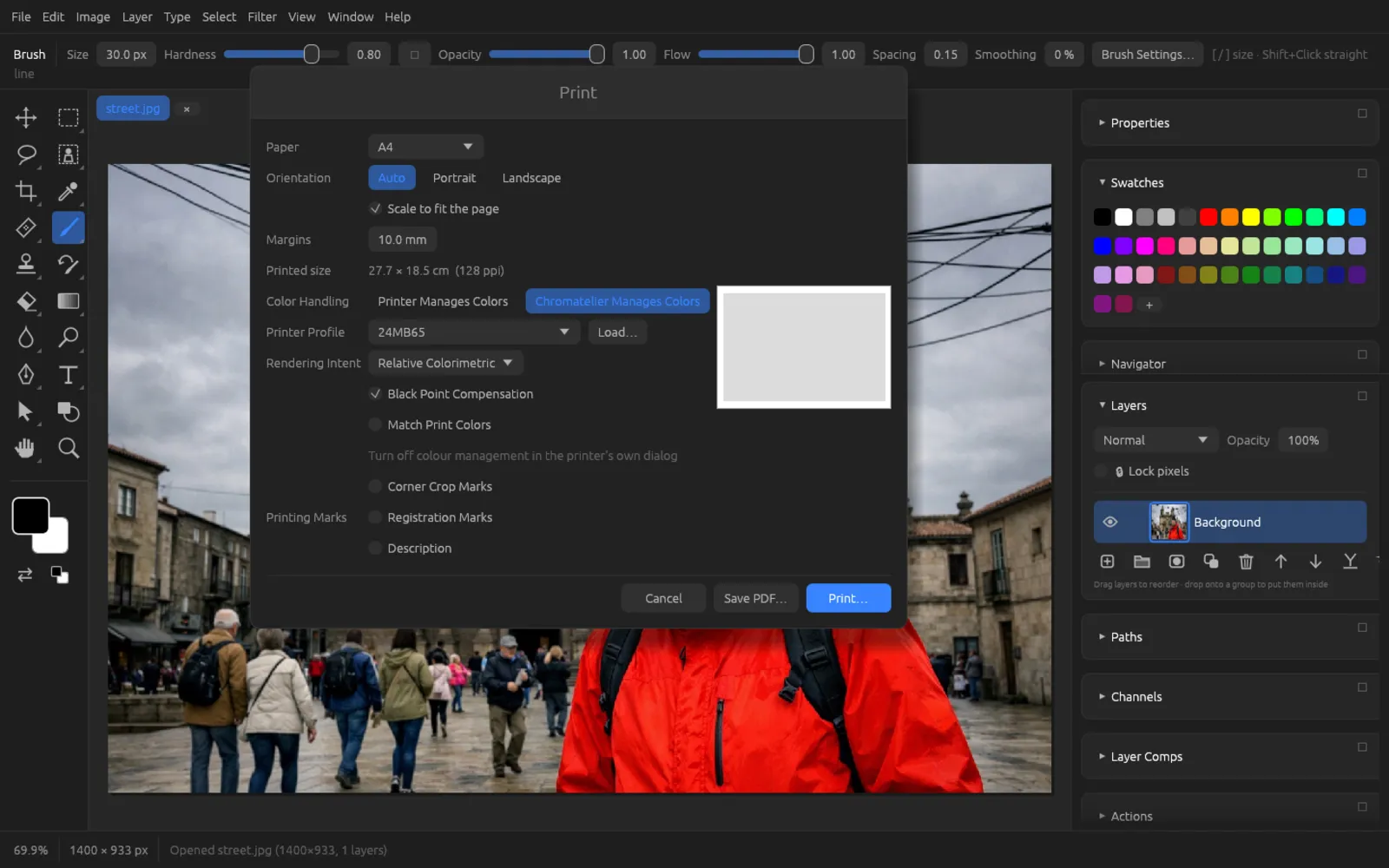
With Printer Manages Colors, Chromatelier hands over the colors with the document's profile, and the printer driver converts them. With Chromatelier Manages Colors, Chromatelier itself converts the colors into the profile of your printer and paper; more fields then appear:
- Printer Profile: one of the ICC profiles installed on the computer, or a .icc/.icm file loaded with Load…, for example from the paper manufacturer.
- Rendering Intent: Perceptual, Relative Colorimetric (the default), Saturation or Absolute Colorimetric.
- Black Point Compensation: preserves detail in the shadows (on by default).
- Match Print Colors: the canvas shows the colors the way the printer prints them (soft proof).
When Chromatelier manages the colors, turn off color management in the print dialog of the system or the printer driver. Otherwise the colors are converted twice.
Printing or saving as PDF
- Print… opens the finished page in your system's PDF program; from there you print it as usual.
- Save PDF… saves the page as a PDF file, for example for a print shop or to print later.
Printing a photo on A4 with accurate colors
- Open the photo and choose .
- Choose A4 as the Paper and leave Orientation set to Auto. Check under Printed size whether the resolution is enough for the size (for photos, about 200 ppi or more).
- Set Color Handling to Chromatelier Manages Colors and choose the profile for your printer and paper under Printer Profile.
- For photos, Perceptual or Relative Colorimetric with Black Point Compensation is usually right. Turn on Match Print Colors to see on the canvas how the print will look.
- Click Print…. The page opens in the system's PDF program. There, turn off the printer's color management in the print dialog and print.
PDF Presentation and Contact Sheet
For many images at once, there are two more output options under : combines several images into a multi-page PDF, and places thumbnails of many images on overview pages. Both are described in the Automation chapter.