Filters
Filters sharpen, blur, distort, render light and clouds, or turn a photo into a painting. This chapter introduces the whole menu – from the Filter Gallery, Liquify and Vanishing Point to every filter in the eight categories.
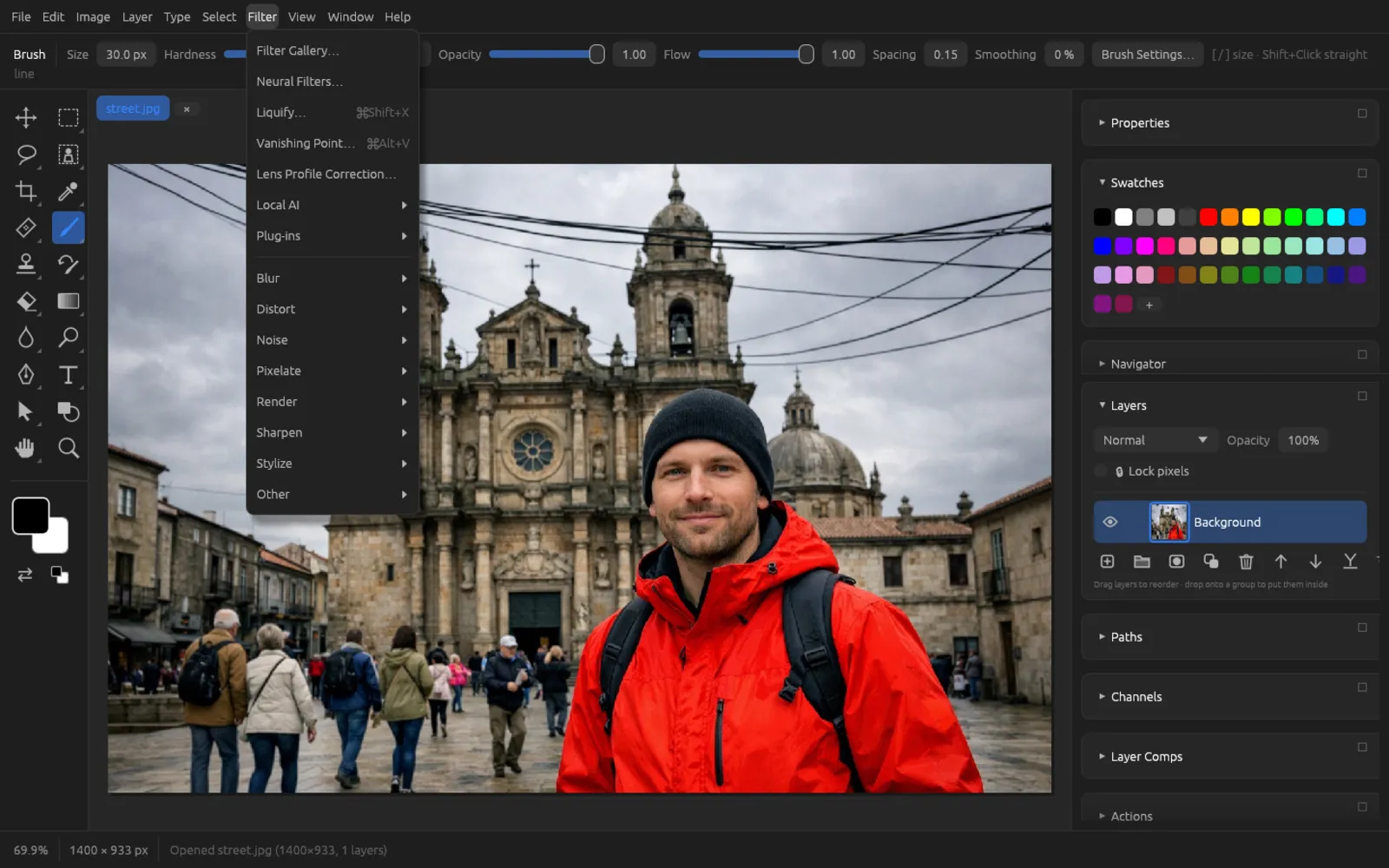
Basics
Applying a filter
- A filter acts on the active pixel layer or, if it is selected for editing, on its layer mask.
- If there is a selection, it changes only the selected area.
- Text and shape layers have to be rasterized first () – or you convert them to a smart object.
- Filters with settings open a dialog with a live preview, Preview, Reset, Cancel and OK. Filters without settings take effect immediately.
- Filters that work with colors use the foreground and background colors. In the menu, “(FG)”, “(BG)” or “(FG/BG)” then follows the name.
The dialogs work just like those of the adjustments (see Adjustments).
Smart filters
Convert a layer to a smart object with before you filter it. The adjustments and the filters in the categories then become smart filters: each one appears under the layer in the Layers panel and can be switched on and off, deleted and reopened with new values – the original stays unchanged. The filter dialog then shows the note Smart filter – stays editable. The exception is Lens Blur; the Filter Gallery also needs a pixel layer. More in the chapter Layers.
Fading a filter
Right after a filter you can weaken its effect with (⇧ ⌘ F): Opacity mixes the result with the state before, Mode combines it using a blend mode. This only works as long as the filter was the last step. Details in the chapter Retouching and Transforming.
Keyboard shortcuts
| Command | Shortcut |
|---|---|
| Liquify… | ⇧ ⌘ X |
| Vanishing Point… | ⌥ ⌘ V |
| Edit › Fade… | ⇧ ⌘ F |
Filter Gallery
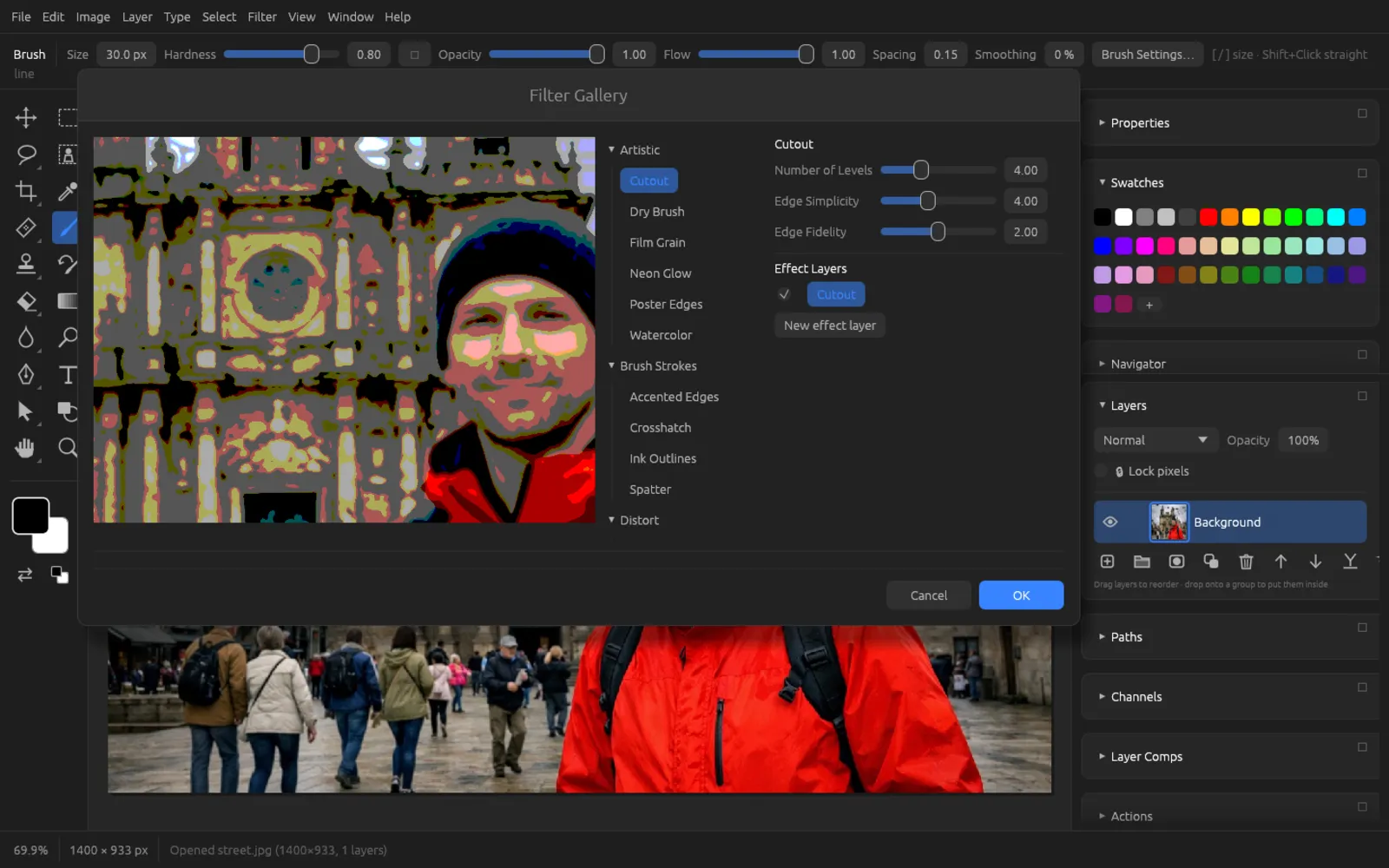
gathers artistic filters in one large window. On the left you see a preview at 100 % that you can move around with the mouse, in the middle the filters sorted into groups, and on the right the sliders of the selected filter.
What makes it special are the effect layers: with New effect layer you stack several filters on top of each other, for example “Dry Brush” with “Texturizer” above it. Each effect layer has a checkbox to hide it and a trash can to delete it. OK applies all enabled effects together.
| Group | Filters |
|---|---|
| Artistic | Cutout, Dry Brush, Film Grain, Neon Glow, Poster Edges, Watercolor |
| Brush Strokes | Accented Edges, Crosshatch, Ink Outlines, Spatter |
| Distort | Diffuse Glow, Glass, Ocean Ripple |
| Sketch | Graphic Pen, Halftone Pattern, Photocopy, Stamp |
| Stylize | Glowing Edges |
| Texture | Craquelure, Grain, Mosaic Tiles, Stained Glass, Texturizer |
Neon Glow, Diffuse Glow, Graphic Pen, Halftone Pattern, Photocopy, Stamp and Stained Glass use the foreground and background colors – set them beforehand.
Neural Filters
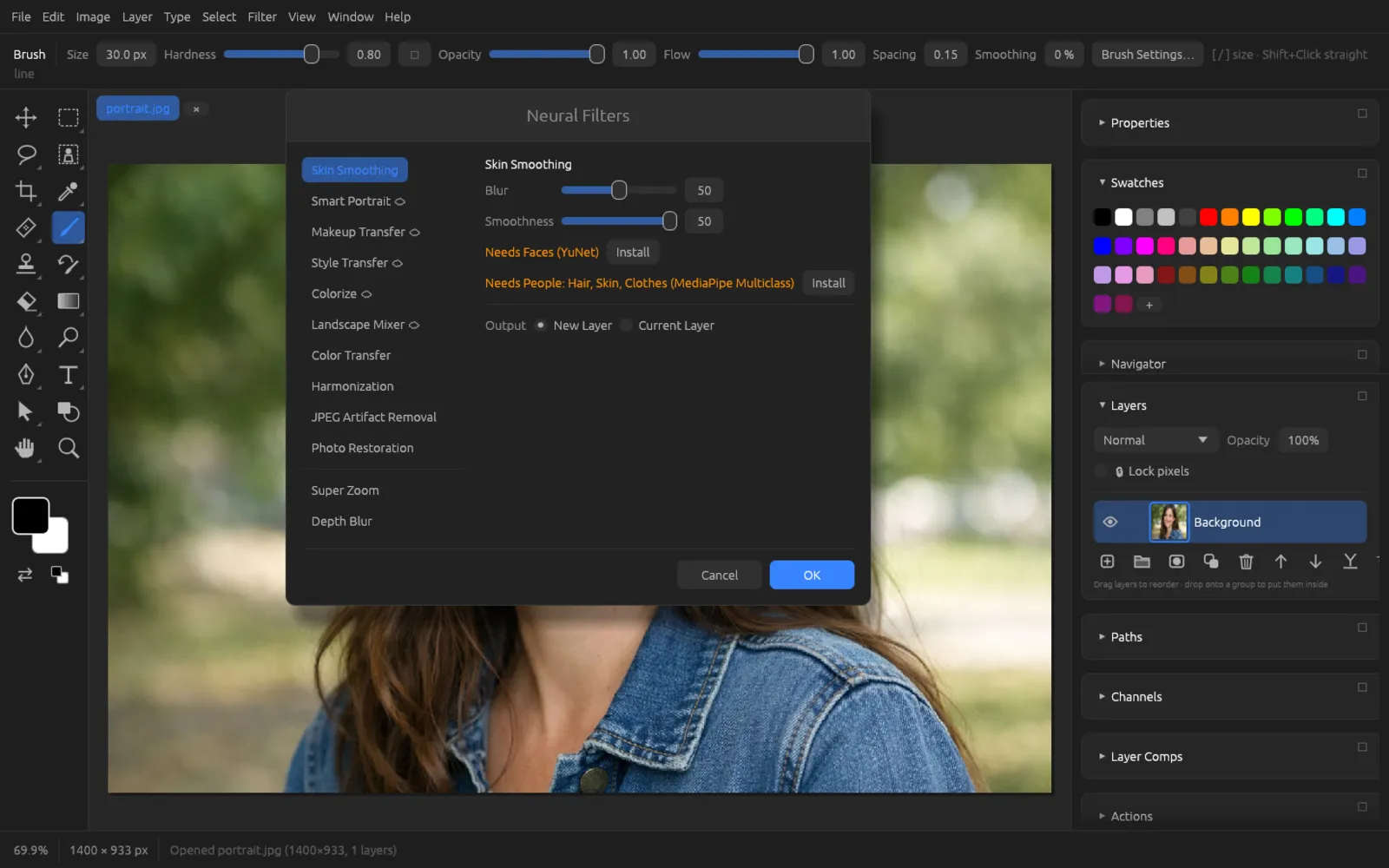
brings together AI filters such as Skin Smoothing, Smart Portrait, Makeup Transfer, Style Transfer, Colorize, Landscape Mixer, Color Transfer, Harmonization, JPEG Artifact Removal, Photo Restoration, Super Zoom and Depth Blur. Most of them run with local models on your computer; filters with the cloud icon ☁ send the image to OpenAI’s image model and need an API key of your own. If a model is missing, the dialog offers Install. Under Output you choose New Layer or Current Layer.
Liquify
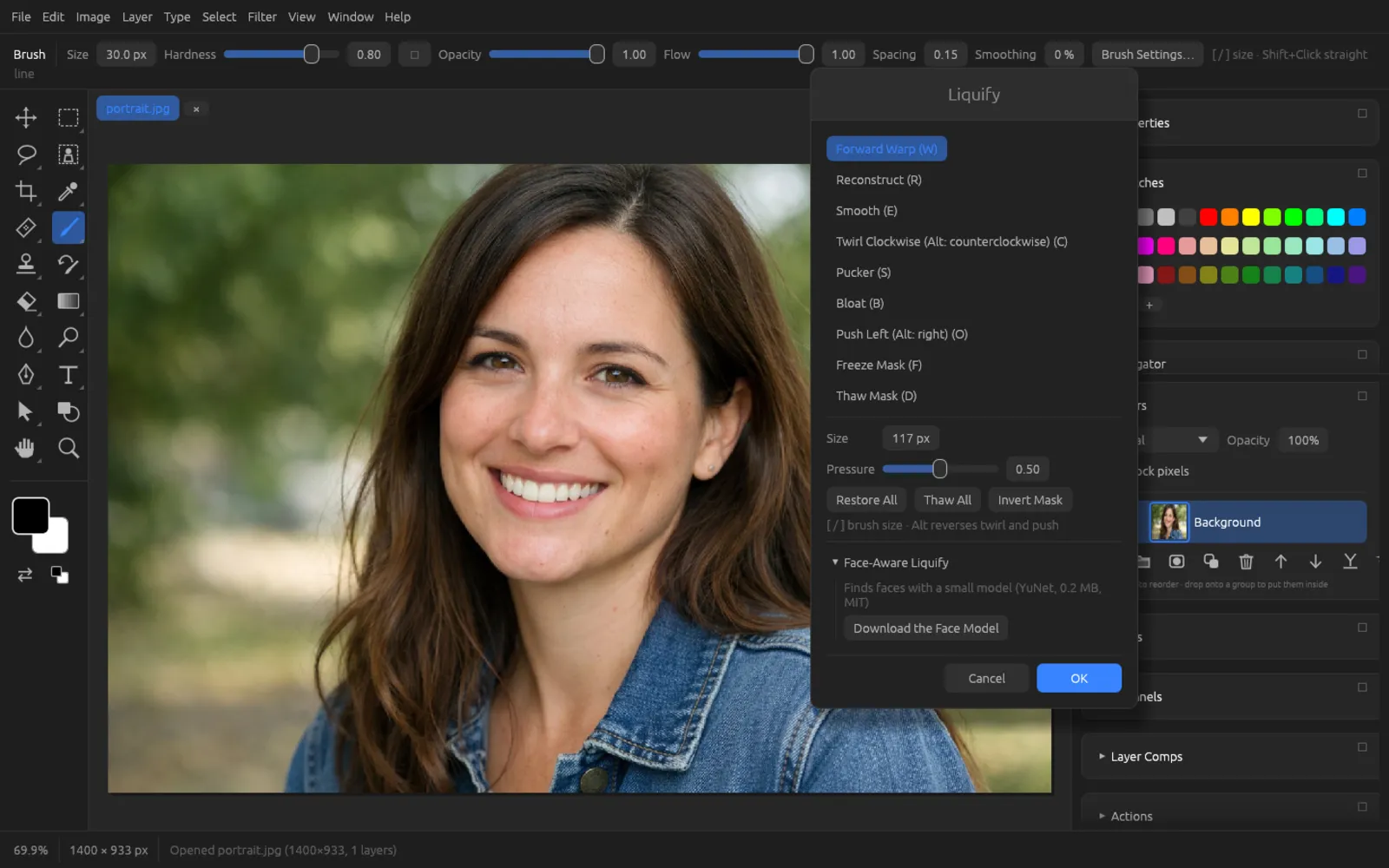
(⇧ ⌘ X) pushes parts of the image around as if they were wet paint: you can make shapes narrower or wider, tidy up hair or strengthen a smile. You paint directly in the image with the mouse; the Liquify window on the right holds the tools and settings. Liquify works on pixel layers and on smart objects.
Tools
| Tool | Key | Effect |
|---|---|---|
| Forward Warp | W | Pushes the pixels in the direction you drag – the most important tool. |
| Reconstruct | R | Gradually paints the distortion back to the original. |
| Smooth | E | Smooths uneven distortions. |
| Twirl Clockwise | C | Rotates the pixels under the brush as long as you hold it down; with ⌥, counterclockwise. |
| Pucker | S | Pulls the pixels toward the center of the brush – shrinks. |
| Bloat | B | Pushes the pixels away from the center – enlarges. |
| Push Left | O | Pushes pixels to the left, across the direction you drag; with ⌥, to the right. |
| Freeze Mask | F | Paints a protective mask: frozen areas stay unchanged. |
| Thaw Mask | D | Removes the protective mask again. |
- Size (2 … 3000 px) is the brush diameter; you change it quickly with [ and ].
- Pressure (0.01 … 1) determines how strongly a stroke acts. Low values allow finer corrections.
- Restore All takes back all distortions, Thaw All clears the protective mask, Invert Mask inverts it.
- OK (or Enter) applies the result, Cancel discards it.
Face-Aware Liquify
In the Face-Aware Liquify section, a small local model (YuNet, 0.2 MB) finds the faces in the image. The first time, you download it with Download the Face Model. After that, each face found gets sliders from −100 to 100:
| Group | Sliders |
|---|---|
| Eyes | Eye Size, Eye Height, Eye Width, Eye Tilt, Eye Distance |
| Nose | Nose Height, Nose Width |
| Mouth | Smile, Upper Lip, Lower Lip, Mouth Width, Mouth Height |
| Face Shape | Forehead, Chin Height, Jawline, Face Width |
If there are several faces, you choose the face at the top. Reset Face sets all of that face’s sliders to 0.
Adjusting a portrait with Liquify
- Open the portrait. For an editable result, first convert the layer to a smart object or duplicate it with ⌘ J.
- Choose (⇧ ⌘ X).
- If needed, download the face model under Face-Aware Liquify. As soon as the face has been found, the sliders appear.
- Move the sliders carefully, for example Smile a little to the right or Face Width slightly to the left. Small values look the most natural.
- For detail work, choose Forward Warp (W), set Size a little larger than the shape you want to change and Pressure to about 0.3. Then push with short strokes – a stray strand of hair, for example.
- First protect areas that should not move with Freeze Mask (F). If something has gone too far, paint it back with Reconstruct (R).
- Click OK.


Vanishing Point
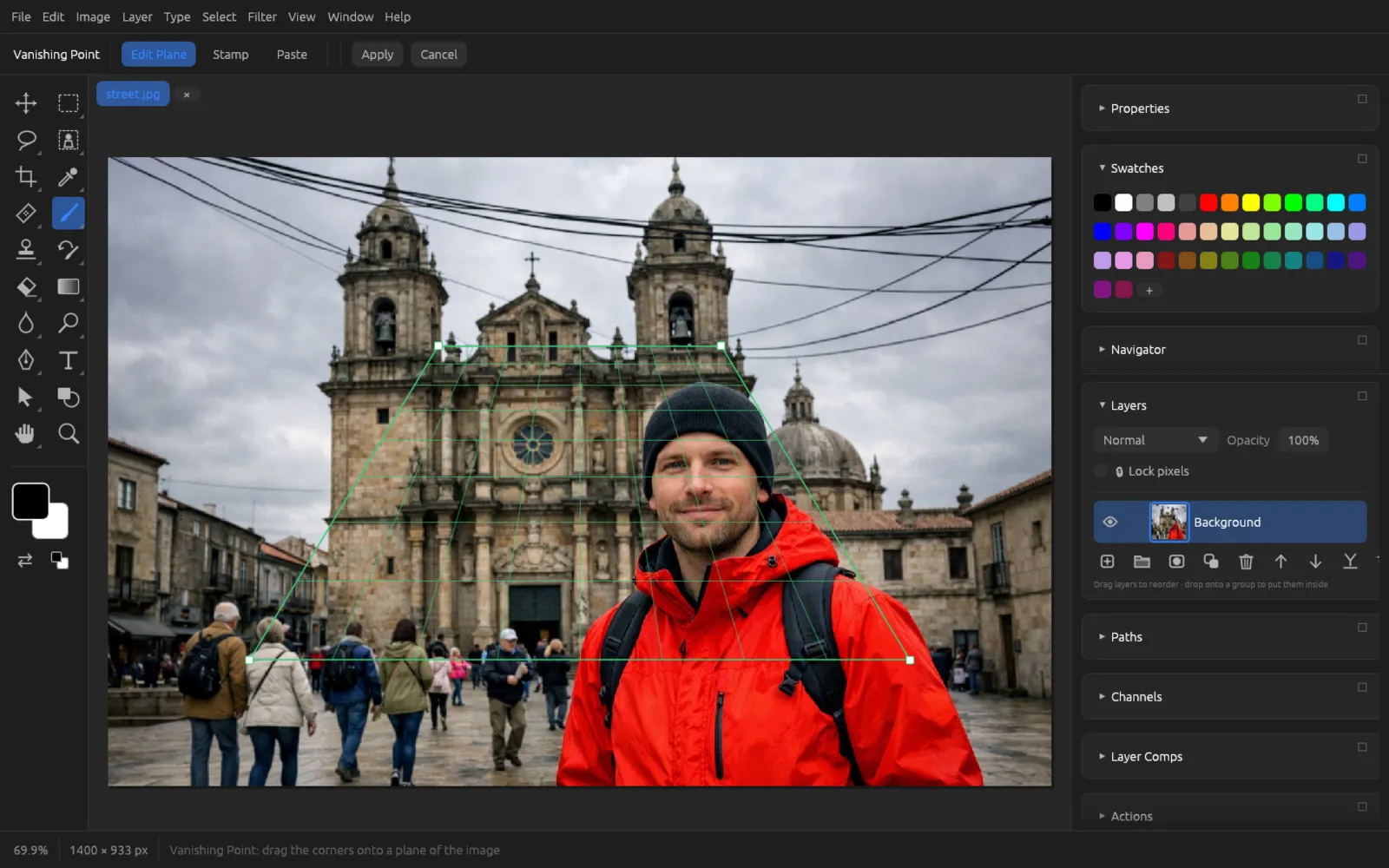
(⌥ ⌘ V) lays a perspective plane over the image, such as the wall of a house or a floor. Within this plane you clone and paste in correct perspective: whatever moves toward the back gets smaller. While Vanishing Point is running, the options bar shows its modes.
- Edit Plane: drag the four corners of the green grid onto the corners of a rectangular surface in the image, such as a window or paving.
- Stamp: ⌥-click the source and then paint inside the plane. You set size and hardness in the options bar.
- Paste: first copy a picture or an area (⌘ C) and paste it with ⌘ V. It then sits in the plane in perspective; drag it into place and change the Scale if needed.
- Apply (Enter) takes over the result as a single history step, Cancel (Esc) discards it.
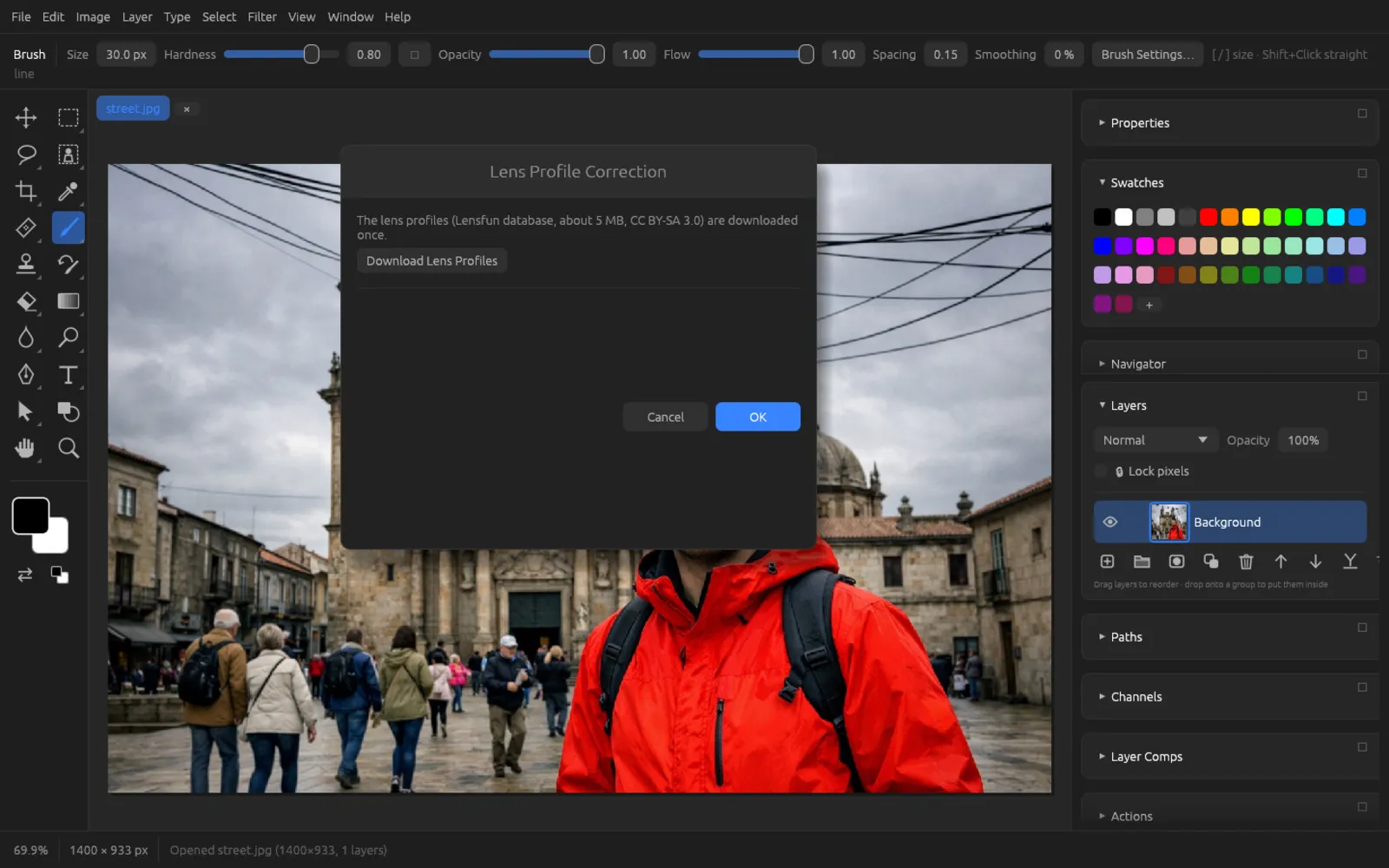
Lens Profile Correction
automatically corrects the typical flaws of a specific lens: distortion, color fringes and vignetting. The profiles come from the free Lensfun database (about 5 MB, CC BY-SA 3.0). The first time you use the command, you download them once with Download Lens Profiles.
After that, the dialog shows the camera and lens from the image data. If it does not recognize the lens, you search for it by name under Lens. Check the Focal Length and Aperture and choose what should be corrected: Geometric Distortion, Chromatic Aberration, Vignette. Auto Scale Image enlarges the result so that no empty borders appear.
For photos without lens data there is the manual Lens Correction under .
Local AI and plug-ins
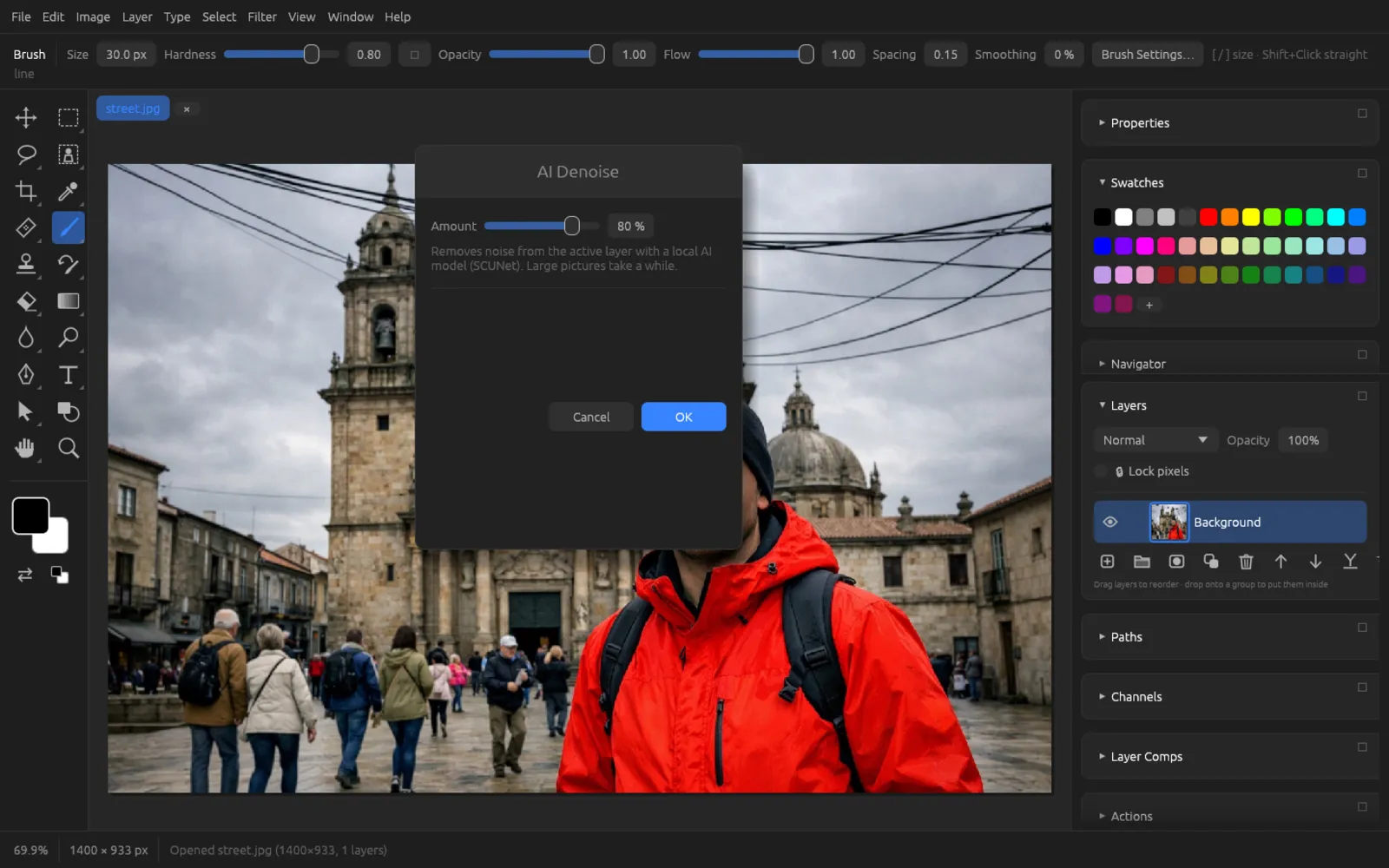
AI Denoise
removes image noise with a local AI model (SCUNet). Strength mixes the result with the original. Large images take a while. More in the chapter AI on your computer.
Plug-ins
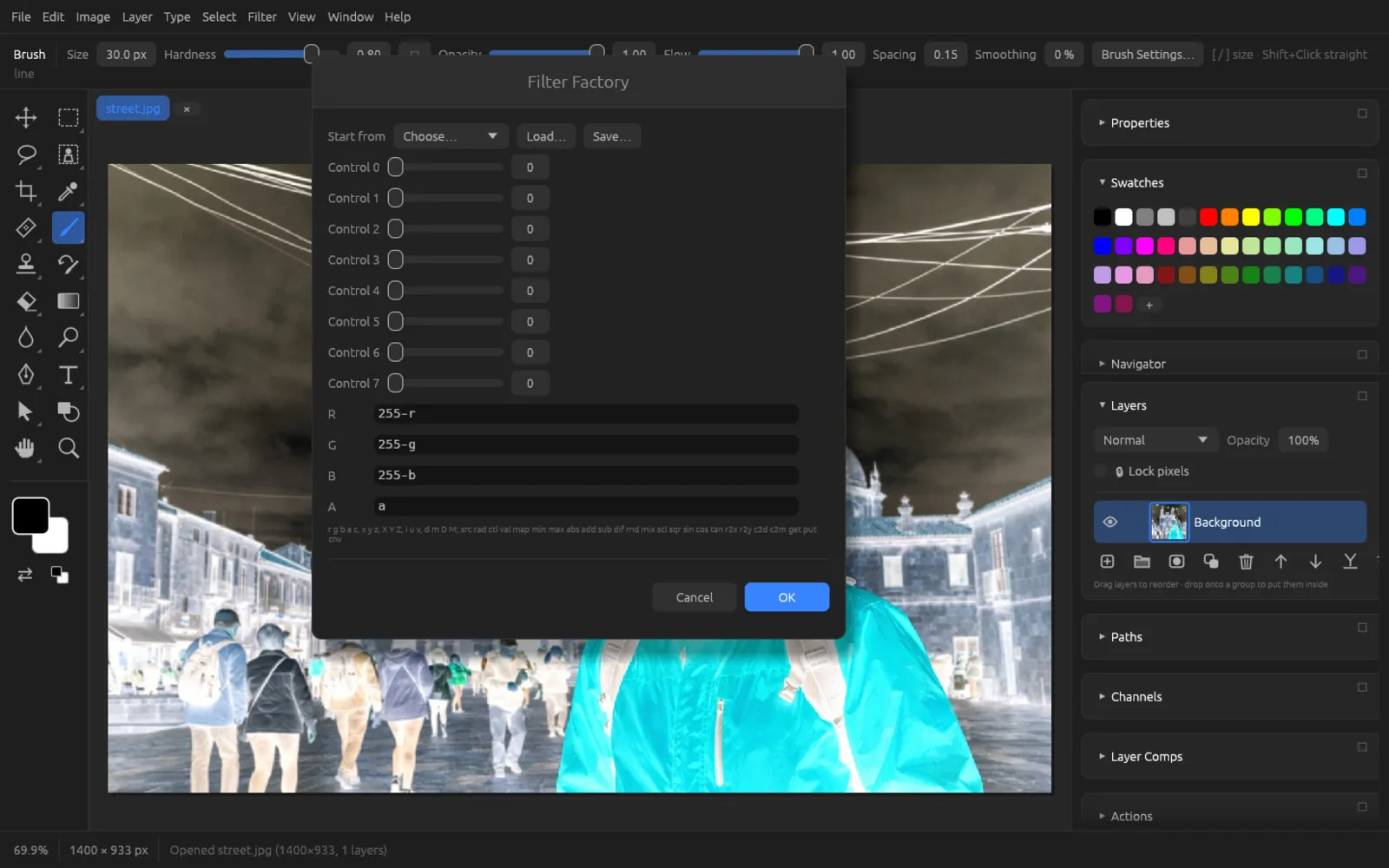
Under you find:
- : your own filters made from formulas for the R, G, B and A channels, with up to eight sliders. You can load and save Filter Factory filters.
- Filter plug-ins in
.8bfformat that you put into the plug-ins folder. They appear in this submenu, sorted by category. Plug-ins built for a different operating system are shown in gray. - shows the folder in the file manager; picks up newly added plug-ins without a restart.
Plug-ins work with RGB documents. Setup and details are described in the chapter Automation.
Blur filters
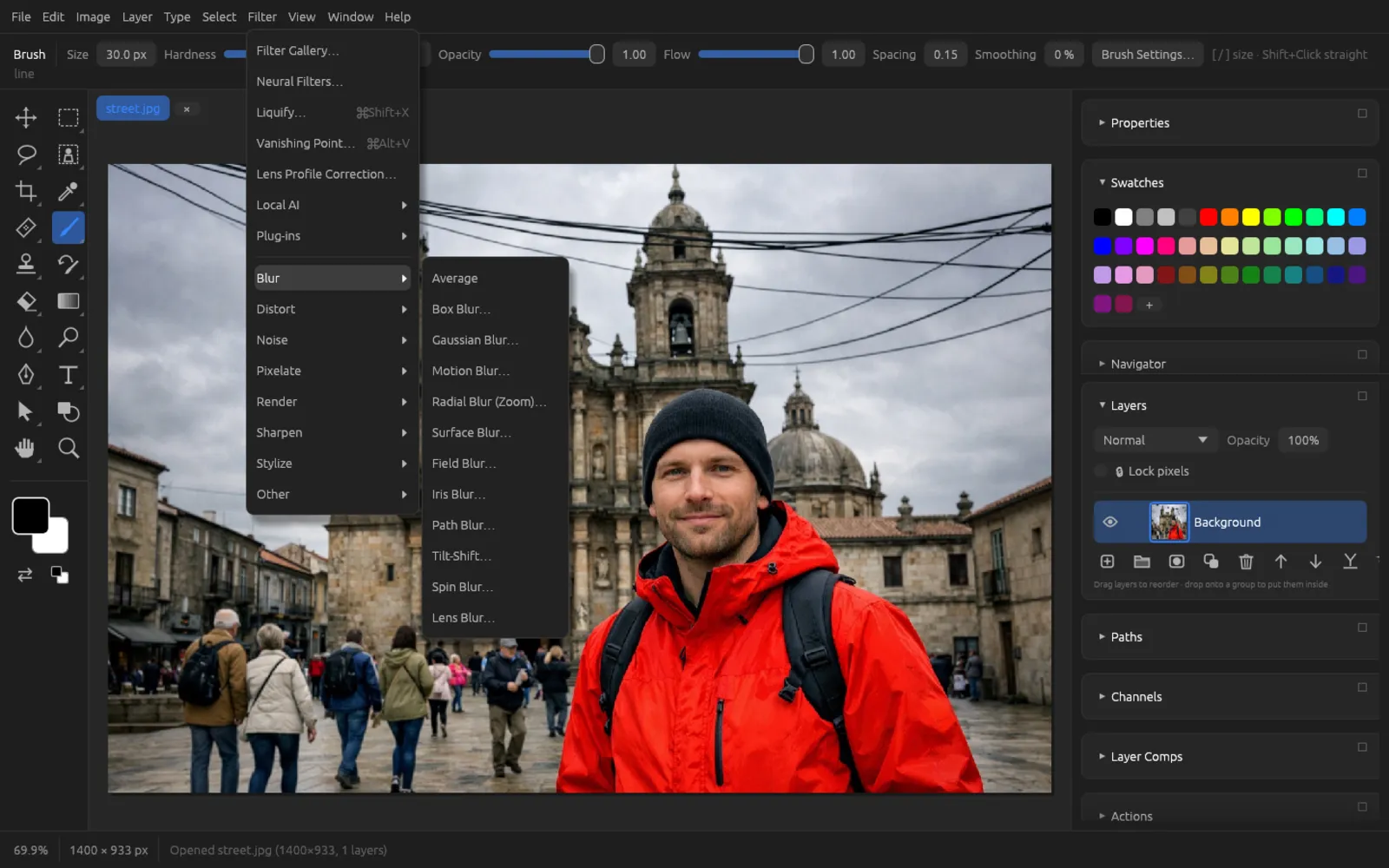
| Filter | Settings | Effect |
|---|---|---|
| Average | – | Fills the layer (or selection) with its average color. |
| Box Blur… | Radius 1 … 250 px | Even, box-shaped blur. |
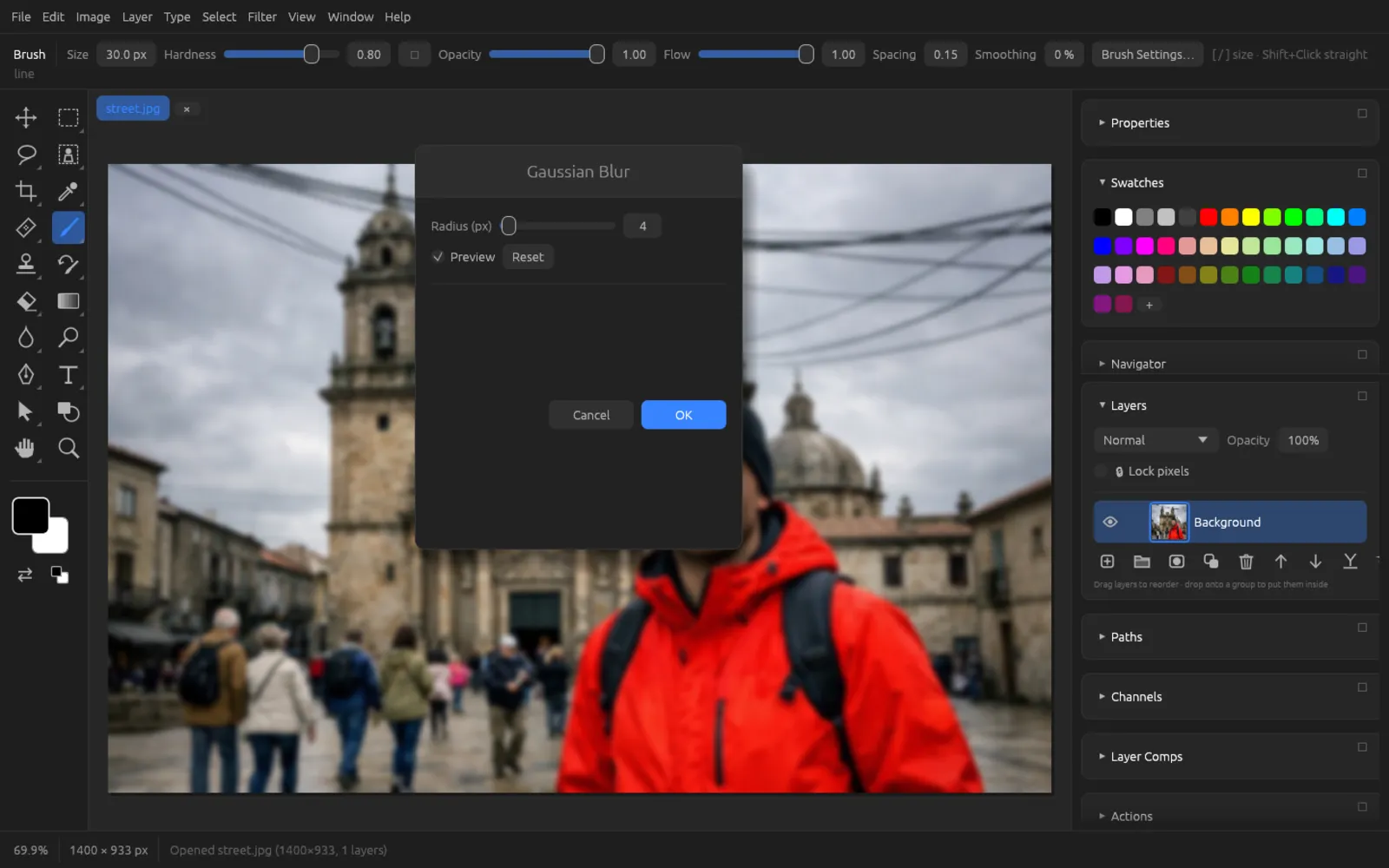
| Gaussian Blur… | Radius 0.1 … 250 px | The classic, soft blur. |
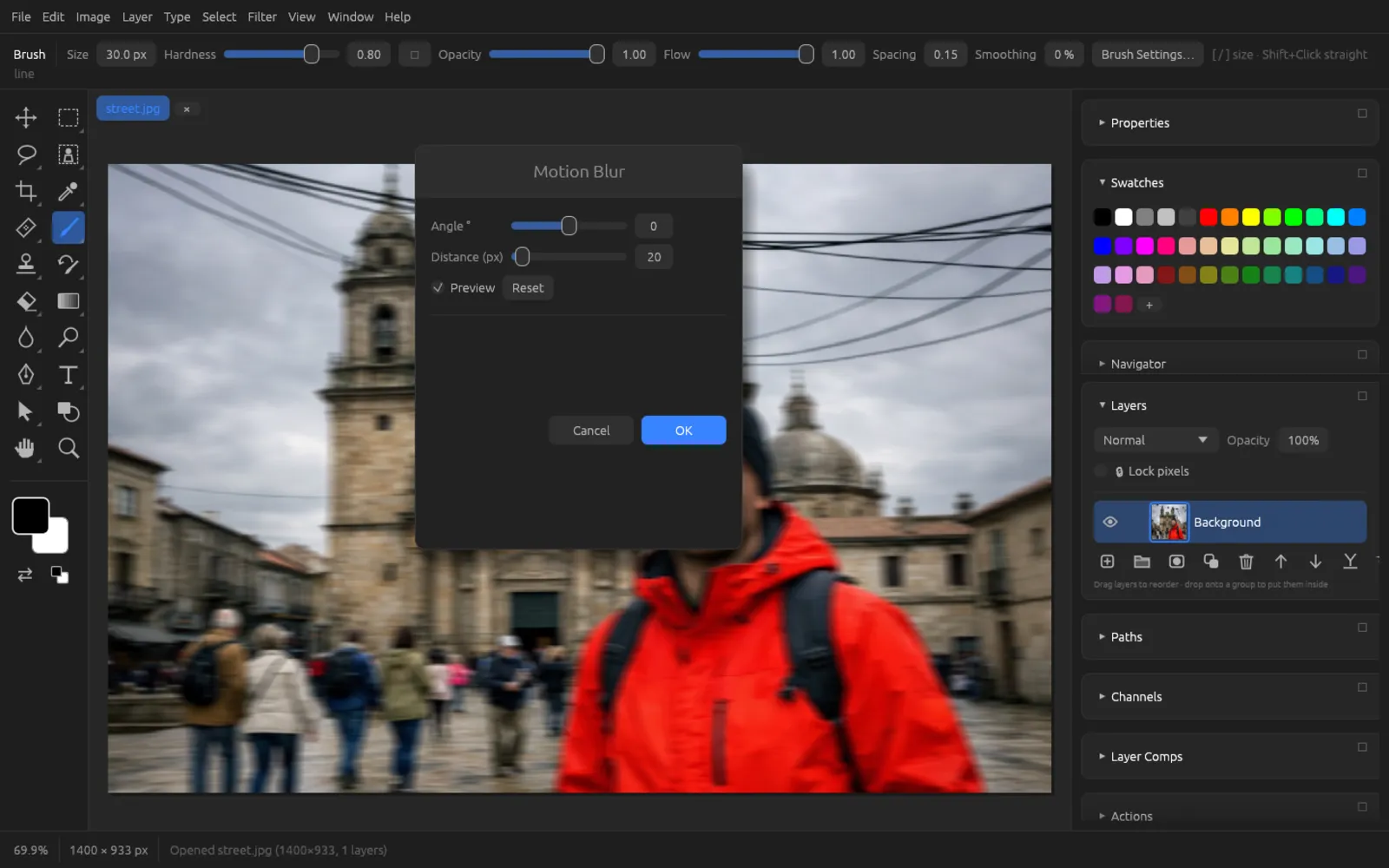
| Motion Blur… | Angle, Distance 1 … 500 px | Smears in one direction, like a moving camera. |
| Radial Blur (Zoom)… | Amount 1 … 100 | Zoom effect from the center of the image outward. |
| Surface Blur… | Radius, Threshold (levels) | Smooths areas but keeps edges – good for skin and noise. |
| Field Blur… | Two pins with position and blur | Blur that changes between two points – e.g. sharp on the left, blurred on the right. |
| Iris Blur… | Center, Radius X/Y, Transition, Blur | An elliptical area stays sharp; outside it, the image gets blurred. |
| Path Blur… | Speed, Taper, Centered Blur | Motion blur along a path. Draw a path first; the active or the first path is used. |
| Tilt-Shift… | Center, Focus band, Transition, Blur | A horizontal sharp band with blur above and below it – the miniature effect. |
| Spin Blur… | Center, Radius, Blur Angle, Feather | Blurs the image in a circle, e.g. for spinning wheels. |
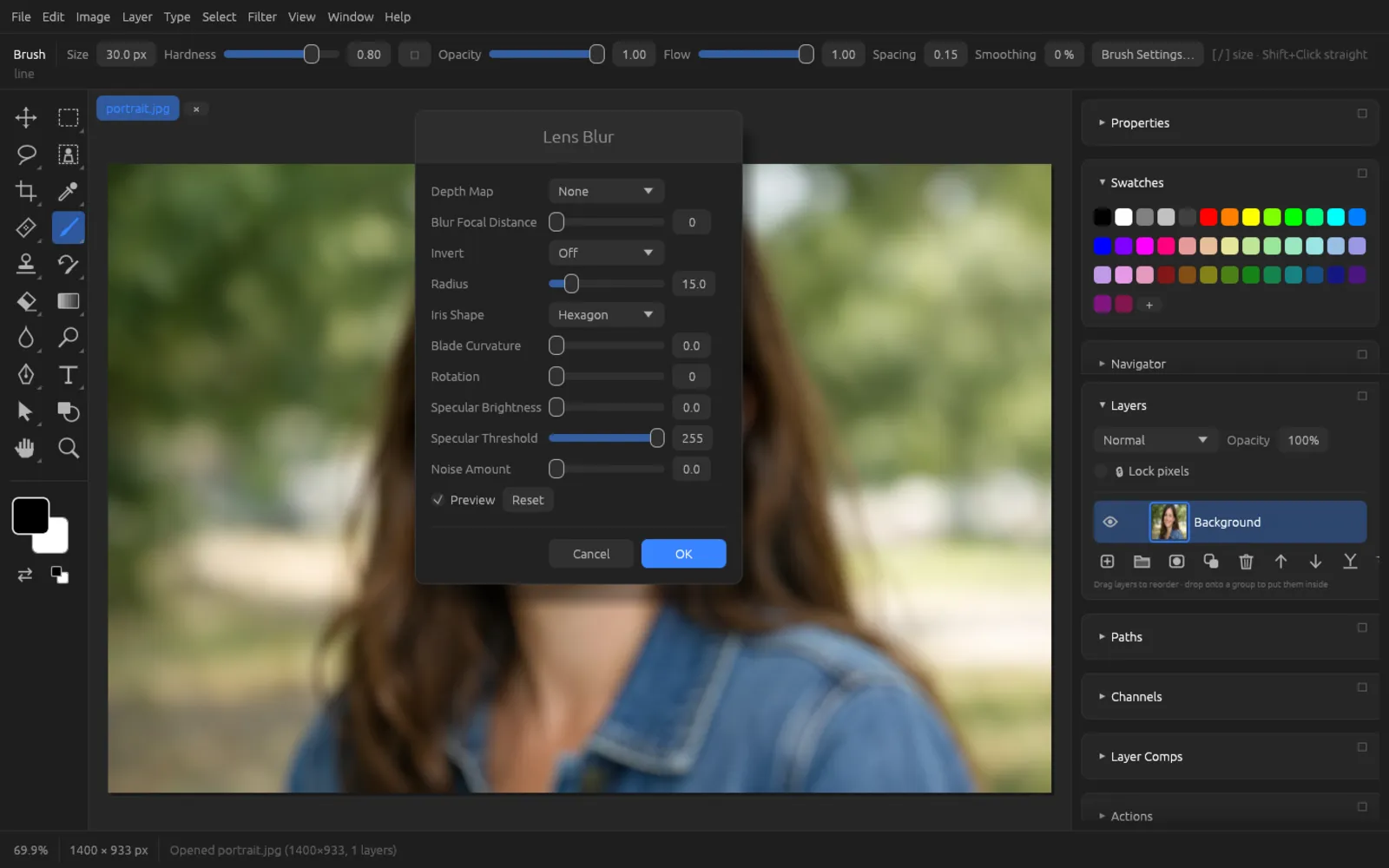
| Lens Blur… | Depth Map, Iris Shape, Radius and more | Blur like a real lens, staggered by depth if you like. |
You enter the positions for Field Blur, Iris Blur, Tilt-Shift and Spin Blur as percentages of the image width and height: 50/50 is the center of the image.
Gaussian Blur and Motion Blur
Lens Blur
Lens Blur imitates the blur of a fast lens. Highlights turn into small discs in the shape of the aperture.
| Setting | Meaning |
|---|---|
| Depth Map | None (everything equally blurred), Transparency, Layer Mask (the gray values of the mask count as depth) or AI Depth Map (a local model estimates the depth; it is downloaded the first time). |
| Blur Focal Distance, Invert | Which depth value stays sharp; the further a pixel’s depth is from it, the blurrier the pixel gets. Invert inverts the depth map. |
| Radius | Strength of the blur. |
| Iris Shape, Blade Curvature, Rotation | Shape of the aperture (triangle to octagon), how round it is and how it is rotated. |
| Specular Brightness / Specular Threshold | Makes highlights above the threshold light up as bright discs. |
| Noise Amount | Adds a little noise so the blur matches the rest of the photo. |
Blurring the background with Iris Blur
- Open a portrait and duplicate the layer with ⌘ J (or convert it to a smart object).
- Choose . The center of the image stays sharp, the edges get blurred.
- Use Center X % and Center Y % to put the sharp area on the face. 0/0 is the top left, 100/100 the bottom right.
- Adjust Radius X % and Radius Y % to the size of the head. Transition % determines how softly sharp turns into blurred.
- Set the strength of the blur with Blur (px).
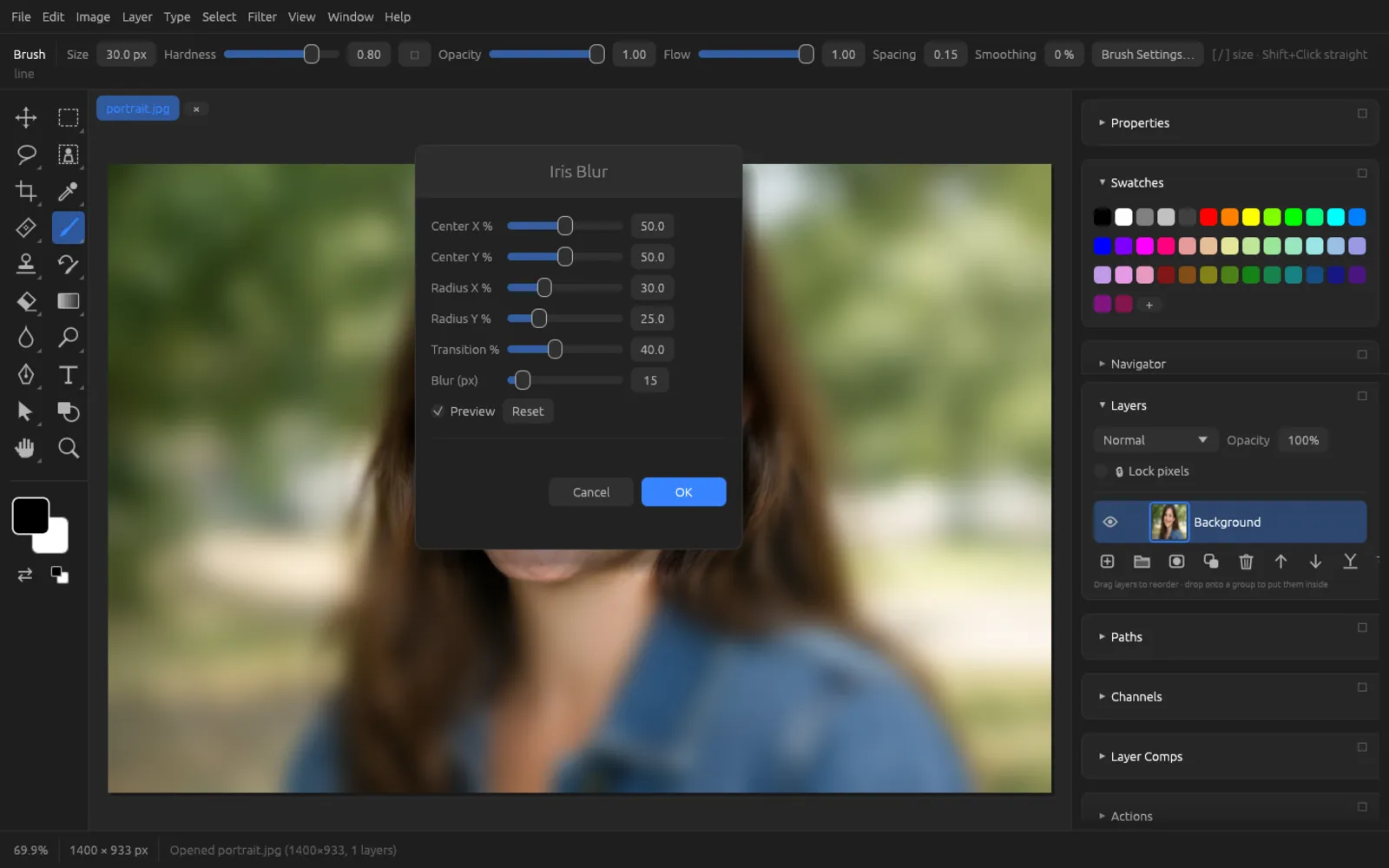
Iris Blur with its initial values: the center of the image stays sharp. - Click OK. If the shoulders or hair get too blurry, add a mask to the layer and paint those areas free again with black.
It gets even more precise if you select the person with , invert the selection and then apply Gaussian Blur or Lens Blur only to the background (see Selections).
Tilt-shift miniature effect
This effect makes a city or landscape shot look like a model railway. Photos taken from above work best.
- Choose .
- Use Center % to set where the sharp band lies: 0 is the top edge of the image, 100 the bottom edge. Put it on the main subject.
- Use Focus band % to set how tall the sharp band is, and Transition % to set how softly it fades out.
- Raise Blur (px) until the top and bottom are clearly blurred.
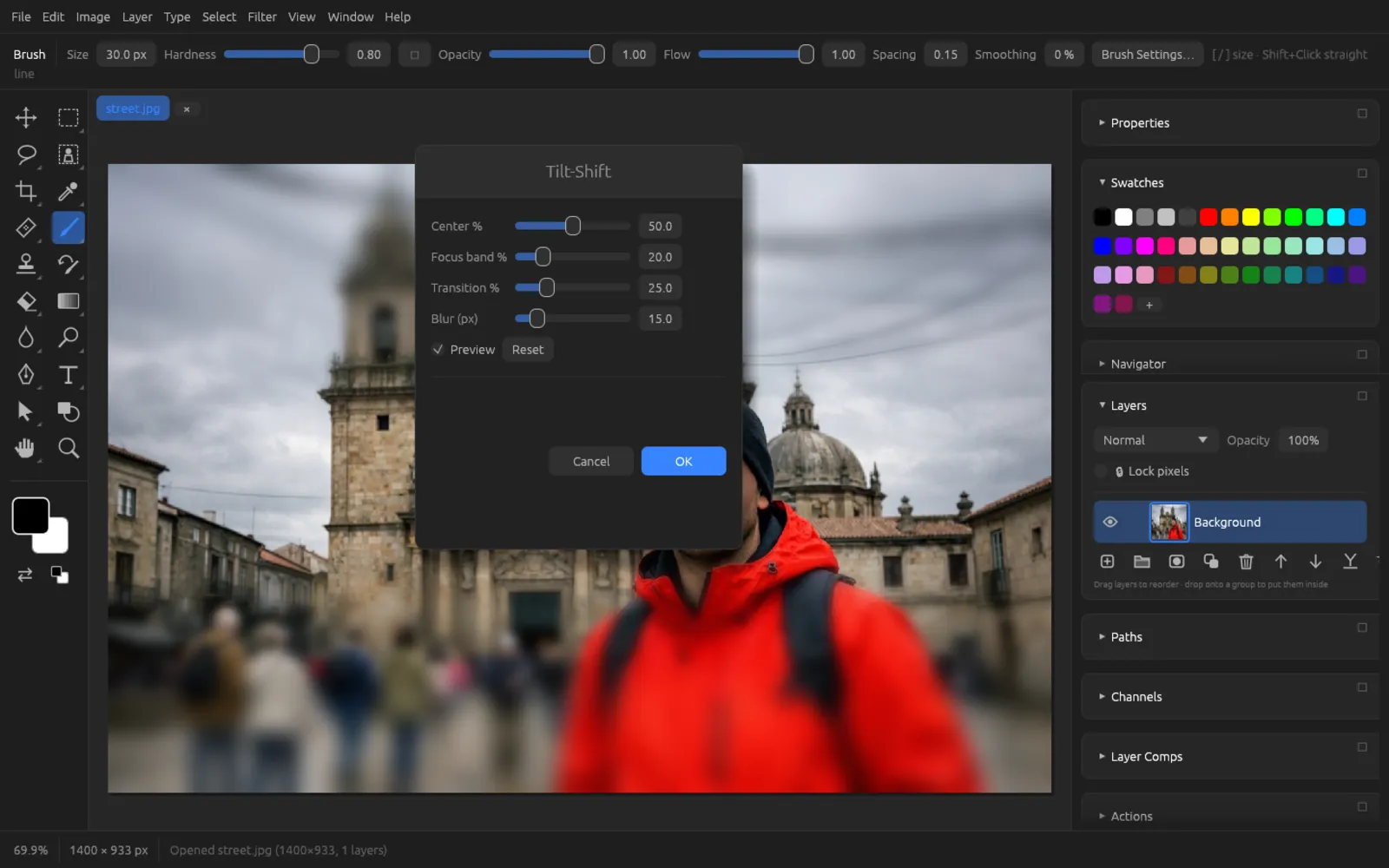
Tilt-Shift: only the middle band stays sharp. - Click OK. For the typical toy look, afterwards boost the colors with and the contrast with a gentle S-curve.
Sharpen
| Filter | Settings | Effect |
|---|---|---|
| Shake Reduction… | Blur Trace Bounds, Angle, Smoothing, Artifact Suppression | Removes a straight-line camera shake. Enter the length and direction of the shake trace. |
| Sharpen… | Amount 0 … 5 | Simple, quick sharpening. |
| Smart Sharpen… | Amount %, Radius, Reduce noise % | Sharpens edges while suppressing noise in flat areas. |
| Unsharp Mask… | Amount %, Radius, Threshold | The classic, with full control (see below). |
Unsharp Mask has three sliders:
- Amount % (1 … 500): how strongly edges are emphasized.
- Radius (px) (0.1 … 100): how wide the edge halo is. 0.5–1.5 for fine detail, more for a stronger effect.
- Threshold (0 … 255): differences below this value are not sharpened. Values of 3–10 spare skin and smooth areas.
Sharpening with Unsharp Mask
- Sharpen as the last step, after you have brought the image to its final size. Select the image layer (or a merged copy).
- Zoom to 100 % with ⌘ 1 so you can judge the effect properly.
- Choose .
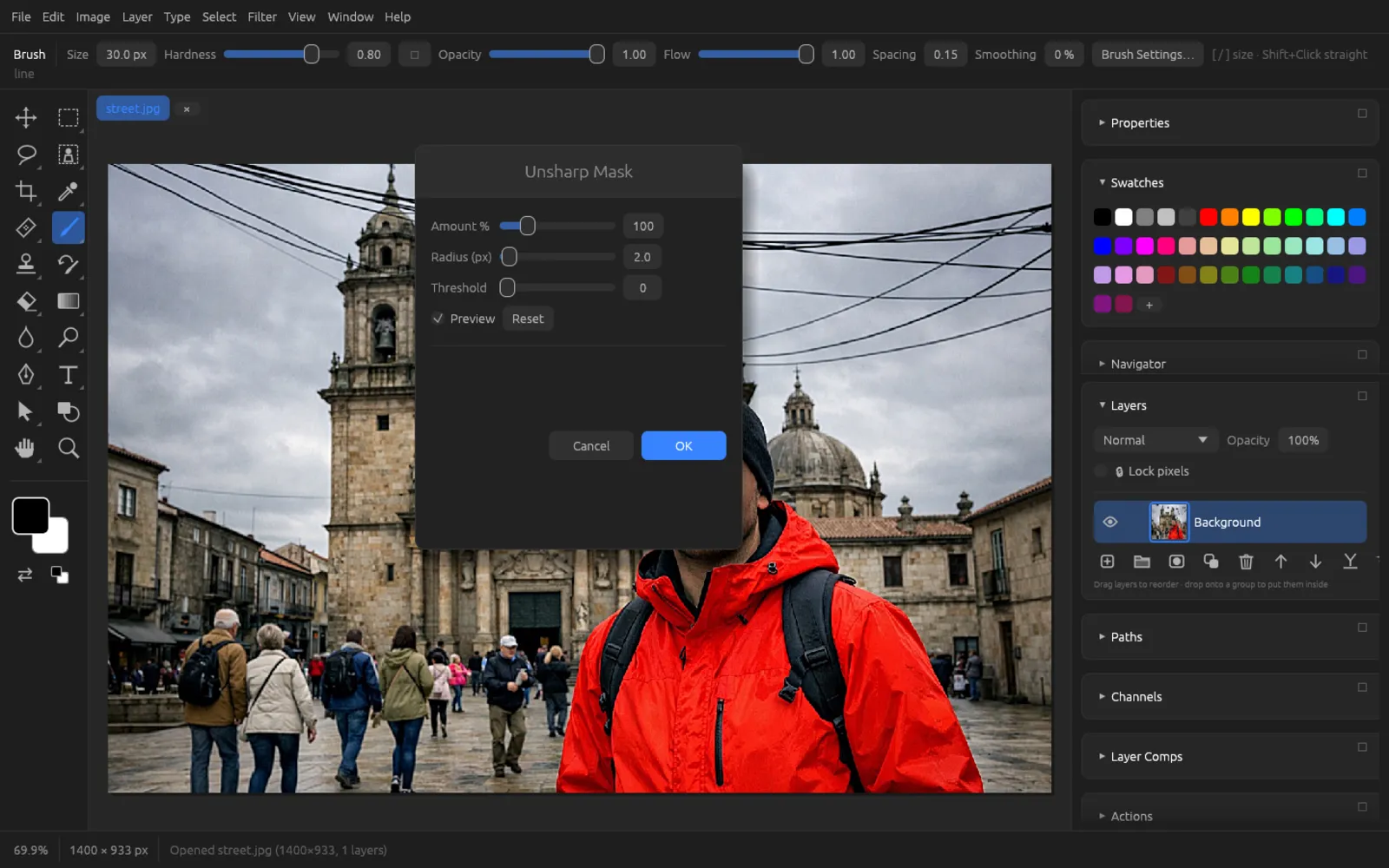
Unsharp Mask with the initial values 100 %, 2 px, 0. - Start with an Amount of 80–150 % and a Radius of 1 px.
- Set the Threshold to 3–5 so that areas such as skin or sky don’t become grainy.
- Check the difference with Preview. If light halos appear along edges, reduce the amount or the radius.
- Click OK. If it turns out to be too much after all, weaken the result with – using the Luminosity mode avoids color fringes.
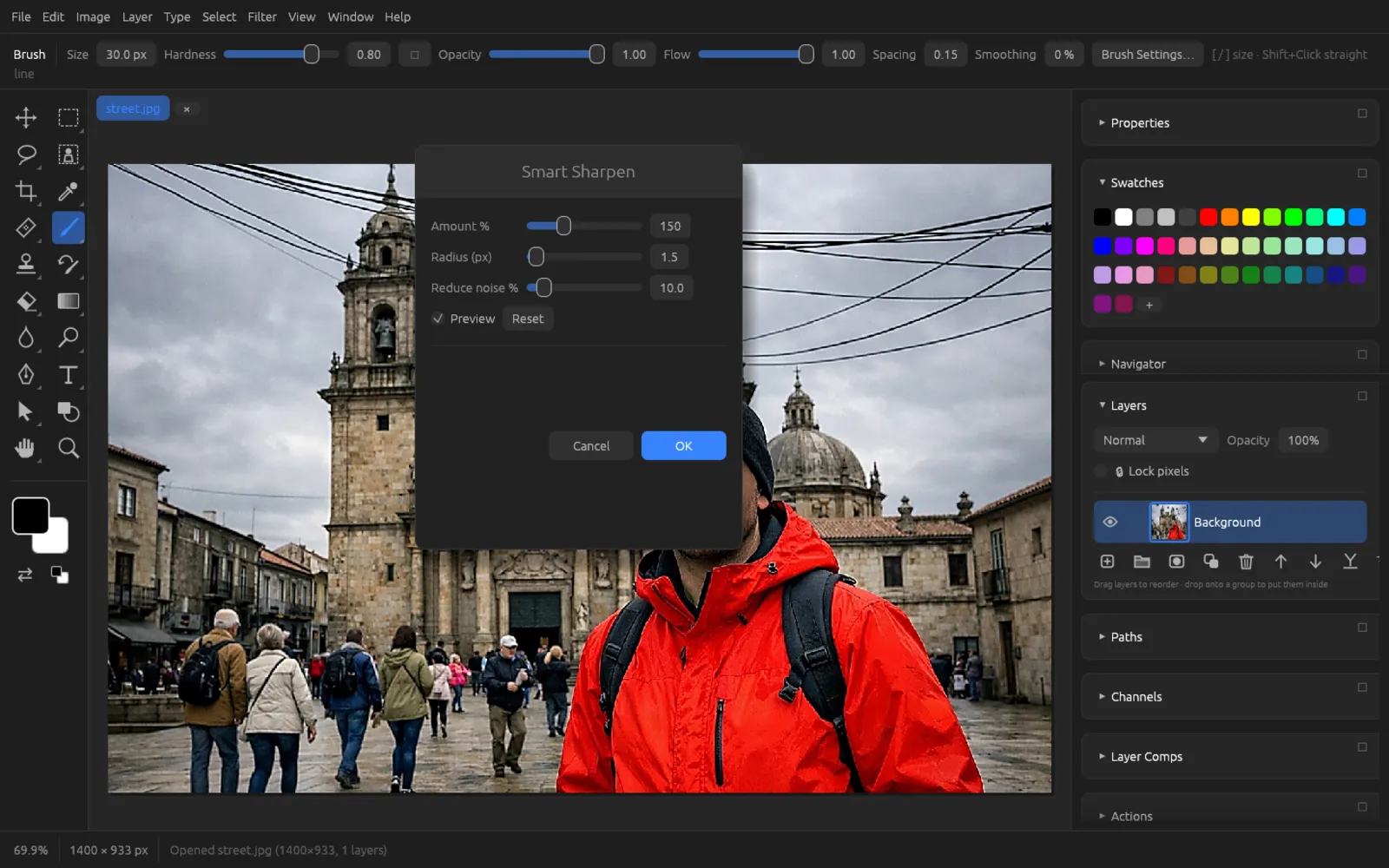
Another method: duplicate the layer, apply with 2–4 px and set the layer to the blend mode Overlay or Soft Light.
Noise filters
| Filter | Settings | Effect |
|---|---|---|
| Add Noise… | Amount %, Monochromatic, Seed | Adds grain, in color or monochrome. The seed produces a different random pattern. |
| Despeckle | – | Smooths fine noise while sparing edges. |
| Dust & Scratches… | Radius 1 … 16 px, Threshold | Removes small spots and scratches that stand out clearly from their surroundings. |
| Median… | Radius 1 … 6 px | Replaces each pixel with the middle value (median) of its neighbors – good against isolated light or dark stray pixels. |
| Reduce Noise… | Strength 0 … 10, Preserve details % | Reduces image noise while keeping detail. |
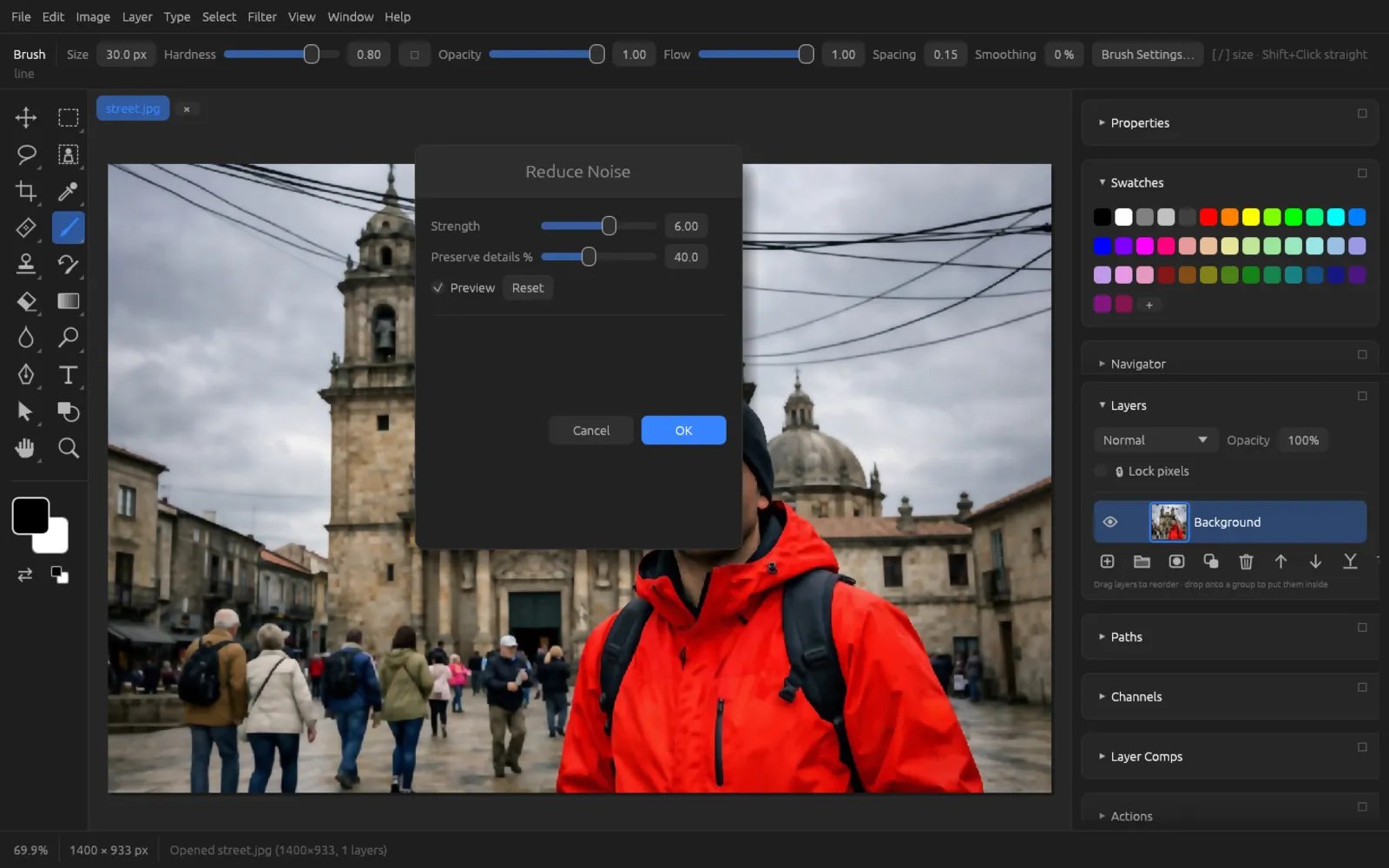
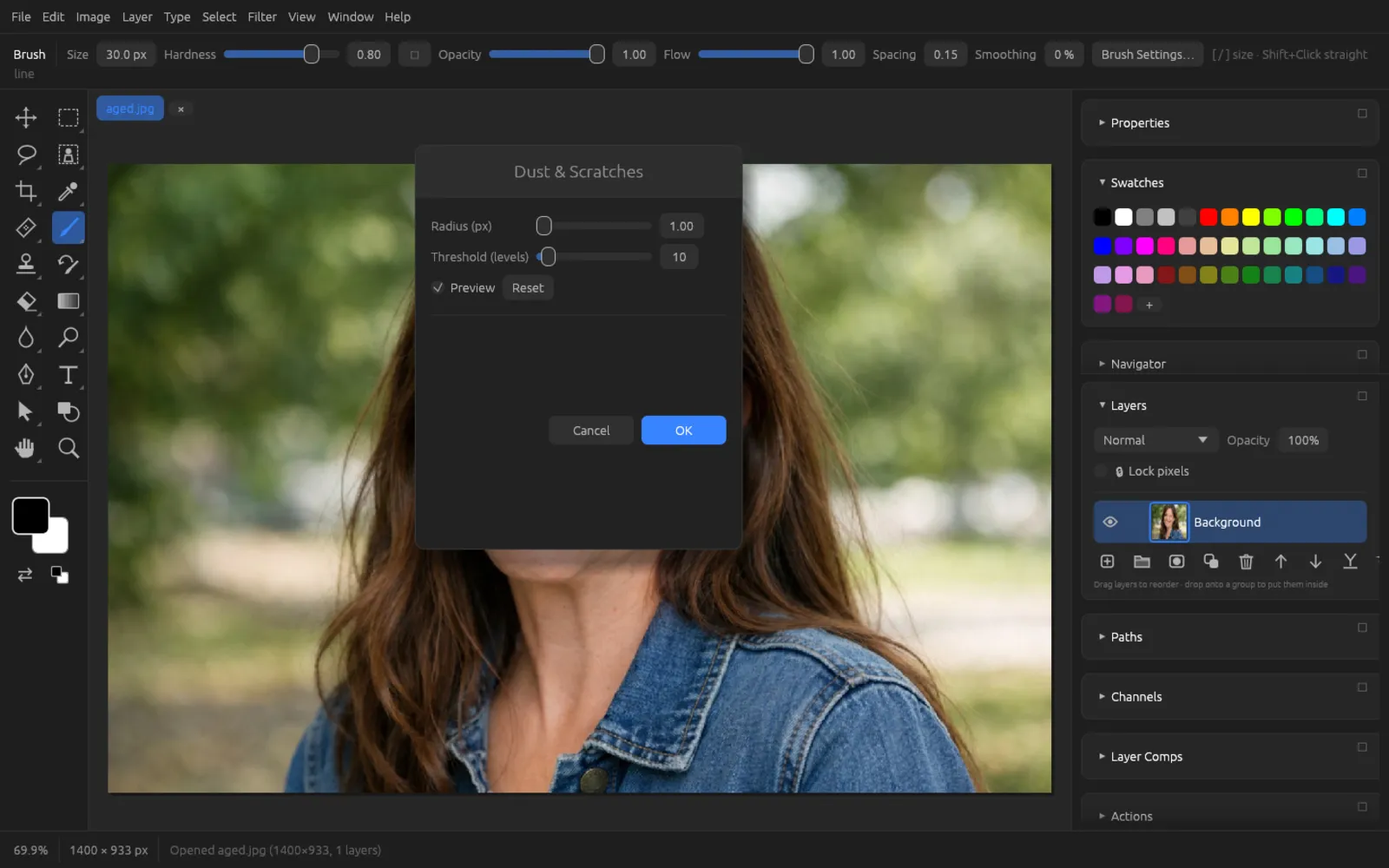
With Dust & Scratches, start with the smallest radius at which the spots disappear, then raise the threshold until detail comes back. Individual spots are better removed with the Spot Healing Brush (see Tools).
Pixelate filters
| Filter | Settings | Effect |
|---|---|---|
| Color Halftone… | Max. radius | Breaks the image into halftone dots, as in newspaper printing. |
| Crystallize… | Cell size | Single-colored, irregular cells. |
| Mezzotint | – | A random dot pattern in pure colors. |
| Pixelate (Mosaic)… | Cell size 2 … 200 | Square blocks of pixels – also for making things unrecognizable. |
| Pointillize (BG)… | Cell size | Dots of color on the background color, as in pointillist painting. |
Render filters
| Filter | Settings | Effect |
|---|---|---|
| Clouds (FG/BG)… | Scale, Seed | Replaces the layer with a cloud pattern made from the foreground and background colors. |
| Difference Clouds… | Scale, Seed | Combines a cloud pattern with the image using Difference. |
| Fibers… | Variance, Strength, Seed | A fiber texture like wood or fabric, made from the two colors. |
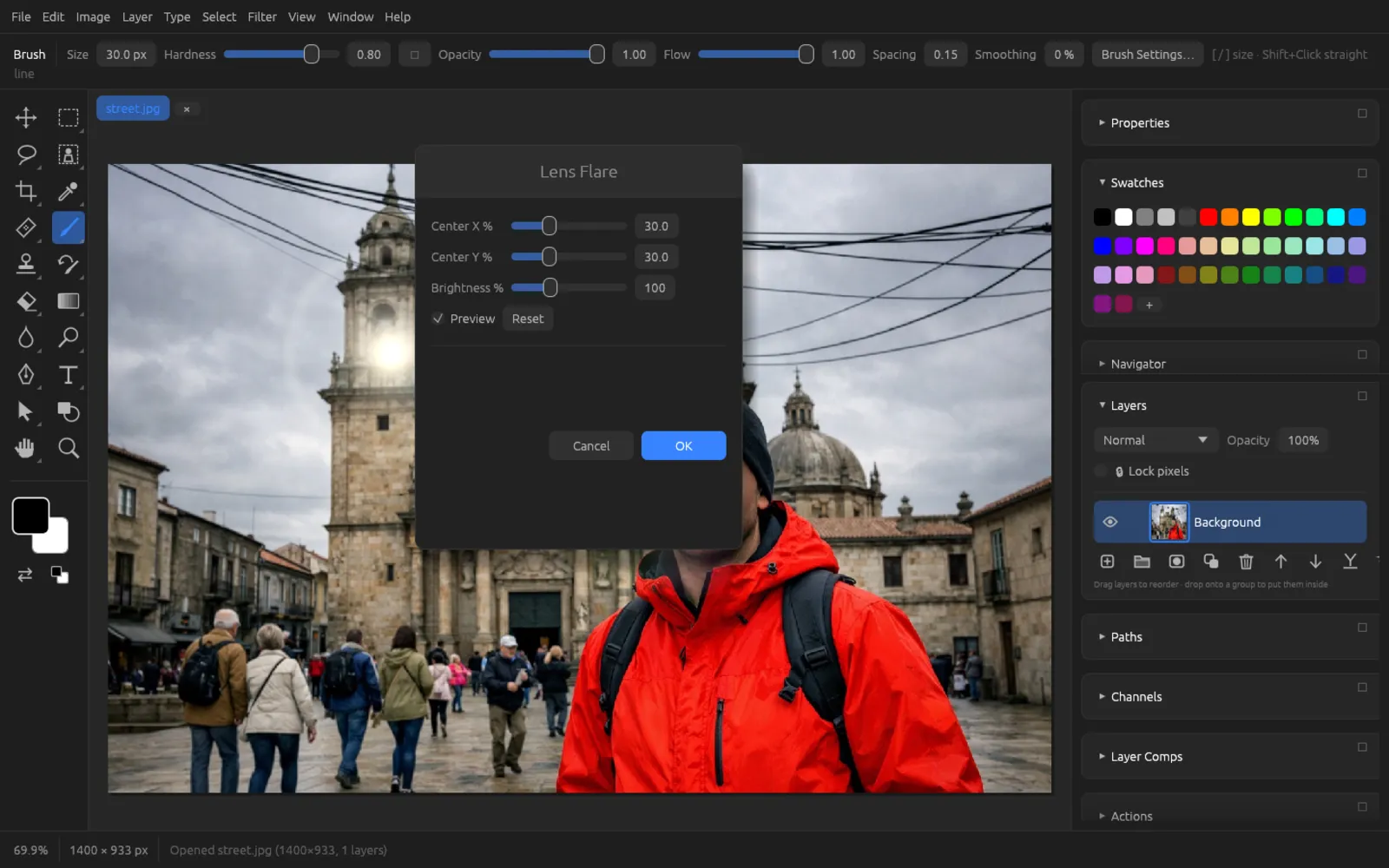
| Lens Flare… | Center X/Y %, Brightness % | Simulates light reflections in the lens. |
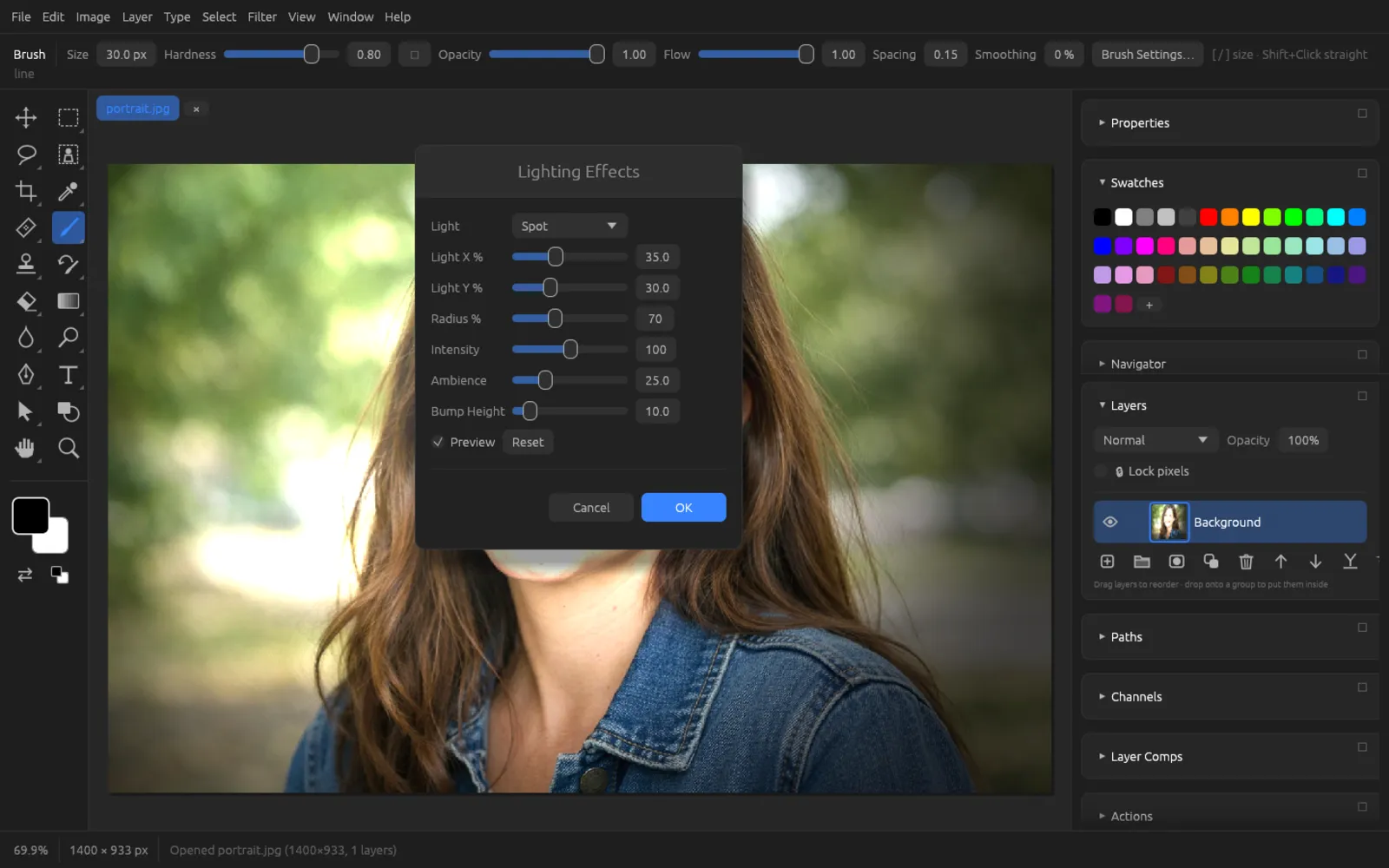
| Lighting Effects… | Light type (Spot, Point, Infinite), position, radius, Intensity, Ambience, Bump Height | Lights the image with a virtual light source; the bump height makes light parts of the image look three-dimensional. |
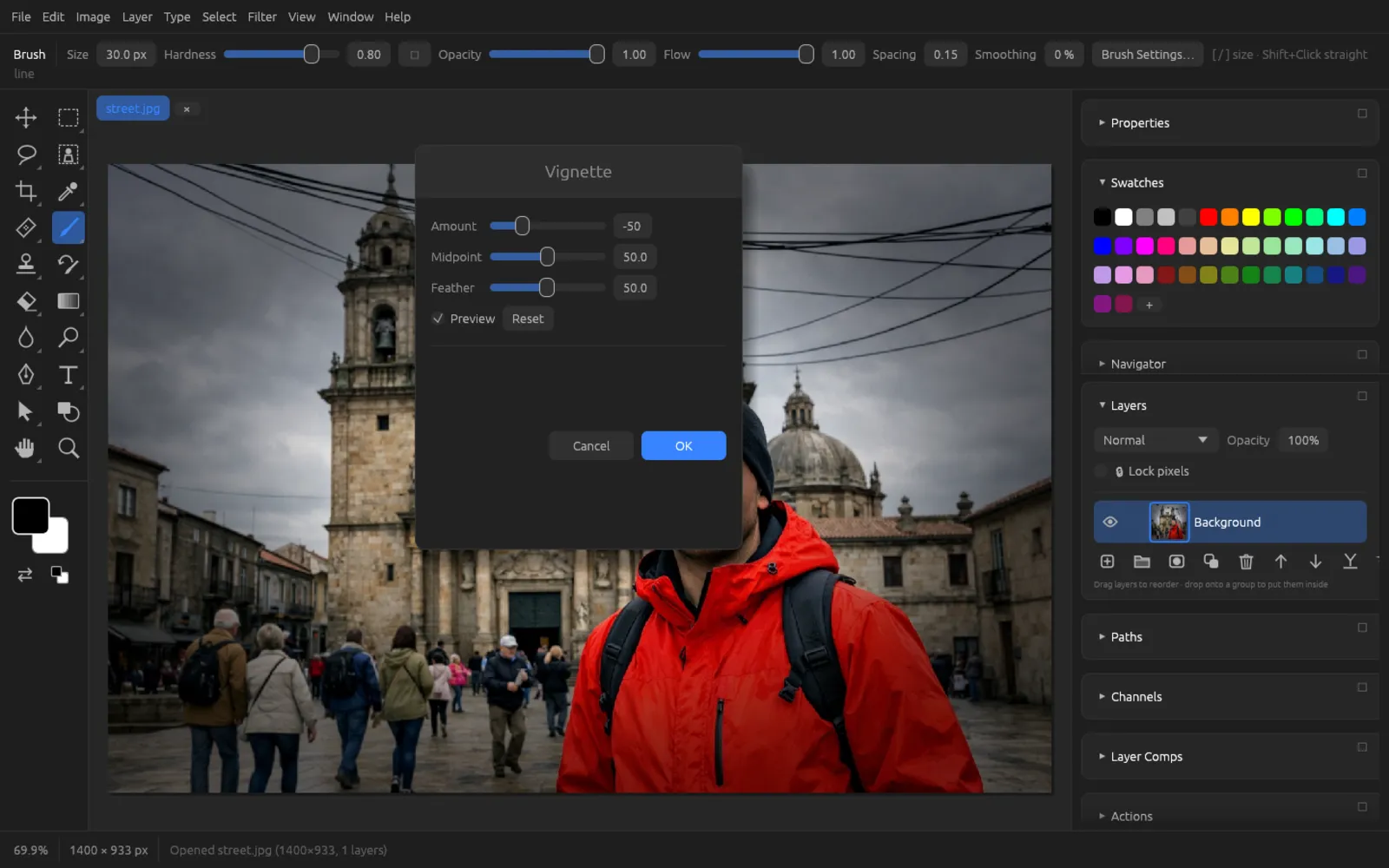
| Vignette… | Amount, Midpoint, Feather | Darkens (negative amount) or lightens (positive amount) the edges of the image. |
Distort filters
| Filter | Settings | Effect |
|---|---|---|
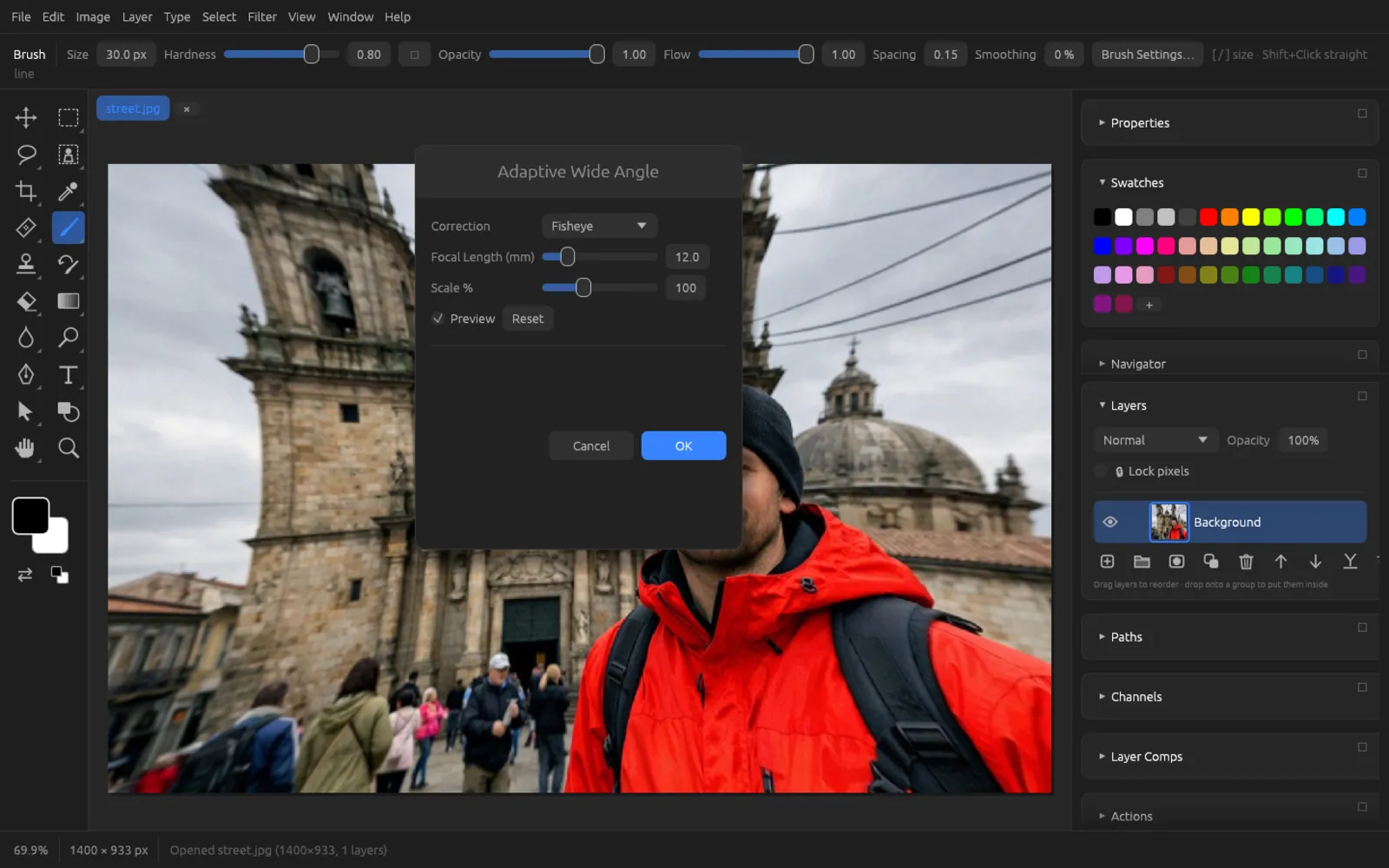
| Adaptive Wide Angle… | Correction (Fisheye, Perspective), Focal Length, Scale | Straightens the curved lines of fisheye and wide-angle shots. |
| Displace… | Horizontal/Vertical Scale, Displacement Map, Map Size | Shifts pixels according to a map: the image itself or a cloud pattern. |
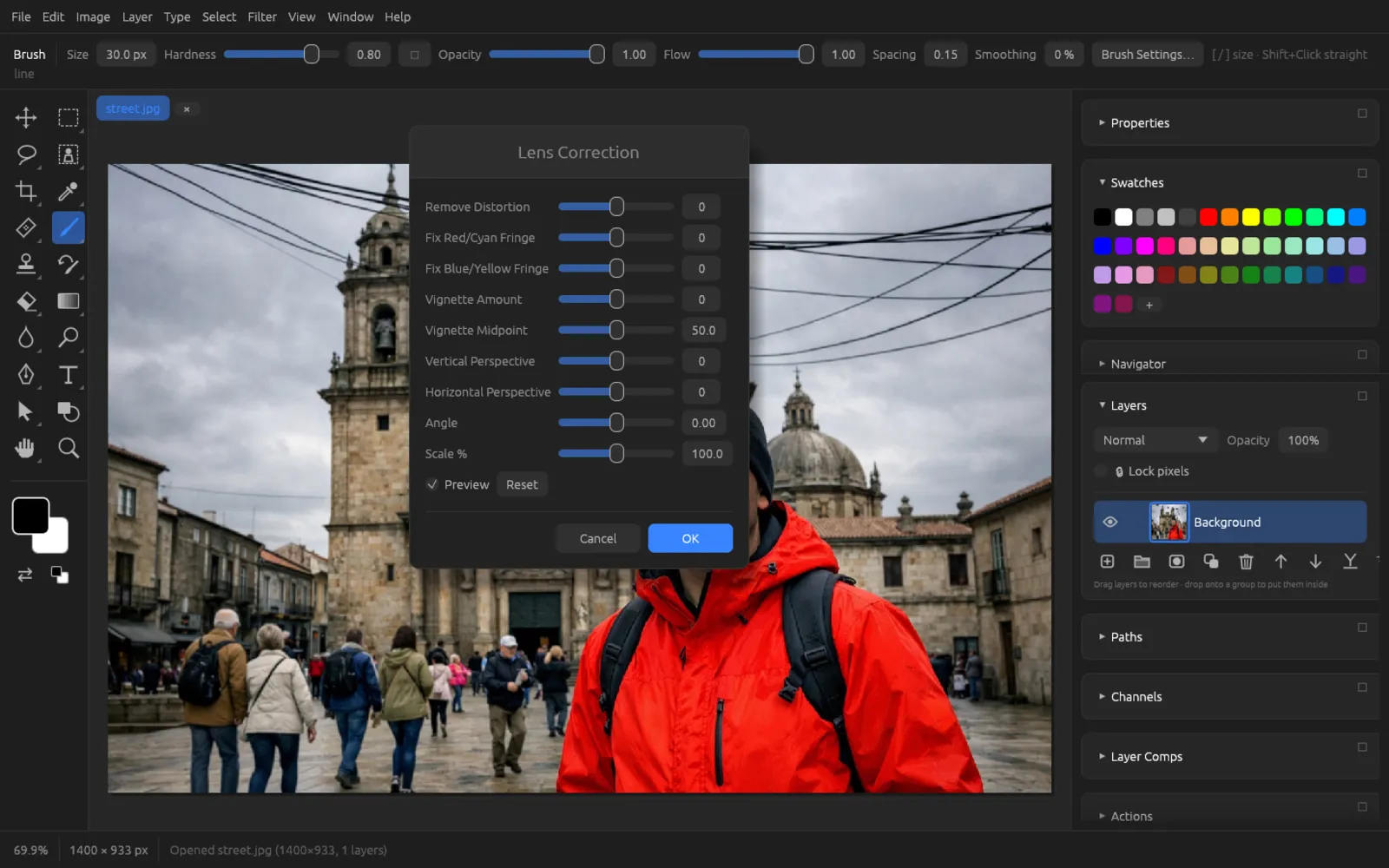
| Lens Correction… | Distortion, color fringes, vignette, perspective, angle, scale | Manual correction of lens flaws and converging lines. |
| Pinch… | Amount % | Pulls the image together toward the center (positive) or bulges it outward (negative). |
| Polar Coordinates… | Mode | Wraps the image into a circle or unwraps it again. |
| Ripple… | Amount %, Size | Gentle ripples, as on the surface of water. |
| Shear… | Top, Middle, Bottom % | Bends the image sideways along a curve. |
| Spherize… | Amount % | Bulges the image outward or inward like a sphere. |
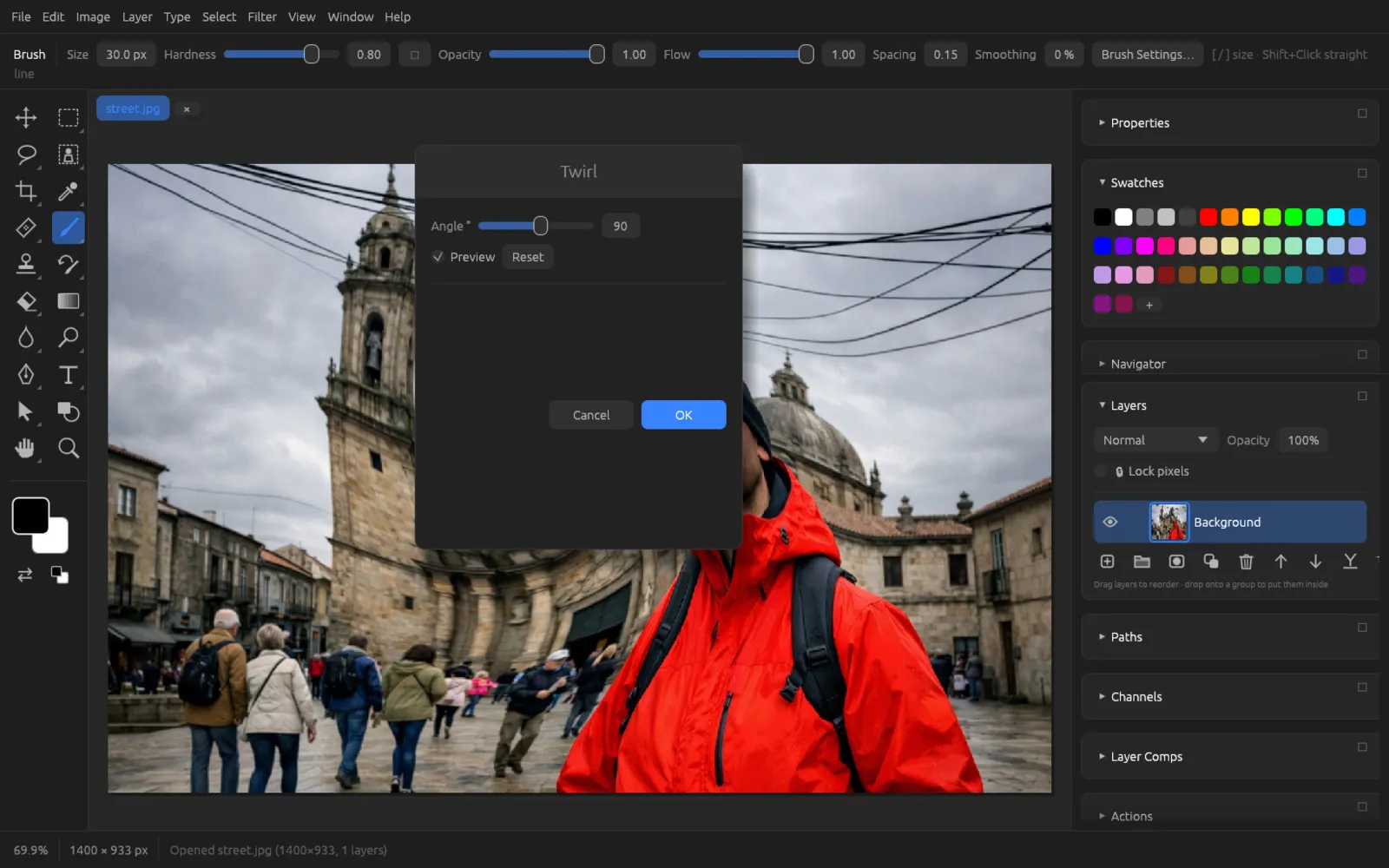
| Twirl… | Angle | Rotates the center of the image more than the edges. |
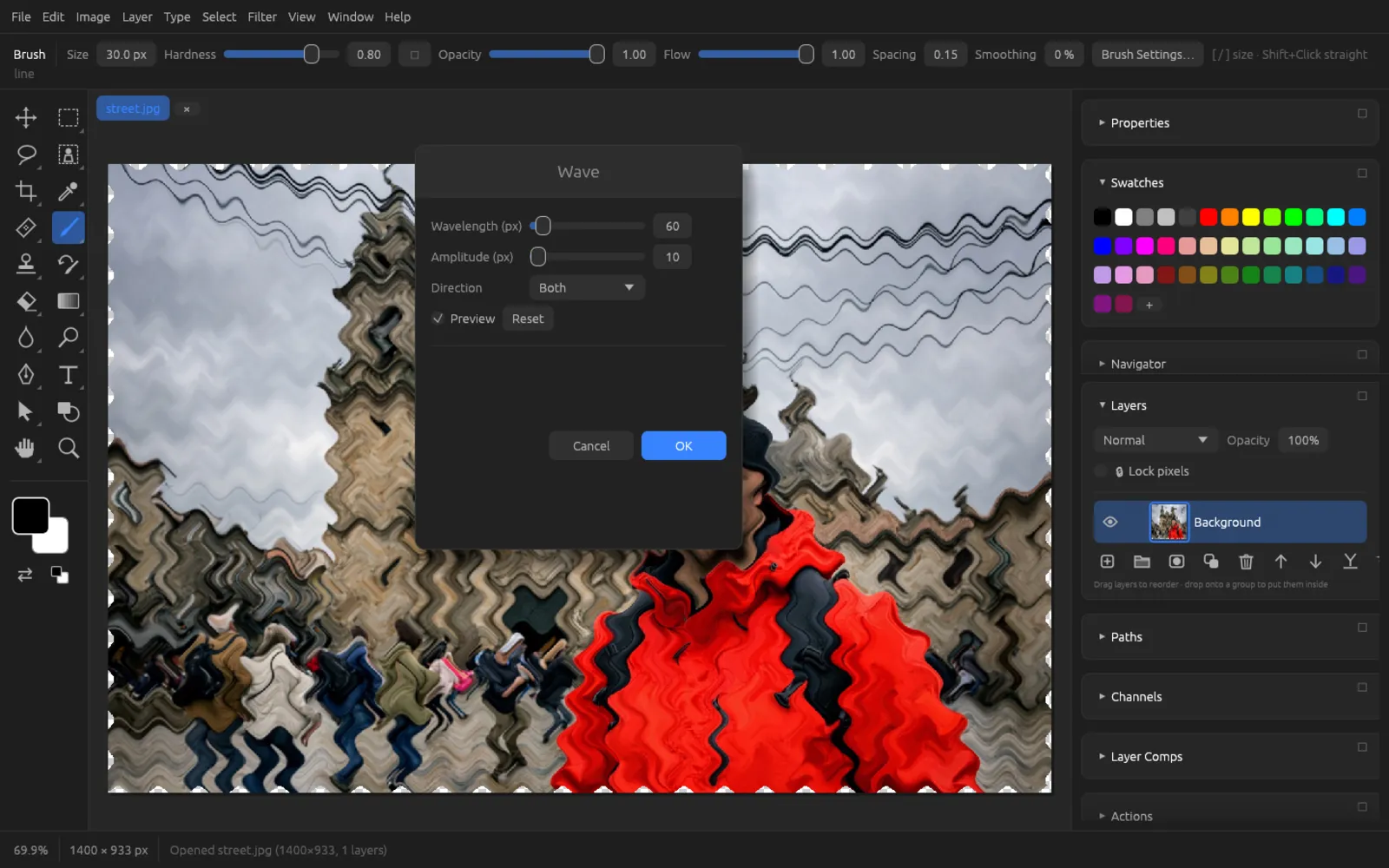
| Wave… | Wavelength, Amplitude, Direction | Even wave distortion. |
| ZigZag… | Amount %, Ridges | Ring-shaped waves, like a stone dropped into water. |
For Displace and Shear, you set under Undefined Areas whether borders that become empty are filled with the shifted part or with repeated edge pixels.
Stylize filters
| Filter | Settings | Effect |
|---|---|---|
| Diffuse… | Radius | Scatters the pixels and breaks up edges. |
| Emboss… | Angle, Height, Amount % | A gray relief, as if the image were stamped into metal. |
| Extrude… | Type (Blocks, Pyramids), Size, Depth, Depth From, Front Faces | Breaks the image into blocks that stick out in three dimensions. |
| Find Edges… | Strength | Emphasizes the edges as dark lines on a light background. |
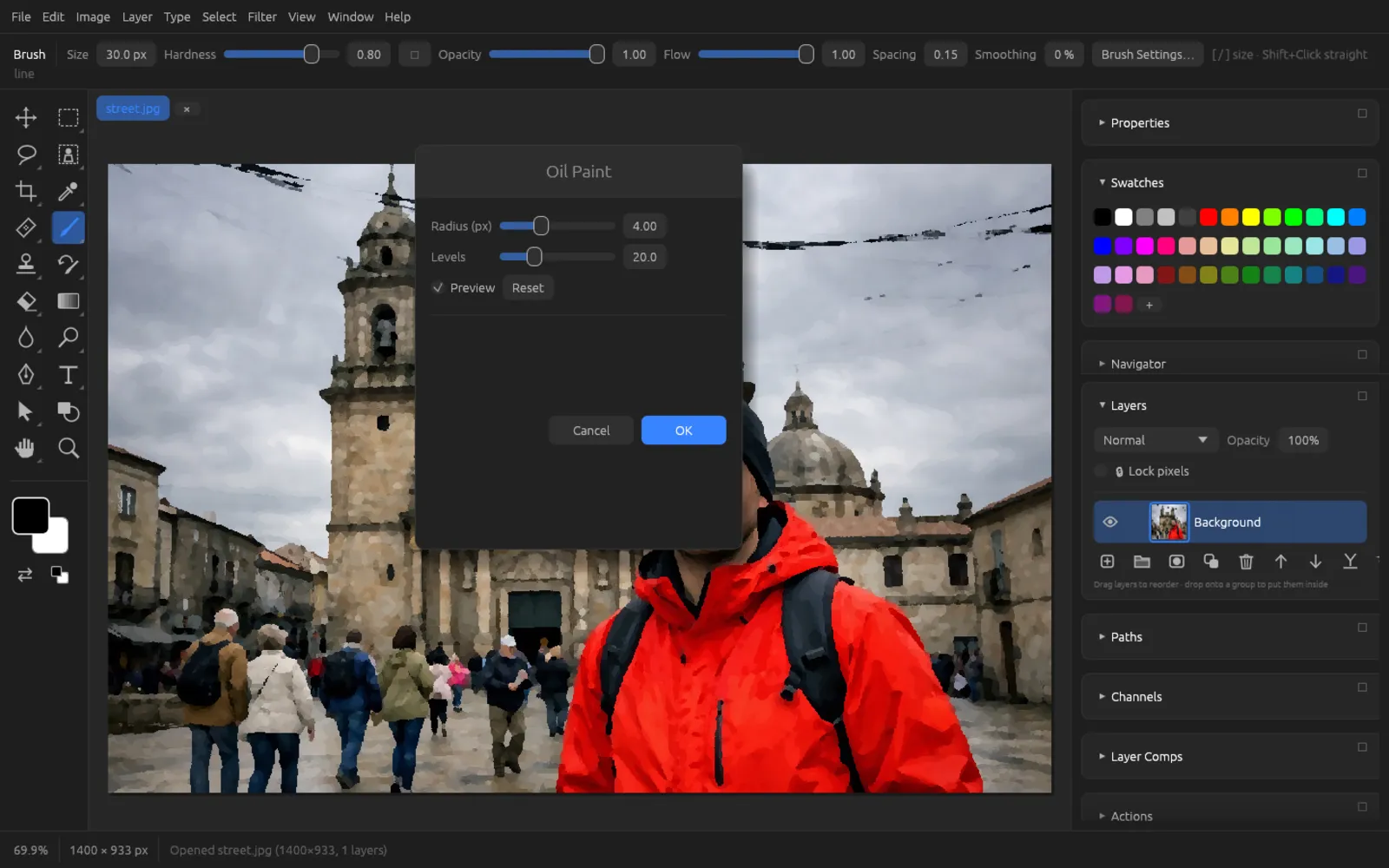
| Oil Paint… | Radius, Levels | A painterly effect, as with thick oil paint. |
| Solarize | – | Inverts the light tones – an effect from the darkroom. |
| Tiles… | Number Of Tiles, Maximum Offset, Fill Empty Area With | Breaks the image into slightly shifted tiles. |
| Wind… | Strength, Direction | Pulls light edges out into fine streaks. |
Other filters
| Filter | Settings | Effect |
|---|---|---|
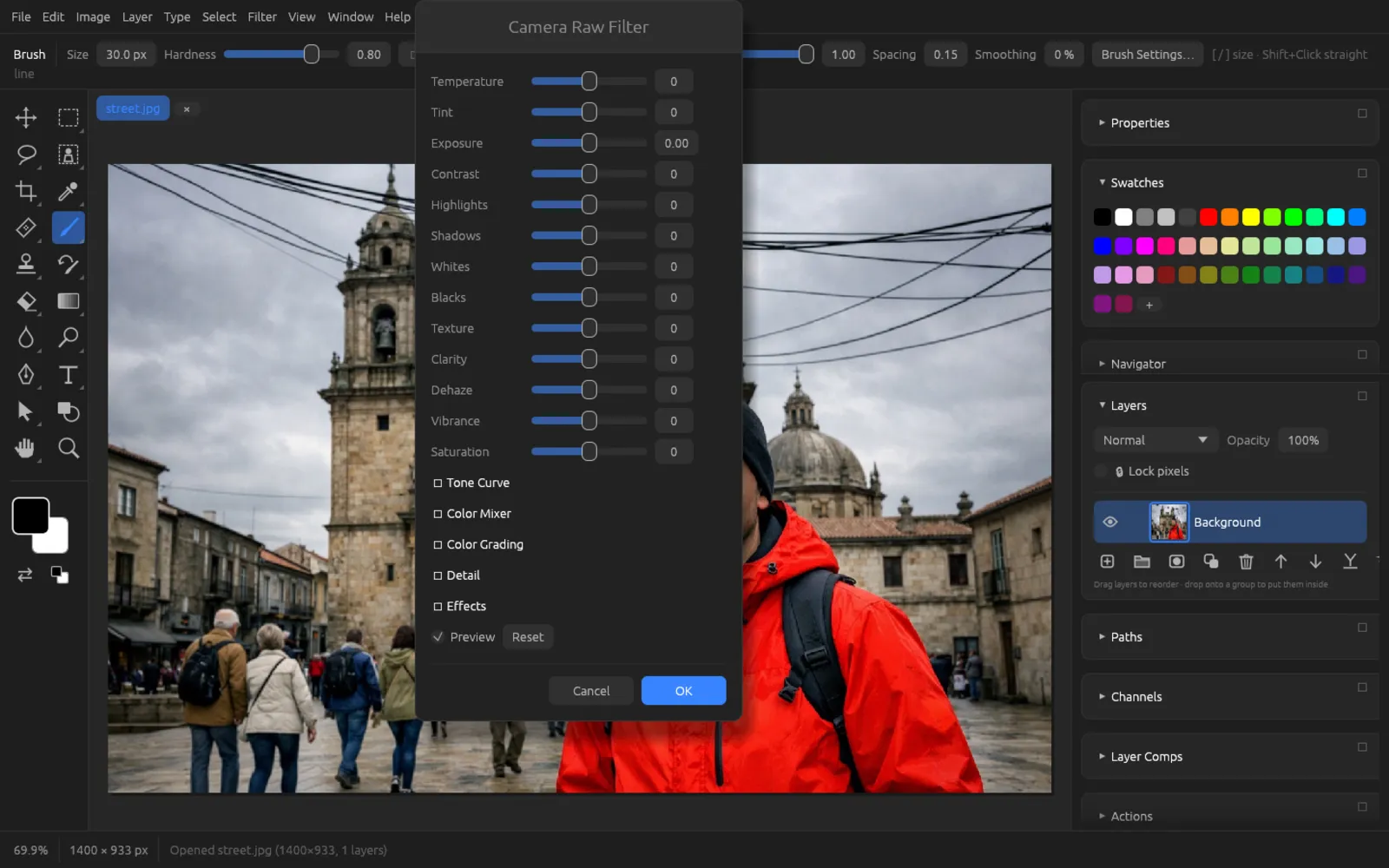
| Camera Raw Filter… | Basic sliders and further sections | The RAW development sliders for any layer (see below). |
| Custom… | 5 × 5 number grid, Scale, Offset | A convolution filter of your own: each pixel is calculated from its neighbors with the weights you enter, divided by the scale and shifted by the offset. |
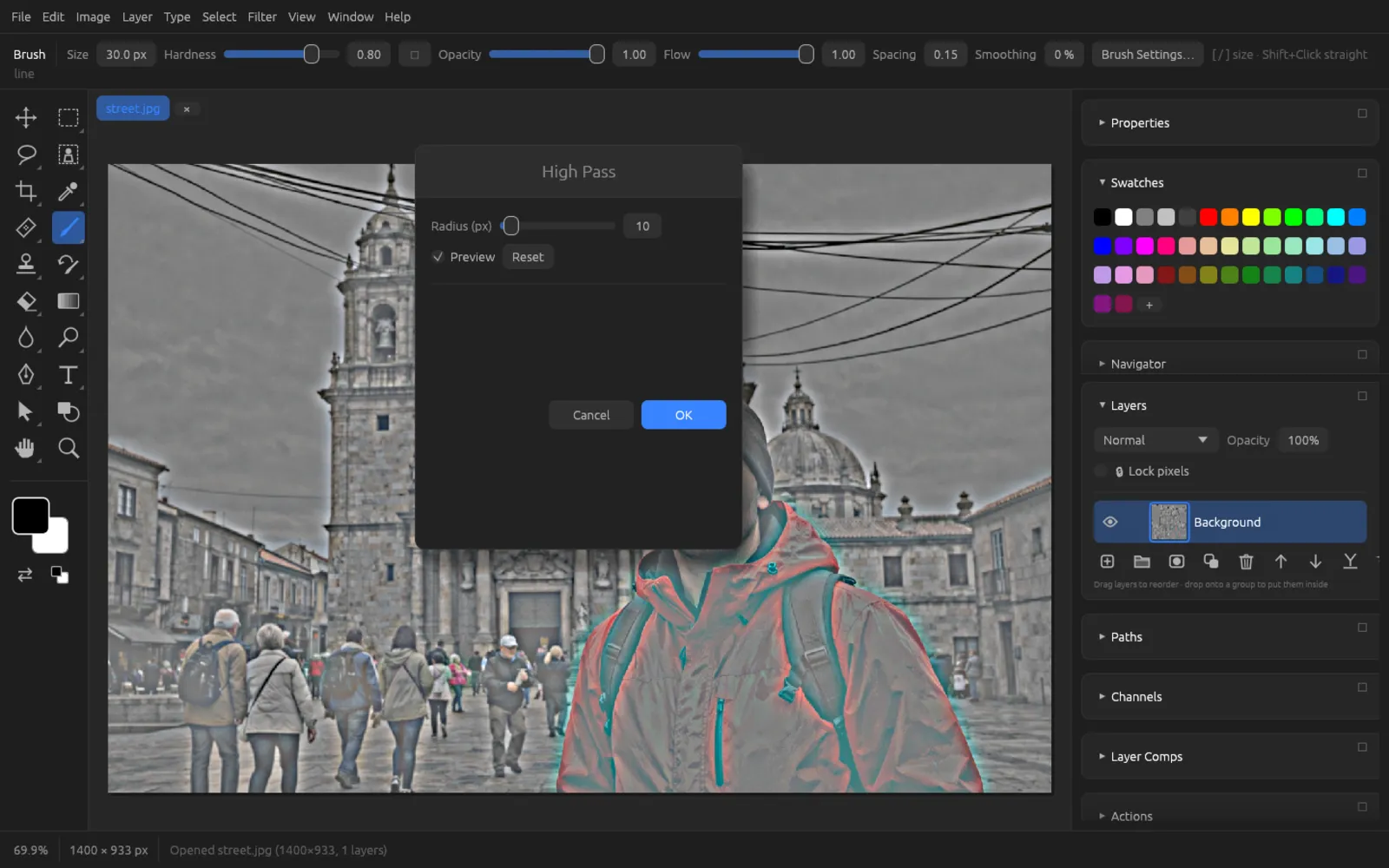
| High Pass… | Radius 0.1 … 250 px | Keeps only fine detail on gray – the basis for sharpening techniques. |
| Maximum… | Radius | Light areas spread out, dark ones shrink. Useful for masks. |
| Minimum… | Radius | Dark areas spread out, light ones shrink. |
| Offset… | Horizontal, Vertical (px), Undefined areas | Shifts the layer content; with “Wrap around” you get seamless patterns. |
Camera Raw Filter
offers the RAW development sliders for any pixel layer: Temperature, Tint, Exposure, Contrast, Highlights, Shadows, Whites, Blacks, Texture, Clarity, Dehaze, Vibrance and Saturation. Below them you can expand further sections: Tone Curve, Color Mixer, Color Grading, Detail and Effects. The chapter Color, RAW and HDR explains the sliders one by one.
Where to go next
- Smart objects and smart filters: Layers
- Limiting filters to selected areas: Selections
- AI filters, denoising, depth estimation: AI on your computer
- Recording filters in actions and setting up plug-ins: Automation