Chromatelier – User Guide
Every feature of Chromatelier, explained with step-by-step guides and screenshots from the app: from your first steps through layers, selections and adjustments to the AI tools, video and automation.
Chapters
Installation; creating, opening and saving documents.
02InterfaceMenus, tools, panels, workspaces, navigation.
03ToolsAll 58 tools in the toolbar and their options.
04LayersLayers, groups, masks, adjustment layers, styles, Smart Objects.
05SelectionsFrom the Rectangular Marquee to “Select and Mask”.
06AdjustmentsLevels, Curves, color, black and white and more.
07FiltersOver 100 filters, Filter Gallery, Liquify, Vanishing Point.
08Retouching & TransformingContent-Aware Fill, Transform, Puppet Warp, Image Size.
09Type, Shapes & PathsTypography, OpenType, shape layers, the Pen tool.
10AI on Your ComputerSubject, sky, people, Remove, neural filters – offline.
11Generative AIFill, expand, images from text – with your own OpenAI key.
12Color, RAW & HDRColor management, modes, bit depth, RAW development, panoramas.
13Video & AnimationTimeline, keyframes, sound, GIF and MP4.
14Saving, Export & PrintingFile formats, export, web, printing, Content Credentials.
15AutomationActions, batch processing, scripts, plug-ins, AI assistants.
Conventions in this guide
- Menu commands are written like this: – that is, the Image menu, the Adjustments submenu, the Curves… command.
- Keyboard shortcuts are given for macOS, for example ⌘ M. On Windows and Linux, use Ctrl instead of ⌘ and Alt instead of ⌥.
- Names of buttons and fields in dialogs are set in bold.
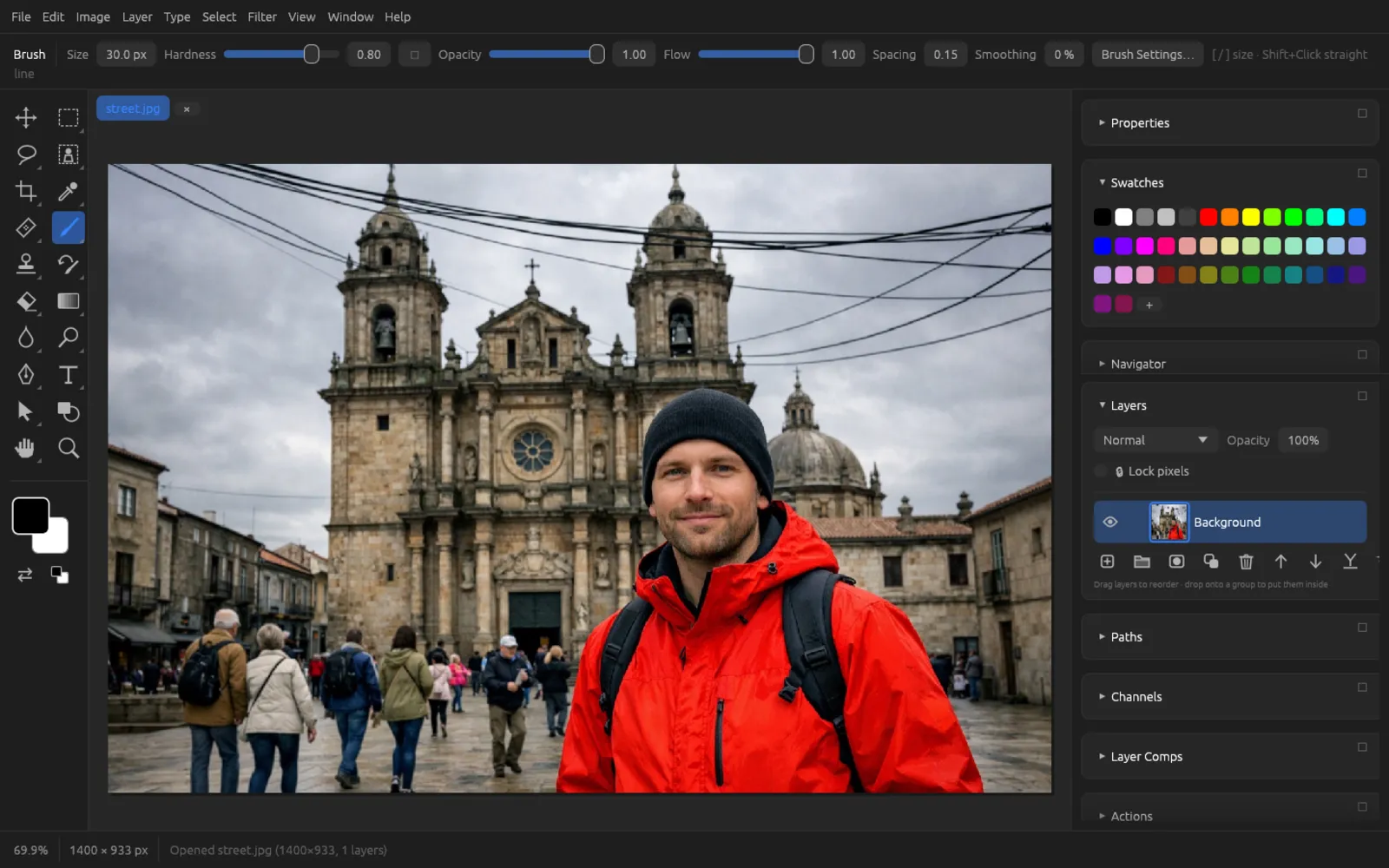
- The screenshots show the German interface with the dark theme. Click an image to see it full size.
Press / to jump to the search field on the left and search all chapters.